Deploy Chatbot on Website in Four Safe Stages: Rehearse on a Spare Site, Go Live on One Page, Widen, Then Review (Free Go-Live Gate Checklist)
Deploy chatbot on website projects go wrong when the whole site changes in one afternoon. A calmer way is to treat it like a small release: rehearse first, show the chat on a few pages, widen only after real chats look right, and keep a one-minute way back. This guide gives you the four stages, the exact settings for each, and a checklist to tick before every stage.
⚡ In short
- Stage 1: rehearse on your spare second website, which is free and has its own visitor allowance.
- Stage 2: go live on one or two pages and hide the chat everywhere else.
- Stage 3: widen to the whole site only after five real chats were answered well.
- Stage 4: review after seven days, then keep, tune or switch off.
Short answer
How do you deploy a chatbot on a website safely?
To deploy a chatbot on a website safely, use four stages: rehearse on a spare test site, go live on one or two pages, widen to the full site after real chats go well, then review after seven days. Each stage has one switch you can flip back. With LiveChatBot the free plan gives you two websites, so the rehearsal costs nothing and uses a separate visitor allowance.
Why stages
Staged deployment works because the chat is the only part visitors can see go wrong
A staged rollout limits the damage of any single mistake to a small part of your site. The chat widget is one line of code, so installing it is quick. The risk is not the install. The risk is what visitors meet: a wrong answer, a bubble covering a button, a welcome line that does not match the page.
Big teams call this a release process: change one thing, look, then change the next.
The same logic helps whatever you run. If you are on WordPress, the WordPress live chat plugin route follows these stages too. If you are on plain HTML, see chat widget for website HTML pages for what the page does at load. For the bigger picture of a website chat widget, start there. The stages below do not depend on the platform; they depend on three LiveChatBot settings: websites, where the chat shows, and the AI Agent knowledge.
Stage 1
Stage 1 to deploy chatbot on website pages is a rehearsal on your spare second website
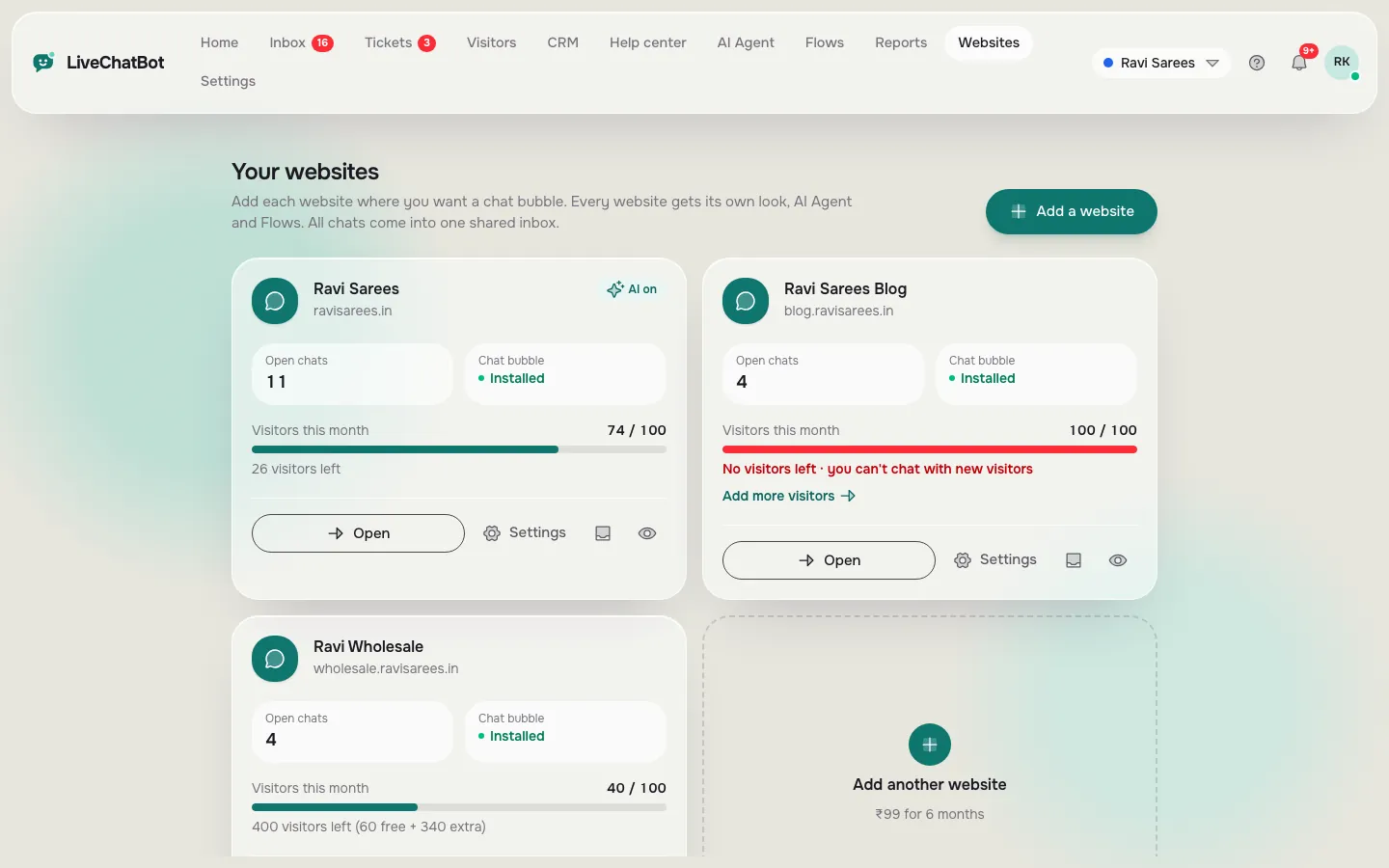
Rehearse on a second website in your account, because the free plan includes two and each has its own settings and visitor allowance. Nothing you test there touches your real site.
Add a second website with your staging address, copy its install code and paste it on that page only. Then do the work you would do live:
- Set the colours and welcome text in chat widget customization.
- Add 10 to 20 answers to the AI Agent knowledge, either typed, copied from a page, or uploaded as PDF, DOCX, XLSX, CSV or TXT.
- Set opening hours and the away form.
- Open the page on your phone and on a computer. Ask three real questions and one you never taught.
If you have no staging address, use the second website slot anyway with a single private page on your live domain that is not linked from the menu. The code is per website, so the rehearsal widget never shows on your main pages.
Worked example
Original data: what a rehearsal costs in visitors
Worked maths from LiveChatBot’s own plan rules (100 free visitors per website a month, counted once a month per new visitor).
Live site allowance
Website 1: 100 free visitors a month. Rehearsal visits on website 2 do not use any of them.
Rehearsal allowance
Website 2: its own 100 free visitors. Five test devices (two phones, a tablet, two browsers) use at most 5 of the 100.
Net cost of rehearsing
₹0, and 0 of the 100 live visitors. 2 sites × 100 = 200 free visitors a month in total.
Real screens
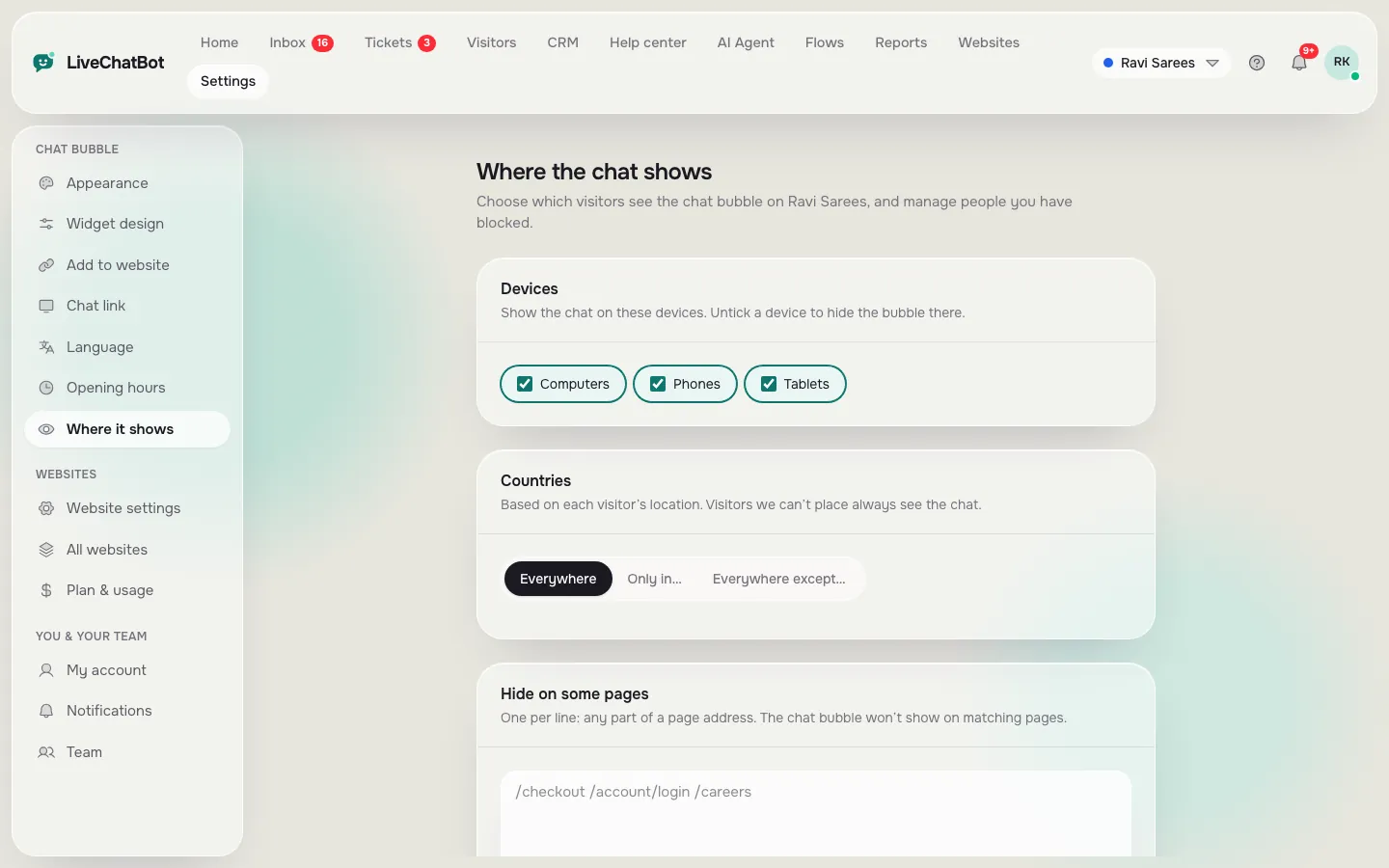
The three screens you use to deploy: install code, websites and where the chat shows
Real screens from the LiveChatBot panel, shown with sample data. Click any picture to see it full size.

Stage 2
Stage 2 puts the chat live on one or two pages only
Go live on a small set of pages by installing the code on your real site and hiding the chat on every page except the ones you chose. In Settings → Where it shows you list pages where the chat must not load, so you add everything you are not ready for, such as checkout, login and account pages.
Pick pages where questions are natural and a wrong answer costs least, such as pricing and contact. Checkout is a poor first choice because a confused visitor there is about to pay.
For a stage-two page, also check three small things:
- The bubble does not cover a cookie bar, a WhatsApp button or a back-to-top arrow. Our website chat widget placement guide shows how to check overlaps.
- The welcome line matches the page, for example prices on the pricing page.
- Your phone alerts work. Install the Android app and send yourself a test message from another device.
Keep stage two for two days at least.
What most guides miss
Our rule: deploy in your quietest hour, and keep the old contact path for seven days
Most deployment advice says “test thoroughly” and stops. We suggest two small rules that nobody seems to write down.
Deploy in your quietest hour, not at night. Open Reports → Chats and find the weekday cell with the fewest chats on the busy-hour heatmap. At that hour a mistake meets few visitors and you are awake to fix it. Midnight feels safe but nobody watches the first real chat.
Leave your old contact route in place for seven days. Keep the phone number, the contact form and the WhatsApp link visible. If the chat has a bad day, visitors still reach you. Remove or demote the old route only after stage four.
This is a rule of thumb, not a measured result. The heatmap is real data from your own dashboard.
Stage 3
Stage 3 widens the chat to the whole site after five good chats
Widen the chat to every page only when five real conversations were answered well, with no confused visitor and no missed alert. Five is a practical gate; use more if traffic is high.
Then remove the page list you set in stage two, one group at a time:
- Product and service pages first.
- Blog and help pages next. If you run a help centre, the chat can answer from your articles.
- Checkout and account pages last.
Now is also the time to add proactive messages. A chat flow can greet visitors on the pricing page after a few seconds, with conditions like page, source, country or number of visits. Add one flow at a time so you can tell which one caused a change.
Each website has its own design and visibility, so repeat the stages per site. See live chat for multiple websites.
Stage 4
Stage 4 is a seven-day review that ends in keep, tune or switch off
A review after seven days should answer three questions: did the chat help, did it hurt, and what should change. Use the dashboard rather than memory.
- Reports → Chats: reply times and the busy-hour heatmap.
- Reports → Overview: conversations per day and leads acquired.
- Chat ratings: the thumbs up or down from visitors, if you turned ratings on in Widget design.
- Unanswered questions: add answers for chats where the AI was unsure.
Then choose. Keep if chats are useful and the answers hold. Tune if there are gaps, which is the usual case; fix the knowledge, then review again in a week. Switch off the pages where it did not help, using the same where-it-shows list. Switching off does not delete anything.
Our guide on testing web chat widget changes properly explains how to compare two periods without fooling yourself.
Free tool
Go-live gate checklist
Tick each gate before you move to the next stage. If a box stays empty, stay where you are.
Rollback
How to roll back a chatbot deployment in about a minute
You can roll back a chat deployment in about a minute by hiding the chat, not by deleting anything. Add the affected pages, or all pages, to the where-it-shows exclusion list and save. The chat stops loading for new page views. For a device-specific problem, turn the chat off on phones or tablets only.
Remove the install code only if you are leaving LiveChatBot. Hiding keeps your knowledge, flows and saved replies, and bringing the chat back is the same switch in reverse.
If you pass your visitor limit, chat pauses for new over-limit visitors until you buy a pack or the month resets. Nothing is charged automatically. Read pricing before a campaign.
Honest limits
What staged deployment cannot do here
- There is no percentage rollout, such as showing the chat to 10 percent of visitors. You control pages, devices and countries, not random samples.
- The “Powered by LiveChatBot” line stays on every plan.
- There is no iOS team app. Your phone alerts come through the Android app, and iPhone users can answer from a browser.
Start now
Deploy chatbot on website pages this week, starting with the spare site
Create a free account at livechatbot.in, add your second website as the rehearsal, and work through stage one in an afternoon. Then follow the gates, and you will deploy chatbot on website pages without a bad surprise. For a broader look at how the widget fits a page, read our website chat widget guide, and for platform-specific install steps see chatbot with embeddable widget.
Frequently asked questions
How long does it take to deploy chatbot on website pages properly?
The install takes minutes, but a staged rollout takes about two weeks: a rehearsal afternoon, two days on a few pages, a widening once five chats look good, and a seven-day review.
Do I need a staging site?
No. The free plan includes two websites, so you can use the second as a rehearsal, even with one private page on your live domain.
Will testing use up my live visitor allowance?
No. Each website has its own monthly allowance, so test visits on the rehearsal site do not count against the live one.
Can I show the chatbot to only some visitors?
You can choose pages, devices and countries. There is no random percentage rollout.
How do I switch the chat off quickly?
Add the pages to the where-it-shows exclusion list and save. Your knowledge and flows are kept.
Keep reading
Related guides
Customer Support Chat Software Seen From the Agent’s Chair: What Should Already Be on Screen When a Chat Arrives (Free Agent Screen Test)
Customer Service Chatbot Platform or Separate Tools? Count the Re-Typing Steps in One Support Request Before You Choose
Difference Between Chatbot and Conversational AI: Judge Them by How They Fail, Then Run a Five-Minute Three-Turn Test (Free Copy-Ready Script)
Release the chat calmly
Rehearse free on a second website, go live page by page, and keep a one-minute way back. Start free on livechatbot.in.