Chatbot With Embeddable Widget: Where the Code Goes on WordPress, Shopify, Wix and Plain HTML, and How to Prove It Works (Free Install Checklist)
Chatbot with embeddable widget means the chat lives on your own pages, added by pasting one piece of code, with no rebuild of your site. The paste is easy. The trouble is knowing where it goes on your platform and proving it works for every visitor, not just on your laptop. This guide gives the placement for the common platforms and an install checklist you can tick through in fifteen minutes.
⚡ In short
- An embeddable widget is a small script that adds the chat bubble to every page where it loads.
- WordPress has a plugin; Joomla has an extension; React and Vue have plugins; Shopify, Wix and Squarespace are paste-the-code.
- Paste once in the site-wide footer or header area, not page by page.
- Prove it works with the checklist: private window, phone, a second page and a test message.
The idea
What an embeddable widget actually is
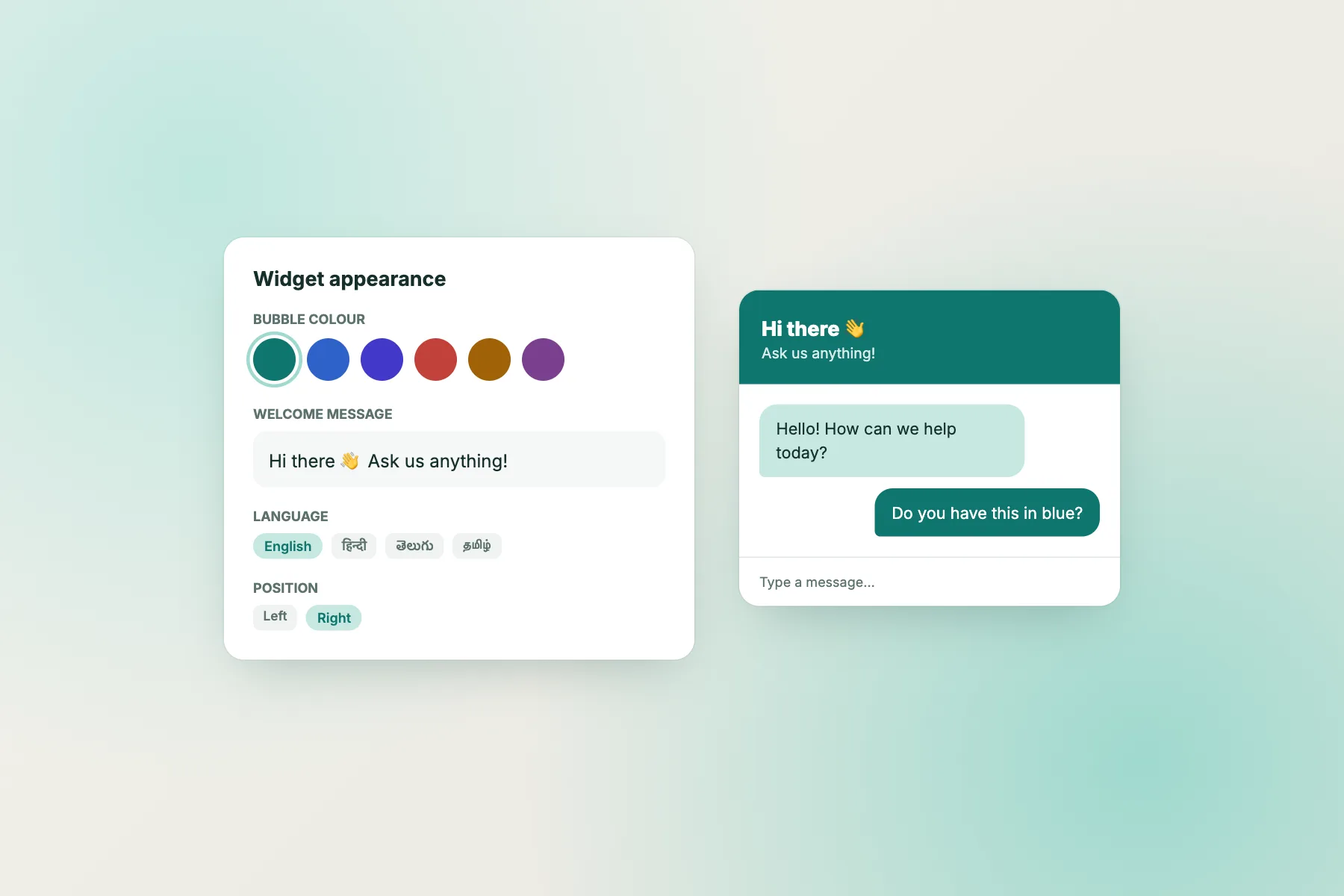
An embeddable widget is a snippet of JavaScript. When a visitor loads your page, the snippet runs, fetches the chat from LiveChatBot and shows a bubble in the corner. You change colours, welcome text and position in the dashboard, not in the code, so you rarely touch the snippet again.
Why this beats a custom build
You do not need a developer, a server or a rebuild. The same code works whether the page was made by hand, by a theme or by a site builder. If the site loads one shared footer or header on every page, you paste once and the chat appears everywhere.
What it is not
It is not a full page. If you want chat placed inside a layout, see inline mode below. For the wider choice of options, read our website chat widget guide.
Platforms
Where the code goes on each platform
The code is the same everywhere. Only the place you paste it changes.
WordPress and WooCommerce
Use the WordPress plugin. It adds the chat site-wide and works with WooCommerce.
Joomla, React and Vue
There is a Joomla extension, and React and Vue plugins. Use them rather than hand-placing the snippet in templates.
Shopify, Wix and Squarespace
These are paste-the-code. There is no Shopify app. Add the snippet to the theme’s footer or the site’s custom code area. Our guides cover Shopify, Wix and Squarespace.
Plain HTML or a custom site
Paste before the closing body tag in the template every page shares. If every page is a separate file, add it to each one or move to a shared include.
Try it
Install checklist for a chatbot with embeddable widget
Tick each step as you do it. Use a private browser window so cached pages do not fool you.
Problems
When the widget does not appear
Most failures come from five causes.
- Cache. The page you see is an old copy. Clear the site and browser cache.
- Wrong website. The snippet belongs to a different website in your account, or to a different address.
- Pasted in the wrong place. Some builders strip scripts from text blocks. Use the custom code or footer area.
- Hidden by a rule. Check the “where it shows” settings for devices, countries and hidden pages.
- Blocked by a banner or script rule. A cookie tool may delay scripts until consent. Check its settings.
Also check that the free visitor limit has not paused chat for new visitors; tracking and alerts continue, but chat pauses until a pack or the new month. If you also run a script tag manager, test with it switched off.
Placement
Bubble, inline or both for a chatbot with embeddable widget?
The default is a corner bubble. That works for most sites because the visitor sees it anywhere.
Inline mode
Inline mode places the chat inside a page, such as a Contact page or a support section. Use it where you want chat to be the main action, not an extra.
Both together
A bubble on most pages and inline chat on the Contact page is a common pattern. Pair it with a proactive message from chat flows on high-intent pages like pricing.
Mobile care
On phones, check the bubble does not cover your sticky “Buy now” bar. Move the position in the dashboard if it does.
Speed and privacy
Will an embeddable widget slow the page or break privacy rules?
Two worries come up before almost every install.
Page speed
Any added script costs something. Check it yourself: load your page in a private window, open the browser’s network tab and look at when the chat loads compared with your main content. Test on a mid-range phone on a slow connection, not only a fast laptop. If a page feels heavy, the usual culprits are large images and many other scripts, not a chat bubble, but measure before you decide.
Privacy and consent
A chat widget can see which page a visitor is on, and tracks visitors to show alerts. Say so in your privacy notice and cookie banner. If your cookie tool delays scripts until consent, the chat appears only after the visitor accepts. That is correct behaviour; just test it so you know what visitors see. Never ask visitors to type passwords or card numbers into chat.
Honest limits
What a chatbot with embeddable widget on LiveChatBot does not include
Know the edges before you rely on it.
- “Powered by LiveChatBot” stays on every plan.
- There is no pre-chat form.
- There is no WhatsApp inbox; a WhatsApp button card opens your number instead.
- There is no iOS team app; the team uses the Android app or a browser.
- There is no Elementor or Divi plugin; paste the code or use the WordPress plugin.
What you do get is a chat that costs nothing to try. Packs are one-time and never expire if traffic grows; see pricing. For a step-by-step beginner path, read how to set up live chat on a website.
Frequently asked questions
What is a chatbot with embeddable widget?
A chat tool you add to your own site by pasting one script, so the bubble appears without rebuilding your pages.
Where do I paste the code?
In the shared footer or header area of your site, once. On WordPress, use the plugin instead.
Does it work on Shopify, Wix and Squarespace?
Yes, by pasting the code. There is no Shopify app.
Why is the widget missing on my live site?
Usually cache, the wrong website, or the code pasted somewhere the builder strips it. Check the where-it-shows settings too.
Can I remove the Powered by badge?
No. The badge stays on all plans.
Keep reading
Related guides
Chatbot With JavaScript SDK: What an SDK Is, What LiveChatBot Gives You Instead, and the Eight Calls You Can Copy Today (Free Copy-Ready Calls)
Chatbot With REST API: Five Jobs a REST API Can Do for Your Business, and a Quick Quiz to Decide If You Need It Yet (Free Route Quiz)
Chatbot With SMS Notifications: Is a Text Really the Best Alert for Your Team? Compare SMS, Phone Push, Email and WhatsApp (Free Alert Scorecard)
More to read
More guides on this topic
Chatbot With Contact Collection: Where Each Phone Number and Email Goes After It Is Typed, and a Care-for-Contacts Checklist (Free Handling Checklist)
Put the chat on your site today
One snippet, a free plan for two websites and no per-seat charges. Start free on livechatbot.in.