Free Website Chat Widget Placement: Stop It Colliding With Cookie Banners, WhatsApp Buttons and Sticky Bars (Free Overlap Checker)
Free website chat widget installs take five minutes, but on a phone the bubble often lands on top of a cookie banner, a WhatsApp button or a sticky “Add to cart” bar. Visitors tap the wrong thing, or can’t reach either. This guide shows how to measure what’s already floating on your pages, decide where the chat should sit, and fix collisions without code. A free checker tests your layout on a phone and a desktop screen.
⚡ In short
- List everything that floats on your pages: cookie banner, WhatsApp button, back-to-top arrow, sticky bars.
- Measure each one in your browser’s mobile view. Phones are where collisions happen.
- Give the chat bubble its own corner, with clear space around it.
- One floating button is better than two. Put WhatsApp inside the chat as a card.
The problem
Why the bottom-right corner gets crowded
Every tool you add to a website wants the same spot. Chat widgets, WhatsApp buttons, “back to top” arrows, review badges and cookie banners all default to the bottom of the screen, and most to the bottom-right corner.
On a desktop there’s usually enough room. On a phone screen 375 pixels wide, two 56-pixel buttons with 20 pixels of margin can sit right on top of each other. A cookie banner 110 pixels tall can cover the chat bubble completely until the visitor accepts it, and many visitors never do.
The results are easy to miss because you rarely see your own site as a new visitor:
- The chat bubble is hidden behind the cookie banner on the first page view.
- A visitor trying to open chat taps WhatsApp instead, or the reverse.
- A sticky “Buy now” bar on product pages hides the bubble exactly where buyers have questions.
None of this shows up in your chat reports. You just get fewer chats than you should, and you may blame the free website chat widget when the real cause is placement.
Step 1
Make a list of everything that floats
Open your site on your phone, in a private window so the cookie banner shows. Visit your home page, a product or service page, the cart or contact page and a blog post. Write down every element that stays put while you scroll.
Measure on a computer
In Chrome, right-click the page, choose Inspect, and switch on the device toolbar to see a phone-sized view. Click each floating element to see its width, height and distance from the screen edge. Rough numbers are fine; you’re looking for clashes, not pixel perfection.
Note which pages have extra elements
Sticky bars often appear only on product pages. Promo banners may appear only during a sale. These page-specific clashes are the ones people miss.
Free tool
Check your free website chat widget for overlaps
Enter your chat bubble’s corner and size, then up to four other floating elements. The checker draws them on a phone and a desktop screen and reports any overlap or near-miss.
Your chat bubble
Other things floating on your pages (cookie banner, WhatsApp button, back-to-top arrow, sticky “Buy now” bar…). Measure them in your browser’s mobile view.
Runs only in your browser; nothing is sent or saved.
Step 2
Pick the chat's corner, then move the rest
The chat bubble should have the bottom corner that's easiest to reach. For most visitors on phones that's the bottom-right, where the right thumb rests. If something else already owns that corner and can't move, put the chat bottom-left; visitors find it either way.
Then decide what else can move:
- Back-to-top arrows are rarely needed on phones. Most themes let you hide them on mobile or move them.
- Review badges can sit inside the footer instead of floating.
- Cookie banners should close for good after one click, and a slim bar is kinder than a box covering half the screen.
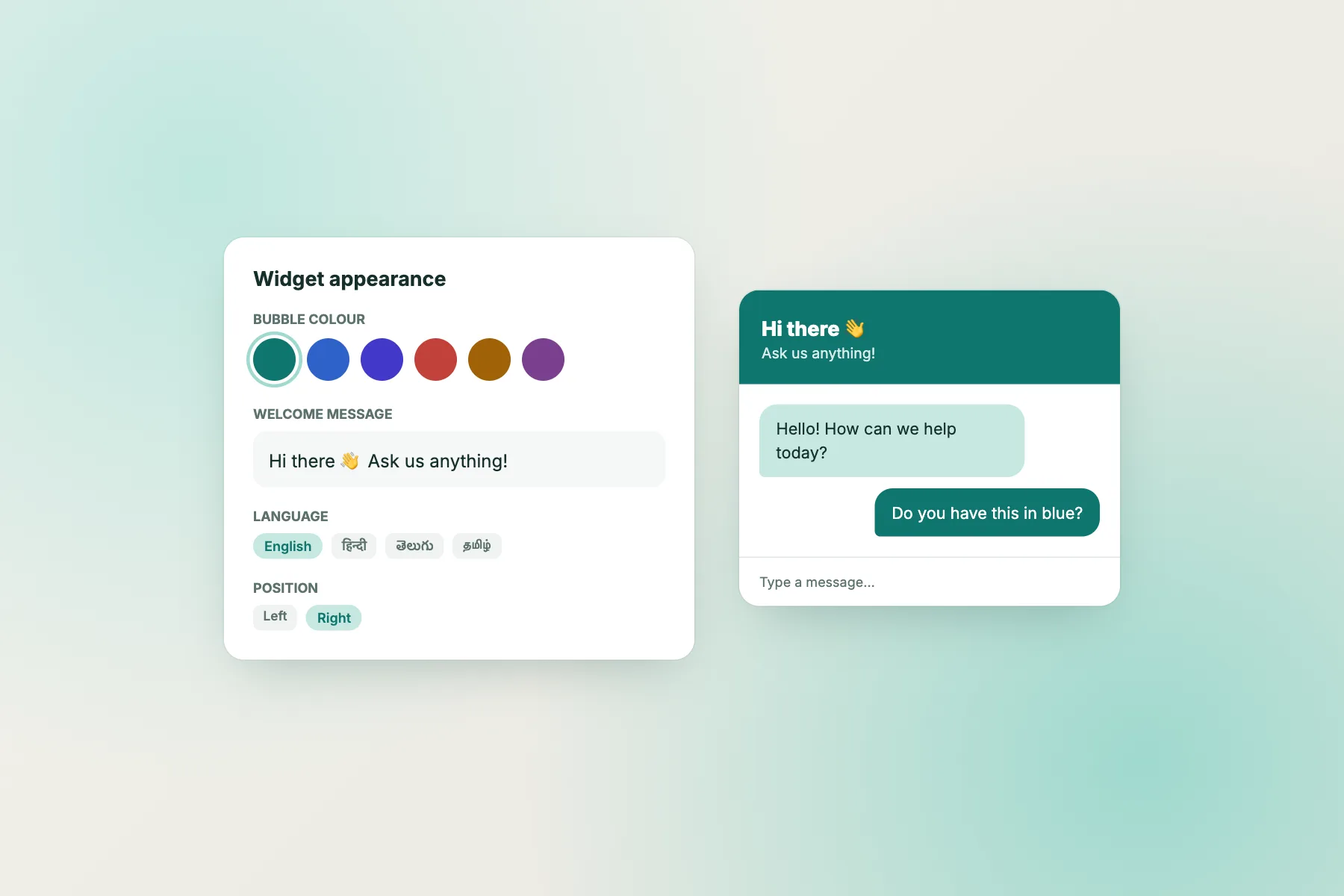
In LiveChatBot you choose the widget's colour and position in the widget settings. Our widget customisation guide walks through each setting.
Step 3
Replace the second button with a card
The most common clash is chat plus WhatsApp. Many businesses add both because some customers prefer WhatsApp. You don't need two floating buttons on a free website chat widget setup to offer both.
LiveChatBot's widget cards let you add a WhatsApp button card inside the chat window, alongside call, email or link cards. Visitors open one bubble and choose how to talk to you. That frees the corner, removes the wrong-tap problem and keeps your page cleaner. Note that the card opens WhatsApp on the visitor's phone; LiveChatBot doesn't have a WhatsApp inbox, so those messages arrive in your normal WhatsApp.
Our guide to adding cards people tap shows how to plan them, and the WhatsApp chat button page explains the card itself.
Step 4
Hide the chat where it gets in the way
Sometimes the clash only happens on one or two pages, such as a checkout with a sticky payment bar. Rather than redesigning the page, hide the chat there.
LiveChatBot's "where it shows" settings let you choose devices and countries and list pages where the widget is hidden. If you'd rather keep chat on those pages but out of the way, the JavaScript API (window.LiveChatBot hide and show) lets a developer hide the bubble while a sticky bar is visible and bring it back afterwards. Our guide to showing chat on specific pages covers the settings.
Step 5
Test on a real phone after every change
Browser tools are good for measuring, but a real phone shows what visitors feel. After you move anything, run this five-minute test on an Android phone and, if you can borrow one, an iPhone:
- Open your home page in a private tab so the cookie banner appears.
- Try to open the chat with your thumb, without zooming. Did you hit the bubble first time?
- Scroll a product or service page until any sticky bar appears. Is the bubble still visible?
- Open the chat and close it again. Does anything jump or cover the close button?
- Rotate the phone sideways and check once more.
Repeat the test whenever you install a new plugin, change theme or run a sale banner. A free website chat widget only works if people can reach it, and new floating elements tend to arrive quietly with updates.
If you want a wider look at how your widget appears to visitors in each state, from closed bubble to finished chat, our widget states guide is a good next read.
Before and after
Common clashes and their fixes
Frequently asked questions
Where should a free website chat widget sit on a phone?
Usually the bottom-right corner, with at least 16 pixels of clear space around it. If another element owns that corner and can't move, use bottom-left.
Can I have both a chat bubble and a WhatsApp button?
You can, but they often collide on phones. A WhatsApp card inside the chat window gives visitors both options from one bubble.
Does the cookie banner really hide the chat?
Often, on the first page view. Check in a private window on your phone. A slim banner that closes for good fixes most cases.
Can I hide the chat on some pages only?
Yes. LiveChatBot's "where it shows" settings let you hide the widget on chosen pages, devices or countries.
Does the overlap checker read my website?
No. You enter sizes yourself, and it runs entirely in your browser. Nothing is sent or saved.
Keep reading
Related guides
Cheapest Live Chat Software Today, Cheapest Next Year? Stress-Test Each Price Against More Agents and More Traffic (Free Growth Cost Tester)
One bubble, its own corner
LiveChatBot's free widget includes position, colours, cards for WhatsApp, call and email, and page rules. Start free on livechatbot.in.