Online Chat Widget States: Write and Check the Six Faces Visitors See, From Closed Bubble to After the Chat (Free State Previewer)
Online chat widget setup usually stops at the colour and the welcome message. But a visitor doesn’t see one widget; they see six different states depending on the moment: a closed bubble, a teaser, an open window, a wait for a reply, an away screen and the end of a chat. Each one needs its own words, and most websites leave at least two of them on a confusing default. This guide walks through all six, with what to write in each, and a free tool previews your text in every state and flags what’s missing.
⚡ In short
- A chat widget changes shape through a conversation: closed, teaser, open, waiting, away and finished.
- The waiting and away states are the ones most often left on defaults, and they’re where visitors give up.
- Each state has one job: invite, welcome, reassure, collect a contact or close cleanly.
- Write all six together so the tone matches, then preview them on a phone-sized screen.
Why states
One widget, six different moments
Think about what a visitor actually sees. They land on a page and notice a small bubble in the corner. A few seconds later a short card might pop up beside it. They tap, and a window opens with your team name and a greeting. They type a question and hit send, and for a moment nothing happens. If it’s late at night, they see something else entirely: a message saying you’re away and a box for their email. And when the conversation is over, there’s a last line on screen before they close it.
Those are six distinct states, and each one is a chance to keep the visitor or lose them. A great welcome message is wasted if the waiting state is silent for three minutes, because the visitor assumes nobody is there and leaves. A friendly design is wasted if the away state just says “Offline”, because the visitor doesn’t know whether to type or not.
Most guides to widgets cover appearance: colour, position, avatar, icon. That matters, and our settings guide goes through every option. This guide is about the words and behaviour in each state, which matter more for whether people actually chat.
The method is simple. List the six states, write the text for each one in a single sitting so the tone stays consistent, preview them at phone width, and fix anything too long or too vague. The free previewer further down does the last two steps for you.
The six states
What each state is for
1
Closed
The bubble. Job: be noticed, not annoying. No text, but position matters.
2
Teaser
A short card beside the bubble. Job: invite a first message. One line, ideally a question.
3
Open, online
Window with team name and welcome. Job: make typing feel easy.
4
Waiting
After the visitor sends, before a reply. Job: reassure them someone’s coming.
5
Away
Outside hours. Job: collect an email or phone and say when you’re back.
6
After the chat
The last line. Job: close cleanly and leave the door open.
States 1 and 2
The closed bubble and the teaser
Closed
The closed state has no words, but it has two decisions: where the bubble sits and when it appears. On phones, check that it doesn’t cover your add-to-cart button, a cookie banner or a WhatsApp button. If space is tight, our corner planner helps arrange everything that competes for the bottom of the screen. If the bubble shouldn’t appear on certain pages, such as checkout or a login screen, hide it there; see showing chat on specific pages.
Teaser
The teaser is the small card that appears next to the closed bubble, sometimes called an attention grabber. It’s the only state that speaks before the visitor does, so it needs to earn its place.
Keep it under about 60 characters so it fits on a phone without wrapping into a paragraph. Make it specific to the page if you can, and end with a question the visitor can answer: “Need help choosing a size?” works; “Welcome to our website! We are here to help you 24/7 with all your queries” doesn’t.
Don’t show it instantly. A teaser that pops up the moment the page loads feels like an ad. A delay of several seconds, or showing it only on pages where people hesitate, works better. Our guide to proactive chat covers timing, and site chatting page by page shows where to greet and where to stay quiet.
State 3
Open, with the team online
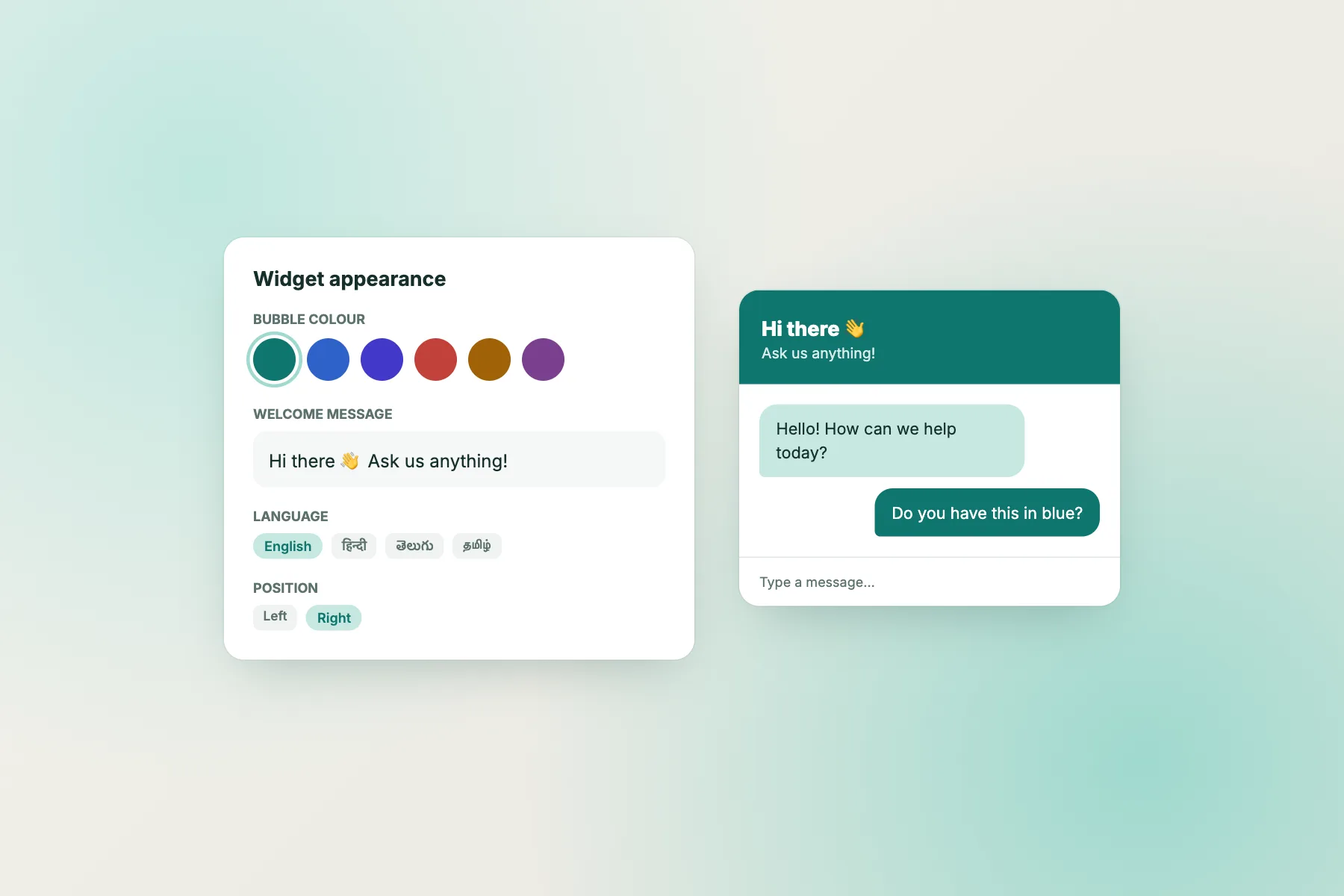
When a visitor taps the bubble, the window opens. The two pieces of text here are the team name in the header and the welcome message.
Team name. Short and recognisable: your shop name, or “Sharma Opticals” rather than “Sharma Opticals Customer Support Team Desk”. Long names get cut off on phones. If you show a person’s name and photo, make sure that person actually answers chats.
Welcome message. One or two sentences that tell visitors what they can ask and invite them to type. Name two or three common topics so people know they’re in the right place: “Hi! Ask about delivery, sizes or returns, and we’ll reply here.” Avoid questions that need a long answer before you’ve helped, like “Please describe your issue in detail.”
There’s no form to fill in before chatting in LiveChatBot, so the welcome message is the first thing visitors read and the last thing before they type. If you serve visitors in several languages, the welcome can be translated automatically for their browser language; see multilingual chat. For more examples, our guide to writing a welcome message has lines by industry.
Free tool
Preview all six states of your widget
Type your text once. The tool sketches each state at roughly phone width and flags lines that are too long, waits with no time given, and away messages that don’t ask for a contact.
Type your widget’s text once and preview all six states. The tool flags lines that are too long for a phone or missing something visitors need.
Runs only in your browser; nothing is sent or saved. Previews are simplified sketches, not your real widget.
State 4
The waiting state, where most chats are lost
The waiting state is the gap between the visitor pressing send and the first human or bot reply. On a good day it’s a few seconds. On a busy day it can be minutes. And it’s the state almost nobody designs.
From the visitor’s side, an unanswered message feels like talking to an empty room. After a minute or two without any sign of life, many people close the tab and try a competitor. They didn’t leave because you were slow; they left because nothing told them you were coming.
Three things fix it:
- An immediate acknowledgement. A short line that appears right after the first message: “Thanks! Someone from our team will reply here, usually within 2 minutes.” Say roughly how long. “Soon” means nothing; “2 minutes” sets an expectation people will wait for.
- A bot that answers what it can. If a bot can answer routine questions straight away, the waiting state disappears for those chats. LiveChatBot’s AI Agent answers from the knowledge you give it, and the free keyword bot answers from saved replies.
- A rescue if nobody comes. If no one replies within a set time, offer a way out: leave an email or phone number and get a reply later. LiveChatBot’s Flows include a chat rescuer for this, and messages can become tickets.
Then measure it. Our guide to live chat response time explains which numbers to watch.
State 5
Away: outside your opening hours
The away state appears when nobody is available. Done badly, it’s a grey “Offline” label and a chat box that silently goes nowhere. Done well, it’s one of the best lead sources on your site, because evening visitors are often the most serious ones.
A good away message does three things in two sentences:
- Says you’re away, plainly. “We’re closed right now.”
- Says when you’re back. “Back at 10 am tomorrow.” A specific time beats “during business hours”, which visitors can’t see.
- Asks for a way to reply. “Leave your question and an email or phone number, and we’ll reply first thing.”
Then make sure the contact actually reaches someone. In LiveChatBot, opening hours switch the widget to an away form that collects an email or phone number, and offline messages can become tickets with an owner and a status. Our guide to opening hours shows the setup.
If a bot runs at night, the away state changes: the bot answers routine questions, and only the rest need a contact. Write the away message so it works either way.
State 6
After the chat
The final state is easy to forget because the useful part of the chat is over. But the last line on screen is what a visitor remembers, and it decides whether they come back to the chat next time.
A good closing line confirms what happens next and leaves the door open: “Thanks for chatting! Your order change is done, and you’ll get an email shortly. Need anything else? Just type here.” If the chat became a ticket, say so and say when they’ll hear back.
If you ask for feedback here, keep it to one tap; our guide to chatbot feedback has wording that doesn’t feel like a survey. And if you close chats with a short recap, our wrap-up guide shows a three-part pattern: recap, next step, owner.
Once all six states are written, read them in order, out loud, as a visitor would meet them. The tone should feel like one person talking: the same level of formality, the same way of naming your business, no sudden switch from “Hey there!” to “Your request has been registered.” A well-written online chat widget feels like one calm conversation from the first bubble to the last line.
Before and after
The same widget, rewritten
Checklist
Your online chat widget, all six states written
Getting started
Write your six states today
Open a blank note and write one line for each state. Paste them into the previewer, fix what it flags, then put them into your widget settings and send yourself a test chat at noon and at midnight.
LiveChatBot’s free plan includes the online chat widget with your colour, position, team name, avatar, welcome text and attention grabber card, plus widget cards (including a WhatsApp button card), opening hours with an away form, Flows with a chat rescuer, tickets, the team inbox and the Android app. It covers two websites with 100 visitors per website each month. See pricing and start at livechatbot.in.
Frequently asked questions
What are the states of an online chat widget?
Closed (just the bubble), teaser (a short card beside it), open with the team online, waiting for a reply, away outside hours, and after the chat. Each needs its own text.
How long should a chat teaser be?
Under about 60 characters, so it fits on a phone without wrapping into a paragraph. A short question works best.
What should the waiting message say?
Thank the visitor and give a rough time, such as ‘usually within 2 minutes’. A specific time keeps people waiting; ‘soon’ doesn’t.
What should an away message include?
That you’re closed, when you’ll be back, and a request for an email or phone number so you can reply.
Does the previewer show my real widget?
No. It draws simplified sketches of each state with your text so you can check length and wording. Nothing is sent or saved.
Keep reading
Related guides
Online Chat Web Free: Answer Your Website Chats From a Browser Tab, No Software to Install (Free Browser Readiness Check)
Online Chat Software Trial Plan: 16 Tasks to Run in Your First Week, and a Scorecard to Pick the Winner (Free Trial Scorer)
Personalized Chatbot Without the Creepiness: 9 Levers and Where to Stop
Six states, one calm conversation
Set your welcome, teaser, away form and rescuer in one place, free. Start on livechatbot.in.