Chat Widget Settings, One by One: What Every Option Does and the Value to Pick
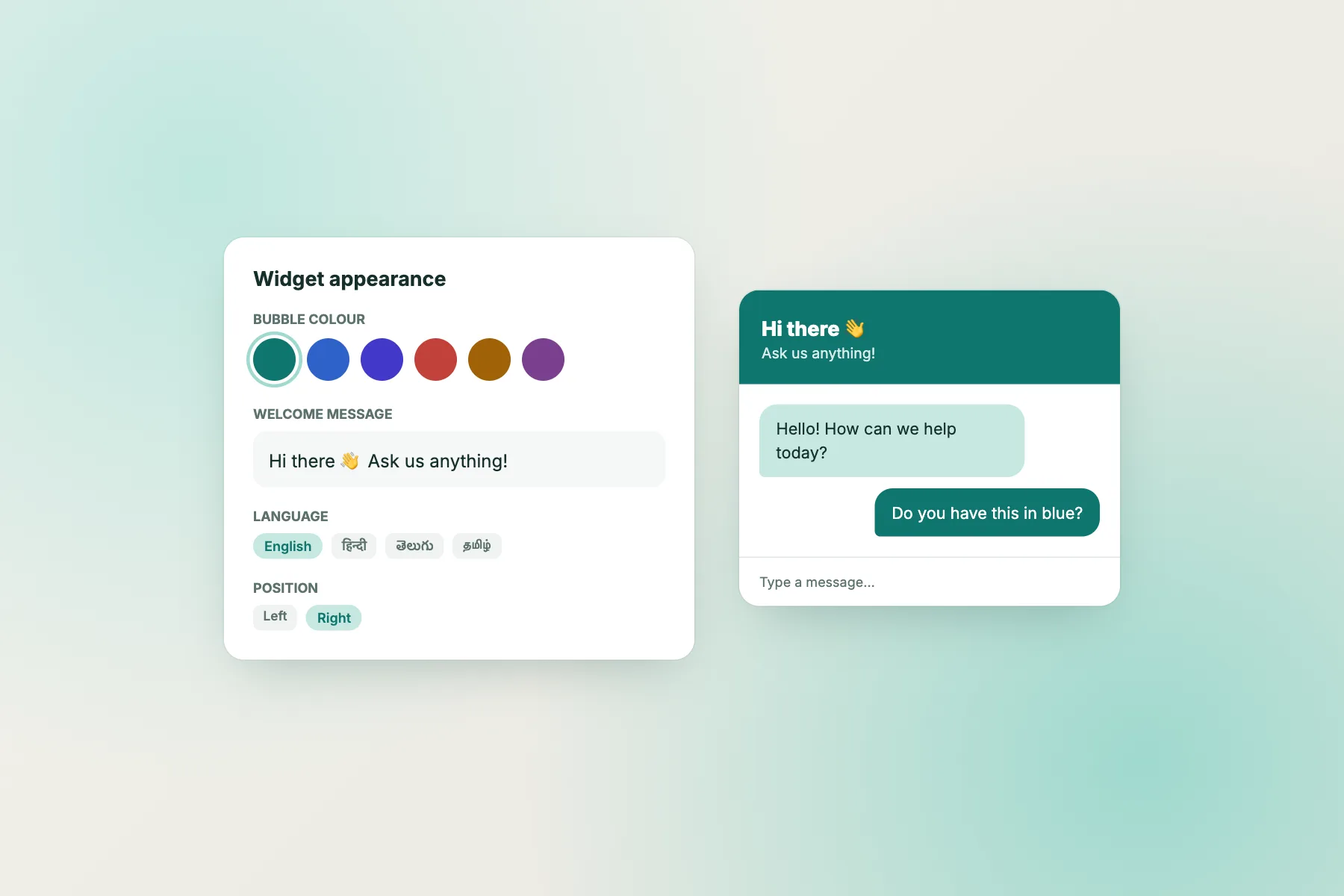
Chat widget dashboards hold more settings than most owners ever open, and the defaults are rarely the best choice for your site. This reference walks through every option in the order you’ll meet it, explains what it changes for the visitor, and recommends a starting value for a typical small-business website. Keep it open in one tab while your dashboard is open in the other.
Bubble plus attention grabber card
⚡ In short
- Settings fall into four groups: look, words, behaviour and rules about where it shows.
- Good defaults: bottom-right, your brand colour, a real team name, a welcome line under 15 words.
- Use the attention grabber card on two or three key pages, not everywhere.
- Set opening hours and the away form before you go live, so no message is lost at night.
- Review the settings once a month for the first quarter, then once a quarter.
Before you start
Why settings matter more than the software
Two shops can install the same software and get completely different results. One gets a steady stream of questions that turn into orders; the other gets nothing and decides “chat doesn’t work for us”. The difference is almost always in the settings: a greeting nobody notices, a button hidden behind a cookie banner, an away message that promises a reply “soon” with no email field to send it to.
A chat widget’s settings are where you translate your business into the small window in the corner of the page. They decide what the visitor sees first, what words invite them in, and what happens when nobody is around. None of them take long to change, and every change is reversible, so the best approach is to pick sensible starting values, go live, and adjust once you have a month of real conversations to learn from.
This guide uses the options available in LiveChatBot, which are similar to most tools. Where a setting has a clear best value for small businesses, we say so. Where it depends on your site, we explain how to decide. If you haven’t installed anything yet, the setup guide gets the code onto your site in a few minutes; come back here once the bubble appears.
Group 1 · Look
Colour, position, name and avatar
The four settings that decide whether visitors notice the bubble and trust it.
| Setting | What it changes | Recommended start | Change it when |
|---|---|---|---|
| Colour | Bubble, header and your message bubbles | Your main brand colour | It clashes with a sale banner or your own buttons |
| Position | Bottom-right or bottom-left corner | Bottom-right | Another button (cookie, WhatsApp, back-to-top) already sits there |
| Team name | The name shown in the window header | Your business name or ‘Priya at Sunrise Tours’ | Visitors ask ‘is this a bot?’ and you want to be clearer |
| Avatar | The small picture next to replies | A real team photo or your logo | The photo is blurry on phones; use a simpler image |
Colour
Use the same colour as your main buttons so the bubble looks like part of the site, not an advert. Very light colours (pale yellow, light grey) disappear against white pages; check contrast on a phone in sunlight. The W3C contrast guidance is a useful reference if you’re unsure.
Position
Bottom-right is where visitors look for help, so start there. Move it only if something else already lives in that corner. Two buttons stacked on top of each other look messy and get mis-tapped on phones.
Team name and avatar
People reply more readily to a face and a name than to “Support”. If your team is one person, say so: “Ravi, owner” builds more trust than a vague company label. If the AI Agent answers first, say so in the welcome line so nobody feels misled.
Group 2 · Words
Welcome text, the attention grabber and away messages
Words do more work than colours. A visitor decides in a second or two whether the window is worth opening, and the only thing they read is a short line of text.
Welcome text
This is the first message inside the window. Keep it under fifteen words, say who is answering, and invite a specific question. “Hi! Ask us about delivery, sizes or bulk orders” works better than “How may I help you today?” because it tells visitors what kind of question is welcome. Our welcome message guide has more than thirty examples by industry.
Attention grabber card
The grabber is a small card that pops out above the bubble with a line of text, such as “Questions about delivery? Ask us.” It is the single most effective setting for getting first messages, and the easiest to overdo. Show it on pages where visitors hesitate: pricing, product pages, the booking form. Leave it off the blog and the contact page, where it feels pushy.
Away message
When nobody is online, the window should still be useful. Write an honest line: “We’re offline until 9 am. Leave your question and email, and we’ll reply first thing.” Avoid “We’ll be right back” when you won’t be.
Language
If your visitors write in Hindi, Tamil or another language, turn on automatic language and add welcome translations so the first line greets them in their own language. See multilingual live chat for the details.
Try it
Grabber lines you can copy
Pick one per page type. Shorter lines get more clicks.
Group 3 · Behaviour
Widget cards, inline mode and the WhatsApp button
Behaviour settings control what the window does beyond showing a text box.
Widget cards
Cards appear inside the window before the visitor types anything: a link to your returns policy, a “Track my order” button, a WhatsApp button card for people who prefer to continue on their phone. Two or three cards is plenty. More than that and the window turns into a menu that nobody reads. Note that the WhatsApp card simply opens WhatsApp; conversations there don’t come into your team inbox, so tell your team to watch both.
Inline mode
Instead of floating in a corner, the window can sit inside a page, for example on a “Contact us” or “Help” page where chat is the main thing you want visitors to do. Inline mode is also useful for course pages and booking pages where a floating bubble would cover the form.
Proactive messages
Proactive messages are set up in Flows rather than in the look settings, but they change how the window behaves: it can open with a message after a visitor has spent a while on a page or arrived from a particular source. Start with one flow on your highest-value page. Our chat flow guide walks through it step by step.
The developer switchboard
If you have a developer, the JavaScript API (window.LiveChatBot) lets them open, close, show or hide the window from your own buttons, pass in a logged-in visitor’s name, and react to events. A common use is a “Talk to us” button in the page header that opens the chat window directly.
Group 4 · Rules
Where it shows, when it’s staffed and who it blocks
These settings protect your team’s time and your visitors’ experience.
Where it shows
Choose devices and countries, and list pages where the bubble should be hidden, such as checkout or a members area. See show chat on specific pages.
Opening hours
Set the hours your team is available. Outside them, visitors see the away form, which collects an email or phone number so you can reply later.
Away form to ticket
Offline messages can become tickets with an owner and a status, so nothing slips through. See turn a chat into a ticket.
Blocking
Block a visitor or an IP address that sends spam or abuse. It’s a quiet fix that protects your team without affecting anyone else.
AI replies
Let the AI Agent answer first from the knowledge you give it, with the free keyword bot as a fallback from saved replies.
Team inbox and app
Decide who receives chats and install the Android app so someone can answer away from the desk.
Common mistakes
Six settings that quietly lose you conversations
When owners tell us chat isn’t working, these are the usual causes. Each one takes less than a minute to fix.
- The bubble is covered. A cookie banner, a WhatsApp plugin or a “back to top” arrow sits on top of it, especially on phones. Open your site on a phone and check every key page.
- The welcome line is generic. “How can we help?” invites nothing in particular. Name two or three topics instead.
- The grabber shows everywhere. On every page, on every visit, it becomes wallpaper. Limit it to pages where people hesitate.
- Opening hours were never set. Visitors at 11 pm see a promise of a live reply that never comes. Set hours and an honest away message.
- Nobody gets notified. The window works, but alerts go to an inbox nobody watches. Install the app and test that a message actually reaches someone.
- It shows on checkout. Some owners want it there; many find it distracts from payment. Test both and decide with numbers, not instinct.
The common thread is that each mistake is invisible from the dashboard. You only see it from the visitor’s side, which is why the next section asks you to test as a visitor.
Test as a visitor
A ten-minute check after every change
Tick these off on your own phone and laptop.
Your first month
How to tune settings with real conversations
Once your chat widget is live, resist changing everything at once. Change one setting per week and watch what happens, so you know which change made the difference.
Week 1: leave it alone
Collect conversations with your starting values. Note how many visitors opened the window and how many sent a message. LiveChatBot’s visitor tracking shows which pages they were on.
Week 2: the welcome line
Rewrite the welcome text using the topics people actually asked about in week one. If most questions were about delivery, lead with delivery.
Week 3: the grabber
Turn the attention grabber on for your two busiest product or pricing pages. Compare first messages from those pages with week two.
Week 4: hours and away form
Look at when messages arrived. If many came after hours, consider extending hours slightly, or make sure the AI Agent and saved replies cover the common questions overnight.
After a month you’ll have settings shaped by your own visitors rather than by defaults. Most sites end up with a short welcome line, a grabber on a handful of pages, and two cards. Simple, but tuned.
What it costs
Settings are free; visitors are the only limit
Every setting in this guide is available on the free plan. You don’t pay to change colours, add translations, use inline mode or connect the JavaScript API. LiveChatBot doesn’t charge per seat either, so adding a teammate to answer chats costs nothing.
The one limit is visitors: the free plan includes 100 new visitors per website per month, and you can add up to two websites. If you go over, visitor tracking and alerts continue, and chat pauses for new over-limit visitors until you add a pack or the month resets. Packs cost ₹99 for 100 visitors, ₹299 for 500 or ₹499 for 1,000, and they never expire. There are no automatic charges. Full details are on the pricing page.
The “Powered by LiveChatBot” line stays on all plans. If a fully white-labelled window is a must for you, factor that in when you compare tools.
Frequently asked questions
Which chat widget settings matter most?
Colour, position, the welcome line and opening hours. Get those four right and you’ll see most of the benefit; the rest is fine-tuning.
Should the attention grabber show on every page?
No. Show it on two or three pages where visitors hesitate, such as pricing or product pages. Everywhere, it becomes noise.
Can I hide the window on checkout?
Yes. Add the checkout page to the hide-on list in ‘where it shows’. You can also limit it by device or country.
Does changing settings require new code?
No. Install the code once; colour, words, hours and rules change from the dashboard and update on your site automatically.
Can visitors continue on WhatsApp?
You can add a WhatsApp button card that opens WhatsApp. Those conversations happen in WhatsApp, not in your team inbox.
Tune your chat widget in ten minutes
Pick your colour, write one good welcome line and set your hours. It’s all free on livechatbot.in.