Chat Widget for Website HTML Pages: What Happens Between Page Load and the Chat Bubble, Step by Step (Free Load Timeline)
Chat widget for website HTML pages is usually explained as paste one line and you are done. That is true, but when the bubble does not show, you need to know what the browser does with that line. This guide follows one page load from the first byte to the first chat, so you can see where things go wrong and fix them in minutes.
⚡ In short
- The browser reads your page top to bottom, fetches the widget script, then draws the bubble. Each step can fail on its own.
- Paste the snippet once per page, just before the closing body tag, with the async attribute.
- If you edit local files, the live site changes only after you upload them again.
- Use the timeline below to find which step is broken.
Short answer: To add live chat to a plain HTML site, copy the one-line script from your LiveChatBot install page and paste it once into every page, just before the closing body tag. Upload the files, open the live address in a private window and the chat bubble appears. No plugin or server is needed, and the free plan covers two websites.
The big picture
A chat widget for website HTML is one small file request
Adding chat to a plain HTML site comes down to a single file request. A plain HTML site has no plugin system. Your pages are files, and the browser shows what the files say. So a chat widget for website HTML pages (the basic website chat widget) is just a short script tag that tells the browser to fetch a file from LiveChatBot and run it.
The snippet has two parts you care about: the address of the script and your widget key, which says which website the chat belongs to. Copy both from your dashboard under the install page, never type them from memory. One wrong character in the key gives you a page that loads fine and shows no chat at all.
If you came here for the shortest route, our guide to adding chat to a website with HTML has a snippet builder. This post is about what happens after you paste.
Before you paste
Get the snippet and decide where it goes
You need two things before you paste: the exact snippet and a decision about where in the file it sits.
Copy it from the install page
Sign in at livechatbot.in, open your website, and go to the install page. Copy the whole snippet in one go. Check that the quote marks are straight, not curly, because curly quotes break the tag.
Choose the spot
Put the snippet near the end of the page, just before the closing body tag. The page content loads first, so visitors see your text and images before the bubble arrives. Putting it in the head also works, but with a script that blocks drawing it can delay the page.
One copy per page
Add it once per file; a shared footer file covers every page. Our plain HTML rollout guide shows how to prove every file has it.
Try it
Follow one page load, step by step
Read each stage and ask: could this be where my chat disappears? Most missing bubbles fail at stage 2, 3 or 6.
It downloads your HTML file. If you edited a file on your computer but did not upload it, the browser gets the old version and your snippet never arrives.
It finds the script tag. If the tag is broken by a curly quote, a missing angle bracket or a typo, it is skipped silently.
It requests the script from LiveChatBot. An ad blocker, a strict content security policy or a firewall can stop this request.
It checks which website the key belongs to. A wrong key, or a domain you have not added to your account, means nothing is shown.
Colour, position, welcome line, opening hours and where the chat shows are applied. Page rules can hide the bubble on some pages by design.
A small bubble is drawn in the corner. If an old cached copy of your page is shown, you may be looking at a version from before you pasted.
The message reaches your inbox and phone. If the AI Agent is on, it answers from your knowledge first.
Stages 1 and 2
Fix the file and the tag first
Most missing bubbles are caused by a stale file or a broken tag, both of which happen before the widget is even requested.
Stale file. On plain HTML you are in charge of uploading. Save the file, upload it to your host, and open the live address in a private window. Seeing the bubble on your computer from a local file is not proof that the live site has it.
Broken tag. View the page source in your browser and search for the word livechatbot. If you cannot find it, the snippet is not on that page. If you find it but the line looks cut off, you pasted only part of it.
Stages 3 and 4
When the widget file or the key cannot load
A blocked request or a wrong key stops the bubble even when the tag is perfect. If the tag is on the page and the bubble still does not appear, open your browser’s developer tools and look at the Network and Console tabs.
Blocked request
A request shown in red, or a message about blocked content, points to an ad blocker, a browser extension, or a content security policy on your site. Try a private window with extensions off. If your site sets a strict content security policy, it must allow scripts from livechatbot.in.
Wrong key or wrong domain
Each widget key belongs to one website in your account. Check the key in the snippet matches the one on your install page. The free plan allows two websites, so make sure the address you are testing is one you added. Our embeddable widget guide covers the same checks on WordPress, Shopify and Wix as well.
Real screens
What you will see in LiveChatBot
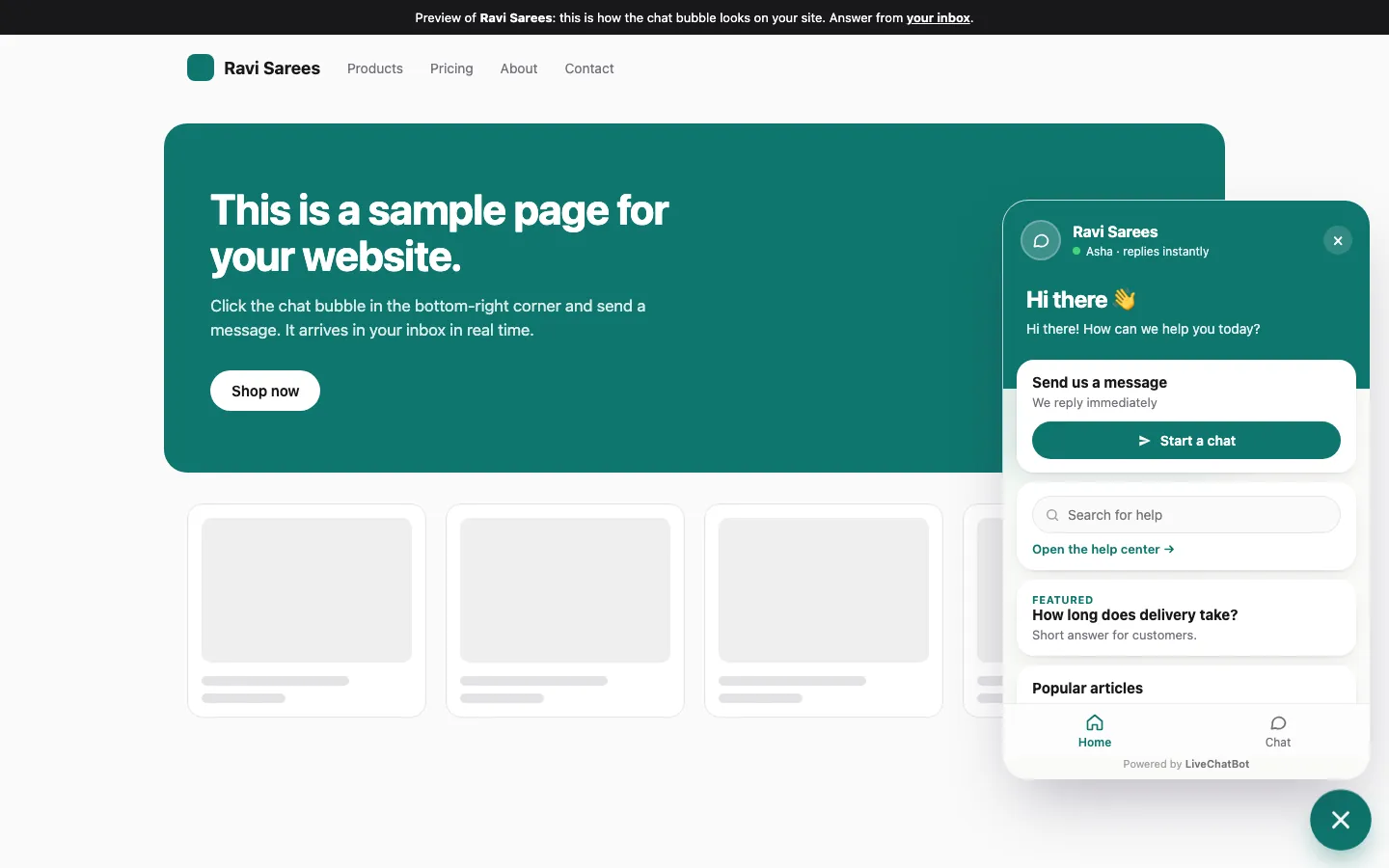
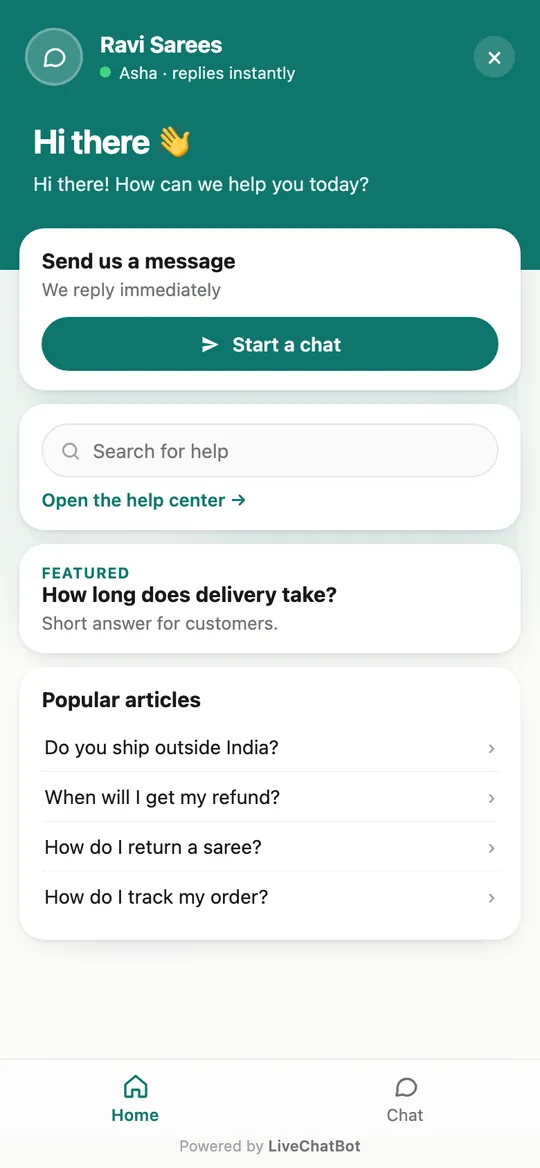
Real screens from the LiveChatBot panel, shown with sample data. Click any picture to see it full size.

Stages 5 and 6
Settings can hide a widget that loaded correctly
Yes, your own settings can hide a bubble that loaded without error. Sometimes the script runs perfectly and the bubble is still absent, because your own settings said so.
- Where the chat shows. If you limited the widget to certain pages, the pages outside the list will show nothing.
- Cached pages. Hosts and content networks keep copies. Clear the cache after you upload.
When the bubble shows, open the design settings and set colour, position and welcome line to match the site. The chat widget customization guide goes through each option and the value to pick.
Stage 7
Make the first chat worth having
The bubble is only the start; what counts is the first answer a visitor gets. Once the bubble appears, spend ten minutes on what happens when someone uses it. A chat widget for website HTML pages is only as good as the first answer.
- Add your most asked questions to the AI Agent knowledge. You can type answers, copy a web page, or upload a file such as a PDF or Word document.
- Install the Android app on the phone of whoever answers, so alerts reach them.
Then send yourself a test message from a private window and answer it. Those few minutes show you the experience your customers will get. If you want the wider picture, our website chat widget guide explains each part of the product in one place.
Original data
The numbers behind the snippet: what you actually do in LiveChatBot
Setting this up is small enough to count. These are LiveChatBot’s own product facts, taken from the dashboard, not a survey.
- 1 line of code is pasted per page, and 0 plugins are installed on a plain HTML site.
- 7 stages happen between the file request and the first chat, listed in the timeline above.
- 2 websites and 100 visitors per website each month are included on the free plan; the paid plans start at ₹299 a month for 750 shared visitors.
- 0 per-seat charges, so a second person answering chats costs nothing extra.
A worked example with the maths shown
Say your site has 12 HTML pages and no shared footer. You paste the snippet into each file, which is 12 pastes. If each paste and upload takes about 1 minute, that is 12 minutes. If you move the snippet into one shared footer include first, it is 1 paste, so 12 minutes becomes about 1 minute plus the time to build the include. Past roughly 3 pages, a shared footer is the cheaper route. The 1 minute per page is an illustrative estimate, so time your own.
What most guides miss
Our rule: debug from the cheapest check to the costliest
Check things in order of how long each takes, not in order of how likely each seems. When the bubble is missing, most people open settings and start changing colours. That is the slowest place to look.
Use this order instead, with a rough time for each:
- View source, 10 seconds. Search the page source for the word livechatbot. Not found means the snippet never reached the live file.
- Private window, 20 seconds. This rules out extensions and cached copies.
- Network tab, 1 minute. Look for the widget file request. Red means something blocked it.
- Key comparison, 1 minute. Match the key in the page with the key on the install page, character by character.
- Page rules in settings, 2 minutes. Check whether you limited the widget to other pages.
The first two checks take about 30 seconds and catch the stale-upload and broken-tag problems, which are the two most common causes on hand-edited sites. Total worst case is about 5 minutes. The insight is the ordering: a quick test that eliminates the biggest group of causes always goes first, even if it feels too simple to be the problem. This is our own rule of thumb, not a measured statistic.
Honest limits
What a pasted snippet does not do
A pasted snippet adds chat and nothing else, so know its limits before you rely on it. It does not remove the Powered by LiveChatBot badge, which stays on every plan. It does not fix broken HTML on your page. And each website needs its own key and its own paste.
On the plus side, there is no plugin to update, no server to run and no per-agent charge. The free plan covers two websites with 100 visitors each per month, enough to test a small HTML site.
Frequently asked questions
How do I add a chat widget for website HTML files?
Copy the snippet from your install page and paste it once into each page, just before the closing body tag. Upload the files, then test on the live address.
Do I need to know JavaScript?
No. You paste one script line and the widget does the rest. Coding is only needed if you want to open the chat from your own buttons.
Why does the chat show on my computer but not on the live site?
You are probably viewing a local file. The live site shows the chat only after you upload the edited page and clear any cache.
Can I use the same snippet on two websites?
Each website has its own key, so use the snippet from that website’s install page. The free plan covers two websites.
Can I remove the Powered by LiveChatBot badge?
No. The badge stays on every plan, so decide whether that suits your brand.
Keep reading
Related guides
Chat System for Websites, Explained Under the Hood: How a Message Travels From a Visitor’s Phone to Your Inbox (Free Plain-English Glossary)
More to read
More guides on this topic
Best Chat Widget for Website Visitors: What Happens in the First Ten Seconds, and How to Make Each One Count (Free Ten-Second Timeline)
Paste one line, start chatting
Free plan for two websites, no per-seat charges. Start free on livechatbot.in.