Best Chat Widget for Website Visitors: What Happens in the First Ten Seconds, and How to Make Each One Count (Free Ten-Second Timeline)
Best chat widget for website owners is rarely the one with the longest feature list. It is the one a stranger notices, trusts and uses within about ten seconds of landing on your page. This guide walks through those ten seconds one moment at a time, shows what to look for in each, and gives you a way to judge any widget, including ours, by what a visitor actually experiences.
⚡ In short
- Judge a widget by the visitor’s first ten seconds: does it load quietly, look like your brand, say something useful and let a person in fast?
- The best chat widget for website visitors is a calm bubble that answers real questions, not a long feature list.
- Test on your own phone, on a normal connection, before you decide.
- LiveChatBot is built around this moment: your colours, your welcome text, an AI Agent that answers from your facts, and a handover to your team.
The wrong question
Why a feature list will not find you the best chat widget for website use
Comparison tables count features. Visitors never see a table. They see a small bubble in the corner of a page they have just opened, and they decide in a few seconds whether it is worth a click.
So a good test is not “what does it have?” but “what happens when a stranger arrives?” The same widget can be a great or a poor choice depending on how those first moments feel on your site, with your colours, for your kind of visitor.
Read the timeline with your own homepage in mind. For the full settings list, see our website chat widget guide.
Free timeline
The first ten seconds, moment by moment
Seven moments from page load to first reply. For each one, the question to ask of any widget.
The widget must never delay your content. It should appear after the page is usable, not before. Open your site on a slow connection and watch.
It should match your brand colour and sit away from other buttons such as a WhatsApp or cookie button. Check the position on a phone, not just a laptop.
A small attention card with a short line works better than a loud pop-up. One line, one purpose.
Say what the chat can do and how fast. “Ask about prices, delivery or opening hours” beats “Hi, how can I help?”.
Quick buttons and cards (WhatsApp, call, email, link) help people who do not want to type on a small screen.
An AI Agent that answers from your own facts replies at once. If it does not know, it must say so.
The widget should hand over to your team, or take a phone number after hours. A dead end here loses the visitor.
Seconds 0 to 3
Loading, looks and position: the part visitors judge before they read a word
Light and quiet
A widget that slows your page costs you more than it earns. Ask how it loads and test with your own pages. Our guide to chat widget speed and SEO explains what to measure.
Your colours, your name
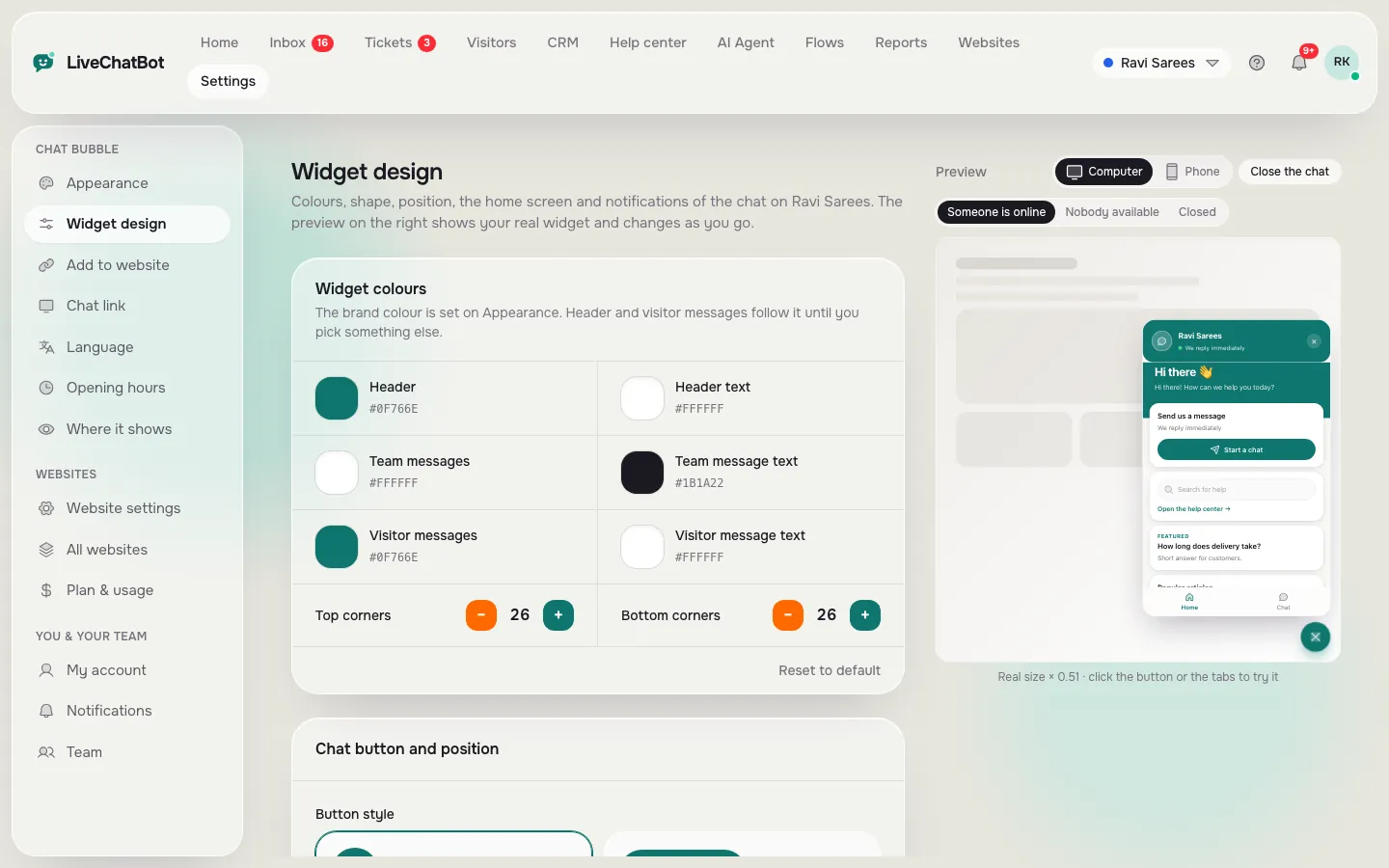
A bubble in clashing colours looks like an advert. In LiveChatBot you set the colour, position, team name and avatar in the widget design settings, so the bubble looks like part of the site. The chat widget customization guide shows each setting.
Out of the way of other buttons
Move the bubble by an offset so it never covers a cart, a cookie banner or a WhatsApp button, and hide it on pages where it would distract, such as checkout.
Real screens
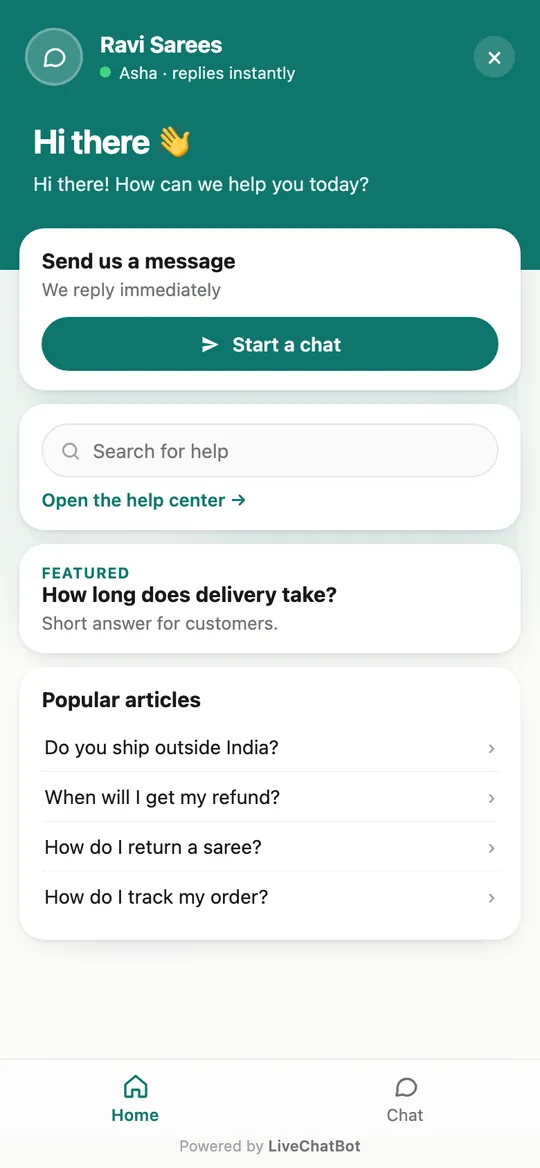
Where the design is set, and how it looks on a phone
Real screens from the LiveChatBot panel, shown with sample data. Click any picture to see it full size.
Seconds 3 to 7
The welcome: what a visitor should read in the first line
Most open with “Hi! How can we help?” It is polite and empty. A visitor with a specific worry will not type into a blank box.
Name three things people can ask
“Ask about prices, delivery or opening hours” gives permission and shows scope. It also keeps questions to what your bot knows.
Add a card for people who will not type
Widget cards can offer a WhatsApp button, a call button, an email link or a page link. Some visitors prefer a tap to a sentence, and cards keep them in your funnel.
Use Flows for the right page
Flows let you show a different proactive message on a pricing page than on a blog post, using up to six conditions such as page, source, country or number of visits. See chat flows for examples. Do not fire a message on every page.
Seconds 7 to 10
The answer and the handover: where a good widget earns its place
Everything before this moment is packaging. The real value is an answer, quickly, that is right.
Answers from your facts
The AI Agent answers from the knowledge you give it: typed answers, a copied web page or an uploaded file. Add opening hours, delivery rules and prices, and set tone and rules once. If it is unsure, the right behaviour is to say so rather than guess. When AI replies are not available, a free keyword bot answers from your saved replies.
A person behind the bubble
Hand over to your team, who see chats in a shared inbox and on the Android app. After hours, the away form collects email or phone, so a 10 pm enquiry turns into a morning call. A chat rescuer asks for contact details if nobody replies within seconds.
What it will not do
Be clear on the limits. “Powered by LiveChatBot” stays on all plans, there is no iOS team app and no white label. If those are must-haves, choose accordingly.
Fair comparison
How to pick the best chat widget for website needs in ten minutes
Install each on a test page (or one after the other on your live site), then run the same script.
- Load the page on your phone using mobile data. Note when the bubble appears and whether the page jumps.
- Open the widget. Read the first line. Would you reply to it?
- Ask a question you taught it, one you did not, and “can I talk to a person?”.
- Close the app, set it to after hours and try again. Is there a form?
- Check your phone: how long until the team is alerted?
Score each step out of five for both widgets. The higher total wins, whatever the feature table says. If a tool charges per agent, count that too; LiveChatBot does not, and you can see current prices on the pricing page.
What it costs
Starting without risk
The free plan covers two websites with 100 visitors per website each month. Starter is ₹299 a month for 2 websites and 750 shared visitors, Growth is ₹699 a month for 5 websites and 2,500 shared visitors, and yearly plans pay for 10 months and give 12. Everything is prepaid, with no automatic charges and no per-seat fees.
Install is a single code snippet, or the WordPress plugin if that is your platform (see the WordPress live chat plugin guide). Sign up at livechatbot.in, paste the code, set colours and a welcome line, and run the ten-minute test above.
Frequently asked questions
What is the best chat widget for website owners on a small budget?
One that is free to start, loads quietly, matches your brand and answers from your own facts. Test on your phone before paying anything.
Does a chat widget slow down my website?
It can if it loads badly. A well-built widget loads after your content. Test your pages before and after installing it.
Can I change how the widget looks?
Yes. Colour, position, team name, avatar, welcome text and the pages it shows on are all set in the widget design settings.
Can I remove the Powered by LiveChatBot badge?
No. It stays on all plans, and there is no white label option.
Do I need coding skills to add it?
No. You paste one snippet, or use the WordPress plugin, then set everything else from the dashboard.
Keep reading
Related guides
Best Chat Support Software Is Judged After the Chat Ends: Test Offline Messages, Tickets, Owners and Follow-Ups Before You Choose (Free Follow-Through Scorer)
Try the ten-second test on your own site
Free plan for two websites, no per-seat charges. Start free on livechatbot.in.