Free Chat Bot Messenger Setup Day: Connect Your Facebook Page in Three Steps, Then Run a Ten-Minute Test (Free Connection Checklist)
Free chat bot messenger setups look scary because the words come from Meta: app, webhook, verify token. In practice it is three steps and a handful of copy-and-paste fields. This guide walks through them in the order you will see them in LiveChatBot, counts every click and paste, and then gives you a ten-minute test to run so you know the connection really works before a customer writes.
⚡ In short
- Connecting needs a Meta app with Messenger added, your Facebook Page ID and a Page access token.
- Paste the two values in LiveChatBot, then paste the callback URL and verify token it shows into Meta and subscribe to messages.
- Test with a second Facebook account, because a new Meta app may only deliver messages from people who have a role on it.
- Customers’ text arrives in the shared inbox; pictures and files show as an attachment note.
Short answer
How do you set up a free chat bot on Messenger?
To set up a free chat bot on Messenger, create a Meta app with Messenger added, link your Facebook Page, paste the Page ID and access token into LiveChatBot, then paste the shown webhook URL and verify token into Meta. Messages to your Page then arrive in the LiveChatBot inbox, where your team or the AI Agent can reply.
The idea
A Messenger chat bot is a Page inbox that can answer on its own
A Messenger chat bot is not a separate product on Facebook. It is software that receives the messages sent to your Facebook Page and sends replies back through Meta. The software can be a person typing, a bot that answers from your facts, or both.
LiveChatBot is the second kind of tool: Messenger sits beside your website chat. Each person who messages your Page shows up as a visitor of the website you linked, so the same inbox, saved replies, assignment and phone alerts apply. If you want the bigger picture of why one inbox matters, read our best free chatbot for Facebook Messenger guide. If you are still deciding whether to buy any tool, what to check before you buy Messenger integration covers the questions to ask.
This post is different: it is a hands-on setup day. You will connect, test and fix, in that order. Everything on the integrations page of the dashboard follows the same pattern for WhatsApp too.
Original data
What the connection really asks of you: 3 steps, 4 pastes and 1 subscription
Counted from the real Messenger card in LiveChatBot’s Integrations area (Messenger section).
Step 1 · in Meta
Create a Business-type app, add Messenger, link your Page. You leave LiveChatBot for this step.
Step 2 · in LiveChatBot
Paste 2 required values, the Facebook Page ID and the Page access token. A third box, the App secret, is optional but recommended. Press Connect; LiveChatBot checks them with Meta.
Step 3 · back in Meta
Paste 2 values LiveChatBot shows you, the Callback URL and Verify token, into Messenger → Settings → Webhooks, then subscribe to messages.
Total: 3 steps, 4 pasted values (2 in, 2 back), 1 optional secret and 1 subscription. Nothing here needs code. Plans are prepaid with no automatic charges, so connecting costs nothing extra on the free plan.
Step 1
Step 1 of a free chat bot messenger setup is creating the Meta app and linking your Page
The first step happens on Meta’s side and creates the door that messages come through. In Meta for Developers, create an app of type Business, add the Messenger product and link the Facebook Page your customers write to.
Use a Facebook account that is an admin of the Page, and keep the Meta tab open for step 3.
Then collect two values. The Page ID is under your Page’s About section, in Page transparency, or in Meta Business Settings → Pages. The Page access token is under Messenger → Settings → Access tokens, where you generate one for your Page (it needs the pages_messaging permission). Copy both into a private note for a minute.
Step 2
Step 2 is pasting the Page ID and token into LiveChatBot and pressing Connect
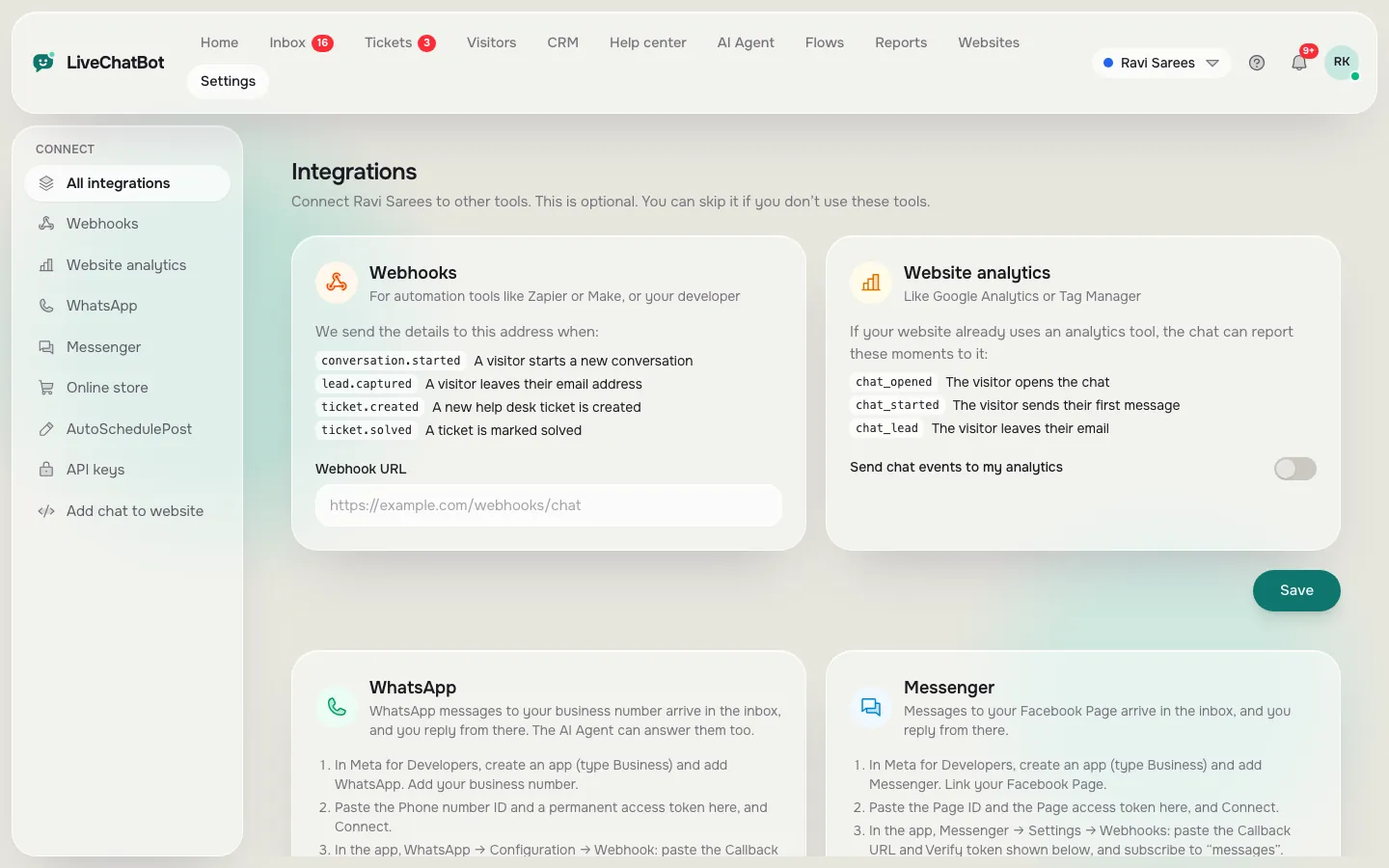
In LiveChatBot open the dashboard, choose the website the Page belongs to, and open Integrations → Messenger. Only the account owner sees the form.
Paste the Page ID and the Page access token. Add the App secret from Meta’s App settings → Basic if you can: with it saved, LiveChatBot only accepts messages that Meta has signed, which blocks anyone trying to post fake messages to your address.
Press Connect. The button reads “Checking with Meta…” while LiveChatBot confirms the Page exists and fetches its name. If the details are wrong, Meta’s own reason is shown under the field, for example an expired token or a wrong ID. When it works, the card turns to Connected and says which Page it is linked to. LiveChatBot also asks Meta to send this Page’s messages to your app’s webhook, so the next step is mostly pasting.
Real screens
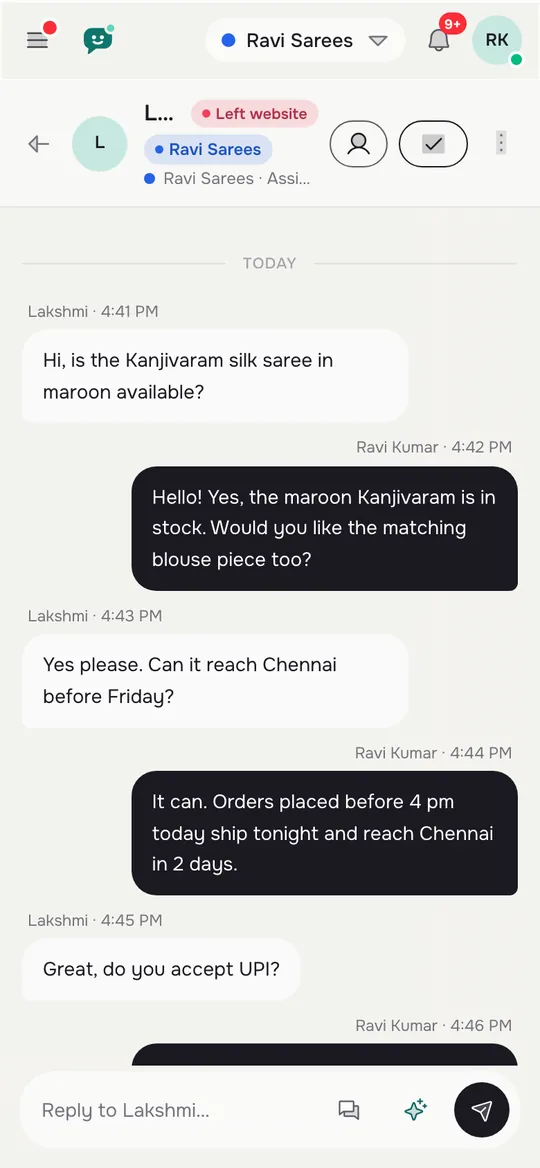
Where you connect Messenger, set alerts and answer from the phone
Real screens from the LiveChatBot panel, shown with sample data. Click any picture to see it full size.

Step 3
Step 3 closes the loop by pasting the webhook URL and verify token into Meta
Once connected, the Messenger card shows a Callback URL and a Verify token, each with a Copy button. Go back to Meta and open Messenger → Settings → Webhooks. Paste the URL and token, verify, and subscribe your Page to messages.
A webhook is only a delivery address. Meta posts every new Page message to that address, and LiveChatBot puts it in the inbox. If you skip the subscription, the connection looks fine but nothing arrives, which is the most common reason owners think the bot is broken.
Try it
The ten-minute connection checklist
Tick each item as you finish it. The bar fills when the test is complete.
What most guides miss
Our rule: test with a second account that has no role on your Meta app
Most setup guides end with “send a test message” and do not say from where. If you test from the Page admin’s own account, you can get a false pass, because a Meta app that has not been switched out of development mode typically delivers messages only from people who hold a role on that app. Your customers do not hold a role, so their messages may never arrive even though your test worked.
The five-minute rule: always send the final test from a second Facebook account that is not an admin, developer or tester on the app. If that message appears in the inbox, real customers’ messages will arrive too. If it does not, check the app mode in Meta and the webhook subscription before anything else.
What arrives
Text messages arrive as chats, and pictures arrive as an attachment note
LiveChatBot brings in the text of every message sent to the Page and shows it like a website chat. A picture or file shows an Attachment note, so you can ask the customer to type the question. Replies you write in the inbox go back to Messenger, and every Messenger person is saved as a visitor with a profile, notes and CRM deals.
Not included: Instagram DMs, an iOS team app (use a browser on iPhone) and native Slack or Telegram bridges.
The bot part
Teach the answers once and let the AI Agent reply on Messenger
The bot half of a free chat bot messenger setup is the AI Agent. Give it answers by typing them, copying a web page, or uploading a PDF, DOCX, XLSX, CSV or TXT file. The messages that arrive from Messenger go through the same inbox as web chat, with the AI Agent and alerts applying to them too.
Start small. Twenty answers cover most of what a Page gets asked: opening hours, address, prices, delivery, returns and how to order. Add a “Rules to follow” line such as “Never promise a delivery date” under Name & tone. Rules only work while AI replies are on; the free keyword bot answers from saved replies and cannot follow written rules.
AI replies come with every plan, with a monthly allowance shown in the dashboard. When a conversation needs a person, assign it with Assign to me or route it to a team, so nothing sits unanswered.
Fix list
If a free chat bot messenger connection fails, check these four things
A failed connection almost always falls into one of four groups.
- Connect shows a Meta error. The token expired, the Page ID is wrong, or the token was made for a different Page. Generate a new token and paste again.
- Connected, but nothing arrives. The webhook is not subscribed to messages, or the app is in development mode and you tested from an admin account. Use the second-account rule above.
- Messages arrive, replies do not reach the customer. Look at the Last problem note on the card and in the chat. Meta’s reason is shown in plain words.
- Fake or duplicate messages. Add the App secret so only signed messages from Meta are accepted.
For a wider look at how channels connect, see the integrations page and our guide to chatbots for Facebook Pages, which covers the replies customers on Facebook expect.
Cost and limits
A free chat bot messenger setup costs ₹0 to start, and your visitors are counted
The free plan is ₹0 for 2 websites with 100 visitors per website a month. Starter is ₹299 a month and Growth ₹699, both prepaid with no auto-renew and no per-seat charges. Because each Messenger person is a visitor of the website, a busy Page uses allowance too, so check pricing first. WhatsApp lands in the same inbox; see the best free chatbot for WhatsApp guide.
Frequently asked questions
Is a free chat bot messenger setup really free?
Yes to start. The free plan costs ₹0 for 2 websites and 100 visitors per website each month. Meta does not charge for connecting a Page to an app; check Meta’s current terms for anything beyond that.
Do I need to code to connect Messenger?
No. You paste two values into LiveChatBot and two back into Meta. There is no code to write.
Why does Connect say Meta didn’t accept these details?
The Page ID or token is usually wrong, expired or made for a different Page. Generate a fresh Page access token and paste it again.
Can the AI Agent answer Messenger messages?
Yes. Messages from Messenger arrive in the same inbox as web chats, and the AI Agent and alerts apply. Written rules work only while the website has AI replies.
Does it connect Instagram DMs too?
No. LiveChatBot connects WhatsApp and Facebook Messenger. Instagram DMs are not connected.
Keep reading
Related guides
Free Chat App for Website Owners Who Answer From a Phone: An Alert Budget, a Daily Routine and a Pocket Checklist (Free Pocket Checklist)
Free Chat API for Website Owners: Pick the Smallest Layer That Does the Job, From One Pasted Line to the REST API
Free Chat Box for Website Owners: What You Get for ₹0, the 100-Visitor Test and When to Upgrade
Connect your Page in one sitting
Free plan for two websites, no per-seat charges, Messenger and WhatsApp in one inbox. Start free on livechatbot.in.