Free Chat App for Website Owners Who Answer From a Phone: An Alert Budget, a Daily Routine and a Pocket Checklist (Free Pocket Checklist)
Free chat app for website owners usually means one thing in real life: a phone buzzing while you are with a customer, in a queue or at dinner. The widget on your site is the easy part. The hard part is deciding what should buzz, what should wait and how long a reply may take. This guide gives you an alert budget worked out in numbers, a 15-minute daily routine and a checklist you tick on your own phone.
A free chat app for a website has three parts: a chat widget visitors see, a team inbox, and a phone app that alerts you. LiveChatBot includes all three on its free plan (2 websites, 100 visitors each a month), with an Android app for agents. iPhone users answer from a browser.
⚡ In short
- Judge a chat app by what happens on your phone, not by how the widget looks.
- Free plan alert budget: 100 visitors a month per site is about 3 new-visitor alerts a day.
- A 15-minute routine (morning, midday, evening) is enough for most small sites.
- Tick the pocket checklist on your phone before you tell anyone the chat is live.
The idea
What is a free chat app for website visitors and teams, and why does the phone matter?
A free chat app for website pages is a set of three pieces that work together: the widget on your pages, the inbox where your team reads chats, and the phone app that alerts you when someone writes. Most guides describe only the first piece.
The phone matters because owners are rarely at a desk. If the alert does not reach a pocket, the chat is silent in practice.
LiveChatBot’s free plan covers all three pieces, so you can test the whole chain at no cost. If you want the wider picture of what the free plan holds, read our free live chat guide first. This page goes deeper on the phone side: how many alerts to expect, how to keep them useful and how to set up a daily routine around them.
Three pieces
Which three pieces make a chat app, and where do you meet each one?
The three pieces of a chat app are the widget, the inbox and the phone alert, and you meet each in a different place.
- The widget. What your visitors see on the page. You set its colour, position, team name, avatar and welcome text. See our website chat widget guide for the choices.
- The inbox. What your team sees in the dashboard: every chat, a shared inbox, Assign to me, Unassigned and Mine folders, saved replies and tickets.
- The phone app. What reaches your pocket. LiveChatBot has an Android app for agents. There is no iOS team app, so iPhone users open the dashboard in a browser and answer from there.
Test all three pieces: send a chat from the widget on one phone and reply from the app on another.
Original data
How many alerts will a free chat app for website owners send you?
On the free plan you can expect about three new-visitor alerts a day per website, because each website gets 100 visitors a month and each visitor is counted when they trigger a new-visitor alert. The figures below are LiveChatBot’s own plan limits, with the daily maths shown.
Plan limits (from 1 November 2026) turned into a daily alert budget (visitors ÷ 30 days):
- Free: 100 visitors per website, so 100 ÷ 30 = about 3.3 a day per site. Two sites make about 6.7 a day.
- Starter ₹299 a month: 750 visitors shared by 2 websites, so 750 ÷ 30 = 25 a day in total.
- Growth ₹699 a month: 2,500 visitors shared by 5 websites, so 2,500 ÷ 30 = about 83 a day in total.
Worked example (an assumption, not a statistic): suppose 1 visitor in 20 actually starts a chat and each chat takes 2 minutes to answer. On the free plan, 3.3 ÷ 20 is about 0.17 chats a day, roughly 5 chats a month per site, or 10 minutes of replying a month. On Growth, 83 ÷ 20 is about 4 chats a day, or 8 minutes of replying a day.
The point: the free plan will not bury your phone. Replace my 1-in-20 with your own chat rate once you have a week of data.
Real screens
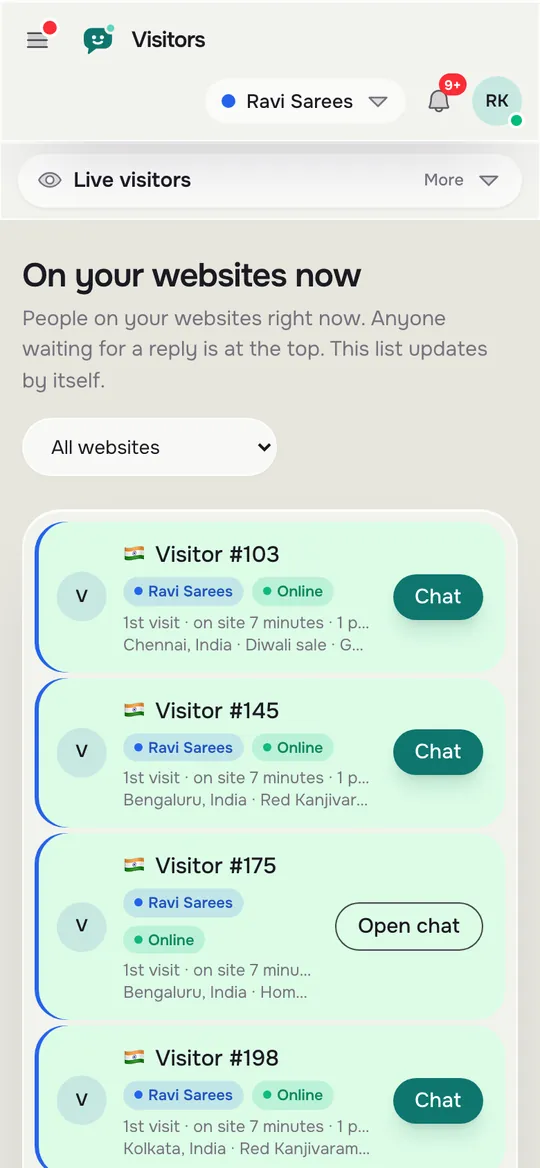
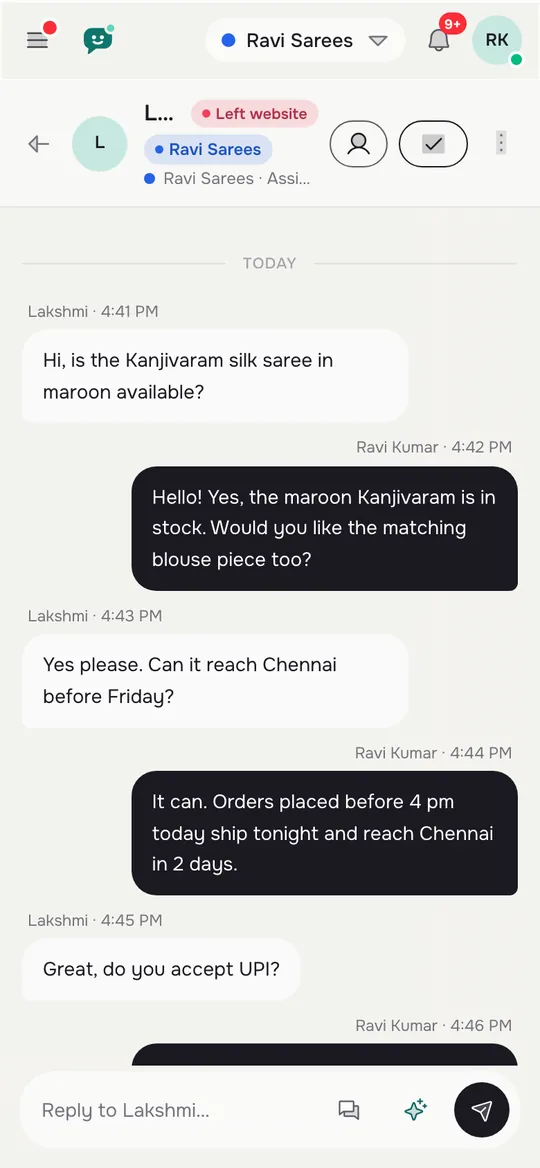
Three screens that decide whether the phone side works: live visitors, a chat in the mobile inbox and your alert settings
Real screens from the LiveChatBot panel, shown with sample data. Click any picture to see it full size.

Setting up alerts
Which alerts should buzz, and which can wait?
Only alerts that need a human decision within minutes should buzz; everything else can wait for your daily routine. A simple sort puts each alert in one of three lanes.
Buzz now
A visitor writes a message and no AI Agent or keyword bot has resolved it. A new lead arrives from the chat rescuer or a website form, because a lead cools quickly. A chat is handed over to a person.
Check at the next break
A new visitor is browsing and has not written. A ticket is opened outside working hours. Someone gave a thumbs-up or thumbs-down rating.
Read in the weekly review
Traffic, keywords, pages that need work and the Reports area.
LiveChatBot lets you pick a recorded alert tone per website for each agent, and sites can have their own label colour, so two shops on one phone do not sound or look alike. Open the notification settings screen above and confirm the choices match your lanes. Our Android app guide walks through the app itself, and the mobile app page lists what it does.
What most guides miss
Our rule: the three-glance test for every alert
The three-glance test says an alert is only good if one look at the lock screen tells you which website, who and whether to reply now. Most guides tell you to switch alerts on. Few tell you to check what the alert says when your phone is locked.
Run it in five minutes with a helper:
- Ask a friend to open your site on their phone and send “Hi, what time do you close?”
- Leave your phone locked on the table.
- When it buzzes, glance once. Can you tell the website? Can you tell it is a chat, not a new-visitor ping? Can you decide, reply now or after this customer?
- If any answer is no, change the tone, the label colour or the alert type until all three are yes.
An alert you cannot read in one glance gets ignored by day four.
Daily routine
What does a 15-minute daily routine for a chat app look like?
A 15-minute routine split into three short visits is enough for most small sites on the free plan. Each visit has one job.
Morning, 5 minutes
Open the inbox and find the Unassigned folder. Assign what is yours with Assign to me. Reply to anything that came in overnight; if the away form collected a phone number, call or message it first.
Midday, 5 minutes
Glance at the live visitors list on your phone. If someone has been on your pricing page for a while, a short human hello often beats waiting. Use a saved reply with the visitor’s {name} when you know it; see our guide on saved replies.
Evening, 5 minutes
Close what is done, turn chats that need follow-up into tickets and read what the AI Agent or keyword bot said. Fix one weak answer a day. The AI Agent page explains how it answers from your own facts.
Try it
Pocket checklist: is your chat app ready to go live?
Tick each item on your own phone. The bar fills as you go. Do not publish the link until it reaches 100 percent.
Honest limits
What a free chat app for website use will not do
LiveChatBot’s free chat app has these limits today:
- The “Powered by LiveChatBot” credit stays on every plan, including the free one.
- The team app is Android only. There is no iOS app; iPhone users answer in a browser.
- There are no voice calls, no captcha and no sentiment scoring.
- There is no native Slack, Telegram or CRM integration; Zapier, webhooks and the REST API can bridge some of them.
- You cannot choose the AI model or bring your own API key.
- Over the visitor limit, tracking and alerts continue but chat pauses for new visitors until you add visitors or the month resets. Nothing is charged automatically.
What you do get at ₹0: two websites, 100 visitors each a month, opening hours, an away form, flows, tickets, saved replies, a help center and the Android app, with no per-seat charges. See pricing if you outgrow it.
Making it last
How do you keep a free chat app useful after the first week?
You keep it useful by reviewing it weekly and changing one thing at a time. Pick one day a week. Open the Reports area and read the number of conversations, your first response time and any pages where visitors leave without acting. Pick one fix: a missing answer, a clumsy welcome line or a slow reply time. Make it, then check the same number next week.
For more on answer speed, see our guide to live chat response time. If you are still choosing between a few options, our free live chat pillar guide compares what each free plan really includes, and the set-up guide takes you through the install in order.
Frequently asked questions
Is there a free chat app for website owners that works on my phone?
Yes. LiveChatBot’s free plan includes an Android app for agents, so you can read and answer chats from your pocket. There is no iOS team app; on an iPhone you answer from the dashboard in a browser.
How many visitors does the free plan allow?
The free plan covers 2 websites with 100 visitors each a month. A visitor is counted once a month when they trigger a new-visitor alert. Sign-up code WELCOME100 adds 100 visitors once.
Will the app buzz all day?
Not on the free plan. At 100 visitors a month, a site sees roughly three new-visitor alerts a day. You can also choose a different tone for each website.
What happens if I do not reply in time?
The chat rescuer can ask the visitor for an email and phone so the lead is not lost, and the away form collects contact details outside opening hours. The AI Agent or free keyword bot can answer from your saved facts.
Can I remove the Powered by LiveChatBot credit?
No. The credit stays on all plans, including the free one.
Keep reading
Related guides
Free Chat API for Website Owners: Pick the Smallest Layer That Does the Job, From One Pasted Line to the REST API
Free Chat Box for Website Owners: What You Get for ₹0, the 100-Visitor Test and When to Upgrade
Free AI Chatbot API: Brain or Plumbing? Know Which One You Are Asking For Before You Build
Put the chat in your pocket
Free plan for two websites, an Android app, no per-seat charges. Start free on livechatbot.in.