Free Chat Box for Website Owners: What You Get for ₹0, the 100-Visitor Test and When to Upgrade
Free chat box for website visitors is easy to find, but the useful question is what the free version really includes and how long it lasts. LiveChatBot’s free plan gives you two websites, 100 visitors per website each month and the full inbox, so this guide shows the maths, a five-step install and a simple five-minute phone test before you pay.
A free chat box for a website is a chat widget you paste onto your pages at no cost. On LiveChatBot the free plan covers two websites and 100 visitors per website each month, with a team inbox, Android app, opening hours and a keyword bot included. You pay only when traffic outgrows 100 visitors.
⚡ In short
- Free means ₹0 for 2 websites, 100 visitors each per month, with the chat box, inbox, Flows and tickets included.
- Setup is five steps and one pasted line of code, or the WordPress plugin.
- Your real cost is reply time, not money: do the maths before you start.
- Run the five-minute keyboard-up test on a phone, then upgrade only if chats say so.
What free includes
What a free chat box for website owners should include
A free plan is worth using when it includes everything a small team needs to answer real customers, and only limits volume.
Here is what LiveChatBot’s free plan gives you, per account:
- Two websites, each with its own design, language and rules.
- 100 visitors per website each month. A visitor is counted once a month, when they trigger a new-visitor alert.
- The chat box itself: your colours, position, team name, welcome text and attention card.
- A team inbox and the Android app, with no per-seat charges.
- Opening hours and an away form that collects email or phone.
- Flows, tickets, saved replies and a free keyword bot that answers from your saved replies.
What it does not do: remove the small “Powered by LiveChatBot” line, or offer an iPhone team app. Those are the same on every plan, so decide if they matter before you start. For a wider view of the plan, see free live chat.
Install
How to add the free chat box in five steps
You add the chat box to your website in five steps, and none of them needs a developer.
- Create a free account at livechatbot.in.
- Add your website address in the dashboard.
- Copy the one-line install code from the Install page.
- Paste it before the closing body tag of your site, or install the WordPress live chat plugin.
- Open your own site and send a test message from a phone.
The walk-through in how to set up live chat on a website covers each platform. On Shopify, Wix and Squarespace you paste the code into the theme or custom-code box. For a plain HTML site, the line goes in the footer file once and appears on every page.
Real screens
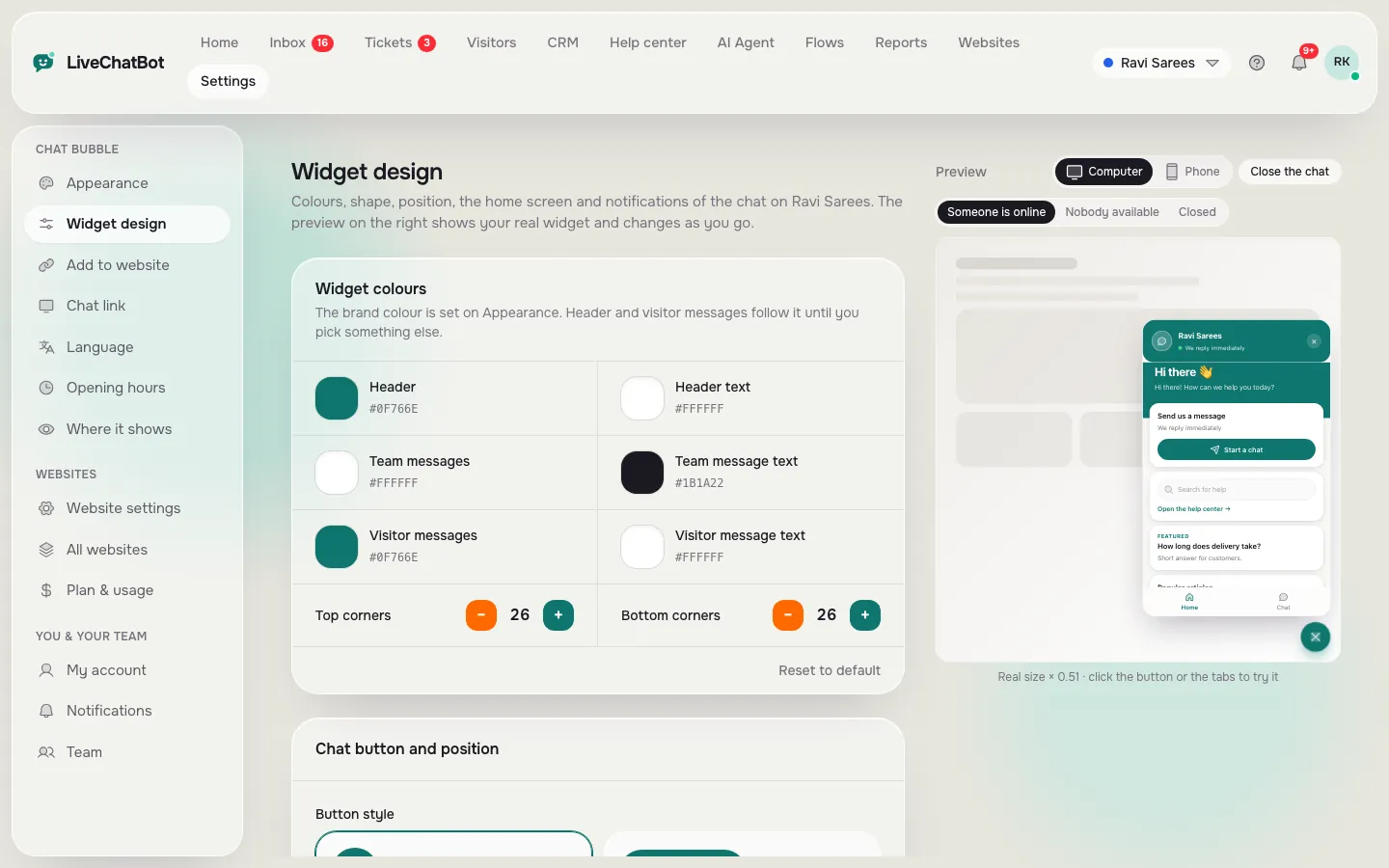
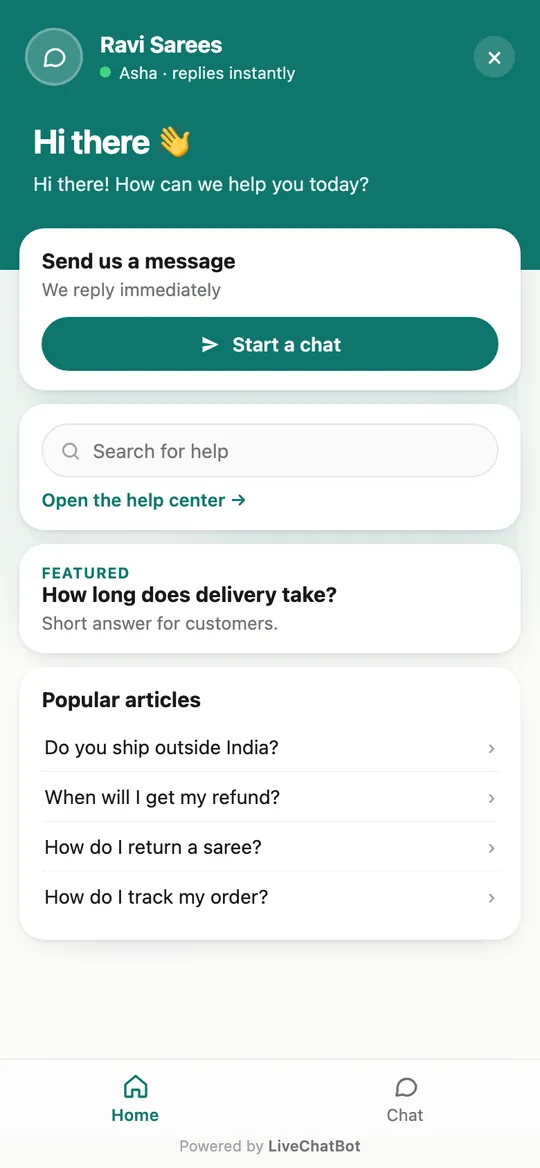
Real screens: the install code, the design page and the chat on a phone
Real screens from the LiveChatBot panel, shown with sample data. Click any picture to see it full size.

The maths
The 100-visitor maths: how long does the free chat box last?
The free allowance lasts as long as your new visitors stay under 100 a month per website, and you can work that out in one line.
Original data, worked example (LiveChatBot’s own plan limits):
- 100 visitors ÷ 30 days = about 3.3 new visitors a day per website.
- A site with 10 new visitors a day uses its 100 in 10 days.
- Two sites together have 200 visitors a month, but the allowance is per website, not shared on the free plan.
- The limit resets each month.
If you run a new site, a portfolio or a local business with a few visitors a day, the free chat box can cover you indefinitely. If you already have 300 visitors a month, it covers about a third of them.
What happens at the limit? Tracking and alerts continue, and chat pauses only for new over-limit visitors until you buy more or the month resets. Nothing is charged automatically. Check pricing for the paid levels, which share visitors across websites.
Our rule
What most guides miss: your cost is reply time, not rupees
A free chat box costs ₹0 in money but not in time, and the time is where owners get surprised.
Original method (worked maths, illustrative numbers): if the chat brings 5 conversations a day and each takes 4 minutes to read and answer, that is 20 minutes a day, or about 10 hours in a 30-day month. At 10 conversations a day it doubles to 20 hours.
So before you install, ask who answers and when. Three habits keep the cost down:
- Write saved replies for the five questions you answer most.
- Set opening hours so the away form takes messages when nobody is there.
- Check chats on your phone in short bursts using the Android app.
Our guide to live chat response time shows why replying within a minute or two matters more than replying all day.
The test
What most guides miss: test the keyboard-up view of your chat box
The chat box that matters is the one a visitor sees after tapping it on a phone, with the keyboard open, and almost nobody tests that view.
Our rule: judge a chat box by the keyboard-up view, not the closed bubble. On a phone, the keyboard takes roughly half the screen the moment a visitor taps the message field. Whatever is left must still show the welcome line, the last message and the send button. You can check this in five minutes:
- Open your own page on a phone, not a desktop browser window.
- Tap the chat box and then tap the message field so the keyboard opens.
- Count what you can still see. You need three things: your welcome or latest reply, the field where you type and the send button.
- Type a two-line question and look again. If the text you typed hides the reply you are answering, a visitor will lose the thread too.
- Close the keyboard, then repeat on your pricing or product page, where the page itself has its own sticky buttons.
If any of the three things is missing, shorten the welcome line to one sentence, move the chat to the other corner or hide it on the page that crowds it. Our chat widget customization guide covers each setting.
This matters for a free chat box because the allowance is small: with 100 visitors per website, a visitor who taps the box and cannot see the send button is a visit you cannot get back this month.
Setup plan
Your first week with a free chat box
A short plan so the free chat box earns its place on your site.
Add the code, send yourself a test message from a phone and install the Android app.
Set your colour, team name and a specific welcome line. See the widget guide.
Set opening hours so after-hours visitors can leave a number.
Write answers for your five most common questions.
Hide the chat on pages where it would distract, like checkout.
Note what people ask, and fix the welcome text to match.
Make it fit
Make a free chat box for website pages look like part of your site
A free chat box should not look free, because visitors judge it the same way they judge the rest of your site.
Open the design page and set your brand colour for the header and button, choose the corner that does not hide your own buttons and write a welcome line that names what people can ask, such as “Ask about delivery, sizes or timings”. Our chat widget customization guide goes through each setting, and how to customize your chat widget has example texts.
If you want the chat to speak first, add a chat flows greeting on your pricing or product page. Flows are included on the free plan.
Limits
Honest limits of the free plan
100 visitors a site
Each website gets 100 visitors a month. Busy sites will reach it.
Powered by line stays
The small LiveChatBot line shows on every plan, free or paid.
No iPhone team app
Your team can use Android, or a browser on iPhone.
WhatsApp is separate
A WhatsApp button card is available, and WhatsApp messages can arrive in the same inbox once you connect them through Meta.
Upgrade
When to leave the free chat box behind
Upgrade when your first month of chats shows chat brings you business and the free visitors run out before the month does.
Two signs are clear. First, you reach 100 visitors on a site before the 15th of the month. Second, the chats you started turned into customers or leads. Paid plans share visitors across websites, so a quiet second site stops being wasted allowance. Yearly pays for ten months and gives twelve. Plans are prepaid, with no auto-renew. The full list of what stays free is on the free live chat page.
Until then, keep the free chat box for website visitors and stay on ₹0. If you want to compare other free options first, read live chats free and chat box for website for the developer side of the same job.
Frequently asked questions
Is there really a free chat box for website use with no card?
Yes. LiveChatBot’s free plan costs ₹0 for two websites and 100 visitors per website a month. You sign up with email and phone, and nothing is charged automatically.
How many visitors does the free chat box cover?
100 visitors per website each month on the free plan. A visitor is counted once a month. At about 3 new visitors a day, 100 lasts the whole month.
What happens when I pass 100 visitors?
Tracking and alerts continue. Chat pauses for new over-limit visitors until you add visitors or the month resets.
Can I remove the Powered by line on the free plan?
No. The Powered by LiveChatBot line stays on every plan, so judge the widget with it in place.
Do I pay for extra team members?
No. There are no per-seat charges, so adding an agent does not change the price.
Keep reading
Related guides
Free Chat for WordPress as a Two-Week Experiment: Set Your Keep-or-Remove Number Before You Install (Free Experiment Timeline)
Free Chat App for Website Owners Who Answer From a Phone: An Alert Budget, a Daily Routine and a Pocket Checklist (Free Pocket Checklist)
Free Chat API for Website Owners: Pick the Smallest Layer That Does the Job, From One Pasted Line to the REST API
Try the free chat box today
Two websites, 100 visitors each a month, no per-seat charges. Start free on livechatbot.in and run the keyboard-up test.