Free Chat API for Website Owners: Pick the Smallest Layer That Does the Job, From One Pasted Line to the REST API
Free chat API for website projects usually means one of four different things, and most people pay for the wrong one in time. You may only need a chat window, or you may need to open it from your own button, read chats from your own system, or get told when a ticket appears. This guide splits the job into four layers, shows which are free on LiveChatBot, and counts the real calls each one needs.
A free chat API for a website is a set of ways to control a chat from your own code. On LiveChatBot the free plan includes all four: a pasted embed snippet, a JavaScript API, a REST API with 14 endpoints, and webhooks. Start with the smallest layer that solves your problem, and only move up when it cannot.
Meaning
A chat API is four different tools, not one
The phrase covers four layers, and each answers a different question. Knowing which one you want saves hours.
- Embed snippet. One pasted piece of code puts a working chat on every page. No programming needed.
- JavaScript API. Commands that run in the visitor’s browser, such as open the chat, hide it or pass the visitor’s name.
- REST API. Server-to-server calls with a key. Your own system reads chats, replies, creates tickets or pushes leads.
- Webhooks. LiveChatBot calls your address when something happens, so you do not have to keep asking.
Most small businesses need layer one, and layer two if they have a “Chat with us” button. Layers three and four are for someone who wants chat data inside a CRM, a sheet or an order system. If you are still choosing a tool, our free live chat guide covers what the free plan includes before any code is involved.
Decision tree
Which layer do you need?
Start at the top and follow the question that matches your project.
Layer 1
Free chat API for website visitors starts with one pasted line
The embed snippet is the layer every other layer sits on, and it is free. After you add a website in the dashboard, the install page shows one snippet. Paste it before the closing body tag, or let the WordPress plugin do it, and the widget appears.
A chat window with no code is already a working integration: it sends visitor messages to your inbox, your phone and your saved replies. If that is all you need, stop here. Our guide to setting up live chat on a website walks through the paste step by step.
What you get without writing anything
- Colours, position, welcome text and language set on settings pages
- Where it shows: devices, countries and pages
- Opening hours and an away form for after-hours messages
- Alerts on your Android phone
Many people start looking for an API when the settings page already does what they want. Check the settings first.
Real screens
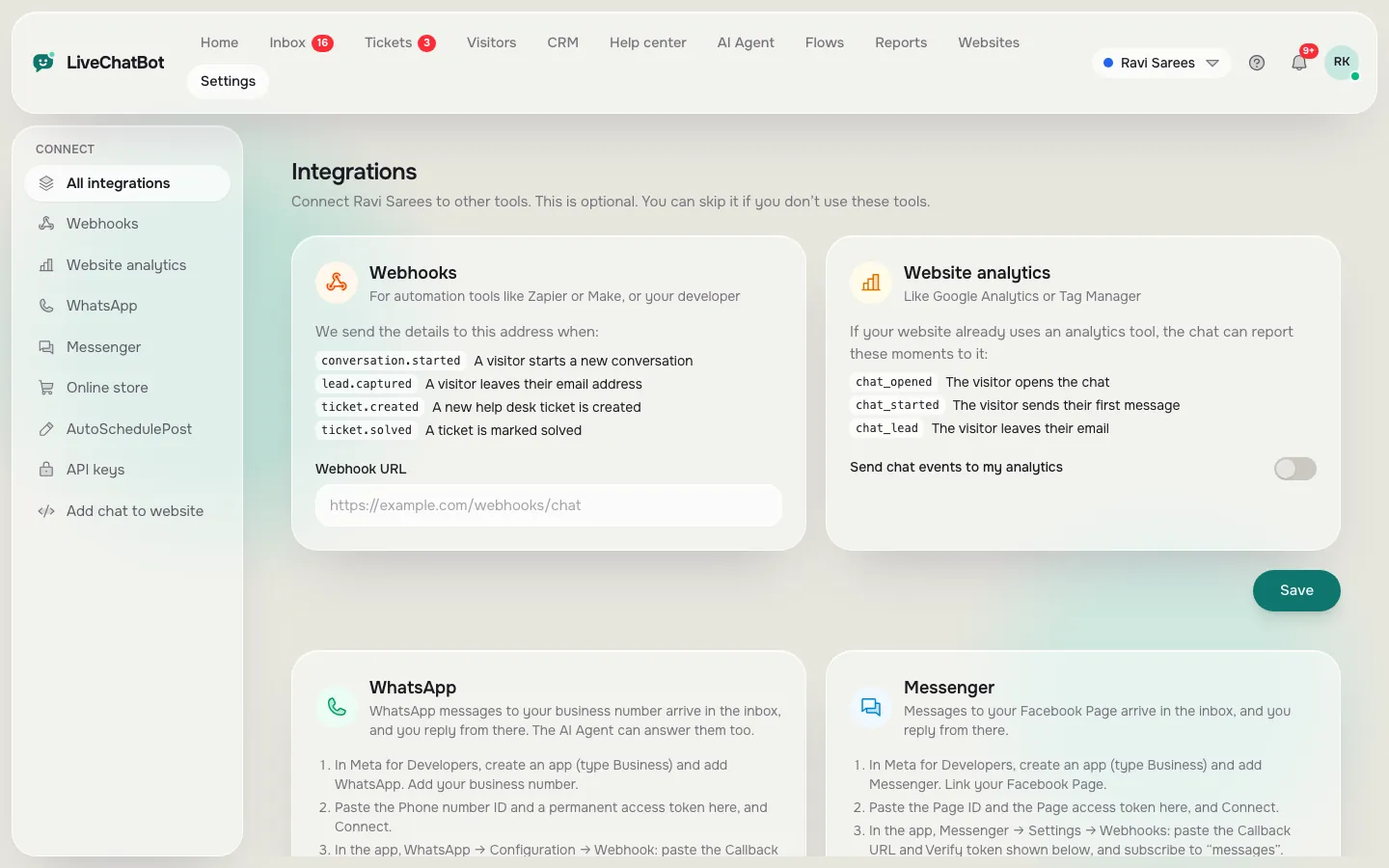
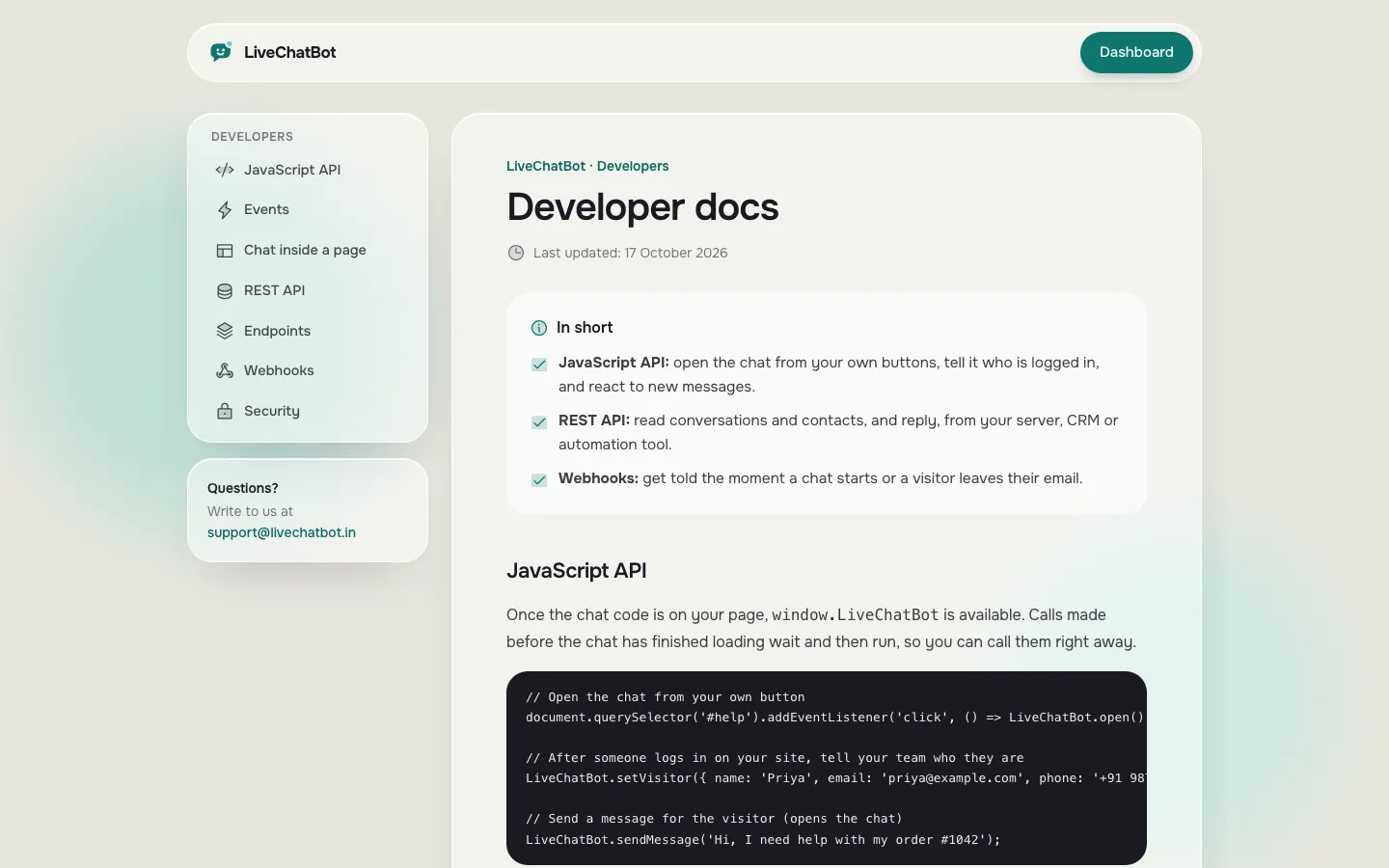
Real screens: the install code and the API pages
Real screens from the LiveChatBot panel, shown with sample data. Click any picture to see it full size.

Layer 2
The JavaScript API controls the chat from your own page
The JavaScript API is a free set of browser commands under window.LiveChatBot, and it needs no key.
The commands are open, close, show, hide, setVisitor, sendMessage, pageView and on. They cover most real requests:
- A “Talk to us” button that calls open.
- A hidden chat that only appears after a visitor scrolls, using show.
- A logged-in customer whose name and email you pass with setVisitor, so the agent sees who it is.
- A single-page app that calls pageView on each route change, so page tracking stays right.
- A reaction to chat events with on, for example to track opens in your analytics.
For ready-to-copy examples, see our live chat API integration guide, which is about this layer. Here the point is narrower: layer two runs only in the browser, so it can change what the visitor sees but cannot read your inbox. For that you need the next layer.
Layer 3
The REST API in a free chat API for website projects reads and answers chats
The REST API is a free, key-based way for your server to read and write chat data. You create the key under Integrations, then send it as an Authorization header with the word Bearer in front.
Original count from the product’s own routes: the REST API has 14 endpoints in five groups.
- Account: me, websites (2 calls)
- Conversations: list, read one, post a reply, update status (4 calls)
- Visitors: list, read one (2 calls)
- Tickets: list, create, read one, update, reply (5 calls)
- Leads: save a lead (1 call)
It is limited to 120 requests per minute per API key. That is 7,200 an hour and 172,800 a day, far more than a small site needs. If you want the wider picture of what to ask any vendor before building on it, the website chatbot with API checklist lists twelve questions.
Do not put the key in browser code. Anyone can read page source, so call the REST API from your server.
Layer 4
Webhooks and Zapier tell you when something happens
Webhooks are free calls that LiveChatBot sends to your address when a ticket is created or solved. They save you from asking over and over.
Two events exist: ticket.created and ticket.solved. If you would rather not run any code, Zapier can receive the same events and send them to a sheet, an email or another tool. Our guide to connecting live chat to Zapier shows the setup without writing code.
Be honest about limits. Webhooks cover tickets, not every chat message. For new chats you read the conversations list with layer three. There is also no native CRM app for HubSpot, Salesforce or Zoho, so those connections go through Zapier, webhooks or the REST API.
What most guides miss
Our rule: polling costs 720 times more than a webhook
The cheapest call is the one you never make, and this is the insight most API guides skip: ask “can I be told?” before “can I ask?”.
Worked example with the maths shown. A shop wants to know about new tickets. Choice A is polling: the server calls the tickets list every 10 seconds.
- 60 seconds ÷ 10 = 6 calls a minute
- 6 × 60 × 24 = 8,640 calls a day
Suppose 12 tickets arrive that day. Choice B is a webhook: ticket.created fires 12 times.
- 8,640 ÷ 12 = 720 times more calls for polling than for the webhook
Polling would still fit under the 120-a-minute limit, using about 5 percent of it. But every wasted call is code to run, log and debug, and it uses the allowance you might need for real work like replying or saving leads.
Our rule: use a webhook where one exists, poll only for what has no event, and when you poll, poll slowly. Conversations have no webhook, so check them once a minute at most: 1,440 calls a day, still under 1 percent of the limit.
Limits
Know the built-in limits before you design around them
Every chat API has limits, and LiveChatBot’s are fixed, not settings you change.
- REST API: 120 requests per minute per API key.
- Visitor side: chat messages, ratings and article votes are limited to 20 per minute per IP address.
- Widget channel: 240 requests per minute per IP address overall.
The visitor-side limits matter if you plan to send test messages from a script. Twenty a minute from one address is generous for a person and a hard stop for a bot, which is also what keeps spam down.
Separately, the plan itself has limits. The free plan covers 2 websites and 100 visitors per website each month. Starter at ₹299 a month adds 750 shared visitors, and Growth at ₹699 a month adds 2,500 shared visitors across 5 websites. None of these charge per API call, and there are no per-seat charges. See pricing for the full picture.
Gaps
What this free chat API does not do
It is better to learn the gaps now than after a week of building.
- No AI model choice and no bring-your-own key. The AI reply provider is set by LiveChatBot. You can teach the AI Agent through its Knowledge, but you cannot swap in your own model.
- No white label. “Powered by LiveChatBot” stays on all plans, so the API does not remove it.
- No native CRM apps. HubSpot, Salesforce, Zoho and similar need Zapier, webhooks or your own code.
- No chat-message webhook. Only ticket events are pushed.
- No iOS team app. Agents use the Android app or a browser.
If your project needs a raw model endpoint, such as calling an AI model directly, see our chatbot API free tiers guide, which compares those options.
Test in 15 minutes
Test a free chat API for website use in 15 minutes
Run these five steps on the free plan. They prove each layer works before you commit time.
- Embed. Paste the snippet on a test page and send yourself a message from a phone.
- JavaScript. In the browser console, run window.LiveChatBot.open() and confirm the chat opens.
- Key. Create an API key under Integrations and call the “me” endpoint. A reply with your account means the key works. A 401 message means the key is missing or wrong.
- Reply. Post a reply to a test conversation with the REST API and watch it appear in the visitor’s chat.
- Event. Create a test ticket and check that your webhook or Zapier step fires.
If all five pass, you know it does what you need, and you can build on it with confidence. If step three or five fails, you have found the problem in fifteen minutes instead of a week. For wider options, our free live chat page lists what else the free plan includes, and the integrations page lists the plugins and connectors.
Frequently asked questions
Is there really a free chat API for website owners?
Yes. On LiveChatBot the free plan includes the embed snippet, the JavaScript API, the REST API and webhooks. The free plan covers 2 websites and 100 visitors per website each month.
Do I need the REST API to add chat to my site?
No. The pasted snippet is enough for a working chat. You only need the REST API to read chats, reply or save leads from your own system.
How many requests can the REST API handle?
120 requests per minute per API key. That is 7,200 an hour, and it is a fixed limit, not a setting.
Can I use my own AI model through the API?
No. The AI provider is set by LiveChatBot, and you cannot bring your own key. You can train the AI Agent with your own answers and files.
Which events can trigger a webhook?
Two: ticket.created and ticket.solved. For other events, check the conversations list with the REST API or use Zapier.
Try each layer free
Add chat, call the API and test a webhook on the free plan. Start free on livechatbot.in, no per-seat charges.