Chat Box for Website Briefs: What to Send Your Web Developer So It’s Added Right the First Time (Free Brief Builder)
Chat box for website jobs look tiny on paper: paste a code snippet, press save. Yet when someone else built your site, a freelancer, an agency or a cousin who “knows computers”, that small job often turns into a week of messages. The bubble shows twice. It covers the WhatsApp button. It vanishes after a cache plugin runs. The developer asks for your login. This guide shows you how to hand over the job in one clear message: what you do yourself, what they do, how to give access safely and how to check the work before you pay. A free tool writes the brief for you.
⚡ In short
- Do the settings yourself in the dashboard first: colour, corner, welcome text, hours and which pages hide the chat. The developer only adds the code.
- Tell them exactly where the code goes for your platform, and to add it once only.
- Send the install code, never your login. Give site access through a temporary user you delete afterwards.
- Check ten things on desktop and phone before you pay or say thanks.
Why a brief
Small job, lots of ways to get it half right
Adding a chat window to a website really is a small task for anyone who works on websites. The trouble is rarely skill. It’s missing information. The developer doesn’t know which tool you picked, whether you’ve already set the colour, which pages should stay clean, or that your site already has a floating WhatsApp button in the same corner. So they guess, or they message you, and you reply a day later because you’re running a business.
Most of the back-and-forth falls into the same few questions. Where do I get the code? Do you want it on every page? Should it match the brand colour? Can you send me your login? Is it done? Each one costs a day if it’s asked one at a time.
A short written brief answers them all up front. It also protects you. When the job is written down, “done” means something specific, and you can check it without needing to understand code. If something is missed, you point to the line in the brief instead of arguing about what was agreed.
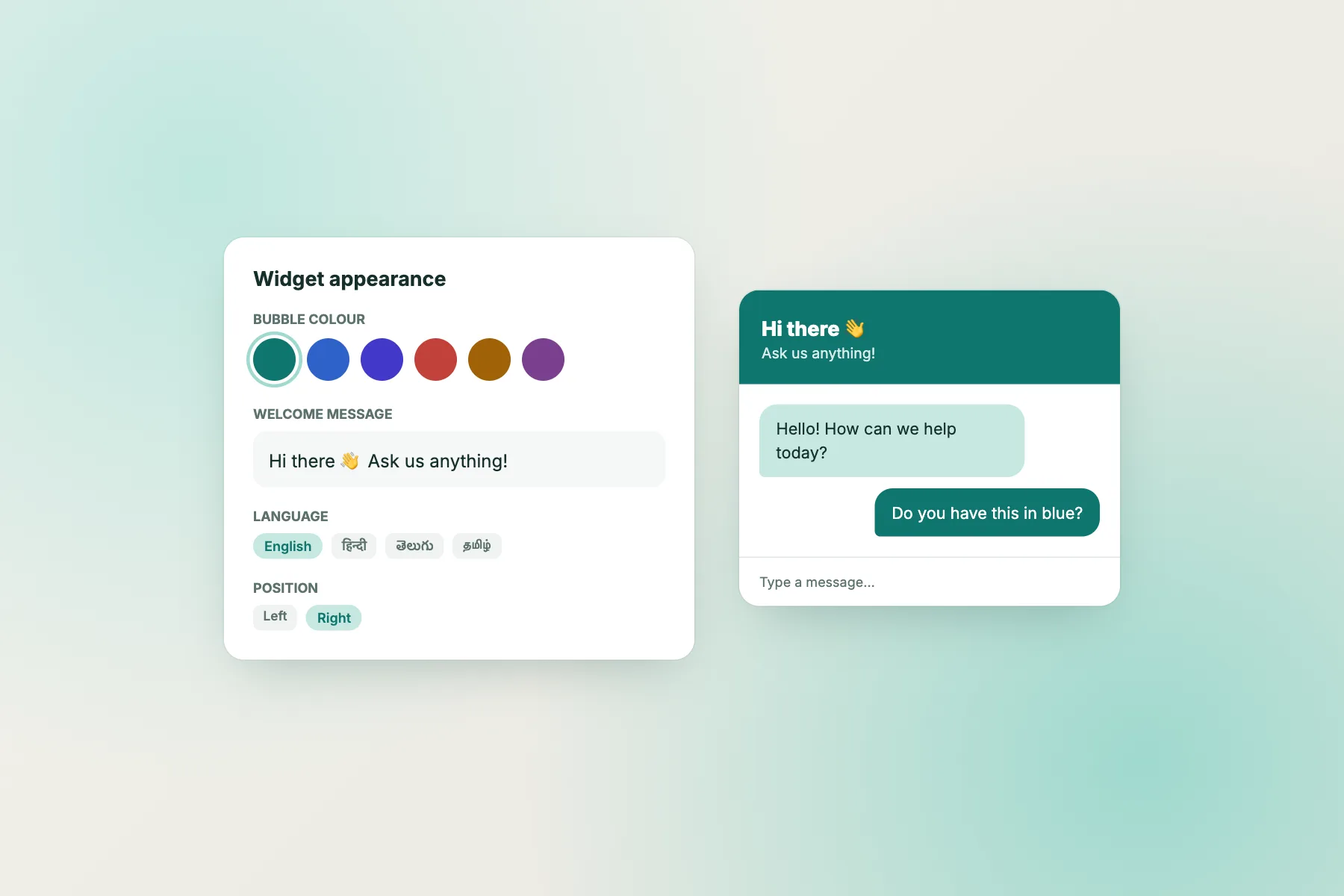
There’s a second benefit. With LiveChatBot, nearly everything about how the chat looks and behaves is set in your dashboard, not in the website’s code. That means the developer’s part is genuinely small, and the brief can say so. You stop paying for hours spent “styling the chat” with custom code that breaks at the next update, and you keep control of the settings yourself.
This guide is for owners who don’t edit their own site. If you’d rather do it yourself, our installation guide for every platform and the HTML snippet walkthrough cover it step by step.
Who does what
Split the job before you write a word
The cleanest handovers put every setting with the owner and only the code with the developer.
You, in the dashboard
Sign up, pick the colour and corner, add your team name, avatar and welcome text, set opening hours and the away form, and choose where the chat shows by device, country and hidden pages.
You, before the brief
Copy the install code from your dashboard. Decide the deadline and who checks the work. Create a temporary site user if the developer needs one.
The developer
Add the code or plugin once, in the right place for your platform. Clear caches. Check it doesn’t clash with other floating buttons. Optional: buttons and logged-in details using the JS API.
You, at the end
Run the acceptance checks on a computer and a phone. Send a test chat. Remove the temporary user. Then pay.
What goes in the brief
Eight things your developer needs to know
A good brief fits on one screen. It doesn’t explain what live chat is; it tells a busy person exactly what to do and how you’ll judge it. These are the eight parts that matter.
1. Which tool and which platform. “LiveChatBot, on our WooCommerce site” is enough. For WordPress, WooCommerce and Joomla there’s a plugin or extension. For Shopify, Wix and Squarespace the code is pasted into a site-wide setting. React and Vue apps have their own plugins.
2. Exactly where the code goes. Name the place: the plugin, Shopify’s theme.liquid before the closing body tag, Wix custom code set to all pages, Squarespace’s footer code injection, or the shared footer on a plain HTML site. Developers know these places, but naming one stops them improvising.
3. Once only. The most common fault is a duplicate: the plugin is installed and the code is also pasted in the theme, so two bubbles appear or messages arrive twice. Say “once” in writing.
4. Caches. Many sites use a caching or speed plugin, or a CDN. After the code is added, those caches must be cleared, and script optimisers that delay or combine scripts may need to skip the chat code. Otherwise the chat seems to work for the developer and not for visitors.
5. What not to touch. Colour, corner, welcome text, hidden pages and hours live in your dashboard. Ask the developer not to override them with CSS.
6. Other floating buttons. If you already have a WhatsApp, call or back-to-top button, mention it. On a phone, two round buttons in one corner is a real problem.
7. Access. You’ll send the code by message. No logins.
8. What “done” means, and by when. List the checks you’ll run, and give a date.
Free tool
Build your chat box for website brief
Answer seven questions. The tool writes a brief you can paste into WhatsApp or email, plus the checks to run before you pay.
1. Business name
2. Where is the website built?
3. Who will add it?
4. Colour and corner you chose in the dashboard
5. Pages where the chat must NOT show (one per line, optional)
6. Extras
7. Needed by
Runs only in your browser; nothing is sent or saved. Never put passwords in the brief.
Safe access
Give the code, not the keys
The quickest way to get a job done is to send someone your passwords. It’s also the habit that causes the most trouble later. A developer you’ll never hire again ends up holding your website admin login, your hosting login and sometimes your email. Even if they’re completely honest, their laptop might not be safe.
You rarely need to share anything for this job. Here’s how to keep it tidy.
Send the install code itself. The code from your LiveChatBot dashboard is all the developer needs to add the chat. It isn’t a password. Paste it into your message. Don’t hand over your LiveChatBot login: the dashboard holds your customers’ chats, and nobody installing a script needs to read them.
Create a temporary user on the website. WordPress, Shopify, Wix and Squarespace all let the owner add another person with their own login. Give them the lowest role that lets them add code or a plugin, and set a reminder to remove them when the job is done. If something goes wrong later, you’ll know which account made changes.
Never send passwords over chat. If the developer says they must have your main admin login, ask why. For a script install, the honest answer is usually that it’s simply more convenient for them.
Check what else changed. After the job, look at the plugin list or code settings. You should see one new thing, not five. If a developer has added a “helpful” extra plugin, ask what it is.
This matters more under India’s DPDP Act 2023, which puts the duty to protect customer personal data on the business. Chat transcripts often contain phone numbers and addresses. Keeping your dashboard login to yourself and your team is the simplest protection you have.
Platform notes
One line per platform for the developer
| Platform | Where it goes | Common slip |
|---|---|---|
| WordPress / WooCommerce | LiveChatBot plugin, activated and connected | Also pasting the code in the theme, so two bubbles show |
| Joomla | LiveChatBot extension via the extension manager | Extension installed but not enabled |
| Shopify | theme.liquid, just before the closing body tag | Pasting it in one template only, so it misses some pages |
| Wix | Custom code, all pages, end of body | Set to load on one page only |
| Squarespace | Code Injection, Footer | Pasting it into a single page’s code block |
| Plain HTML / other builders | Shared footer or site-wide code setting | Adding it page by page and forgetting new pages |
| React / Vue | LiveChatBot plugin, mounted once at the root | Mounting it inside a page, so it reloads on every route |
Common slips
What goes wrong, and how the brief prevents it
Most install problems come from the same handful of causes. Knowing them helps you write the brief and spot the fault quickly if the chat doesn’t appear.
The chat shows twice, or messages arrive twice
The code was added in two places. On WordPress it’s usually the plugin plus a copy in the theme or a header-and-footer plugin. The fix is to keep one and delete the other. Your brief’s “once only” line exists for this.
It works for the developer but not for you
Caching. The developer is logged in, so they see a fresh page; you see the cached one. Clearing the cache plugin and the CDN usually solves it. If the site uses a script optimiser, the chat code may need excluding. Our troubleshooting guide walks through the checks, and on WordPress the plugin conflict finder narrows down which plugin is interfering.
The bubble covers another button
A WhatsApp float, a cookie banner or a “back to top” arrow already sits in the corner. On a phone, the two overlap and one can’t be tapped. The fix isn’t CSS: move the chat to the other corner in your dashboard, or replace the separate WhatsApp float with a WhatsApp button card inside the chat. Our corner planner helps you decide.
It shows on the checkout or login page
Hiding the chat on certain pages is a dashboard setting in LiveChatBot, under where the chat shows. If the developer tries to do it in code by loading the script only on some pages, new pages get missed. Ask them to load it everywhere and leave hiding to you.
The colour doesn’t match
Someone typed the colour by eye. Copy the hex code from your brand files into the dashboard, and the chat will match without any code.
Worth paying for
Optional extras a developer can add in an hour
Once the basic install is done, a developer can add a few things that make the chat feel built into your site rather than bolted on. These use LiveChatBot’s JavaScript API, window.LiveChatBot, which has functions including open, close, show, hide, setVisitor, sendMessage, pageView and on.
“Chat with us” buttons inside pages. A normal button on your contact or product page that calls window.LiveChatBot.open(). Visitors who never notice a corner bubble will notice a clear button next to the price. Our guide to chat buttons in your own code has copy-ready examples.
Logged-in customer details. If your site has customer accounts, setVisitor can pass a signed-in customer’s name and email, so your team doesn’t have to ask who they are. Only do this for logged-in users, never guess for guests.
Page views in single-page apps. React and Vue sites don’t reload between pages, so the developer can call pageView when the route changes. Then your visitor tracking and page-based Flows see the right page.
Connections to other tools. LiveChatBot has a REST API, webhooks for new and solved tickets, and a Zapier connection. A developer can send new tickets to a Google Sheet or CRM. See integrations for what’s available, and ask our team for developer documentation.
Put any of these in the brief as separate, priced items. That way the basic chat box for website install isn’t held up while an extra is being built, and you can decide later whether the extras are worth it.
Acceptance test
Ten checks before you pay
Price and timing
Agree the scope before anyone starts
For a normal install, the developer’s work is small: adding a plugin or pasting code once, clearing caches and checking on a phone. Many freelancers will treat it as a quick job; agencies may bill a minimum block of time. Either is fair, as long as the price is agreed before the work starts and covers the exact list in your brief.
A few habits keep it simple.
Ask for a fixed price for the brief as written. Not an hourly estimate. The list is short and specific, so a fixed price is reasonable to ask for.
Price the extras separately. “Chat with us” buttons, logged-in details and tool connections are separate lines. You can say yes to one and no to the others.
Give a realistic deadline. A few working days is normal for a small job from a busy freelancer. If you need it sooner, say so and expect to pay for it.
Do your own part first. If you haven’t signed up, set your colour or written your welcome text, the developer will wait on you. Finish the dashboard work before you send the brief. Our 30-minute setup guide covers the owner’s side, and opening hours explains the away form.
Pay after the checks. Run the ten checks above. If one fails, send the line from the brief and let them fix it. Most fixes take minutes.
LiveChatBot’s free plan covers two websites with 100 free visitors per website each month, with no per-seat charges, so adding your chat box for website visitors costs nothing beyond the developer’s time. If you need more visitors, packs start at ₹99 for 100 and never expire. See pricing and sign up at livechatbot.in.
Frequently asked questions
Can I add a chat box for website visitors without a developer?
Usually yes. On WordPress it’s a plugin; on Shopify, Wix and Squarespace it’s one paste into a site-wide setting. A brief is for when someone else manages your site or you’d rather not touch it.
Should I give my developer my LiveChatBot login?
No. Send them the install code from your dashboard. It’s all they need, and your dashboard holds customer chats they don’t need to see.
Who should set the colour and position, me or the developer?
You, in the LiveChatBot dashboard. Ask the developer not to change them with CSS, so your settings keep working after site updates.
Why does the chat show for my developer but not for me?
Most often it’s caching. Ask them to clear the cache plugin and CDN, and to exclude the chat code from any script optimiser. Then check again in a private window.
How long should the install take?
For a normal site, adding the code or plugin and checking it takes roughly 15 to 30 minutes of developer time. Extras like in-page buttons or logged-in details take longer and should be priced separately.
Keep reading
Related guides
Chat Bot Services You Can Sell: How Web Designers and Agencies Package, Price and Deliver Bot Setup for Clients (Free Package Pricer)
Chat Bot Introduction Kit: How to Introduce Your New Website Bot to Customers and Staff Without Over-Promising
Chat Bot Download or No Download? What a Business Actually Needs to Install for Website Chat, Platform by Platform
Set it up, then hand over one line of code
Choose your colours, hours and welcome text yourself, then send your developer a clear brief. Start free on livechatbot.in.