Free Chatbot for Facebook: The Six Doors Customers Use, the Two LiveChatBot Covers, and a Sign for the Rest (Free Door Finder)
Free chatbot for Facebook sounds like one thing, but customers reach a business on Facebook through six different doors: Page messages, post comments, ads, groups, Marketplace and Instagram. A bot that covers one door does nothing for the others. This guide counts the doors, shows the two LiveChatBot covers on the free plan, and gives you a simple sign to put on every door it cannot reach.
Short answer
A free chatbot for Facebook has to cover the place customers actually write. LiveChatBot’s free plan reads two of them: messages sent to your Facebook Page (through a Meta connection) and chats on the website your Facebook ads and posts send people to. Both arrive in one inbox. Comments, groups, Marketplace and Instagram are not connected.
The question
A free chatbot for Facebook is really a question about doors
A door is any place where a customer can write to you. On Facebook there are more of them than most owners notice, and each one is a separate system. Installing a bot at one door does not move it to the others.
Here is our count of the doors, taken from what customers can do on Facebook and what LiveChatBot’s Integrations screen connects.
- Page messages (Messenger). Covered. Messages to your Page land in your LiveChatBot inbox.
- Your website, reached from a Facebook ad or post. Covered. The chat widget sits on your site, wherever the visitor came from.
- Comments under a post or ad. Not connected.
- Facebook Groups. Not connected.
- Marketplace messages. Not connected.
- Instagram DMs on the same Meta account. Not connected.
So the honest answer to “does it work with Facebook” is two doors out of six. That is still the two that matter most for a small business, because Page messages and website chats are where buying questions arrive. The rest of this guide shows how to use those two well and what to do about the other four. Our integrations page lists every connection in one place.
Door one
How the Page message door works on the free plan
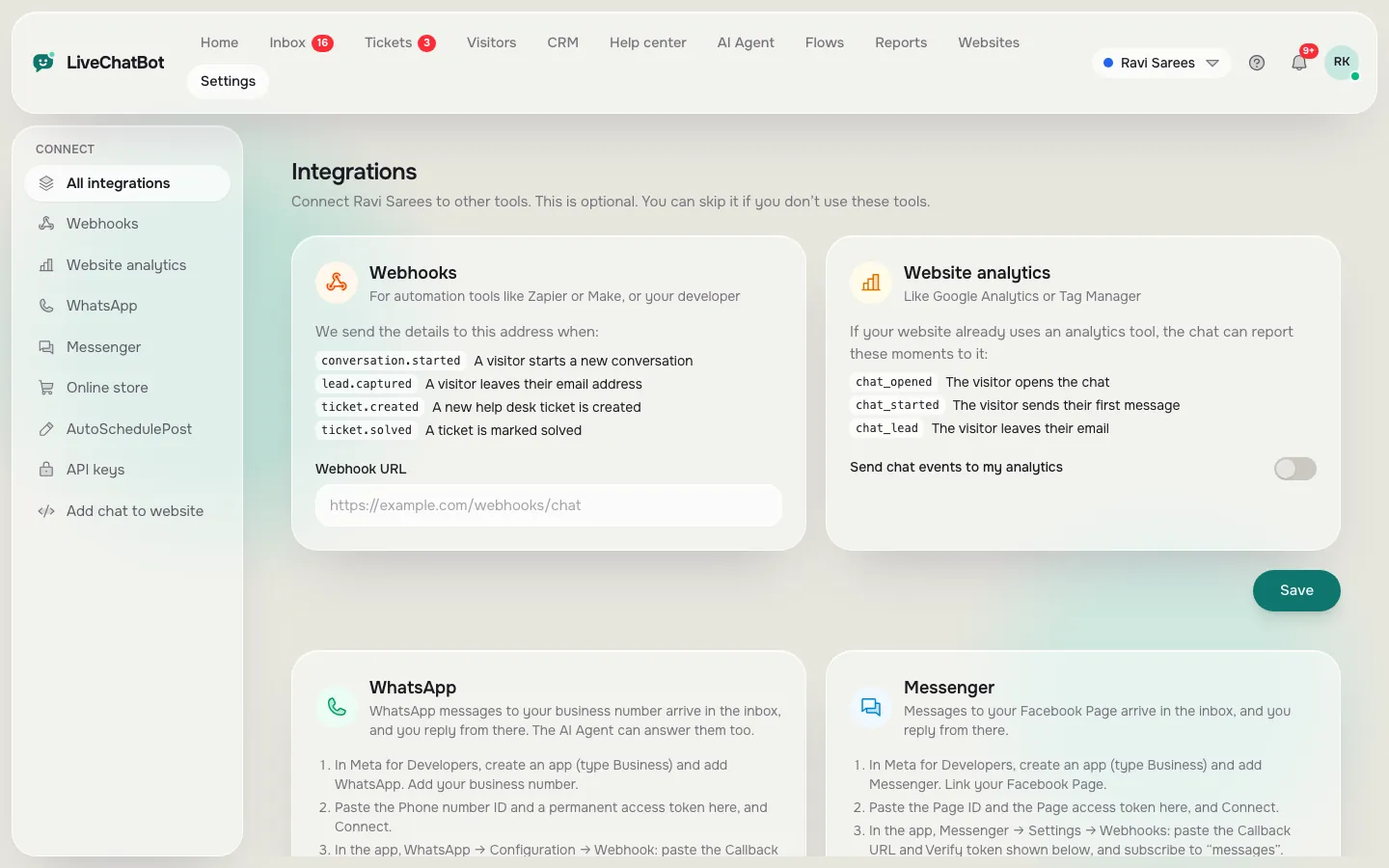
Page messages reach the inbox once you connect the Page through Meta. The connection is three steps and four values, which we counted in the real Integrations screen: you paste a Page ID and a Page access token into LiveChatBot, then paste a callback URL and a verify token into Meta and subscribe to the messages field.
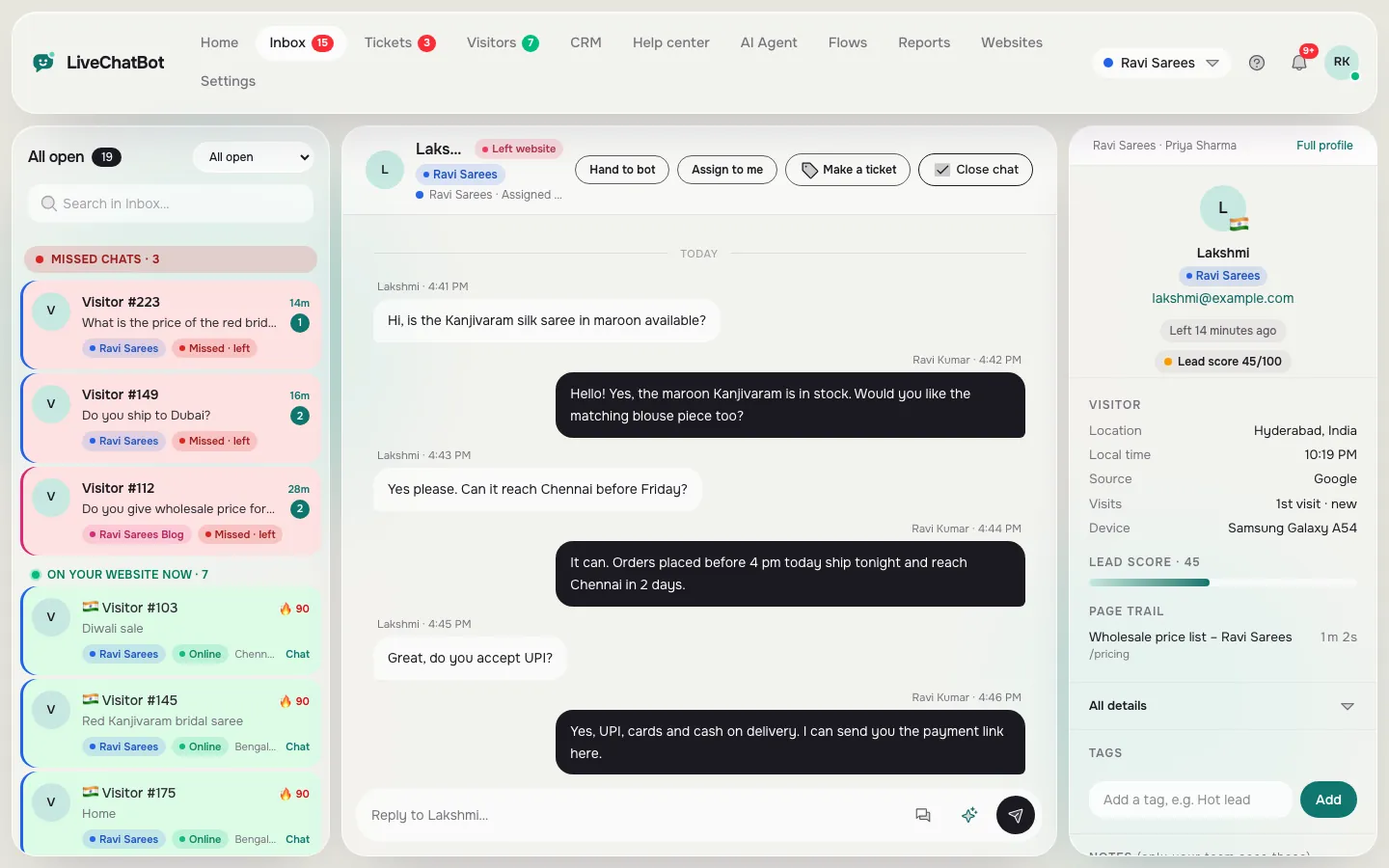
After that, a Messenger user is treated like a website visitor. You can assign the chat, add a note, use saved replies and let the AI Agent answer from the knowledge you gave it. Replies go back to Facebook. If you want the full step-by-step with every field, read the Messenger setup counted step by step. If you are comparing tools first, the best free chatbot for Facebook Messenger is the wider comparison, and the three-step Page connection with a ten-minute test covers the setup day.
This page is about something else: which doors the bot covers, and what you do about the ones it does not.
Real screens
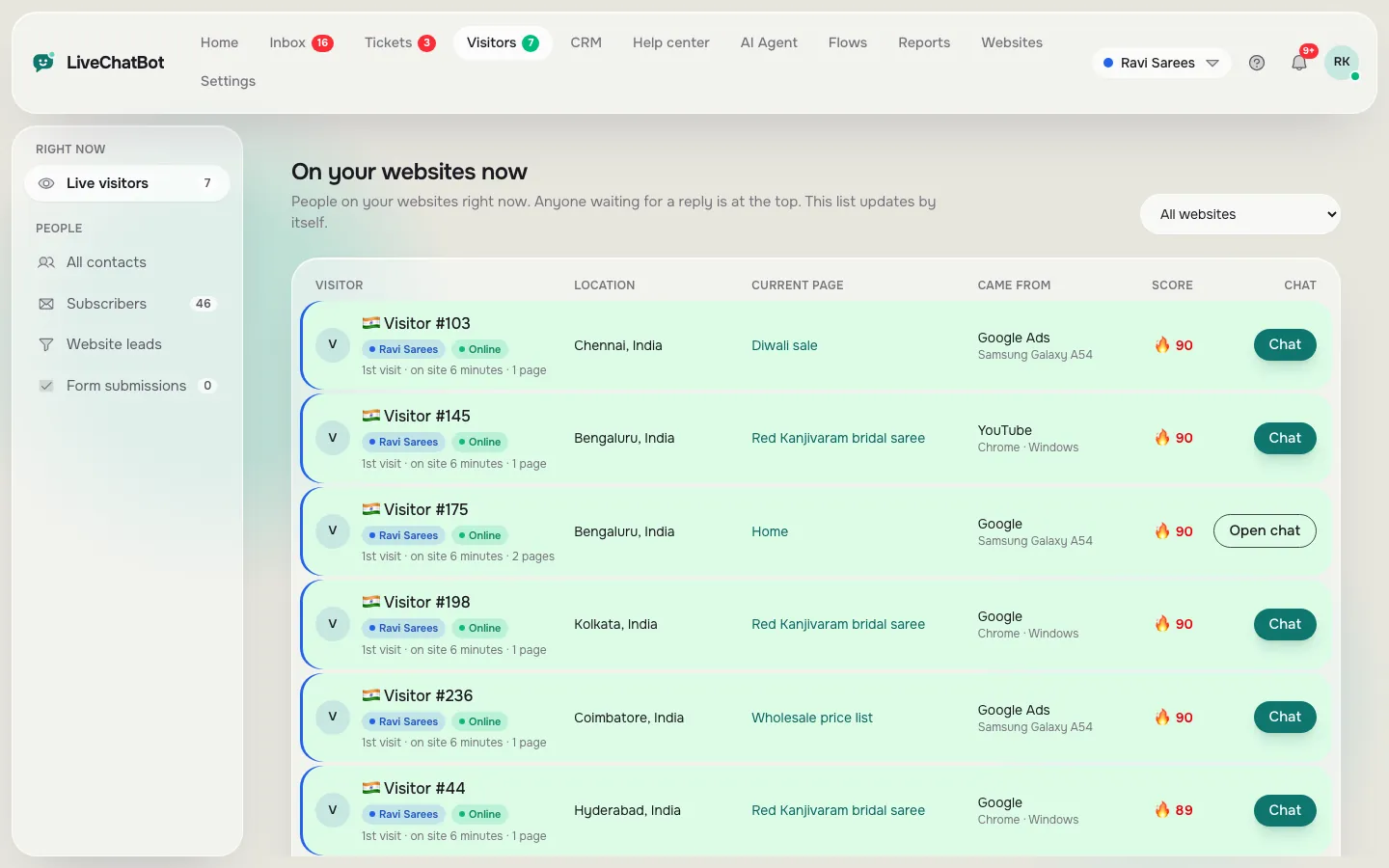
Where you connect Facebook, the shared inbox, and the visitors arriving from your ads
Real screens from the LiveChatBot panel, shown with sample data. Click any picture to see it full size.
Door two
The website door catches people who click your Facebook ads and posts
The website door is the one owners forget, because it is not inside Facebook at all. When someone taps a link in an ad or post, they leave Facebook and arrive on your page. The chat widget is on that page, so the visitor can ask a question without going back to Messenger.
This matters because the click is the most expensive part of an ad. A visitor who arrives, cannot find the delivery charge and leaves has wasted that click. A chat bubble with a relevant opening line catches that moment.
Two things help here. First, Flows can start a proactive message based on conditions, and one of the conditions is traffic source, so a visitor arriving from Facebook can get a message written for them. Second, the visitor list and Traffic reports show where people came from and which pages they acted on, so you can see whether Facebook visitors chat or just leave. See visitor tracking for how that works, and chat flows for the condition list.
You do not need a Meta connection for this door. It works as soon as the chat code is on your site.
Original data
Our door count: two covered, four not, and what each gap costs in minutes
The door count above is original data from the product: we checked the Integrations screen and listed only what it connects. No survey is behind it.
Here is a worked example of what an uncovered door costs, with made-up but realistic numbers. This is an illustration, not a measured result.
Say a post gets 40 comments, and 30 of them ask “price?” or “where are you?”.
- Typing a fresh reply to each: 30 × 20 seconds = 600 seconds, which is 10 minutes.
- Replying once with a standard line that points to one place: about 20 seconds for the first, then copy and paste at 8 seconds each, so 20 + 29 × 8 = 252 seconds, which is 4.2 minutes.
- The saving is about 5.8 minutes for one post. Post three times a week and it is roughly 17 minutes a week.
None of that time is spent in the bot. The bot only starts working once the customer moves to a door it covers. That is the idea in the next section.
What most guides miss
Our rule: put the bot at one door and a sign on every other
The bot only needs to guard one or two doors. Every other door just needs a sign that points to them.
Most guides try to find one tool that watches everything. Meta’s systems are separate, so that tool does not exist for free. The better move is to decide which door is your main counter, then make every other door send people there.
The sign can be one line, saved once and pasted anywhere:
- Under comments: “Thanks for asking! Please message our Page and we will reply there.”
- In a group: “We answer fastest on our website chat, link in our profile.”
- In your Instagram bio and Marketplace listing: the same one line with the same link.
Then run the five-minute door audit:
- List the six doors and mark the ones your business really has.
- For each, write the sign. Ten words is enough.
- Open every door from a friend’s account, not yours, and check the sign is visible without scrolling.
- Send a test message through the covered doors and watch the inbox.
- Repeat after any change to your Page or website.
The audit is the new idea here: it counts doors instead of features, which is the thing that actually decides whether a customer is answered.
Try it
Which door should your chatbot guard?
Follow the tree from where most of your Facebook customers write. It ends on the simplest door to cover first.
Setup
A free setup in one afternoon, in the right order
Order matters, because the covered doors are the base and the signs come last.
- Create your free account at livechatbot.in. The free plan gives you 2 websites and 100 visitors per website a month, with no per-seat charges.
- Add the chat code to your website. This opens door two straight away.
- Give the AI Agent your facts: opening hours, delivery areas, prices. You can type them, copy a web page or upload a PDF, Word, Excel, CSV or TXT file.
- Connect your Facebook Page in Integrations. This opens door one.
- Write ten saved replies for repeat questions, so a person can answer in a click when the bot hands over.
- Install the Android app on the phone of whoever answers at night. There is no iOS team app.
- Write and place the signs from the audit.
Total effort is an afternoon for someone who is comfortable pasting values into a settings page. If the Meta step stops you, door two alone is still a working free chatbot for Facebook traffic.
Honest limits
What this setup does not do
Be clear about the edges before you rely on it.
- No comment replies. LiveChatBot does not read or answer Facebook comments.
- No Instagram DMs, groups or Marketplace. Only Page Messenger and WhatsApp messages reach the inbox.
- No Meta Pixel or Facebook Ads integration. Reports show where visitors came from, but nothing is sent back to Meta.
- The badge stays. “Powered by LiveChatBot” is on the website widget on every plan.
- You need Page admin rights to connect the Page through Meta.
- Free means limits. Once you pass 100 visitors per website in a month, chat pauses for new over-limit visitors; Starter is ₹299 a month for 750 visitors shared across 2 websites, and Growth is ₹699 for 2,500 across 5. Plans are prepaid with no auto-renew. See pricing.
If you need comments handled automatically, a tool built only for Facebook comment automation will do that; it will not give you a website inbox. Decide which door matters more.
Frequently asked questions
Is there really a free chatbot for Facebook?
Yes, for Page messages and for the website your Facebook traffic lands on. LiveChatBot’s free plan is ₹0 for 2 websites and Meta does not charge for the connection. Comments, groups, Marketplace and Instagram are not covered.
Can the chatbot reply to Facebook comments?
No. Comments are a separate door that LiveChatBot does not connect. Reply once with a standard line that points customers to your Page messages or website chat.
Do I need to code to connect my Facebook Page?
No code, but you work in Meta for Developers: create a Business app, add Messenger, generate a Page access token and paste a webhook address. It is three steps and four values.
Does the bot work for people who click my Facebook ads?
Yes, through the website door. The chat widget is on your landing page, and a Flow can use traffic source to greet visitors who came from Facebook.
Can I use WhatsApp and Messenger together?
Yes. WhatsApp and Messenger messages arrive in the same inbox as website chats, so one team answers all three.
Keep reading
Related guides
Free Chatbot Builder Flow Check: Find Dead Ends, Broken Buttons and Missing Exits Before You Publish (Free Flow Map Checker)
Free Chatbot for HTML Website Owners: Add Chat to Plain Pages and Keep It on Every File
Free Chatbot API for Website Owners: Build a Working Answer Bot in 60 Minutes, With One API Call and No Model Key (Free Build Timeline)
Cover your two main doors for free
Free plan for two websites, no per-seat charges, Page messages and website chats in one inbox. Start free on livechatbot.in.