Free Chat for Your Website: Set It Up in the Right Order and Promise Only the Reply Time You Can Keep (Free Launch Checklist)
Free chat for your website is easy to switch on and easy to get wrong. The widget takes minutes, but visitors judge you on what happens after they type: who answers, how fast, and what happens when nobody does. This guide gives you the order that avoids the usual damage, a worked example of how little time 100 free visitors really take, and a checklist to tick off before you tell anyone the chat is live.
The best way to add a chat to a site at no cost is to sign up, paste one snippet, then set opening hours, a welcome message and the away form before you announce it. LiveChatBot is free for 2 websites and 100 visitors per site a month, with no per-seat charges.
Why order matters
Switching on a chat widget first and thinking later is the usual mistake
The right order is: decide who answers, set the hours, write the welcome text, then paste the code. Doing it backwards puts a live chat in front of customers before anyone is ready to reply.
Most guides start with the snippet because it is the exciting part. But the snippet is the last thirty seconds of a good launch. A visitor who types a question into an unattended chat and hears nothing leaves with a worse impression than if there had been no chat at all.
So treat the free plan as a small promise. You are telling every visitor, “someone is here”. The rest of this guide is about keeping that promise without hiring anyone. If you want the plain overview of what the plan contains first, read our free live chat page, then come back here for the launch order.
The plan
What a free chat for your website really includes
A free plan includes the chat widget, a team inbox, an Android app, visitor tracking and a keyword bot, with limits on websites and visitors rather than on features.
Here are the real limits on LiveChatBot’s free plan:
- 2 websites per account.
- 100 visitors per website each month, counted once per month for each new visitor.
- No per-seat charges, so a partner or colleague can answer too.
- Chat widget, inbox, opening hours, away form, saved replies and tickets are all in the free plan.
- AI replies come with every plan, with a monthly allowance shown in your dashboard.
What is not included, so you are not surprised later: the “Powered by LiveChatBot” line stays on every plan, and there is no iPhone team app (iPhone users can answer from a browser). The Android app is there for phones. Paid plans exist when you outgrow 100 visitors; see pricing when that day comes.
Original numbers
Worked example: 100 free visitors take about ten minutes a day
The free limit sounds small, but the time it asks of you is smaller still. Here is the maths, using the real free limit and a deliberately generous assumption.
Our worked example (illustrative, using the real plan limit):
- Free limit: 100 new visitors per website per month.
- Spread over 30 days: 100 ÷ 30 = about 3.3 new visitors a day.
- Assume every single one starts a chat (far more than real life): 3.3 chats a day.
- Assume each chat takes 3 minutes of your time: 3.3 × 3 = about 10 minutes a day.
- With both free websites full: 200 visitors a month, about 20 minutes a day.
In practice only some visitors chat, so your real time is less. The point is that a free chat for your website is not a second job. At the free limit, the worst case is a coffee break.
Why this matters
People fear a chat will swamp them. The numbers show the free plan caps the workload before you ever feel it. If the limit is reached, tracking and alerts continue and chat pauses only for new over-limit visitors, with no automatic charge.
Launch order
Eight steps, in the order that protects you
Tick these off as you go. The bar shows how ready you are to say the chat is live.
Our rule
What most guides miss: promise your worst day, not your best
Pick the reply time you can keep on your busiest, most tired day, and write only that into your welcome message. This is our rule, and it takes five minutes to apply.
Most owners write “we reply in minutes” because it sounds good, then miss it every Tuesday afternoon. A visitor who was promised minutes and waited twenty feels let down. A visitor who was promised “within the hour” and heard back in ten feels looked after.
The five-minute test
- Think of the day you are most likely to be busy or out.
- Ask: what is the longest I would leave a message before looking at my phone?
- Add a little margin and write that into your welcome text.
- Let the real replies beat the promise.
The promise is then a floor, not a hope. Our guide on writing a live chat welcome message has wording you can adapt, and the numbers behind it are in live chat response time.
Hours and away
Opening hours decide what a visitor sees when nobody is there
Opening hours tell the widget when you are available, and outside them it shows a form instead of a chat that goes nowhere.
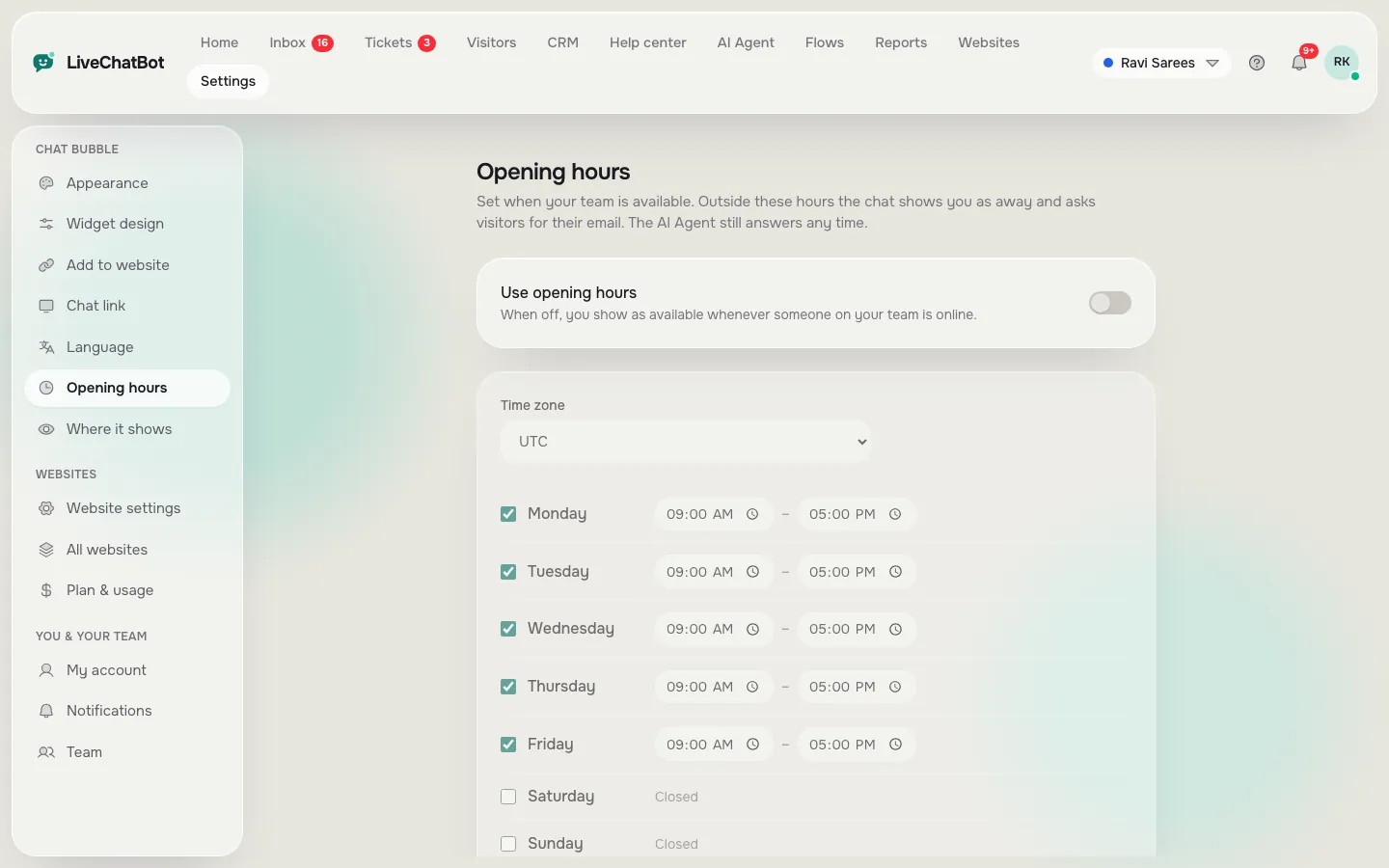
Set your hours honestly. If you answer from 10 am to 6 pm, say so. Outside those hours, visitors see the away form, which collects an email or phone number. That message reaches your inbox, and you can reply the next morning. For lost enquiries, this one setting does more than any widget colour.
What to ask on the away form
Keep it short. Name plus one contact detail is enough. Every extra field loses people. The chat rescuer works the same way during open hours: if nobody replies within seconds, the chat asks for contact details so the lead is not lost.
Follow our guide to setting live chat opening hours for the exact screen.
Welcome text
A welcome message should say who you are and what to ask
A good welcome message names your business, invites one specific kind of question and states when you reply.
Compare these two openings:
- “Hi! How can we help?” gives the visitor nothing to hold on to.
- “Hi, you’re chatting with the team at Sharma Tailors. Ask us about fittings, prices or delivery. We reply within an hour, 10 am to 6 pm.” tells them what to do and what to expect.
(Sharma Tailors is a made-up example.) The second version also trains visitors to ask answerable questions, which means fewer chats you cannot handle quickly. Pair it with five saved replies for the commonest questions and most chats become one tap each.
Real screens
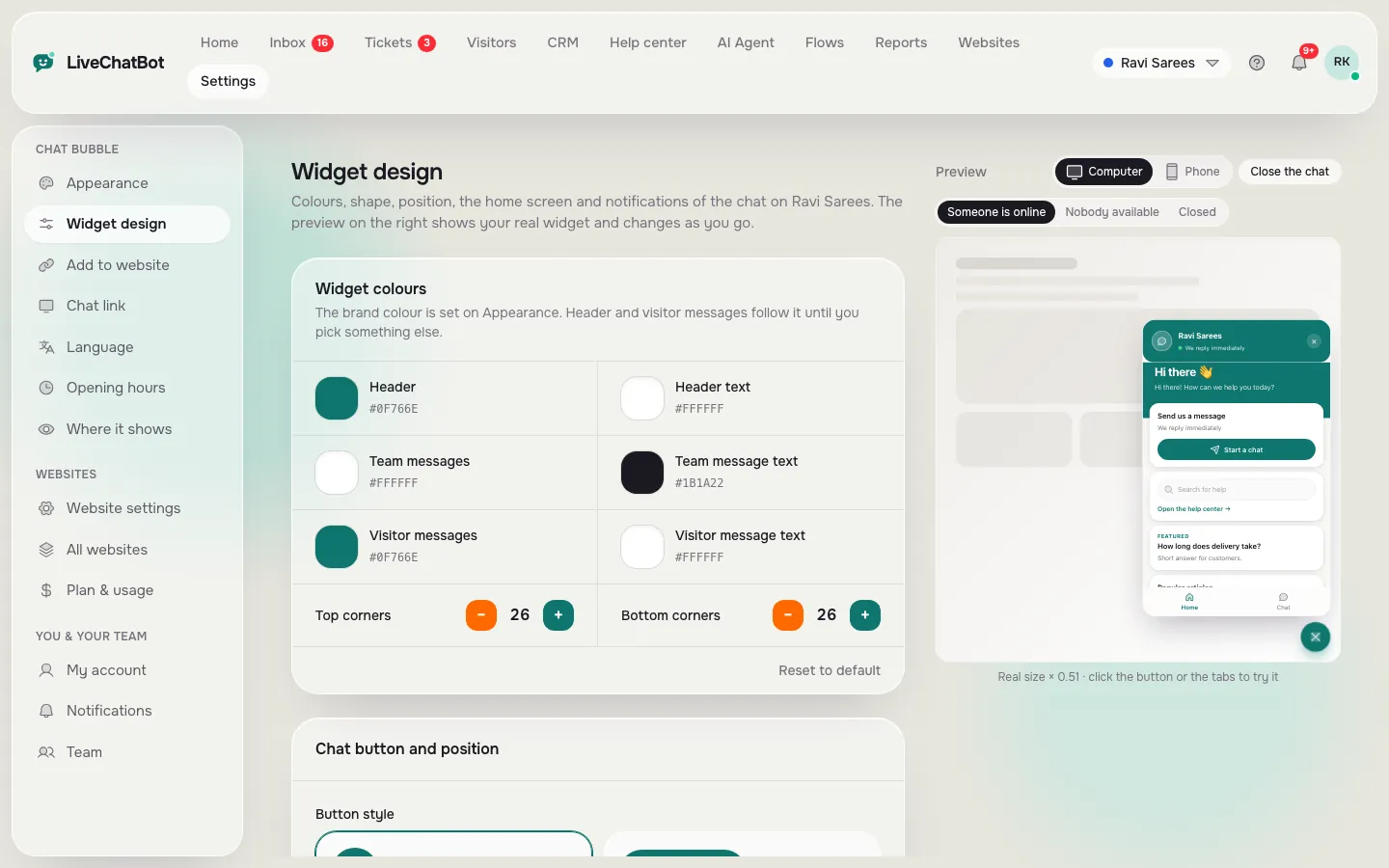
What you will see in LiveChatBot
Real screens from the LiveChatBot panel, shown with sample data. Click any picture to see it full size.

Phone
Alerts on your phone are what make a free chat believable
If alerts do not reach you, the promise in your welcome text is empty.
Install the Android app on the phone of whoever answers, sign in, and allow notifications. Then run the private-window test: send yourself a message from your own site and time how long the phone takes to buzz. If you rely on a laptop only, you will miss chats on the move. The LiveChatBot Android app guide covers the alert settings and tones.
Share the load without a bill
There are no per-seat charges, so invite a partner or colleague as a back-up. Agree who covers which hours. Two people sharing the inbox is cheaper in time than one person who never gets a break, and costs nothing extra.
First week
Read every chat in week one, then adjust
In the first week, read each conversation yourself and note what people asked that your saved replies did not cover.
You are learning what your visitors want. Write down every question you had to type from scratch, and turn the repeated ones into saved replies. If you are using the AI Agent, add those answers to its knowledge as well. After seven days you will have a better set of replies than any template could give you, because it comes from your own visitors.
Also look at where visitors chat from. Pages that attract questions are often pages that are unclear. Fixing the wording on one page can remove a dozen chats. The visitor tracking feature shows who is on your site right now so you can spot patterns.
Limits
When the free limit is reached, nothing breaks
When a website reaches its 100 free visitors, the chat pauses only for new over-limit visitors; tracking and alerts continue, and nothing is charged automatically.
That matters because many free tools simply switch off or ask for a card. With a free chat for your website on LiveChatBot, you decide. You can wait for the monthly reset, or move to a paid plan when the chats are earning you enough to justify it. Plans are prepaid, with no auto-renew, and the free live chat plan stays available. Read our comparison of free live chat software for website owners to judge when a free plan stops being enough.
Frequently asked questions
Is there really a free chat for your website with no time limit?
Yes. LiveChatBot’s free plan has no trial clock. It covers 2 websites and 100 visitors per website a month, and you can stay on it as long as it fits.
Do I need coding skills to add it?
No. You paste one snippet before the closing body tag, or use the WordPress plugin. Shopify, Wix and Squarespace are paste-in too.
What if nobody is online when a visitor writes?
Outside opening hours the widget shows the away form and collects an email or phone. During open hours, the chat rescuer asks for contact details if nobody replies in seconds.
Can my team share it without paying per person?
Yes. There are no per-seat charges, so colleagues can answer from the shared inbox.
Can I remove the Powered by LiveChatBot line?
No. It stays on every plan, including the free one.
Keep reading
Related guides
Free Chat for WordPress as a Two-Week Experiment: Set Your Keep-or-Remove Number Before You Install (Free Experiment Timeline)
Free Chat Box for Website Owners: What You Get for ₹0, the 100-Visitor Test and When to Upgrade
Free Chat App for Website Owners Who Answer From a Phone: An Alert Budget, a Daily Routine and a Pocket Checklist (Free Pocket Checklist)
Launch it in the right order
Free plan for two websites, no per-seat charges, and nothing charged automatically. Start free on livechatbot.in.