Embed Live Chat on Website: Read the One-Line Embed Piece by Piece, Know What Stays in the Dashboard and Never Paste It Twice (Free Embed Line Decoder)
Embed live chat on website pages with a single line of code, and you can read that line in a minute. Most owners paste it without knowing what is inside, then worry when something changes. This guide takes the LiveChatBot embed line apart piece by piece, shows what the line carries and what it deliberately leaves in the dashboard, and gives you a searchable decoder, a worked count of edits saved and a five-minute test to prove your embed is healthy.
Short answer: To embed live chat on a website, copy the one script line from Settings, Add to website, and paste it once before the closing body tag of your site template. The line holds only your chat key. Colours, texts and rules stay in the dashboard, so you change them later without pasting again.
⚡ In short
- The embed line is an address, not a design: it tells the browser which chat to load, nothing more.
- Paste it once into the template that every page shares, then confirm with the Chat is live banner.
- Design, welcome text, hours and page rules all live in the dashboard, so they never need a second paste.
- Prove the embed works with the welcome-text test at the end: change one sentence, reload, see it change.
The basics
What it means to embed live chat on website pages
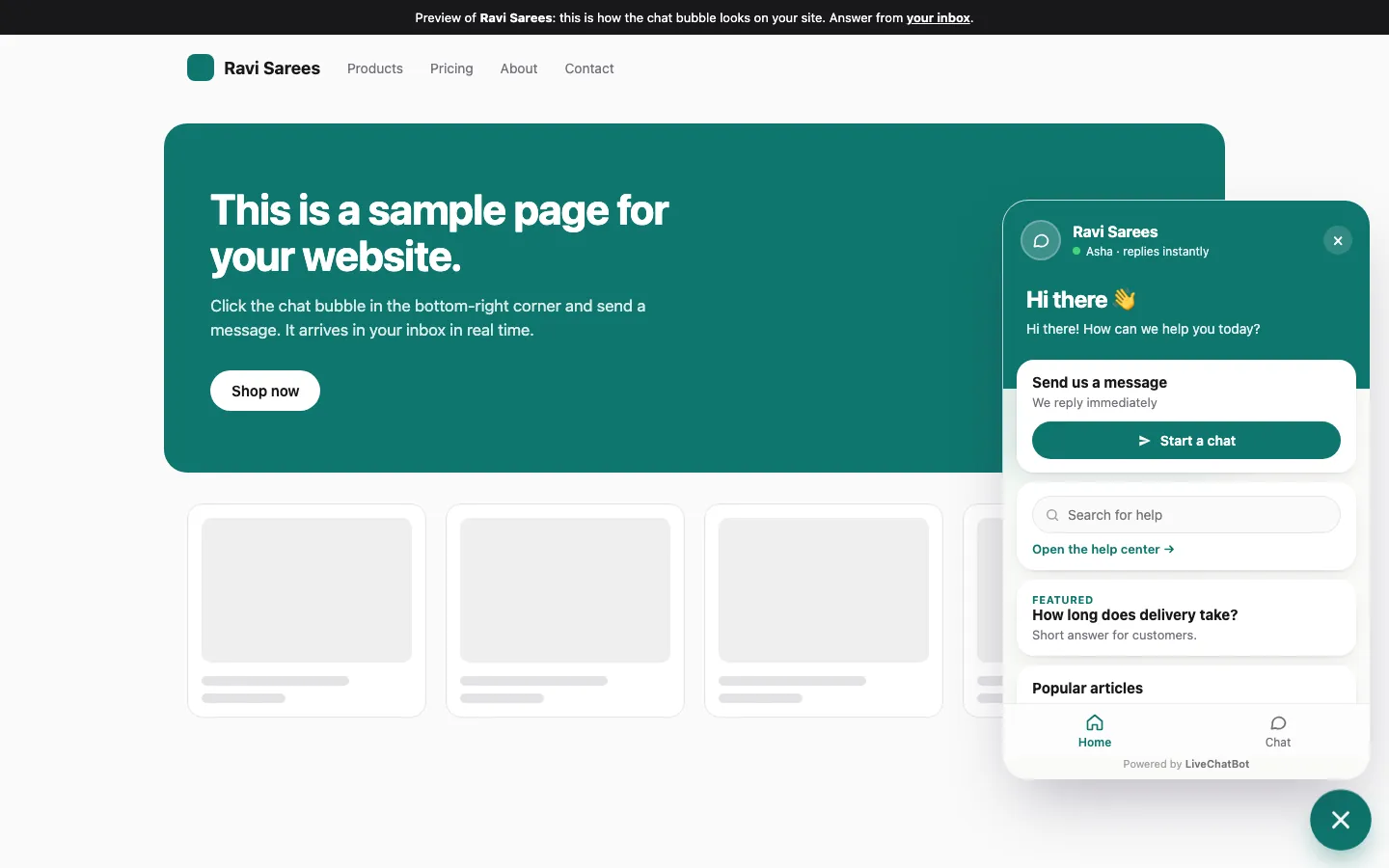
Embedding means adding one small script reference to your pages so the browser loads your chat from LiveChatBot’s server. It is not a copy of the chat. Your site stays the host, and the chat arrives as a floating bubble when a page opens.
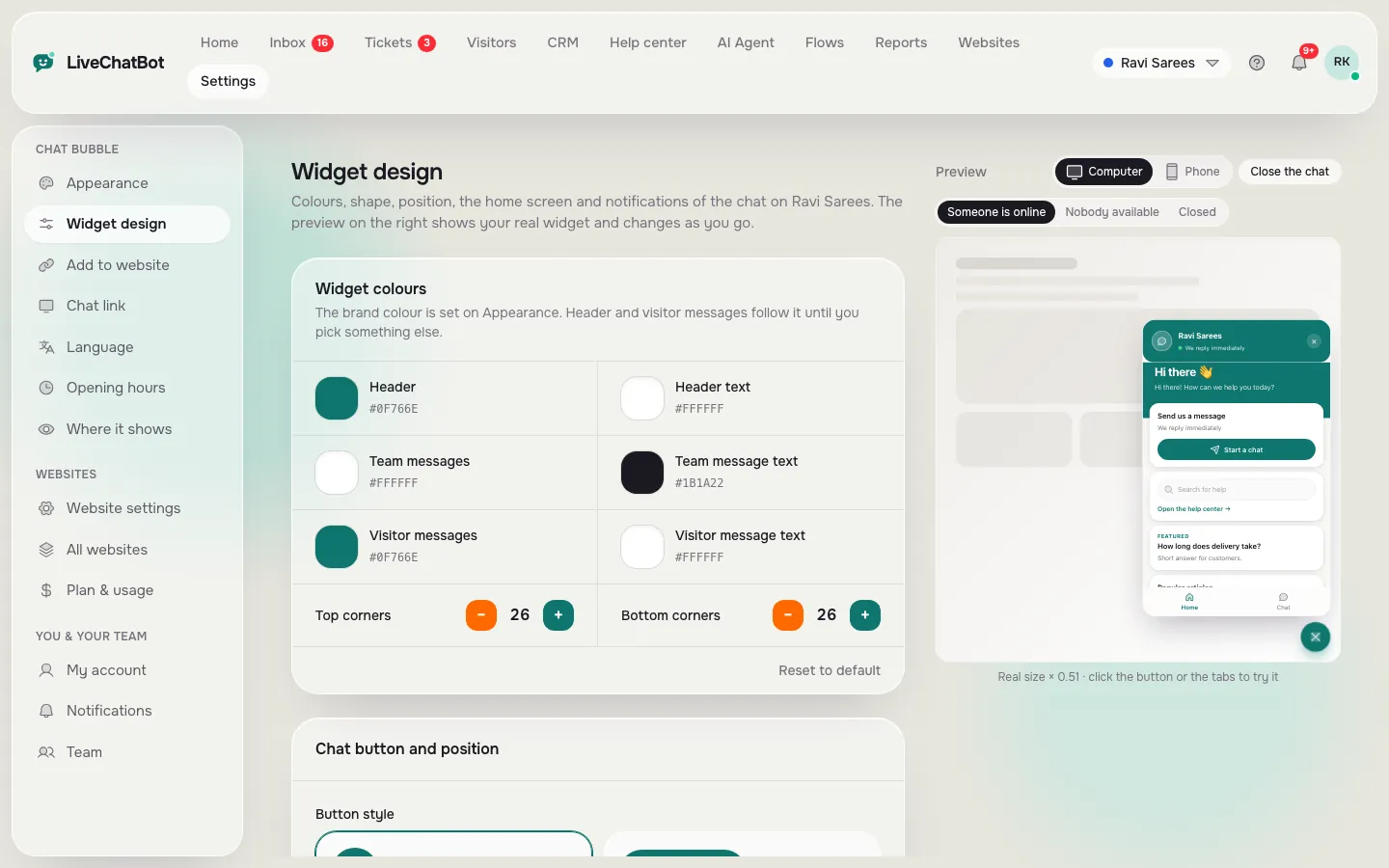
The line you paste is short and almost never changes. Everything you will tune for months, such as the greeting, the colour or the pages where chat appears, sits behind a login.
If you want the wider picture of the bubble itself before the code, read our website chat widget guide. This post stays on the embed: what it is, what it contains and how to know it is right.
Step by step
Embed live chat on website pages in six steps
You can embed the chat in six steps, and the first five take about a minute each on a normal site.
- Sign up at livechatbot.in and add your website.
- Open Settings, then Add to website.
- Pick how your site is built. WordPress, WooCommerce, Joomla, React and Vue have ready-made plugins. Every other site pastes one line.
- Copy the line shown for your platform.
- Paste it where every page shares one template, just above the closing body tag, then save and publish.
- Open your website once. The Add to website page then shows a green banner saying your chat is live, with the first address where it was seen.
If your site runs on WordPress, the plugin does steps 4 and 5 for you with the key already inside, as covered in our WordPress live chat plugin guide. For the full beginner route, see how to set up live chat on a website.
Free tool
Decode the embed line
Search any word you see in the embed line or on the Add to website page. Each entry says what it is and whether you ever need to touch it.
Our own data
Original data: what the embed line carries, counted from the real Add to website page
The standard embed line has three parts and carries no design at all. We counted this from the LiveChatBot Add to website page, so it is product fact rather than an estimate.
The count
- Standard bubble line: 3 parts, the script source, your data-key and async.
- Inline box line: 6 parts. It adds data-mode, data-target and data-height, plus one empty div for the chat to sit in.
- Design values stored in the line: 0. No colour, text, position or hours.
- Steps in the dashboard: 6, as listed above, ending with the live banner.
A worked example of edits saved
Take a site with 40 pages and a team that tunes the chat 12 times a year (a new greeting, a seasonal colour, hours changes). If settings were baked into the pasted code, each change would mean editing the template and republishing: 12 edits of about 5 minutes each, or 60 minutes a year. With the key-only line it is 12 changes in the dashboard of about 1 minute each, or 12 minutes, and 0 template edits. The maths: 12 x 5 = 60 minutes against 12 x 1 = 12 minutes, so 48 minutes saved, and the template stays untouched.
The numbers are illustrative; use your own counts.
Real screens
From the Add to website page to the bubble on your site and the settings that never need a second paste
Real screens from the LiveChatBot panel, shown with sample data. Click any picture to see it full size.

Where to paste
Where to embed live chat on website templates so every page gets it
Paste the line in the one template or setting that every page shares, not on each page. Where that is depends on how the site is built.
Builders and shops
On Shopify it is the theme file theme.liquid, above the closing body tag. On Wix it is Settings, Custom code, with All pages and body end. On Squarespace it is Code injection, footer. On Webflow it is Site settings, Custom code, footer, then publish. Several need a paid builder plan.
Plain HTML and frameworks
A plain HTML site has a footer include or a shared layout file. If you have none, you paste the line on every page, which is the case where a tag manager or a small include saves real time. Laravel, React and Vue each have their own steps on the same page, with the key kept in config rather than in code.
Tag managers
If your site already loads Google Tag Manager, a Custom HTML tag with the All Pages trigger works. If you count templates before you paste, see how to embed chat in a website the three-window way. Read our guide to live chat scripts for wording and timing, and the chat widget for website guide for platform detail.
What most guides miss
Our rule: the embed line is an address, not a design, so test it with a welcome-text change
Most guides end at the paste. We think the paste proves nothing, because a bubble that appears may still be a cached copy or a second, forgotten embed. Our rule is the welcome-text test.
The five-minute test
- Open Settings and change the welcome text to something odd, for example “Test 1 two three”.
- Open your website in a private window and reload.
- Open the chat. The odd text should show, with no code change anywhere.
- Change it back.
- Repeat on one page that uses a different template, such as a product page or a blog post.
If the odd text appears on both, the embed is healthy: one line, one source of truth, every page. If it shows on one template and not the other, that template has its own copy or is missing the line. If it never changes, you probably pasted somewhere a cache or an old plugin is overriding, and that is the place to look first.
This works because the line holds only the key. Any visible change that arrives without a republish proves the design is read from the dashboard.
Mistakes
Three mistakes when you embed live chat on website templates
The usual mistakes are about placement, not about code. Each is easy to avoid, and copying the whole line (it already has async) avoids a fourth.
1. Pasting it twice
A plugin and a pasted line together can load the chat twice, so visitors may see two bubbles or none. Use one route only. If you installed the plugin, do not also paste the line.
2. Editing the key
The key must match your website exactly. A missing character shows no chat. Copy and paste, do not retype.
3. Forgetting the live banner
If the banner still says not added, open the website once. The server marks the chat live only after it has seen it load. Clear your site cache if the banner stays amber.
After the paste
What to set up once the bubble is on your pages
The embed puts the bubble on the page; the dashboard decides what it says. Spend your first hour there.
- Widget design: colour, button, position, team name and welcome text, as shown in the screens above.
- Where it shows: devices, countries and pages to hide it on.
- Opening hours and away form: so a night visitor leaves an email or phone.
- AI Agent knowledge: type answers, copy a web page or upload a PDF, Word, Excel, CSV or text file.
Embedding does not decide whether the chat helps. The words and the rules do. When you want to place the chat inside a page rather than as a floating bubble, read chat embedded in website pages, and for the install route by platform see chatbot with embeddable widget.
Next step
Embed live chat on website pages, then keep the bubble honest
Once the line is in and the test passes, you rarely touch the code again. Check the live banner after any theme change or site rebuild, because a new theme can drop the line. Re-run the welcome-text test after redesigns.
The free plan covers two websites and 100 visitors per website each month, with no per-seat charges, and “Powered by LiveChatBot” stays on every plan. See pricing, and for the bigger picture of the bubble your visitors will see, return to our website chat widget guide.
Frequently asked questions
How do I embed live chat on a website without a developer?
Copy the one line from Settings, Add to website, paste it into your builder’s custom code or footer setting, and publish. On WordPress, download the plugin instead and there is nothing to paste.
Do I need to paste the embed code on every page?
No. Paste it once in the template or setting that every page shares. Only a plain HTML site with no shared file needs it on each page.
Does the embed line contain my chat design?
No. It carries your chat key only. Colours, texts, hours and page rules stay in the dashboard, so changing them never needs new code.
How do I know the chat is embedded correctly?
Open your site once and look for the green Your chat is live banner on Add to website, then run the welcome-text test on two different page types.
Can I remove the Powered by LiveChatBot badge?
No. The badge stays on every plan, including the free one.
Keep reading
Related guides
Embed Chatbot in Website Free: Fill the Bot Before You Paste the Code, and a 20-Minute Plan That Costs Nothing (Free Quick Quiz)
Embed Chatbot in Website: Read the Snippet Attribute by Attribute, Then Spend Your Time on the Answers (Free Copy-Ready Snippets)
Embed Chat in Website: Count Your Page Templates First, Paste Once, Then Prove It With a Three-Window Test
Paste one line, then tune everything in the dashboard
Free plan for two websites, no per-seat charges. Start free on livechatbot.in.