Embed Chatbot in Website: Read the Snippet Attribute by Attribute, Then Spend Your Time on the Answers (Free Copy-Ready Snippets)
Embed chatbot in website pages with one line of code, and that line is simpler than most owners fear: it has one address, one key and one word that stops it slowing your page. This guide reads the snippet piece by piece, shows the three shapes it can take, and then moves the real work to where it belongs, the answers your bot gives.

Short answer
To embed chatbot in website pages, copy the one-line script from your LiveChatBot install page and paste it once, just before the closing body tag of the footer your pages share. It needs two things, the widget address and your chat key. Save, reload in a private window, and the chat bubble appears. Then teach the bot your answers.
⚡ In short
- The embed is one script tag. Only two parts are required: the widget address (src) and your chat key (data-key).
- Four optional switches change its shape: data-mode, data-target, data-height and data-no-popup.
- Colours, words, hours and page rules live in the dashboard, so the code never changes after you paste it.
- The embed takes about two minutes. The bot’s answers take about half an hour, and that is where chats are won.
The snippet
What is the one line you paste to embed a chatbot?
The line you paste is a single script tag that loads the chat from LiveChatBot’s servers and draws a bubble in the corner of the page. Nothing is installed on your hosting and your database is not touched.
Here is the standard floating version. Copy it from the box (it is the same code our website chat widget page describes), or better, copy it from your own install page, because your page already has your real key filled in.
Anatomy
Reading the embed code part by part
The embed code is made of five small parts, and only two of them are required.
- src is the widget address. It tells the browser where to fetch the chat. Required.
- data-key is your chat key, the identifier that ties the bubble to your website’s design, hours and answers. Required.
- async tells the browser not to wait for the chat before drawing the rest of the page. Strongly recommended, because it keeps the chat from slowing your page.
- data-mode switches from the floating bubble to an inline box or a full page. Optional.
- data-target, data-height and data-no-popup only matter for the inline box (where it sits and how tall) and for hiding the welcome pop-up. Optional.
Original data: what we counted
We counted the snippet in the real widget file. It reads five attributes in total (key, mode, target, height, no-popup). Exactly one of them, the key, is unique to you. Everything else is either a fixed address or an on/off choice. That is why there is nothing to configure in code: if your embed has more than the key, someone added it on purpose.
Where to paste
Where does the code go when you embed chatbot in website builders and custom sites?
The code goes in the one place that every page shares, usually the footer or a site-wide custom-code box, and never into pages one by one.
- WordPress and WooCommerce: use the plugin from your install page; the key is already inside, so there is nothing to paste. See our WordPress live chat plugin guide.
- Shopify: connect the store, then paste the code into the theme’s main layout file, just above the closing body tag. Read Shopify live chat for the steps.
- Wix and Squarespace: use the site-wide custom code or code injection box, set to the footer or body end.
- Plain HTML, Laravel, React and others: put it in the shared layout, include or root component.
If your site is built in a way you cannot name, our platform detector helps. The same logic is explained step by step in embed chat in website.
Real screens
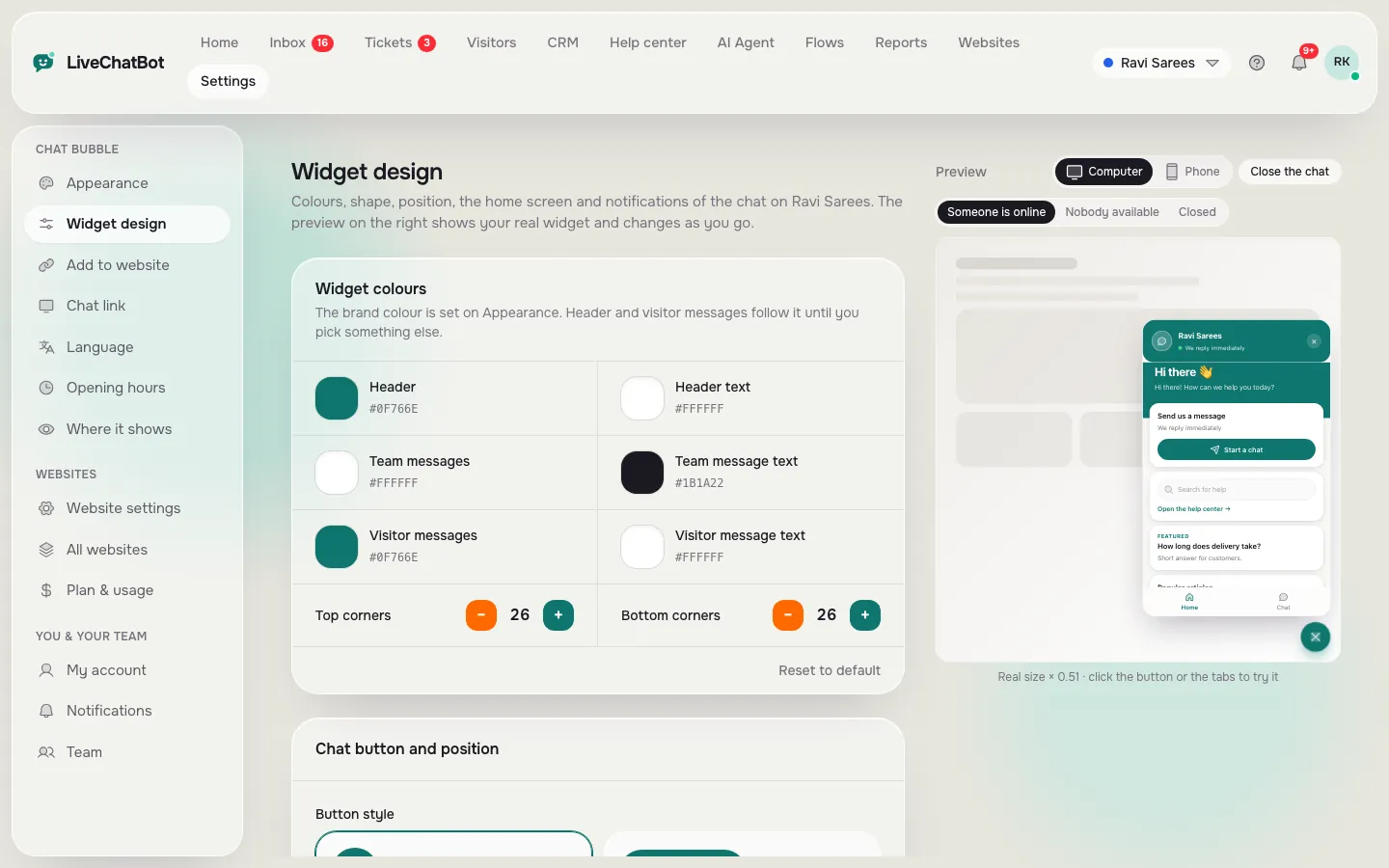
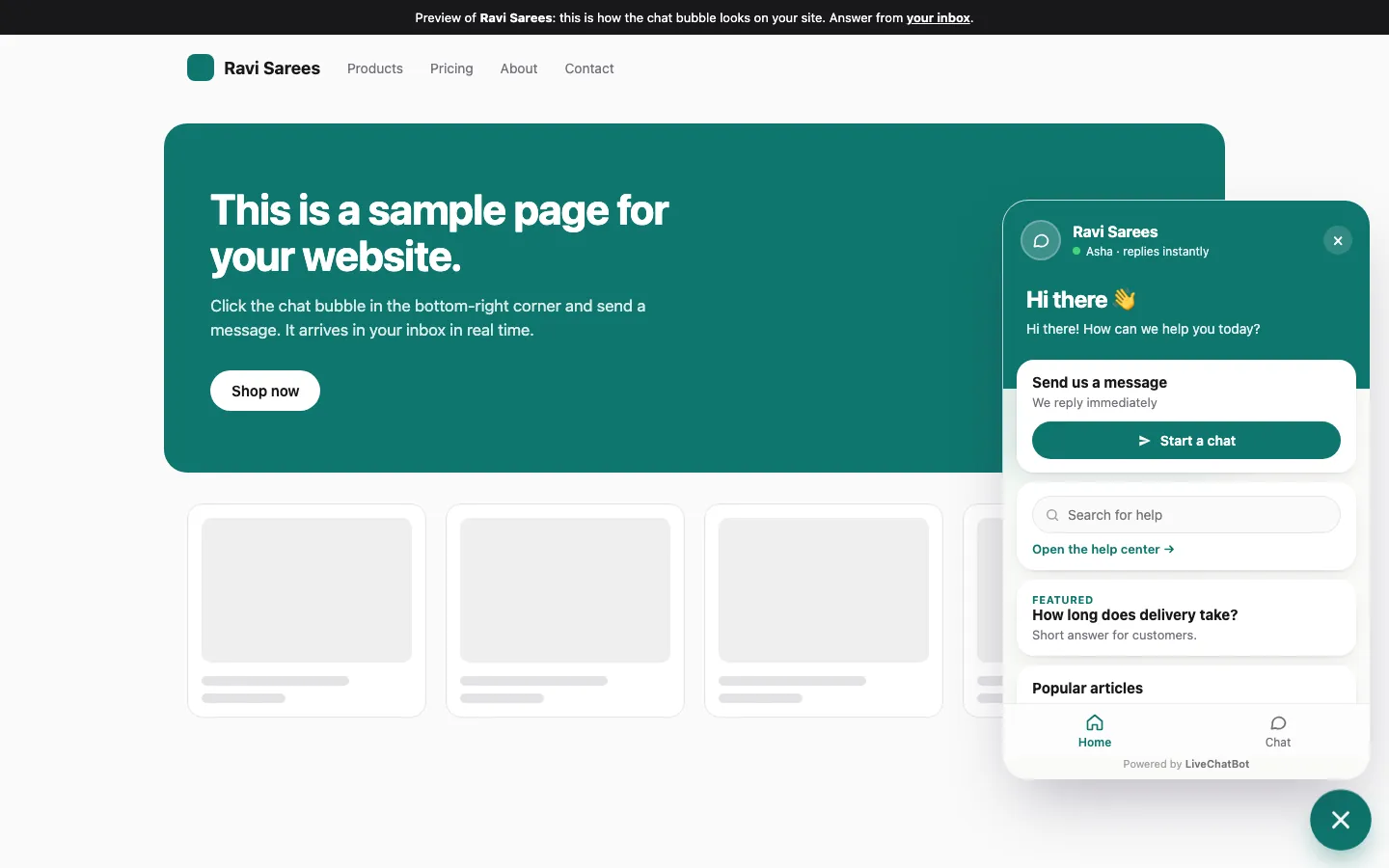
The install page, the design page and the result on a site
Real screens from the LiveChatBot panel, shown with sample data. Click any picture to see it full size.
Our rule
What most guides miss: the code decides where, the dashboard decides whether
The snippet only decides where the chat can exist; the dashboard decides whether it actually shows. Most owners get this backwards and delete the code when they want the chat gone.
New insight, our rule: never remove the snippet to hide the chat. Hide it in the dashboard. If you pull the code out, you have to remember where you put it, and you must paste it back into the right place later. If you use Settings → Where it shows, you can switch the chat off for phones, for chosen countries or for pages such as checkout, and switch it back on in one click, with the code untouched.
This also answers a worry we hear often: “Is my chat key a secret?” No. It sits in your page source for anyone to read, like the key of any embedded widget. Treat it as an address, not a password. The built-in limits protect it: visitor chat messages are capped at 20 per minute per IP, and the widget API at 240 requests per minute per IP.
For the full list of what you can change without touching code, see chat widget customization.
The three shapes
Which shape of embed should you choose?
Choose the floating bubble unless a page has a specific job for a bigger chat. The floating bubble works on every page you paste it into, and it is what almost every site wants.
The inline box puts the chat inside a page, in a div you name with data-target, at the height you set with data-height (600 pixels by default). Use it on a contact or support page where chat is the main thing visitors came for.
A full-page chat link is not code at all. It is a shareable address you can put in WhatsApp, email or a QR code. Our live chat link guide covers it.
You can also open the chat from your own button with the JS API. A single `LiveChatBot.open()` call on a button lets “Ask our assistant” buttons on a pricing page start the chat directly. Our guide to embeddable widget installs explains how to prove each shape works.
Worked example
How long does it take to embed a chatbot, and where does the rest of the time go?
The embed takes about two minutes, and teaching the bot takes about thirty, so most of your effort belongs after the paste.
Original data: a worked time budget
This is a worked example, not a survey. Assume a small clinic with 20 questions it hears every week.
- Copy snippet, paste into the footer, save: 2 minutes.
- Open a private window and confirm the bubble: 1 minute.
- Type 20 answers into the AI Agent’s knowledge at about 1.5 minutes each: 30 minutes.
- Test with 5 real questions and 1 you never taught it: 5 minutes.
Total: 38 minutes, of which the embed itself is 3 (about 8%). A site that spends an hour fighting the code and five minutes on answers has the proportions backwards.
You do not have to type everything. The AI Agent also takes a copied web page or an uploaded PDF, Word, Excel, CSV or text file. Our guide to training your AI chatbot shows the order that works.
Prove it
How do you check that the embed really works?
Check it in three places: a private window, a phone on mobile data, and a page type you did not expect.
- Private window. Open your home page. The bubble should appear within a few seconds.
- Phone on mobile data. This skips your office wifi and any cache. Tap the bubble and send a message.
- An unexpected page. Open a blog post, a thank-you page and a 404 page. If one is missing the bubble, it uses a different template and needs the snippet too.
- Your inbox. The test message should arrive in the dashboard and the Android app.
If nothing shows, the usual causes are the code pasted into a page instead of a shared template, a cache that needs clearing, or a page you hid in Where it shows. For a symptom-by-symptom walk, see chatbot widget for website.
Mistakes
Four mistakes people make when they embed chatbot in website code
The four mistakes below cause most failed embeds, and each takes under a minute to fix.
- Pasting the code twice. Two copies can show two bubbles. Search your theme for widget.js before you add it.
- Pasting the placeholder. YOUR_WIDGET_KEY is an example. Copy the real code from your install page.
- Putting the script in the head without async. A script without async can make the page wait. Keep async.
- Forgetting the bot has nothing to say. An embedded bot with an empty knowledge box can only hand over. Add answers the same day.
Also be honest in the welcome line about what the bot is. A short intro that says it is an assistant, what it can answer and how to reach a person builds more trust than a clever name.
Cost
What does it cost to embed a chatbot?
Embedding costs nothing; the plan you choose only sets how many visitors the chat serves. The Free plan is ₹0 for 2 websites with 100 visitors per website per month. Starter is ₹299 a month for 2 websites with 750 visitors shared, and Growth is ₹699 a month for 5 websites with 2,500 shared. Yearly plans are ten months for twelve, payment is prepaid, and nothing renews automatically. See pricing for the current details.
Two honest limits: the “Powered by LiveChatBot” label stays on every plan, and the team app is for Android only. If you need either changed, decide that before you embed. Everything else about the website chat widget is set from the dashboard.
Frequently asked questions
How do I embed chatbot in website pages without a developer?
Copy the one-line script from your install page and paste it into your site’s footer or custom-code box. WordPress and Joomla have plugins with the key already inside, so nothing needs copying.
Will the embedded chatbot slow my website?
The script carries the async attribute, which tells the browser not to wait for the chat before drawing the page. Keep that attribute and test the page on a slow phone connection.
Can I embed the chat on only some pages?
Yes. Paste the code site-wide, then use the dashboard’s Where it shows setting to hide the chat on pages such as checkout. You do not need to edit the code.
Is the chat key a secret?
No. It is visible in your page source, like any embedded widget’s key. Built-in limits protect it, including 20 chat messages per minute per IP.
Can I embed the chatbot inside a page instead of a bubble?
Yes. Use data-mode inline with a data-target and a data-height, or share the full-page chat link instead.
Keep reading
Related guides
Embed Chat in Website: Count Your Page Templates First, Paste Once, Then Prove It With a Three-Window Test
Embed it in two minutes
Get your snippet free on livechatbot.in, paste it once, then teach the bot your answers.