Chatbot Widget for Website: Is the Widget or the Bot Failing? A Symptom-by-Symptom Diagnosis (Free Decision Tree)
Chatbot widget for website pages is really two products glued together: the widget, which is the bubble and window visitors see, and the bot, which is the brain behind it that answers. When chat results disappoint, owners usually rebuild the wrong half. This guide shows how to tell which half is failing, what to change first, and what LiveChatBot lets you control in each.
Short answer: The widget is the visible chat bubble and window; the bot is the brain that answers inside it. If few visitors open the chat, fix the widget: its position, wording and the pages it shows on. If many open it but leave unhelped, fix the bot: its knowledge, rules and handover to a person.
⚡ In short
- The widget is what visitors see. The bot is what answers. They fail in different ways and need different fixes.
- Nobody opens the chat: change the widget (position, button text, pages). Chats open but end badly: change the bot (knowledge, rules, handover).
- Read your first 20 real chats before changing any design. That is our rule, explained below.
- Use the free decision tree to find your next fix in under a minute.
Two halves
What a chatbot widget for website visitors is made of
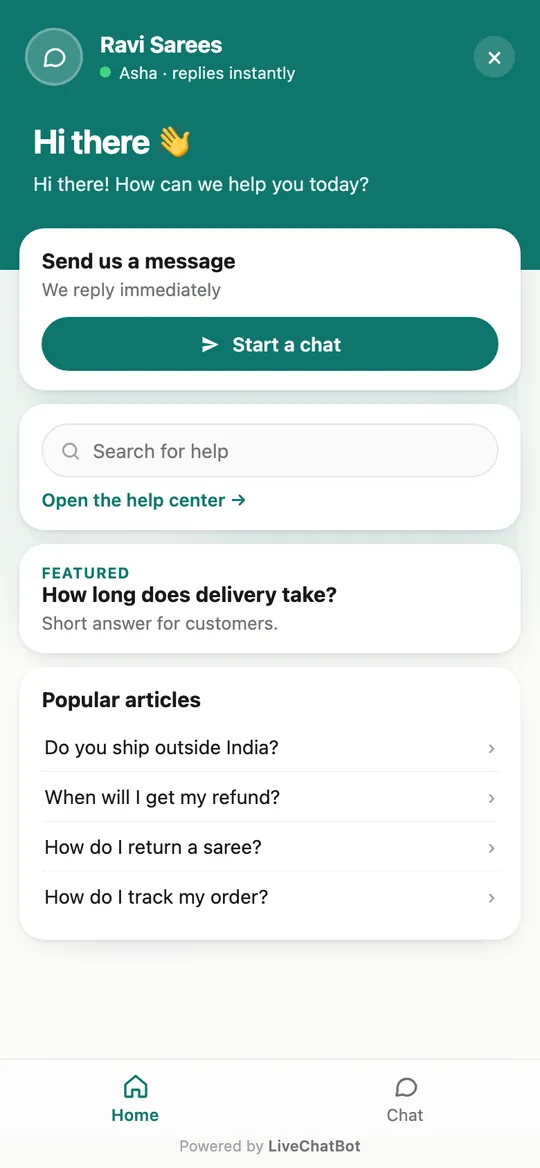
A chatbot has two parts that visitors never separate in their minds. The widget is the front end: the round or pill-shaped button, the chat window, the welcome line and the colours. The bot is the back end: the knowledge it answers from, the rules it follows and what it does when it cannot answer.
Why does the split matter? Because the two fail differently.
- A widget failure is quiet and visible in numbers. Few people open it. Nothing else happens, because nobody ever reaches the bot.
- A bot failure is quiet and invisible in numbers. People open the chat, get a wrong or empty answer and close the tab without telling you.
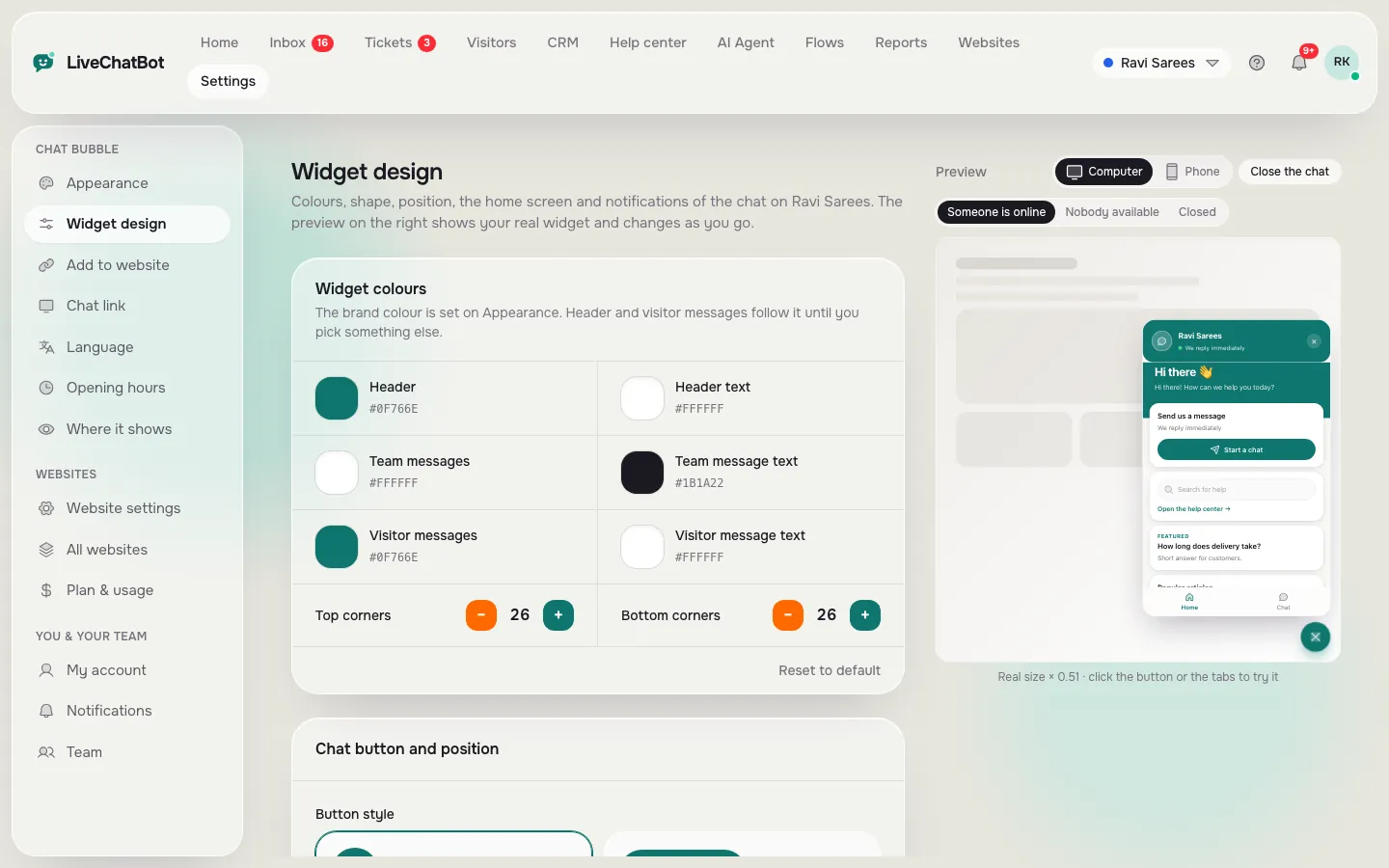
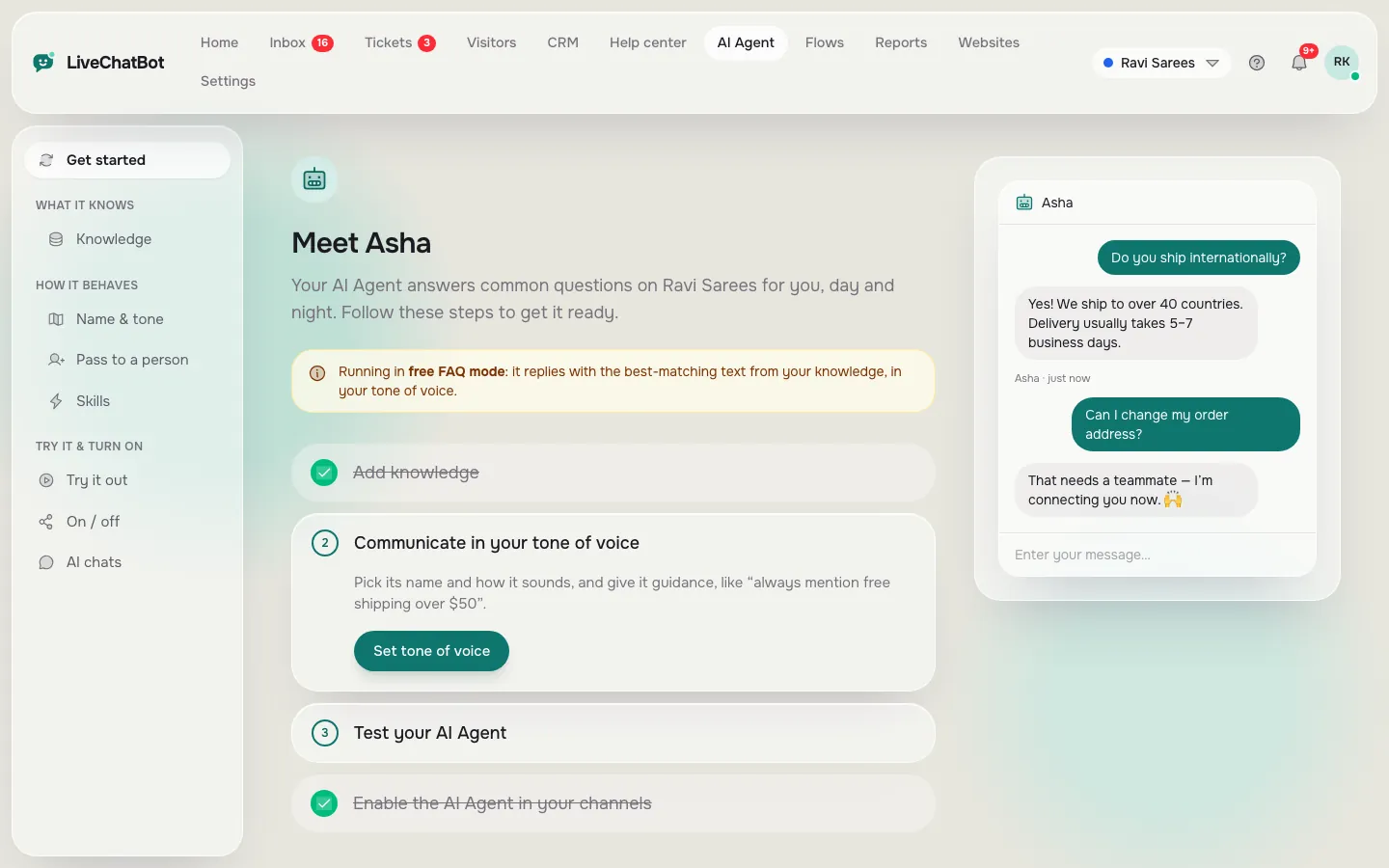
In LiveChatBot the widget is set up under Settings, with colours, button style, position, language and the pages it shows on. The bot lives under AI Agent, with knowledge, name and tone, and a Rules box. Our website chat widget guide covers the widget half in more depth; this post is about deciding which half to work on.
Real screens
Real screens: the widget settings, the bot setup and the result on a phone
Real screens from the LiveChatBot panel, shown with sample data. Click any picture to see it full size.
Widget symptoms
Symptom: nobody opens the chat. Fix the widget first
If the chat bubble loads but conversations stay near zero, the problem is almost always on the widget side. The bot cannot help anyone who never reaches it.
Four checks, in order
Check these in order:
- Is it visible? Open your site on a real phone. A cookie bar or sticky button may be sitting on top of the bubble. In Widget design you can nudge the position with offsets.
- Does the button say something? A pill with a short line such as “Questions? Chat with us” tells people what the bubble is for. A bare icon does not.
- Is it on the right pages? Under where the chat shows, you can turn it on or off for computers, phones, tablets, countries and pages. A widget hidden on your pricing page is hiding where buyers hesitate.
- Does it speak the visitor’s language? Set the chat language, or let it follow the browser language.
See our chat widget customization guide for each setting. Change one thing at a time so you know what worked.
Bot symptoms
Symptom: people open the chat but leave unhelped. Fix the bot
When chats do start but end quickly, with no email, no phone and no thumbs up, the bot half is the suspect.
Typical causes
From most to least common:
- Missing knowledge. The AI Agent answers from what you give it. Add answers by typing them, copying a web page or uploading a file (PDF, Word, Excel, CSV or TXT).
- No clear behaviour. The Rules box, up to 5,000 characters, tells the AI Agent how to behave in every chat, such as “Never promise delivery dates”. Facts belong in Knowledge; behaviour belongs in Rules.
- A dead end. When the bot cannot answer, the visitor needs a person or a form. LiveChatBot’s chat rescuer asks for email and phone if nobody replies within seconds, so the lead is not lost.
- After hours. With opening hours set, an away form collects contact details instead of leaving a visitor alone.
Our AI Agent page explains how replies and the free keyword bot fit together.
Free tool
Find which half to fix
Start at the top and follow the branch that matches what you see in your dashboard this week.
Original data
Original data: how the built-in limits shape a widget on a busy network
This is LiveChatBot’s own product data, verified in the app. Visitor chat messages are limited to 20 per minute per IP address, and the widget’s overall requests to 240 per minute per IP. These limits are fixed, not a setting.
Here is a worked example with assumed numbers, to show what that means in practice. Suppose a visitor types a message about every 20 seconds, which is 3 messages a minute.
- 20 messages per minute ÷ 3 messages per minute each = about 6 people chatting at once from one IP address.
For most small sites this never matters, since few visitors chat at the same moment. It can matter for a school, a hotel or a coworking space where many people share one network address. If you expect that, test the widget from several phones on the same Wi-Fi before launch, and keep answers short so each visitor sends fewer messages.
Free plan numbers for context: 2 websites, and 100 visitors per website a month. Paid plans start at ₹299 a month (Starter, 750 visitors shared across 2 websites).
What most guides miss
Our rule: read 20 real chats before you touch the design
Most advice on a chatbot widget for website owners starts with colours and button text. That is the wrong first move, and here is our rule instead.
Before changing anything about how the widget looks, read the first 20 real conversations in your inbox. Treat it as a rule of thumb from how the product is used, not a measured study.
Why it works: the transcripts tell you which half is failing in a few minutes.
- If most chats open with “hi” and end there, the welcome line is not telling people what to ask. That is a widget text problem.
- If visitors ask a clear question and get a shrug, the bot lacks knowledge. Add that exact answer to Knowledge.
- If the answer was fine and the visitor vanished, the handover was missing. Add a way to leave an email or phone.
Redesigning colours cannot fix any of those. Reading twenty chats takes about as long as choosing a new button colour, and it points at the real fix. Use Reports to confirm: it shows conversations per day, response rate, resolved by AI and chat ratings (thumbs up or down) once you turn ratings on in Widget design.
Handover
Where the widget and the bot meet: the handover
The handover is the point where the bot stops and a person or a form takes over, and it is the part both halves share.
A good handover has three pieces:
- A visible way to ask for a person. Visitors should not have to guess. Mention in your welcome line that they can ask for a team member.
- A fast alert. Install the Android app so a new chat reaches the phone of whoever is on duty. Unassigned chats show in an Unassigned folder; an agent picks one with Assign to me.
- A fallback. If nobody replies, the chat rescuer asks the visitor for email and phone, and the away form does the same outside opening hours.
Test the handover yourself once a month. Ask the bot something it cannot know, type “talk to a person”, and time how long your own phone takes to alert you.
Honest limits
What this widget will not do
Be clear about the gaps in this chatbot widget for website setup so you pick a tool with open eyes.
- “Powered by LiveChatBot” stays in the widget on every plan. You cannot remove it.
- You cannot choose the AI model or add your own API key.
- There is no iOS team app; iPhone users answer from a browser. The Android app exists.
- There is no captcha or spam scoring. Built-in rate limits and blocking a visitor or IP are what you have.
- Native Slack, HubSpot or Calendly connections do not exist; Zapier, webhooks and the REST API can bridge some of them.
If one of these is a must-have, say so before you install anything. Everything else in this guide works on the free plan.
Getting started
A one-hour plan for your first chatbot widget for website pages
The fastest honest path is to set up both halves in a single sitting, then review after a week.
- Create a free account at livechatbot.in and add your website.
- Paste the install code or use the WordPress plugin.
- In Widget design, pick your colours, the button style and position.
- In AI Agent, load your twenty most-asked answers and a few Rules.
- Set opening hours and the away form.
- Install the Android app.
- After a week, read your first 20 chats, then use the decision tree above.
For the full widget picture see our website chat widget guide, and pricing once your traffic outgrows the free visitors.
Frequently asked questions
What is a chatbot widget for website pages?
It is the chat button and window on your pages, connected to a bot that answers visitors. The widget is what people see; the bot is what replies.
How do I know if my widget or my bot is the problem?
Count how often the chat is opened. If it is rarely opened, fix the widget. If it is opened often but visitors leave unhelped, read the chats and fix the bot’s knowledge or handover.
Can I change how the widget looks without touching the bot?
Yes. Colours, button style, position, language and the pages it shows on are set in Widget design and the visibility settings, separate from AI Agent knowledge and rules.
Does the widget slow my site?
Test it on a real phone with a slow connection after installing. LiveChatBot’s own speed and SEO guide covers how to check the effect on your pages.
Is it free?
Yes to start. The free plan covers 2 websites with 100 visitors per website a month. Paid plans are prepaid with no auto-renew and no per-seat charges.
More to read
More guides on this topic
Elementor Chatbot Plugin: There Is No Elementor Widget Here, So Here Are Three Honest Ways to Add Chat (Free Decision Tree)
Fix the right half
Free plan for two websites, no per-seat charges. Start free on livechatbot.in and read your first 20 chats.