Embed Chat in Website: Count Your Page Templates First, Paste Once, Then Prove It With a Three-Window Test
Embed chat in website pages by pasting one snippet of code into the template that every page shares, then checking the result in three different windows. Most embeds fail for one dull reason: the code went into one page instead of the shared footer. This guide shows how to find the right place, how much time the wrong place costs, and how to prove the chat works.

Short answer
To embed chat in website pages, copy your LiveChatBot snippet from the install page and paste it once into the shared footer or custom-code box, just before the closing body tag. Save, publish, and open the site in a private window. The chat bubble should show on every page. Use a plugin on WordPress or Joomla instead of pasting.
⚡ In short
- You embed one snippet, once, in the part of your site that every page reuses. Not page by page.
- WordPress and Joomla have plugins; Shopify, Wix, Squarespace and plain HTML take paste-in code.
- Test in three windows: a private window, a phone on mobile data, and a page type you did not expect.
- After embedding, colours, words, hours and page rules all change from the dashboard, never in the code.
The basics
What does it mean to embed chat in a website?
To embed a chat means to add a small piece of JavaScript that loads the chat window from LiveChatBot’s servers and draws a bubble in the corner of your page. Nothing is installed on your hosting and no database is touched.
That snippet is tied to your website inside your dashboard. When a visitor opens a page, the snippet runs, checks your design and visibility settings, and shows the bubble if the rules say so. Because those rules live in the dashboard, you paste the code one time and never edit it again.
Two other kinds of embed exist. An inline chat sits inside a page like a box instead of floating, and a full-page chat link is a separate page you share. Both are covered in chat embedded in website pages. This guide is about the standard floating bubble, which is what most owners want. The wider picture is in our website chat widget guide.
Before you paste
Find where your site builds its footer: the template count
The right place for the snippet is whichever file or setting is reused by every page, and you find it by counting your page templates.
A template is a file or setting that produces the bottom of many pages at once. A WordPress theme has one footer for the whole site. A Shopify theme has one theme.liquid. A Wix site has one Custom Code setting. A hand-built HTML site may have one shared footer file, or none, which means every page is its own template.
Worked example: the same site, two ways
This is our own arithmetic, with an illustrative 40-page site and an assumed 2 minutes per edit including upload and a reload to check it.
- Page by page: 40 pages × 2 minutes = 80 minutes, and every future page needs a reminder to paste again.
- One shared footer: 1 template × 2 minutes = 2 minutes, and new pages get the chat automatically.
That is a 40 to 1 difference in edits, and the same ratio applies to any later change, such as removing the chat for a test. If your plain HTML site has no shared footer, spend ten minutes creating one first. It pays back on the second page.
Step by step
How to embed chat in website builders and platforms
Each tab shows the one place the snippet goes. Open your install page first: it shows your own code.
- Use the LiveChatBot WordPress plugin from your install page and add it under Plugins → Add New.
- Activate it and connect it to your website.
- Open your site in a private window and look bottom-right.
No snippet pasting is needed. See the WordPress live chat plugin guide for the details.
- Open Online Store → Themes → Edit code on your live theme.
- Paste the snippet in theme.liquid, just above the closing body tag.
- Save, then open the storefront.
There is no Shopify app to install. More in Shopify live chat.
- Open Settings → Custom Code.
- Add the snippet, choose All pages and place it in Body – end.
- Publish the site. Custom code runs only on the published site, never in the editor preview.
Full steps: Wix live chat.
- Open the shared footer file, or each page if you have none.
- Paste the snippet just before the closing body tag.
- Upload the changed files and reload.
Static site generators need a rebuild and deploy as well; the edit does nothing until the new files are live.
What each step costs
Copy, paste, save: how long the embed really takes
A normal embed takes five short actions: sign in, open the install page, copy the snippet, paste it into the footer box and save. Nothing needs a developer on a platform that has a code box.
Here is where the minutes actually go, as a planning guide rather than a measurement:
- Sign up and add your website (about 2 minutes, one form, free plan).
- Copy the snippet from the install page (about 10 seconds).
- Paste and save in the footer box (about 1 to 2 minutes).
- Publish or clear cache if your platform needs it (0 to 3 minutes).
- Three-window test, described below (about 5 minutes).
The free plan gives you 2 websites and 100 visitors per website each month, so you can embed and test before spending anything. Paid plans are prepaid, with no auto-renew, and are listed on the pricing page.
Real screens
Real screens: the install page, the chat on a live site and the visibility rules
Real screens from the LiveChatBot panel, shown with sample data. Click any picture to see it full size.
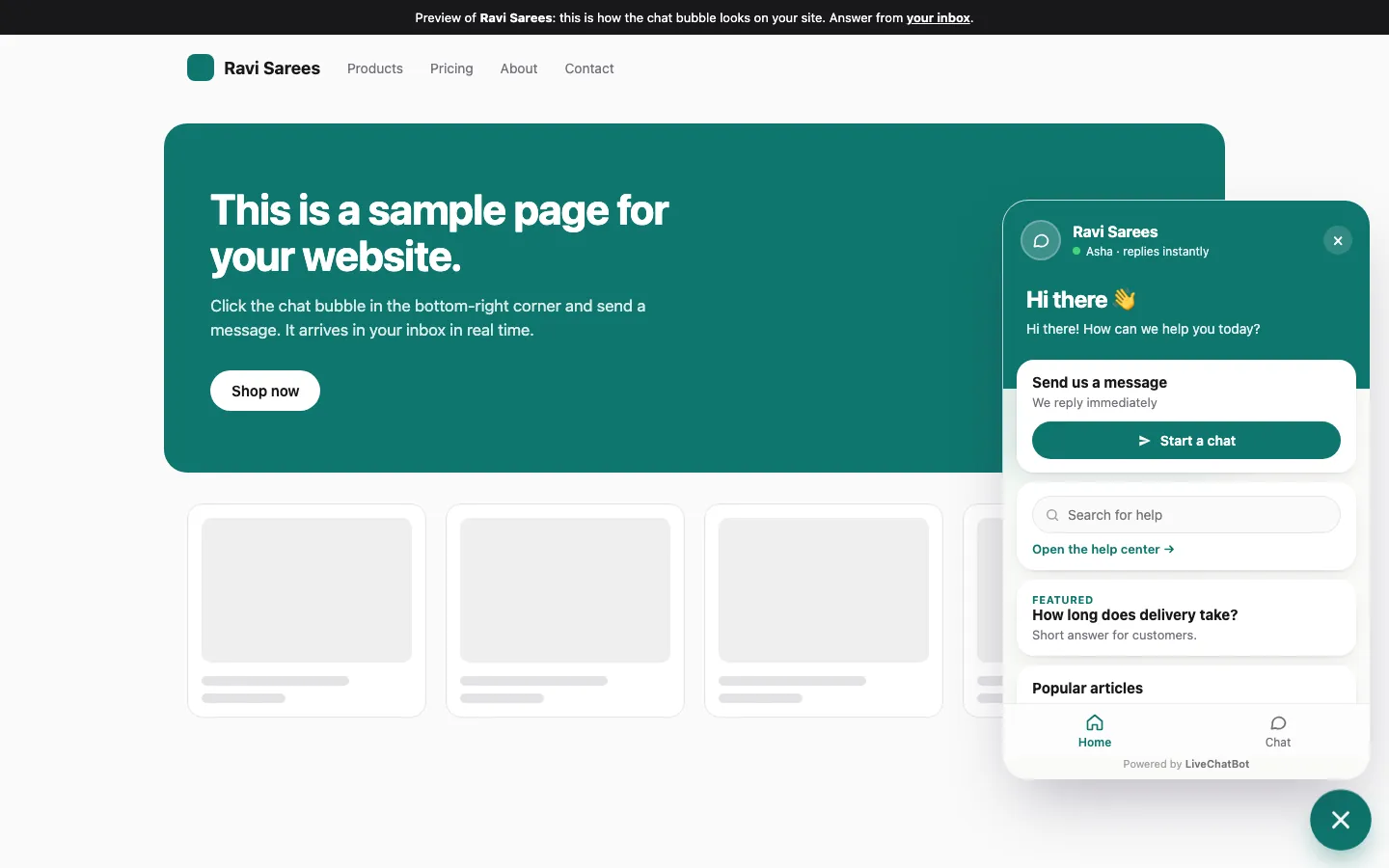
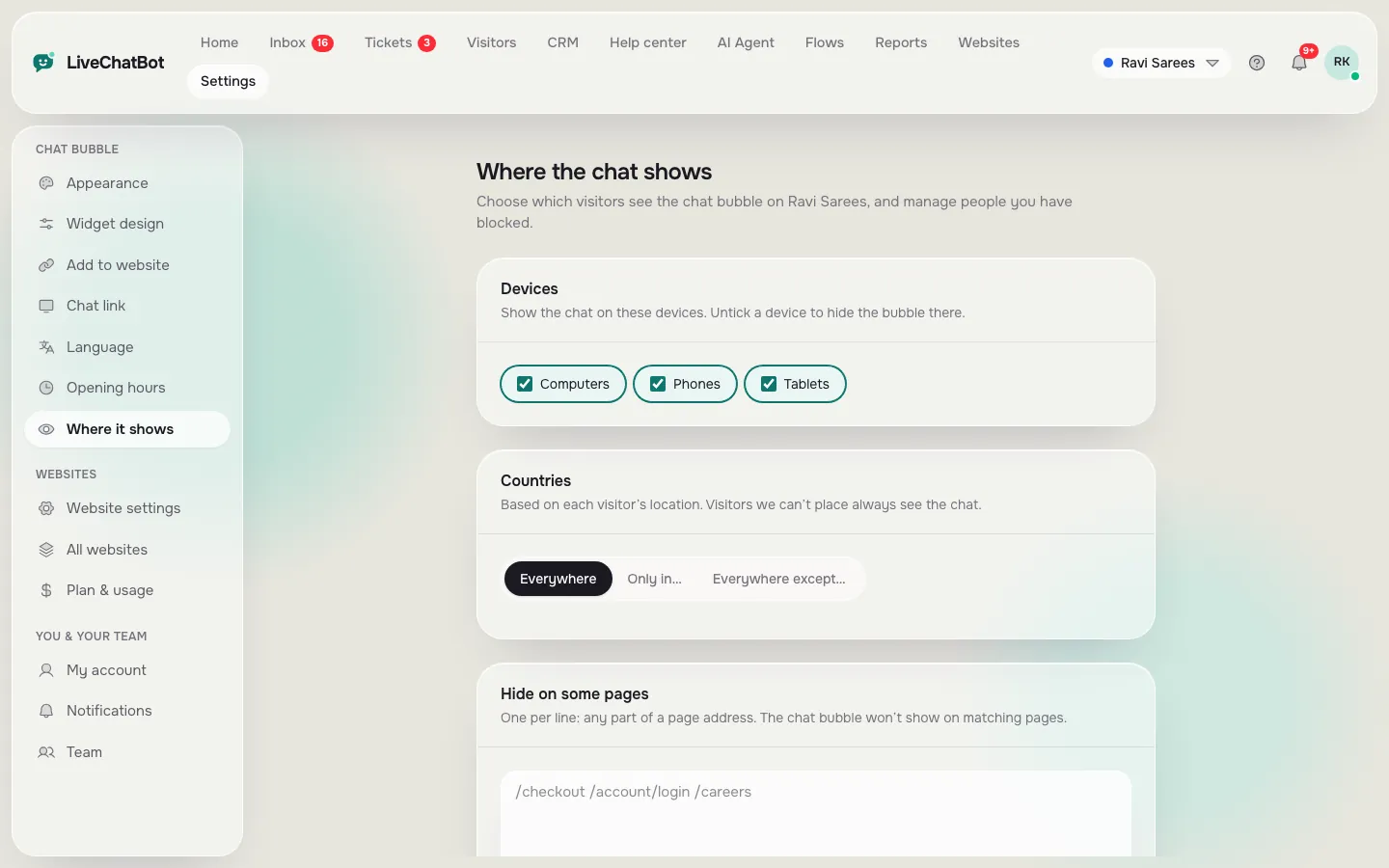
Proof
The three-window test: how to prove the embed worked
An embed has worked only when three different windows show the bubble, and one window is never enough because each hides a different failure.
Window 1: a private window
Open your website in a private or incognito window. This skips your own logged-in view, your browser extensions and most cached copies. If the bubble is missing here, the code did not reach the live site.
Window 2: a phone on mobile data
Switch Wi-Fi off and load the site on a phone. This checks the mobile layout and any network-level caching. Then type one message and see it arrive in the inbox on a computer or in the Android app.
Window 3: a page type you did not expect
Open a blog post, a category page, a 404 page and, if you have one, a checkout. Different page types sometimes use different templates, and the one you forgot is usually the one missing the chat. If you hid the chat on certain pages on purpose, how to show live chat on specific pages explains the rules.
What most guides miss
Our rule: the page you never visit is the one that breaks
After you embed chat in website templates, check the page you personally never look at. That is our rule, and we have not seen it stated elsewhere.
Owners test the home page, see the bubble and stop. But sites often have a second layout for landing pages, a separate subdomain for the shop, a different template for the blog and a stripped-down page for checkout. Each can ignore the footer you edited. Visitors land on exactly these pages from ads and search results, so the missing chat costs real conversations.
A five-minute way to run the rule
List every URL pattern on your site in a notepad: home, product, blog post, landing page, contact, checkout, 404. Open one example of each in a private window. Tick the ones that show the bubble. Anything unticked either needs the snippet in its own template or is a page you chose to hide on purpose. Write that down now, so that in three months nobody wonders why the chat is missing on checkout.
Quick check
A checklist to finish the embed
Tick each item as you go. The bar fills when the embed is genuinely done, not just pasted.
Problems
When the bubble does not show after you embed chat in website code
If the bubble is missing, the cause is almost always one of five things, and you can rule them out in order.
- The edit is not live. Publish the site, clear the cache plugin and your CDN, or redeploy a static build.
- The snippet is in the wrong place. It must be in the footer or body-end box, in the template every page uses.
- A script blocker or cookie tool is stopping it. Test with extensions off in a private window.
- A visibility rule is hiding it. Check Settings → Where it shows for hidden pages, devices and countries.
- The code was changed when pasting. Smart quotes or a stripped tag can break it, so paste it as plain text.
Our script troubleshooting guide goes deeper into each case, and chat widget customization covers the look once it appears.
After the embed
What you can change without touching the code again
Once the snippet is in place, every look-and-feel choice moves into the dashboard, so the embed is a one-time job.
- Design: colours, corner shape, button style and position in Settings → Widget design.
- Words: welcome text, away message and button labels in Settings → Language, with auto language by browser.
- Visibility: devices, countries and pages to hide on.
- Behaviour: opening hours, Flows with proactive messages, a WhatsApp button card and the AI Agent that answers from your knowledge.
For a developer who wants more control, the JavaScript API (`window.LiveChatBot`) can open, close, show or hide the chat from your own buttons. A beginner can ignore it completely. For the bigger picture of what the bubble can do, read our website chat widget overview. The installation overview in chat widget for website lists more platforms, and how to set up live chat on a website covers what to do after the first message arrives.
How do I embed chat in website code myself?
Copy the snippet from your LiveChatBot install page and paste it just before the closing body tag in the footer your pages share. Save, publish and test in a private window. WordPress and Joomla have plugins, so no pasting is needed there.
Do I need a developer to add a chat box to my site?
Usually no. If your platform has a footer, custom-code or code-injection box, the job is a copy and a paste. A developer helps only for sites with no shared template or for framework apps.
Will the chat slow my website down?
The snippet is small and loads the chat window separately, so it should not block your content. Placing it near the end of the page keeps visitors reading first. Test your own pages before and after to be sure.
Can I show the chat on only some pages?
Yes. In Settings → Where it shows you can hide it on chosen pages and turn it off for devices or countries, without changing the embedded code.
Is it free to embed the chat?
Yes to start. The free plan covers 2 websites with 100 visitors per website each month. Paid plans are prepaid with no auto-renew, and the Powered by LiveChatBot label stays on every plan.
Embed your chat in five minutes
Sign up free at livechatbot.in, copy your snippet and paste it into your footer once. Your first test message can arrive before you finish your tea.