Best Chat App for WordPress Is Proven in Your First 30 Days: A Week-by-Week Trial Plan for Your Own Site (Free Trial Timeline)
Best chat app for WordPress lists compare features on paper, but a chat app earns its place only after it has run on your own site for a few weeks. This guide gives you a four-week trial plan: what to install, what to watch each week, and the numbers that tell you to keep the app or drop it.
⚡ In short
- Trial any chat app on your real WordPress site for 30 days before you pay or commit.
- Week 1: install and test. Week 2: teach the bot. Week 3: watch real chats. Week 4: decide with numbers.
- LiveChatBot has a WordPress plugin, and it also catches Contact Form 7, WPForms, Elementor Pro, Gravity, Fluent and Ninja form submissions as leads.
- The free plan covers two websites with 100 visitors each per month, so a trial costs nothing.
Why trial
A feature list cannot tell you the best chat app for WordPress
Two sites with the same theme can behave differently. One has a caching plugin that delays scripts, another has a pop-up plugin that fights for the corner of the screen, a third uses a page builder that hides footer code. A chat app that looks great on a demo page can still be wrong for your site.
A trial removes the guessing. Over four weeks you see how the app installs, how it behaves next to your plugins, what your visitors ask and whether the chats lead anywhere. And you learn it at no cost, because you can start on a free plan.
Before the trial, write down your current numbers: monthly visitors, enquiries by form and by phone, and who answers them. Without a baseline you can’t say whether the best chat app for WordPress, on your site, actually helped. For plugin-level checks, our WordPress live chat plugin guide is the companion to this plan.
Free timeline
Your 30-day trial, week by week
Follow the weeks in order. Each one ends with something you can check.
Install the plugin on your live site or a staging copy, clear your cache, then test on a phone and a laptop. Send a test chat and answer it from the Android app. Check the bubble does not clash with other plugins.
Add shipping, pricing, hours and policy answers to the AI Agent: type them, copy a web page, or upload a PDF, DOCX, XLSX, CSV or TXT. Add saved replies for the ten questions you answer most. Set opening hours and the away form.
Read every conversation. Note which questions the bot handled, which it handed over, and which forms were submitted. Check Reports for chats per day and first response time.
Compare with your baseline: leads from chat, form leads, response time. Check the visitor count against your plan limit. Keep, upgrade or drop.
Week 1
Install without breaking your site
Use the LiveChatBot plugin, or paste the code into your theme footer. Then check the basics:
- Caching. Clear your cache plugin and test in a private window. A cached page may hide the chat for a while.
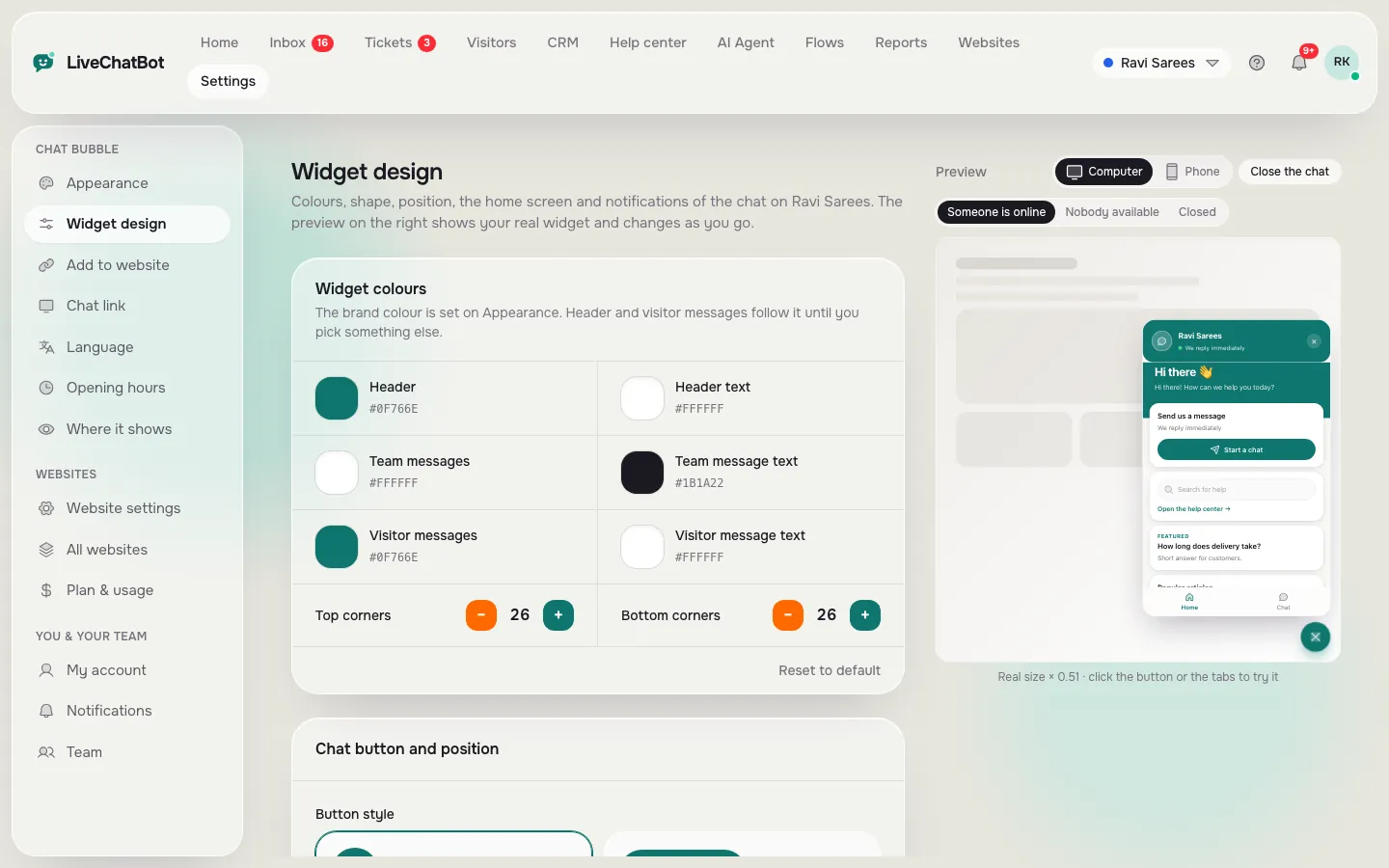
- Other widgets. If you have a cookie banner, a back-to-top button or another floating tool in the same corner, move one of them. You can change the chat position and size in Widget design.
- Page rules. Under Where it shows, turn the chat off for pages where it gets in the way, such as a landing page with its own form.
- Speed. Load a page on a slow connection and see whether anything freezes.
If something clashes, our WordPress chat plugin conflicts guide walks through finding the culprit in rounds.
Real screens
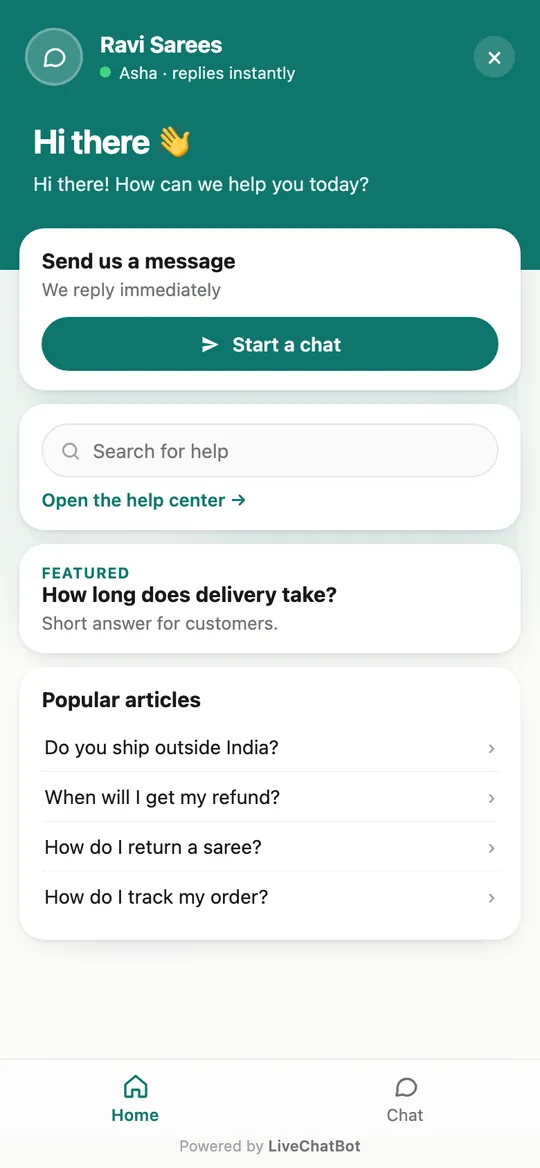
Installing the chat, designing it and checking it on a phone
Real screens from the LiveChatBot panel, shown with sample data. Click any picture to see it full size.

Weeks 2 and 3
Teach the bot, then read what real visitors ask
Week 2: facts in, guesses out
The AI Agent answers from what you give it, so the more accurate your pages and files are, the better its replies. Put facts such as prices and hours in Knowledge, and put behaviour in the Rules box, for example “never promise a delivery date.” It has no setting for choosing the AI model, and it does not read your WordPress database, so do not expect it to know a customer’s account.
Week 3: read every chat
Read all of them. Mark each one as answered by the bot, handed to you, a lead, or noise. The handovers show what to add to Knowledge next. Form leads from Contact Form 7, WPForms, Elementor Pro, Gravity, Fluent and Ninja forms arrive as leads too, with an instant “New lead” alert, so you can compare chat leads against form leads in one place.
If you also sell through WooCommerce, connecting the store shows the cart to agents and feeds Reports, Sales. See our WooCommerce live chat page.
Week 4
Numbers that say keep, upgrade or drop
At the end of the month, answer five questions:
- How many chats and how many leads did chat produce?
- How fast was the first reply, and when were the gaps?
- How many visitors did the site count against the plan?
- How much time did answering take for you or your team?
- Did anything break or slow down?
If you used the free plan and kept under 100 visitors a month per site, you owe nothing. If traffic is higher, Starter is ₹299 a month for 750 visitors shared across two websites, and Growth is ₹699 for 2,500 across five. It is prepaid with no auto-renew, and yearly plans pay for ten months and give twelve. In dollars ₹299 is about 3 to 4 US dollars, so check today’s rate.
Other tools might win on your numbers. That is the point of a trial, and it is how the best chat app for WordPress gets chosen. For another way to compare, our best live chat plugin for WordPress guide matches plugin types to site types.
Limits
What to know before you start the trial
Be fair to the trial by knowing the gaps in advance.
- “Powered by LiveChatBot” stays on every plan, so a badge-free widget is not available.
- The team app is Android only; iPhone users reply from a browser.
- There are no native Slack, HubSpot or Calendly links; Zapier, webhooks and the REST API can bridge some.
- The bot cannot read private customer data from WordPress.
What the trial will show is whether the useful parts, a designable widget, AI answers, Flows, tickets, a shared inbox and WhatsApp and Messenger messages in the same inbox, earn their keep on your site. Revisit the WordPress live chat plugin page when week four ends.
Frequently asked questions
What is the best chat app for WordPress?
The one that installs cleanly next to your plugins, answers from your facts and shows leads in your numbers after a month. Trial it before you commit.
How long should I trial a WordPress chat app?
Thirty days is enough to cover install, teaching, real chats and a decision.
Is there a LiveChatBot WordPress plugin?
Yes, and you can also paste the code into your theme.
Does it work with my contact forms?
It catches Contact Form 7, WPForms, Elementor Pro, Gravity, Fluent and Ninja form submissions as leads.
Does the free plan cover the trial?
Yes. It covers two websites with 100 visitors each per month.
Keep reading
Related guides
Best Chat App for Website Types: A Blog, a Service Business, a Shop and a Software Product Each Need a Different Setup (Free Quiz)
Best Chat App for Shopify Is the One That Avoids These Seven Mistakes: What Store Owners Get Wrong When They Choose (Free Mistake-vs-Fix List)
Best Chat for WordPress Is Proven in Your First Week: Install, Watch Seven Days, Then Keep or Switch (Free Week-One Timeline)
Start your 30-day trial
Free plan for two websites. Install the plugin, teach the bot and see real numbers.