Best Chat for WordPress Is Proven in Your First Week: Install, Watch Seven Days, Then Keep or Switch (Free Week-One Timeline)
Best chat for WordPress is not something a review can decide for you, because the answer depends on your visitors, your pages and your team. A review tells you what a tool can do. Only a week on your own site tells you what it does for you. This guide gives you a seven-day plan: what to set up, what to watch each day, and the simple rule for keeping the chat or switching.
⚡ In short
- Do not pick a chat from a list. Install one, run it for seven days and judge it by what happened.
- Day one is setup, days two to six are watching, day seven is a keep-or-switch decision.
- Watch four things: did visitors open it, did you reply fast, did chats become contacts, did the site stay quick.
- The free plan is enough for a fair test, so a trial costs you an afternoon, not money.
Why a trial
Why the best chat for WordPress can only be found on your own site
Lists of plugins sort tools by features. But two WordPress sites with the same plugin can get very different results. A blog with ten visitors a day, a clinic site that gets calls, and a WooCommerce shop with a busy cart page all need different things from a chat.
So treat every tool, ours included, as a candidate. Run a short, fair test. If you want a first overview of the plugin itself, read our WordPress live chat plugin guide. Come back here for the part most guides skip: how to decide.
A fair test has three rules. Use the same pages for every tool you try. Run each tool for the same number of days. And write down your answers before you look at the data, so you do not talk yourself into the first one you liked.
Real screens
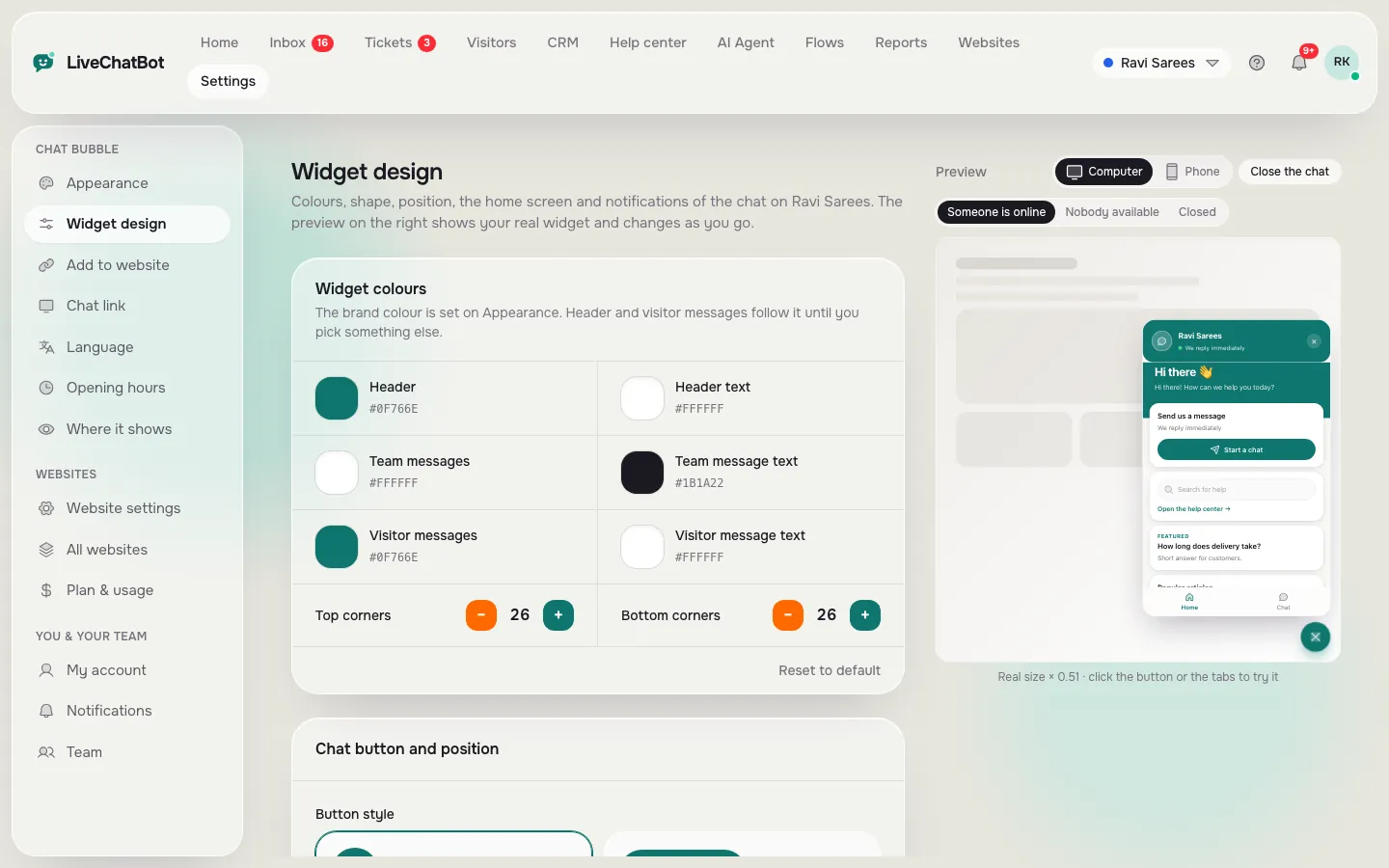
What day one looks like: the install page and the widget design
Real screens from the LiveChatBot panel, shown with sample data. Click any picture to see it full size.

Quick check
Your seven days, one step at a time
Follow the timeline for any chat you test. The days are the same for every tool, which is what makes the comparison fair.
Add the plugin, pick brand colours, write a welcome line and set opening hours. Keep it to one afternoon.
From your phone, ask a real question, ask for a person, and message after hours. Check that each reaches you.
Open your busiest page on mobile data. Note whether it feels slower than before you installed anything.
Look at what visitors really ask. Add three answers to your saved replies or AI knowledge.
Count how many chats came when nobody was online. Did the away form take their contact details?
Open Reports. Look at chats per day, first response time and how many chats left a contact.
Keep it if it passed three of the four checks below. Otherwise switch and run the same week again.
Day one
Day one: install it the same way every time
Keep the setup short
For this test, change as little as you can. Use the default look with your brand colour, a one-line welcome and your opening hours. Heavy customisation on day one hides what the tool does by itself.
Where to look
In LiveChatBot you install with the WordPress plugin or paste the code snippet. The plugin also works with WooCommerce and catches form submits from Contact Form 7, WPForms, Elementor Pro, Gravity, Fluent and Ninja Forms as leads. Our website setup guide has the steps if you want the code route.
Write your pass mark first
Before day two, write one sentence: “I will keep this chat if ___.” For example, “if at least five visitors open it and two leave a phone number.”
Days two to six
Days two to six: four checks that decide the winner
Each check has a plain pass or fail. You do not need analytics skills.
1. Did visitors notice it?
Watch the live visitors list and the chats per day. If visitors scroll past without opening it, the problem may be the button, the position or the welcome line, not the tool. Try a custom chat widget before you switch.
2. Could you answer fast?
Time your own replies. If your phone alert came late, fix notifications first. The Android app sends alerts, and iPhone users answer from a browser.
3. Did chats become contacts?
The best chat for WordPress is the one that gives you a name, an email or a phone number. Count them.
4. Did the site stay quick?
Compare a page’s load before and after. If it clearly slowed, that is a fail, whatever the features.
Fixes
What to fix before you blame your pick for best chat for WordPress
Many failed trials are really setup problems. Check these before day seven.
- The chat hides on mobile. Look at where it shows: devices, countries and pages can all be switched off by mistake.
- Visitors never get a prompt. Add a proactive message on your pricing or contact page after a few seconds.
- Nobody replied at night. Turn on opening hours and the away form, so late visitors leave an email or phone number.
- Replies feel slow to write. Add saved replies with the visitor’s name filled in.
If you fix all four and the chat still fails your pass mark, that is useful information. Switch, and run the week again. Keep a short note of what you changed on each day, so the second tool gets exactly the same treatment and the comparison stays honest.
Honest gaps
What you will not find in this chat
A fair test also means knowing the limits before you start.
- “Powered by LiveChatBot” stays on every plan.
- There is no pre-chat form. Visitors can type straight away.
- WhatsApp messages and Facebook Messenger messages arrive in the same inbox, but Instagram DMs, Slack and Telegram have no native link. Zapier and webhooks can bridge some.
- There is no iOS team app.
- No single sign-on, audit logs or role builder.
If any of those is a must-have, say so on your pass-mark sentence, and save yourself the week.
Day seven
Day seven: keep it or switch
Score your four checks. Three or four passes means you have found a good fit, so keep it and spend week two adding answers to the knowledge base. Two passes means fix the setup and extend the trial by a week. One or none means switch.
Free trials make this cheap. The free plan covers two websites and 100 visitors per website each month, so a test costs no money. If you later outgrow it, Starter is ₹299 a month and Growth is ₹699 a month, both prepaid with no automatic charges. See the pricing page for details, and read the free live chat guide to see what the free plan really includes.
Frequently asked questions
How long should I test the best chat for WordPress before deciding?
Seven days is enough for most sites. If you get fewer than twenty visitors a day, test for two weeks so you see enough real chats.
Can I test two chat tools at the same time?
Not on the same page. Two widgets confuse visitors and slow the page. Test one at a time, or put each on different pages.
Does the LiveChatBot free plan work on WordPress?
Yes. The free plan covers two websites and 100 visitors per website a month, with the WordPress plugin included.
What if my site has very little traffic?
Then the test tells you something else: the chat may not matter yet. Use the week to check that after-hours capture and replies work.
Will chat slow my WordPress site?
Any added script has some cost. Measure your busiest page before and after, which is check four in this plan.
Run your own week-one test
Free plan for two websites, no per-seat charges. Start free on livechatbot.in.