Chat Software for Website Owners: A One-Day Setup Plan, Hour by Hour, From Sign-Up to Your First Real Chat (Free Timeline)
Chat software for website owners can be live in a single working day if you do the steps in the right order. This plan splits the day into eight short blocks: sign up, install, design, answers, hours, test, tell the team and review. Each block has a clear finish line, so you always know whether you are done or only busy.
⚡ In short
- Do the work in order: install first, then look, then answers, then hours, then test.
- A chat that is installed but has no answers and no hours does more harm than no chat.
- Test on your own phone before you tell anyone the chat is live.
- The plan fits one working day; the review block catches what you missed.
Why a plan
Why order matters when you add chat software to a website
Most owners install the code, see a bubble appear and feel finished. Then the first visitor types a question, nobody answers, and the chat looks abandoned. A bubble with no one behind it is worse than no bubble.
The fix is not speed. It is sequence. The install is the easy part, perhaps ten minutes. The slow, valuable parts are the answers and the hours, because they decide what a visitor experiences. This plan puts them before launch, not after.
If you want to compare costs before you start, read our year-one breakdown of chat software for business. If you are still weighing whether chat belongs on your site at all, the overview of live chat is a quicker read.
What you need before you start
- A website where you can add a code snippet, or a WordPress site.
- Your ten most-asked customer questions, written down.
- Your opening hours and a phone or email to send after-hours leads to.
The day plan
Eight blocks from sign-up to a live chat
Each block names its finish line. Move on only when you can say yes to it.
Create the account at livechatbot.in, add the website and name your team. Finish line: you can see an empty inbox.
Copy the install code from the dashboard and paste it in your site, or use the WordPress plugin. Finish line: the chat bubble shows on a live page.
Set colours, position, team name, avatar and a short welcome text in Widget design. Finish line: it looks like your brand on a phone and a computer.
Type answers, copy web pages or upload a file in Knowledge. Add twenty questions. Finish line: three test questions get correct answers.
Pick your hours and what the away form asks. Finish line: a message sent after hours leaves you an email or phone.
Use your own phone on mobile data. Ask a taught question, an unknown one and ask for a person. Finish line: all three behave sensibly.
Android users install the team app. Others open the inbox in a browser. Finish line: everyone gets an alert for a test chat.
Read what visitors asked, fix missing answers. Finish line: one new answer added from a real question.
Real screens
Real screens: the install page, the design page and the chat on a site
Real screens from the LiveChatBot panel, shown with sample data. Click any picture to see it full size.

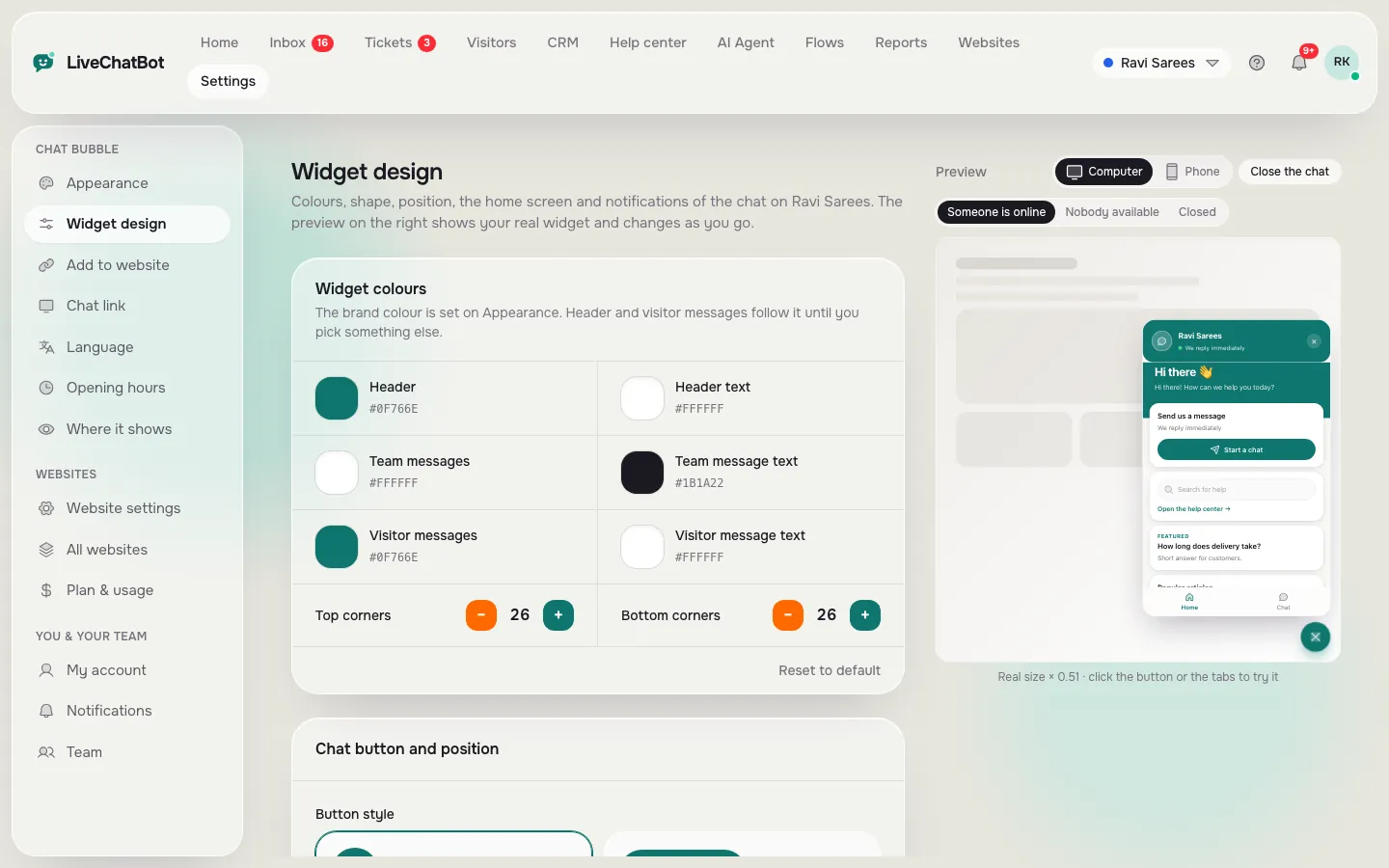
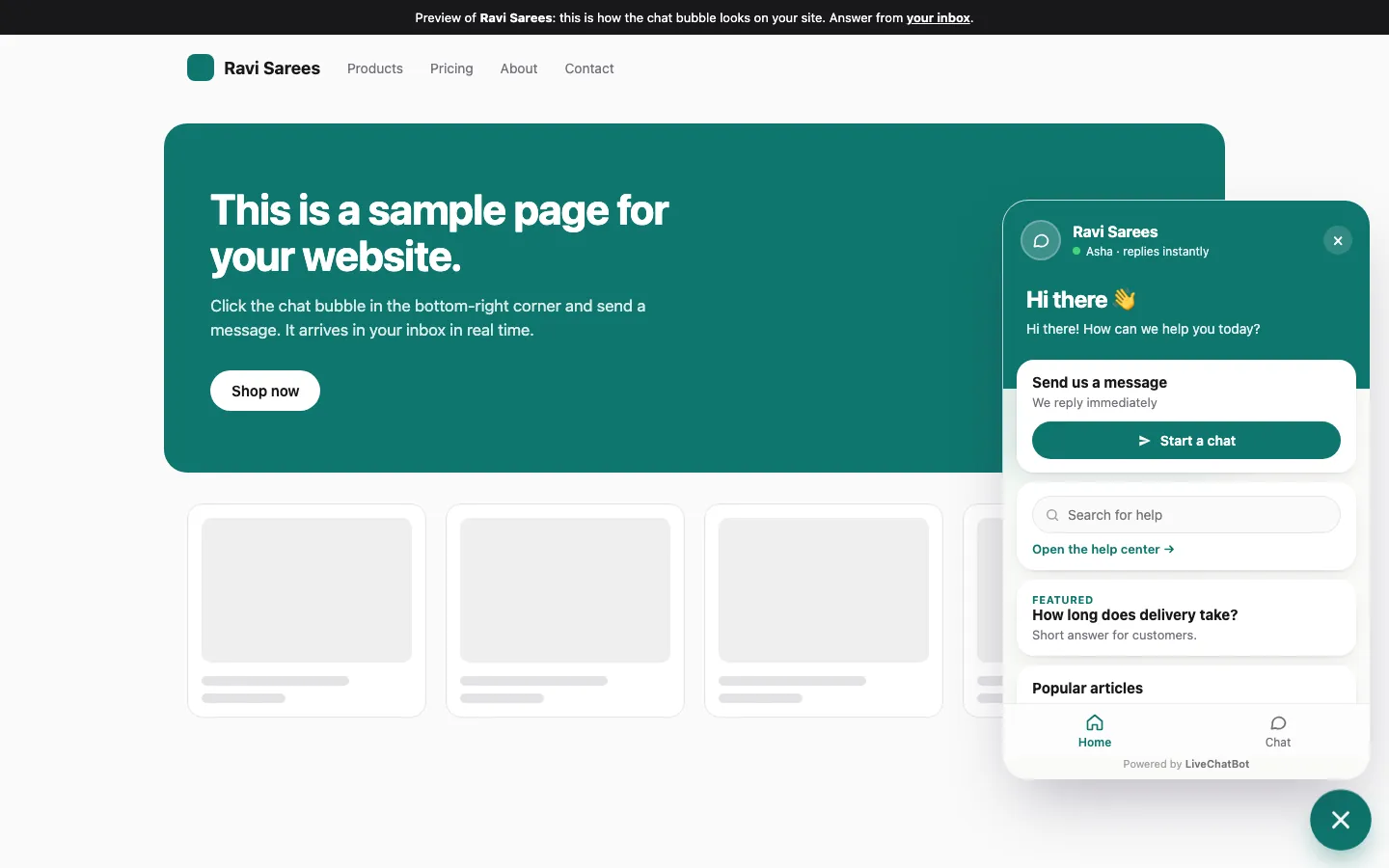
Block 2
Installing the code without breaking your site
Installing chat software for website pages comes in two shapes. On a plain site you paste one snippet before the closing body tag, or into the footer area your builder provides. On WordPress you can use the plugin instead. Our WordPress live chat plugin guide covers that path, and our chat system explainer shows what the snippet does.
Check three things after pasting
- The bubble appears on the home page and a deep page.
- It appears on a phone, not only on a computer.
- Your page still loads at its usual speed.
If the bubble is missing, clear any caching plugin and reload. If you run more than one site, add each website separately so every site gets its own design and its own inbox. The account covers two websites on Free and Starter, and five on Growth.
Keep a rollback note
Write down where you pasted the code. If something looks wrong later, you can remove the snippet in a minute and nothing else changes.
Blocks 4 and 5
The answers and hours that make chat software for website visitors feel alive
These two blocks take most of the day, and they are worth it.
Answers
The AI Agent answers from the knowledge you give it. Start with the questions you already answer by email: delivery times, returns, prices, opening hours, how to book. Add them as short typed answers, copy in a page of your site, or upload a PDF, Word, Excel, CSV or text file. Then ask the bot something you never taught it. A good result is an honest “I’m not sure” and a handover to a person.
Hours
Open the opening hours setting and choose when a person is really there. Outside those hours the away form collects an email or phone. That one form turns a 10 pm visitor into a morning call.
Saved replies
Write five saved replies for the answers your team gives every day. They help the free keyword bot answer when AI replies are unavailable, and they speed up your own typing.
The test
A five-minute phone test before anyone sees it
Take your phone, switch off Wi-Fi and open your site on mobile data. Then run five quick checks.
- Does the bubble show without covering a button the visitor needs?
- Does a taught question get the right answer?
- Does an unknown question get an honest reply?
- Does “talk to a person” reach your phone with an alert?
- Does a message outside opening hours show the away form?
Fix anything that fails before you move on. If you want visitors to meet a proactive message on certain pages, chat flows can show one after you are happy with the basics. Do not start with Flows. Get the plain chat right first.
Honest limits
What this chat software for website setup does not include
To avoid surprises on day two:
- “Powered by LiveChatBot” stays on all plans.
- There is no iPhone team app. Use a browser on iPhone and the app on Android.
- WhatsApp and Facebook Messenger messages can arrive in the same inbox once connected through Meta, but Instagram DMs, Slack and Telegram are not native.
- There is no captcha or spam scoring. Visitor messages are limited to 20 a minute per IP, and you can block a visitor or an IP.
Plan prices and limits are on the pricing page, and the live chat overview explains the rest. You pay nothing to try it on a real site first.
Frequently asked questions
How long does it take to add chat software to a website?
The install takes minutes. A good setup, with answers, hours and testing, takes about one working day.
Do I need a developer?
Usually not. You paste one snippet, or use the WordPress plugin. A developer helps only for unusual site builders.
Can I put chat on more than one website?
Yes. The Free and Starter plans cover two websites and Growth covers five, each with its own design.
What should I do first after installing?
Add your most-asked answers and set opening hours, then test on your own phone.
Is chat software for website owners free to try?
Yes. The Free plan costs ₹0 and includes 100 visitors per website each month.
Keep reading
Related guides
Chat Software for Business: Where the Money Really Goes in Year One, Line by Line (Free Cost-Line Checklist)
Chat Services for Websites, Added in Layers: A 30-Day Plan From a Simple Chat to AI, Tickets and a Help Center (Free Timeline)
Chat Solution for Website Buyers: Ten Red Flags in a Sales Pitch and the Test That Checks Each One (Free Claim-vs-Test List)
More to read
More guides on this topic
Chat With Website Visitors: A Minute-by-Minute Playbook for the First Hour After Someone Lands on Your Page
Go live in one day
Sign up on livechatbot.in, follow the eight blocks and have a real chat running by tonight.