Free Chat Plugin for Website Owners: Plugin or Pasted Code? Pick the Route by Platform and Test the Two-Minute Removal
Free chat plugin for website searches often end in the wrong install, because the real choice is not which plugin but which route: a plugin, an extension or one pasted line of code. This guide matches each platform to its route, shows the update maths behind the choice and gives you a removal test to run before you commit.
A free chat plugin for website use is a small add-on that puts a chat window on your pages at no cost. On WordPress, WooCommerce, Joomla, React and Vue LiveChatBot has a plugin or extension; on Shopify, Wix and Squarespace you paste one line of code. The free plan covers two websites and 100 visitors each a month.
⚡ In short
- Use a plugin where your platform has one (WordPress, WooCommerce, Joomla, React, Vue). Paste code everywhere else.
- Every plugin is one more thing to update; pasted code is one thing you never update.
- Run the two-minute removal test before you install anything.
- The free plan costs ₹0: two websites, 100 visitors each a month, no per-seat charges.
The choice
A plugin is a route, not a product: three ways to get chat onto a page
A chat tool reaches your website by one of three routes: a plugin, an extension or a pasted line of code.
- Plugin or extension. You install it inside your site’s admin. LiveChatBot has a WordPress plugin (which also works with WooCommerce), a Joomla extension, and React and Vue plugins for developers.
- Pasted code. You copy one line from the Install page and paste it into your theme or a custom-code box. This is the route for Shopify, Wix and Squarespace. There is no Shopify App Store app.
- Tag manager. You paste the same line into a tag manager once, and it loads on every page.
All three show the same chat window and feed the same inbox. The route only changes how it gets onto the page and who looks after it later. Both are part of our free live chat plan. Our WordPress live chat plugin guide covers the WordPress route in depth, and chat widget for website installation lists every platform.
Pick your route
Which route fits your platform?
Answer two questions: what is your site built on, and can you edit its theme or admin?
Plugins
A free chat plugin for website admins on WordPress: what to expect
On WordPress, a plugin is the easiest route because you never touch a theme file. You add the plugin, connect it to your LiveChatBot account and the chat window appears on your pages.
The plugin also does one useful extra job. It catches form submissions from Contact Form 7, WPForms, Elementor Pro, Gravity Forms, Fluent Forms and Ninja Forms and sends them to the inbox as leads, with an instant “New lead” alert. A pasted line of code on a non-WordPress site does the same for many forms through the widget itself, but on WordPress the plugin is the neat way.
If you run a shop, the same plugin works with WooCommerce, and the store connection lets agents see the cart during a chat. Read WooCommerce live chat for that side.
The cost of the plugin route is upkeep. Every plugin gets updates, and every update is a small chance of a clash with your theme or another plugin. That brings us to the maths.
Original data
The update maths: what each extra plugin costs you in a year
Every plugin you add is one more item on your update list, and a little arithmetic shows how it grows.
Original data, worked example (illustrative numbers, our own sums):
- Suppose a plugin ships one update a month: 12 updates a year.
- Each update, done safely, means a backup, the update, and a check of two pages: about 5 minutes.
- That is 12 × 5 = 60 minutes a year for one plugin.
- A site with 15 plugins that all update monthly spends 15 × 60 = 900 minutes, or 15 hours, a year on updates alone.
Pasted code has none of this. The one line loads the widget from LiveChatBot, so improvements reach your site without you updating anything. That is why we say: use a plugin where it saves real work (forms to leads, WooCommerce), and paste code where it does not.
A fair question is how much a chat tool slows a page. We cover that separately in AI chat for website speed and SEO.
Real screens
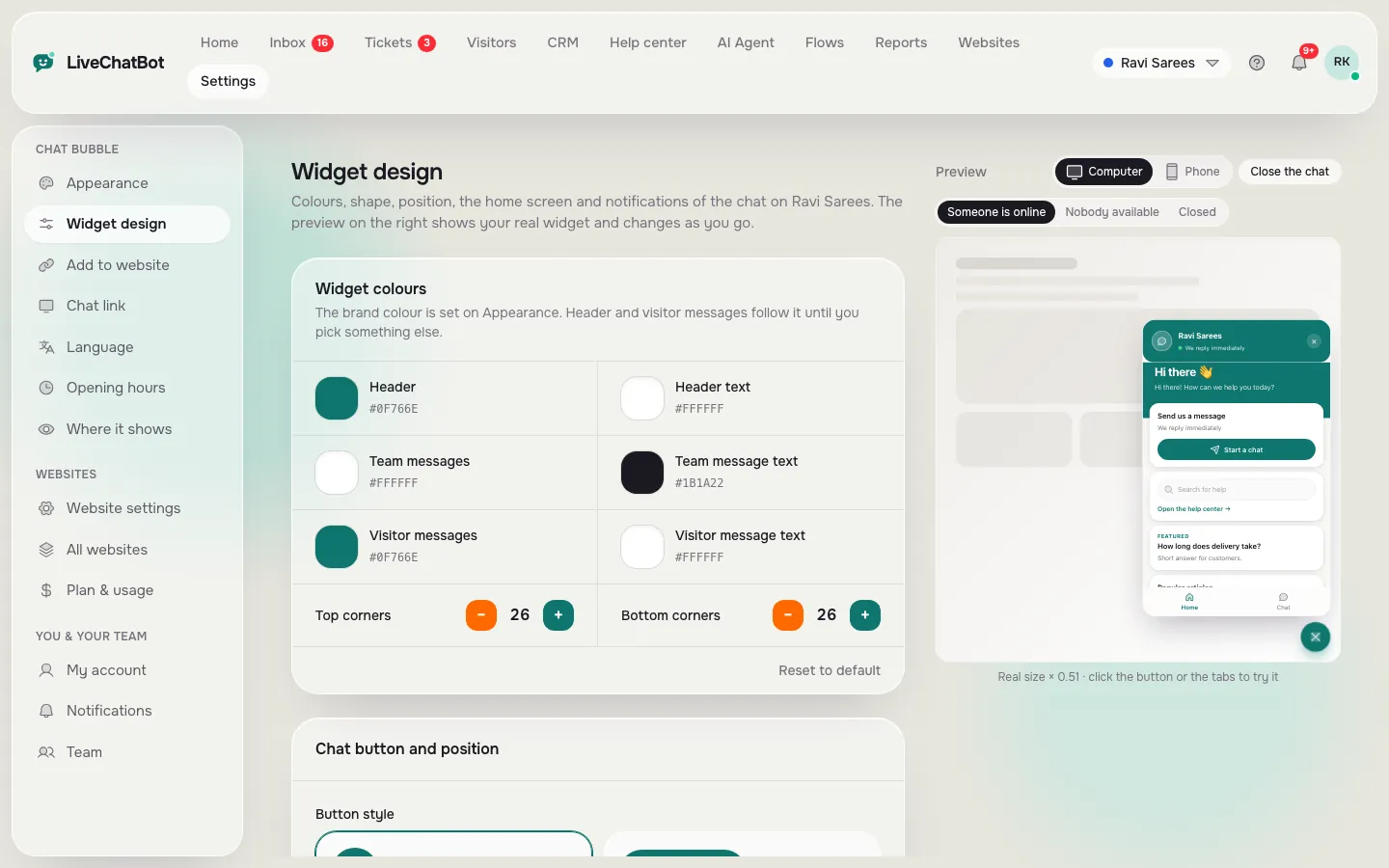
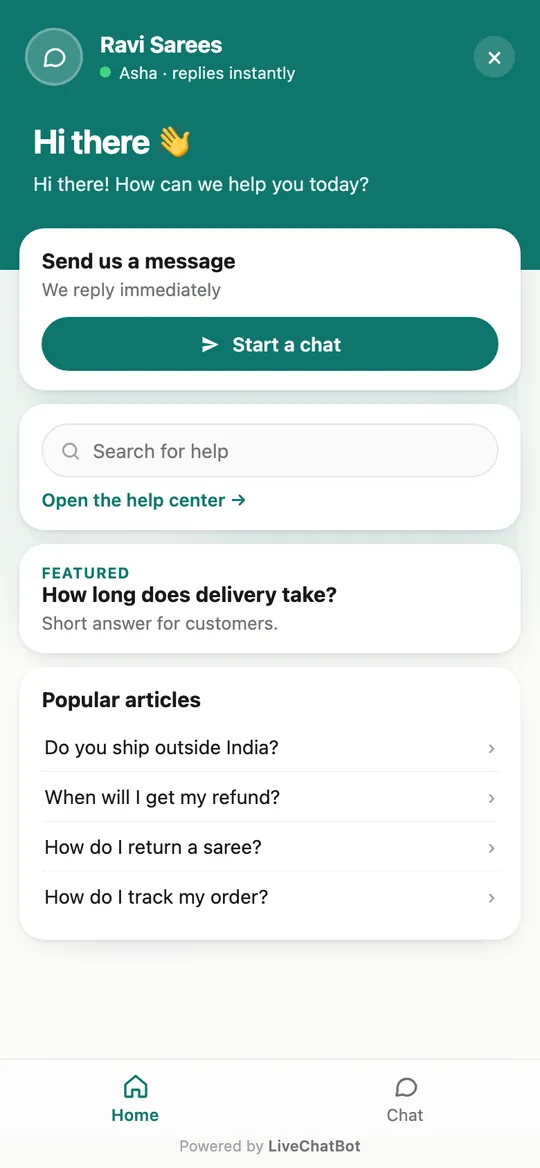
Real screens: the install page, the design page and the chat on a phone
Real screens from the LiveChatBot panel, shown with sample data. Click any picture to see it full size.

What most guides miss
Our rule: test the removal before you install
Before you install any free chat plugin for website use, work out how you would remove it in two minutes, and what it would leave behind.
Most guides explain how to add a chat tool and stop. Removal is where owners get stuck, because a tool that is hard to remove is a tool you are stuck with. We have not seen this test in other guides, so here it is as a method you can run in five minutes.
The two-minute removal test:
- Write down where the tool lives: a plugin entry, a code line in a theme file, or a tag.
- Time yourself switching it off. A plugin should deactivate in two clicks. A pasted line should be deletable without hunting through files.
- Reload a page and check that no empty box, broken script or stray space remains.
- Ask whether your chat history stays in your inbox after removal. With LiveChatBot the conversations live in your account, not in your website.
If a tool fails step 2 or step 3 on a trial site, do not put it on your real one. A free tool you cannot remove cleanly is not free.
Pasted code
Pasted code is the better free chat plugin for website pages you cannot edit
If your builder has no plugin, pasting one line of code is the route, and it takes about as long as sending a text.
Open the Install page in the dashboard, copy the line, and paste it where your builder accepts custom code. On Shopify that is the theme file. On Wix and Squarespace it is the custom-code or header-injection box. On a plain HTML site it is your footer file, once, so every page picks it up. Platform guides: Shopify live chat, Wix live chat and Squarespace live chat.
Two things to remember. Paste it once, not on every page by hand, or you may load the chat twice. And after pasting, open the site on your phone and send a test message so you know the alert reaches the Android app.
Check yourself
Five checks before you install
Tick each one as you do it.
Free limits
What the free plan covers, and where it stops
The free plan covers two websites and 100 visitors per website each month, whichever route you pick.
A visitor is counted once a month, when they trigger a new-visitor alert. At the limit, tracking and alerts continue and chat pauses only for new over-limit visitors until you add visitors or the month resets. Nothing is charged automatically. Paid plans share visitors across websites, and yearly pays for ten months and gives twelve. See pricing.
Two honest limits. The “Powered by LiveChatBot” line stays on every plan, so no plugin removes it. And there is no iPhone team app; iPhone users answer from a browser. The full plan breakdown is on the free live chat page, and live chats free compares the free options in more detail.
After install
Make the plugin earn its place in week one
A plugin that is installed but not set up is only a grey bubble, so spend ten minutes making it work.
Set your colour and team name, and write a welcome line that says what people can ask. Set opening hours so the away form takes a phone number after hours. Hide the chat on pages where it distracts, such as checkout. Then write saved replies for your top five questions. The steps are in how to customize your chat widget and how to show live chat on specific pages.
If you want the chat to speak first on a pricing page, add a greeting with chat flows. Flows are included on the free plan.
Frequently asked questions
Is there a free chat plugin for website owners on WordPress?
Yes. LiveChatBot has a WordPress plugin that also works with WooCommerce. The free plan covers two websites and 100 visitors per website a month.
Do I need a plugin to add chat to Shopify, Wix or Squarespace?
No. On those platforms you paste one line of code into the theme or custom-code box. There is no Shopify App Store app.
Will a chat plugin slow down my site?
Any added script has a small cost. A pasted line has nothing to update, and a plugin adds one more update to maintain. Test your page speed before and after.
Can I remove the Powered by LiveChatBot line?
No. It stays on every plan, free or paid, and no plugin setting removes it.
What happens to my chats if I uninstall the plugin?
Conversations are stored in your LiveChatBot account, so they stay in your inbox. Only the chat window leaves your site.
Keep reading
Related guides
Free Chat for Your Website: Set It Up in the Right Order and Promise Only the Reply Time You Can Keep (Free Launch Checklist)
Free Chat for WordPress as a Two-Week Experiment: Set Your Keep-or-Remove Number Before You Install (Free Experiment Timeline)
Add a free chat plugin to your website
Two websites, 100 visitors each a month, no per-seat charges. Sign up at livechatbot.in and choose the plugin or the pasted line.