Create My Own Chatbot and Still Own It: What Is Yours, What Is Rented, and a 15-Minute Exit Drill
Create my own chatbot is what most owners type when they want a bot that sounds like their business, not a stranger’s script. The word that matters is own: your answers, your chats and your leads should stay yours, even if you change tools next year.
Short answer
To create my own chatbot and keep it mine, write the answers yourself in plain text, build the bot on a platform that needs no code, and keep a copy of the words outside the tool. On LiveChatBot you type the answers, paste one install code, and your chats and contacts stay in your own account.
⚡ In short
- A bot has three layers: the words you teach it, the chats it has, and the leads it collects. Own all three.
- You can create my own chatbot in a no-code tool in one evening, and the words are the part worth owning.
- Original data below: a worked word count for a ten-answer bot against the 5,000-character Rules box.
- Our rule: run a 15-minute exit drill before you rely on any bot.
The three layers
Your own chatbot has three layers, and only one of them is code
A chatbot has three layers: the words it says, the conversations it holds, and the leads it collects. Only the plumbing underneath is code, and you never have to touch it.
Layer 1: the words
These are the answers, the tone and the rules about what the bot must never say. This is the layer that makes it yours. Nobody else can write how you quote a price or what you say when you cannot help.
Layer 2: the conversations
Every chat becomes a record in your inbox. Reading them tells you what customers really ask, which is worth more than any template.
Layer 3: the leads
Names, emails and phone numbers that visitors give you. These are your customers, not the tool’s.
When owners say they want to create my own chatbot, they usually mean layer one. The risk sits in layers two and three, which most guides never mention. The AI Agent holds layer one, and the rest of this guide shows how to keep all three safe.
What you write
You write the words yourself, in three places, and none needs code
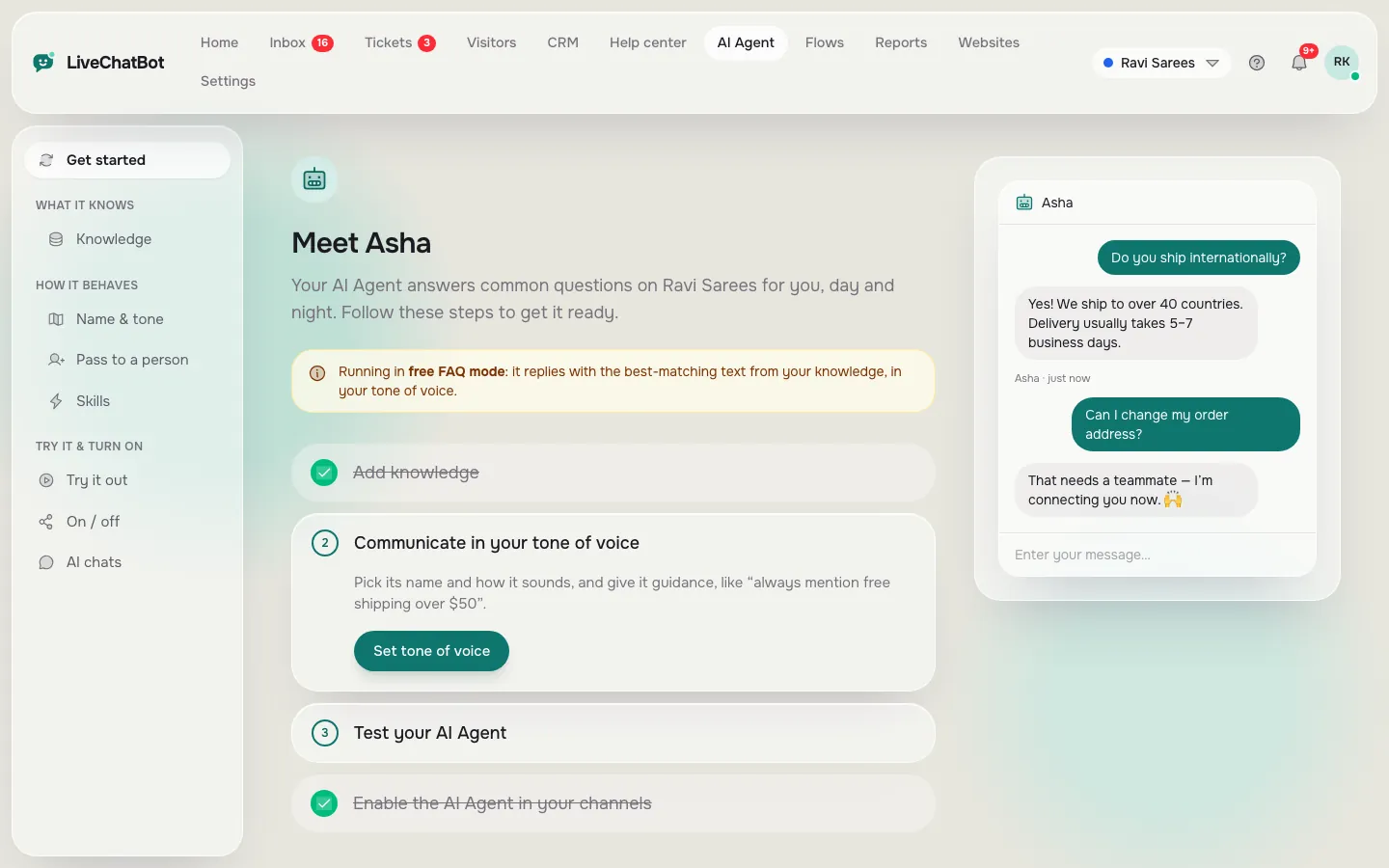
On LiveChatBot you write the bot’s words in three places: Knowledge for facts, Name and tone for personality, and the Rules box for behaviour.
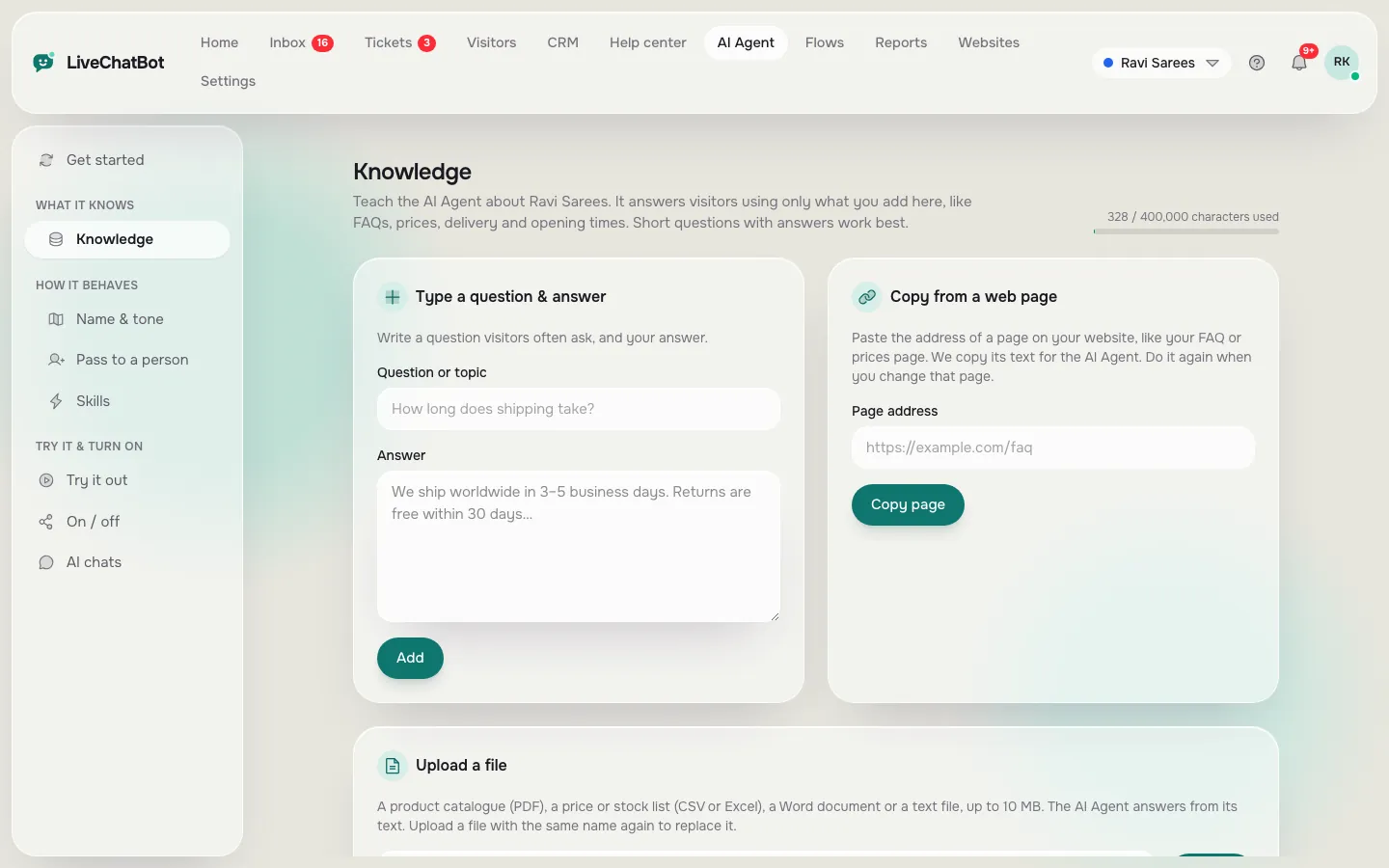
Knowledge
Type answers, copy a web page in, or upload a PDF, Word, Excel, CSV or TXT file. Facts such as prices, hours and policies live here.
Name and tone
You choose the AI Agent’s name, its tone of voice, and you can shape it so it sounds like your shop and not a robot.
Rules to follow
A box of up to 5,000 characters of written instructions, for example “Never promise a delivery date”. Rules apply to AI replies, which come with every plan as a monthly allowance shown in the dashboard. You cannot pick the AI model or use your own API key, since the provider is set by LiveChatBot. That is a trade: less to manage, less to tweak. If you want the full build steps, read create an AI chatbot.
Original data
A ten-answer bot is about 3,600 characters, so it fits the Rules box with room to spare
A bot with ten solid answers is roughly 600 words, which is well inside the limits LiveChatBot gives you. Here is the worked maths.
Worked word count
*Source: our own worked example. The 5,000-character limit is the real size of the Rules box; the word counts are illustrative.*
- 10 answers × about 60 words each = 600 words.
- 600 words × about 6 characters per word (including spaces) = about 3,600 characters.
- The Rules box holds 5,000 characters, so 3,600 would fit with 1,400 spare, roughly 230 more words.
Facts normally go in Knowledge, not Rules, so in practice the Rules box holds far less: five or six short behaviour lines of about 100 characters each use only 600 characters, or 12 percent of the box.
Why the numbers matter
Owners worry that building a bot means writing a book. It does not. An evening of typing, about 600 words, gives a working bot. Because the whole brain fits on a single printed page, you can keep a copy in a document you own. That copy is the first defence against being locked in. For the shortest path from a pile of old messages to those ten answers, see how to train your AI chatbot.
Real screens
Where the words of your own bot live
Real screens from the LiveChatBot panel, shown with sample data. Click any picture to see it full size.
Layer two
Your conversations stay in your inbox, where your team can read and assign them
Chats are stored in your LiveChatBot inbox, where your team can read them, assign them and turn them into tickets.
Agents use Assign to me and the Unassigned and Mine folders. Teams route chats to a group, and a shared inbox means nobody works in a private silo. The Android app shows the same chats on a phone; there is no iOS team app.
What reading chats gives you
- The real wording customers use, which you can paste back into Knowledge.
- The questions the bot could not answer, which are your next ten answers.
- Reports for conversations per day, first response time and Resolved by AI.
What it does not do
There is no custom report builder and no scheduled, emailed report. If you need chats in another system, the REST API and webhooks (ticket.created and ticket.solved) exist, and Zapier bridges to many tools. Ask the team for developer documentation before you plan around them.
Layer three
Leads belong to you, so check where they land before you promote the bot
Leads belong to your business, so confirm exactly where they appear and who is told.
When a visitor fills a form or gives details in chat, the contact appears in your Contacts list with a lead score on the visitor profile. Website forms from Contact Form 7, WPForms, Elementor Pro, Gravity, Fluent and Ninja are caught as leads too, with an instant New lead alert. If nobody replies within seconds, the chat rescuer asks for email and phone, so a missed chat still leaves you something to follow up.
The CRM
A basic CRM sits inside: a pipeline with deals, companies and activities. It is not Salesforce or HubSpot, and there is no native integration with either. Use Zapier or webhooks if you must pass a lead on.
A lead check you can do in five minutes
- Open your site in a private window.
- Start a chat and leave a made-up email and phone.
- Find the contact in the dashboard. Note how long it took and who got an alert.
If you cannot find the test lead in five minutes, your team cannot either.
What most guides miss
Run a 15-minute exit drill before you rely on any bot
Our rule is simple: before you depend on a chatbot, prove that you could leave it in 15 minutes. Most guides tell you how to start and never how to stop, and that is how owners end up trapped.
Why we call it a drill
A drill is a test you run while nothing is wrong. You do it once in the first week, so that if a tool changes its price or its terms you already know the way out. This is our own method, not a feature of any platform.
Paste every Knowledge answer and your Rules text into a document you own.
Open Contacts and count how many people left details. Write the number down.
Confirm one route exists: a Zapier zap, a webhook or the REST API. Ask the team if unsure.
Know which page or plugin holds it, so you can remove it.
Pick one answer and rewrite it elsewhere. If that is easy, the drill passed.
Honest limits
Own does not mean unlimited, and three things stay fixed
Three things on LiveChatBot are fixed, so decide whether you can live with them before you commit.
- The badge. Powered by LiveChatBot stays on all plans, including paid ones. There is no white label.
- The model. You cannot choose the AI model or bring your own API key.
- The limits. Visitor chat messages are limited to 20 per minute per IP. This is built in and is not a setting.
Also missing today: single sign-on, audit logs, a role-based permission builder, voice, captcha, sentiment analysis, and native Slack, Telegram or Instagram DM integrations. If any of those is a must-have, say so up front, and treat a cheaper tool as a stop-gap. For a wider view, see our guide to create your own chatbot free, which covers the fact-sheet route instead of ownership.
Costs
The price of owning a bot is a plan you can leave, not a contract
Plans are prepaid and have no auto-renew, so leaving costs nothing but a decision.
- Free, ₹0: 2 websites, 100 visitors per website a month.
- Starter, ₹299 a month: 2 websites, 750 visitors shared.
- Growth, ₹699 a month: 5 websites, 2,500 visitors shared.
Yearly means pay for 10 months and get 12. Payment is by UPI and similar methods, with no automatic charges and no per-seat charges. A new sign-up can use the code WELCOME100 for 100 extra visitors, once. Compare in detail on the pricing page.
Because nothing renews on its own, your exit drill never has a deadline hanging over it. For the one-page planning sheet that comes before the build, see our 3-3-1 bot plan. You pick the day you stop, and you only ever pay for what you chose to start. Before then, spend an hour improving the AI Agent answers, because that is the part you keep.
Frequently asked questions
Can I create my own chatbot without coding?
Yes. On LiveChatBot you type or upload your answers and paste one install code. WordPress and WooCommerce have a plugin; Shopify, Wix and Squarespace take the pasted code.
Do I own the answers I write?
The words are yours, and you should keep a copy in your own document. Copy every Knowledge answer and the Rules text out once, as part of the exit drill.
Can I use my own AI model or API key?
No. The AI provider is set by LiveChatBot, and customers cannot pick the model or paste their own key.
Can I remove the Powered by LiveChatBot badge?
No. It stays on all plans, free and paid.
Is there a free way to start?
Yes. The free plan covers 2 websites with 100 visitors each per month, with no card and no trial clock.
Keep reading
Related guides
Create Your Own Chatbot on One Page: The 3-3-1 Sheet to Fill In Before You Touch Any Tool
More to read
More guides on this topic
Chatbot Demo of Your Own Business in 15 Minutes: Turn Your FAQs Into a Live Preview and Test It With Your Team (Free Demo Builder)
Build it tonight, keep it forever
Two websites, 100 visitors each, no card and no per-seat charges. Start free on livechatbot.in and run the exit drill in week one.