Chatbot With Chatbot Performance Reports: Read the Reports Screen and Build a One-Page Monthly Summary, With Copy-Ready Lines (Free Template)
Chatbot with chatbot performance reports is a feature many buyers ask for, and the honest answer for a small business is that a one-page summary you control beats a dashboard you never open. LiveChatBot has a Reports area and Traffic reports built in, plus the inbox, tickets and Flows. This guide shows how to turn them into a monthly summary in thirty minutes, with copy-ready lines for each section.
⚡ In short
- A useful report answers three questions: did the bot help, did people reach us, and what should we change?
- You do not need many charts. Six numbers and three notes make a report people actually read.
- LiveChatBot has Reports and Traffic screens with the numbers. It is not a custom report builder, so you copy the figures into your own one-page summary.
- Use the copy lines below as the skeleton and fill them in once a month.
Why one page
What performance reports should do for a small team
A report is only useful if it changes a decision. If nobody reads it, it is decoration, however pretty the charts are.
For a small business, three decisions matter. Should the bot learn something new? Should a person be online at different hours? Should a page on the site change because visitors keep asking about it?
The reader decides the length
For you, half a page is fine. For an owner or client, one page with a short summary on top works best.
Same shape every month
The value comes from comparison. Use the same sections each month, so a number that moved is obvious at a glance.
Honest numbers only
A report that hides unanswered questions is worse than none. Include the bad news and the fix. Label anything estimated as a guess.
The raw material
Where a chatbot with chatbot performance reports gets its numbers in LiveChatBot
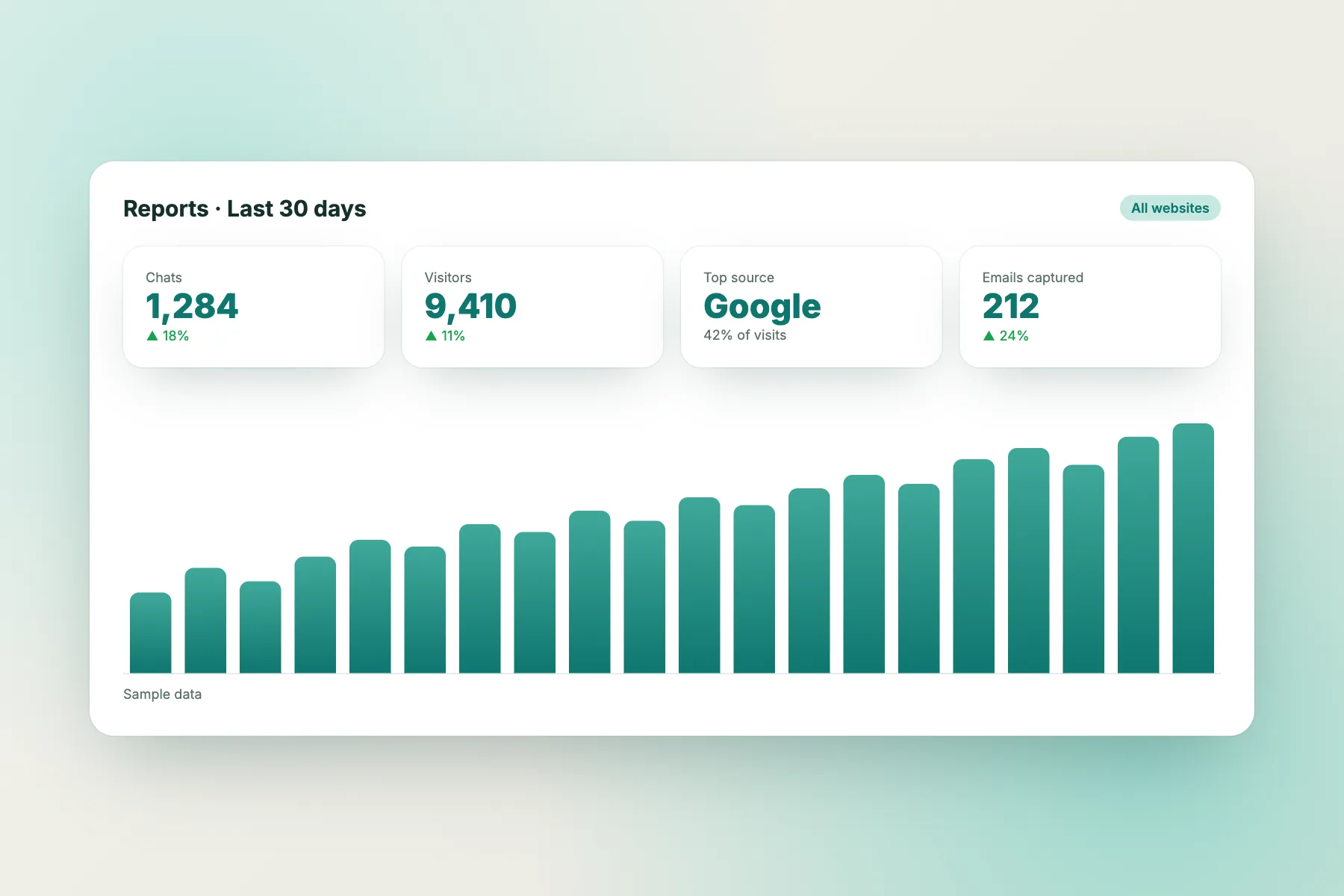
LiveChatBot has a Reports area with a date range and a website filter, so most numbers are already counted for you.
- Reports. Conversations per day, first response time, response rate, resolution rate and how many chats the AI Agent resolved alone, a by-agent table with replies sent, Flow conversion and leads acquired. Visitors can rate a chat 👍 or 👎 with a comment once you turn ratings on in Widget design. Help articles with the most “not helpful” votes are listed.
- Traffic reports. Where visitors come from, the pages that bring them in and how many act (“Acted” counts chats, calls, WhatsApp taps and forms), pages people leave without acting, marked “Fix first”, plus keywords, rising topics and ideas for new posts. A Growth plan for this is free.
- Visitor tracking. Shows who is on the site and where they came from. See the visitor tracking page for what it covers.
- The inbox. Gives you the count of chats and the questions asked, which feed your “what people want” note.
- Tickets. Open, pending and solved tickets, with owners, show whether follow-up work is finished.
- Flows. Tell you which pages carry proactive messages, so you can tie a page to the chats it started.
If you want more structure, our guides on a free chatbot with analytics and live chat software with analytics cover which numbers are worth watching and when you are losing visitors.
Free template
Copy-ready lines for your monthly report
Pick a tab, copy a line, paste it into a document or email, then replace the square brackets with your real numbers.
Reading the numbers
How to read each section without a statistics degree
Chats started
Read the conversations-per-day chart in Reports for the month. A rising count is not automatically good. Ask whether a campaign or a confusing page caused it.
Tickets created and solved
If created runs well above solved for several weeks, work is piling up. That is a staffing or process problem, not a bot problem.
Questions the bot could not answer
This is the most valuable line. Every question a visitor asked that the bot missed is a gap in Knowledge. Add the answer, and the same question works next time. See how to train your AI chatbot for the method.
Busiest hours
Tell your team when to be online. If chats peak at 8 pm and nobody is there, the away form is doing all the work, and an extra hour of cover may pay off.
A worked example
An illustrative one-page report for a small online shop
This is a made-up example to show the shape, not a real customer.
A small online shop reviews its month. It counts 140 chats and 22 tickets, with 19 solved. Looking through the inbox, the owner sees 31 chats asking about returns, a topic the bot handled poorly because the policy was never added to Knowledge.
The report says:
- Win: order status questions were answered by the bot with no staff time.
- Problem: returns questions went to a person every time.
- Fix: add the returns policy to Knowledge this week.
- Staffing: evenings from 7 to 9 pm are the busiest, so one person is online then.
Honest limits
What this chatbot with chatbot performance reports setup does not do
To save you a nasty surprise, here is what is not included.
- No custom report builder, and no scheduled report emails or PDF exports.
- No sentiment analysis. Satisfaction is the simple 👍/👎 chat rating, not a survey score.
- No native link to Google Analytics, Meta Pixel or a CRM. Zapier, webhooks (ticket.created and ticket.solved) and a REST API can carry some data out; ask our team for developer documentation.
- “Powered by LiveChatBot” stays on all plans.
If your boss needs automatic weekly dashboards, the built-in screens may not satisfy them. For most small businesses they are enough, and reading what customers actually say adds the why. See our guide to how to increase website conversion rate for turning findings into page changes.
Routine
A thirty-minute routine for chatbot with chatbot performance reports that stays honest
Set a calendar reminder for the first working day of each month.
- Ten minutes: skim the month’s chats and note the top five questions.
- Five minutes: open Reports, set the month, and copy response time, resolution rate and ratings. Count tickets created and solved.
- Five minutes: check which pages carry Flows messages and whether they started chats.
- Ten minutes: fill the copy lines above and write two changes.
Then make the changes before the next report. A report that never leads to an edit in Knowledge, a saved reply or a Flows message was a waste of the half hour. Pricing stays simple while you do this: the free plan covers two websites with 100 visitors each per month, and you can see pricing before you need more.
Frequently asked questions
Does LiveChatBot have performance reports?
Yes. The Reports area shows conversations, response time, resolution, a by-agent table, Flow conversion, leads and chat ratings, and Traffic reports cover sources and pages. It does not send scheduled report emails or PDF exports.
What should a chatbot performance report include?
Chats started, tickets created and solved, questions the bot could not answer, busiest hours and two changes for next month.
How often should I write the report?
Once a month is enough for a small team.
Can I export chat data to a spreadsheet?
Not with a one-click export. Zapier or webhooks can send ticket events to a sheet, and a developer can use the REST API.
Is a chatbot with chatbot performance reports needed to improve answers?
No. Reading the questions the bot missed and adding them to Knowledge improves answers more than any chart.
Keep reading
Related guides
Chatbot With Conversation Analytics: A 30-Day Review Routine for Small Teams, With Honest Notes on What LiveChatBot Reports (Free Week-by-Week Timeline)
Chatbot With Conversion Tracking: Define What Counts as a Win, Then Follow It in Six Steps Without a Developer (Free Step Timeline)
Chatbot With Sentiment Analysis: How to Spot Unhappy Visitors Without It, and What LiveChatBot Does Instead (Free Which-Response-Fits Quiz)
Start with the free plan and read your own chats
Two websites, 100 free visitors each per month and no per-seat charges. Start free on livechatbot.in.