Chatbot With Brand Customization: Seven Places Your Brand Shows Up in a Chat, Off-Brand Versus On-Brand (Free Side-by-Side Examples)
Chatbot with brand customization is more than a logo colour. Your brand also lives in the words, the name, the speed and the tone of every reply. This guide walks through seven places a visitor meets your brand inside a chat, shows an off-brand and an on-brand example for each, and says plainly what LiveChatBot lets you control and what it does not.
⚡ In short
- A brand shows in seven places in a chat: colour, name, avatar, welcome, tone, timing and handover.
- You can set colour, team name, avatar and welcome text in the dashboard.
- Tone and timing are your job: write the words and set the rules.
- Powered by LiveChatBot stays on every plan, so this is not a white-label tool.
Beyond the logo
Your brand is what the visitor feels, not only what they see
Imagine two shops with the same logo colour. One answers in two lines, uses the customer’s name and offers a clear next step. The other sends a long robotic paragraph in capital letters. Customers say they have been to two different brands.
That is why a chatbot with brand customization is not a paint job. Colour is the quickest change, and it is also the smallest part of how a brand is felt.
The seven touchpoints below are in the order a visitor meets them. Walk through each one on your own website, on a phone, as if you had never seen it.
Do this once with a teammate who has no stake in the design. Their first reactions are worth more than any colour code.
Try it
Seven touchpoints: off-brand versus on-brand
The examples are illustrative, for a made-up bakery. Change the words to fit your own business.
Settings
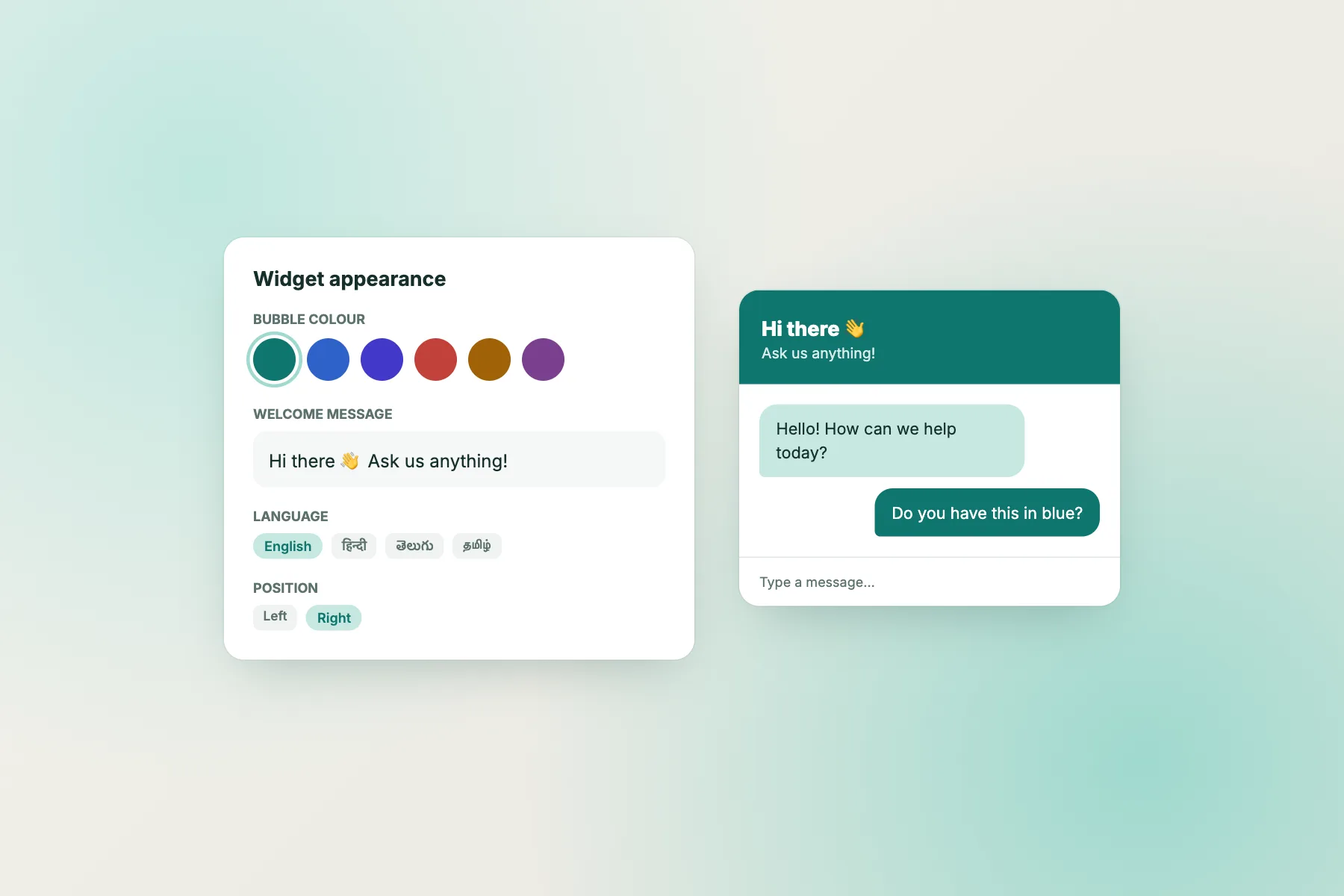
What a chatbot with brand customization lets you set on LiveChatBot
The dashboard covers the first four touchpoints with no code.
- Colour for the widget.
- Team name and avatar, shown to visitors with every reply.
- Welcome text, with translations if you serve several languages.
- Attention grabber card and widget cards, including a WhatsApp button card.
The other three touchpoints are controlled through your own content:
- Tone comes from the saved replies and the AI Agent’s knowledge you write. See our guide to saved replies.
- Timing comes from chat flows, where you choose the page, source, country, device or number of visits.
- Handover comes from opening hours and the away form.
The full walk-through is in how to customise your chat widget.
Tone
Write a one-page voice sheet before you write any reply
The cheapest brand tool is a half-page of notes. Write these six lines before you write the first saved reply.
The voice sheet
- Three words that describe how you talk, such as warm, direct, patient.
- Two words you never use, such as “kindly revert” or “dear valued customer”.
- How you greet a returning customer.
- How you say sorry in one sentence.
- How you say no to a request you cannot meet.
- Whether you use first names, emojis or neither.
Keep the sheet next to the inbox. When you train the AI Agent, paste in your own words from the sheet, so its answers sound like you. Read how to sound human in live chat for more on keeping a bot friendly without pretending to be a person.
Consistency
Make the chat match the rest of your brand
Visitors compare the chat with your site, your emails and your packaging.
Check the three neighbours
- Your website. Does the widget colour clash with your buttons or sit well with them?
- Your emails and tickets. If a chat becomes a ticket, the customer sees your wording again on the ticket page. Make sure the tone matches.
- Your WhatsApp or phone greeting. If the chat says “Hi!” and your phone line says “State your query”, visitors feel the gap.
Keep it consistent as you grow
When you add a second website, set that widget’s colour and team name on purpose. Each site can look like its own brand, since each has its own settings. Extra websites are ₹199 for 6 months after the first two free ones. Keep a small table of colour, team name and welcome line for each site so nothing gets mixed up when staff change.
Honest limits
Where brand customization stops: the credit line and other fixed parts
A good brand guide tells you what you cannot change.
- Powered by LiveChatBot stays on every plan. There is no white-label option, so visitors will see the credit.
- No pre-chat form is part of the product, so you cannot brand one.
- No full restyling. Colour, name, avatar and text are yours. Do not expect to change other parts of the window.
If an exact copy of your design system inside the chat is a must-have, test other tools carefully with a real brief, and read our piece on a free chatbot with custom branding. For many small businesses, a matching colour, a human name and good words are enough to make the chat feel like their own.
Next step
A 20-minute brand pass you can do today
Open your dashboard and work through the touchpoints in order.
- Set the colour, then check text contrast on your phone.
- Rename the team in your brand’s voice.
- Add an avatar that stays clear when small.
- Rewrite the welcome line using your voice sheet.
- Update three saved replies so they sound like you.
- Send yourself a test chat from another phone and read it as a stranger.
That is a real chatbot with brand customization in a lunch break, at no cost on the free plan.
Repeat the pass every few months. Brands drift: a new sale colour, a new team member, a changed return policy. A short review keeps the chat honest. Put a reminder in your calendar, and read ten recent chats while you are at it, because real conversations show where the tone slips faster than any setting does.
Frequently asked questions
What does a chatbot with brand customization include?
Usually colour, name, avatar and welcome text. Tone, timing and handover matter too, and you control those through your own content and rules.
Can I match the chat colour to my brand on LiveChatBot?
Yes. The widget colour is a dashboard setting, free on every plan.
Can I use my own team name and avatar?
Yes. Both are settings, so visitors see your team name and picture.
Can I remove the LiveChatBot credit line?
No. Powered by LiveChatBot stays on every plan.
Can two websites have different brands?
Yes. Each website has its own widget settings, and the free plan covers two websites.
Keep reading
Related guides
Chatbot With Custom Chat Design: Design the Widget for a Tired Visitor on a Small Phone, Then Check It Ten Ways (Free Design Checklist)
Chatbot With Iframe Integration: When an Iframe Is the Right Embed, When It Is Not, and What to Use With LiveChatBot Instead (Free Decision Tree)
Chatbot With Embeddable Widget: Where the Code Goes on WordPress, Shopify, Wix and Plain HTML, and How to Prove It Works (Free Install Checklist)
Make the chat sound like you
Colour, name, avatar and welcome text on the free plan. Start free on livechatbot.in.