Chatbot Plugins for WordPress: How Many Should One Site Run? The One-Job-Per-Plugin Rule (Free Mistake-vs-Better List)
Chatbot plugins for WordPress are easy to collect and hard to live with. One plugin adds a chat bubble, another adds an AI writer, a third adds a form popup, and soon your visitors see three buttons stacked in the corner while your team checks three inboxes. This guide gives you a simple rule for how many to run, where each kind belongs, and a list of the stacking mistakes to avoid.
Run one chat plugin on a WordPress site, the one that talks to visitors. Add other plugins only if each does a different job, such as forms, caching or writing help. Two plugins that both show a chat bubble fight for the corner, split your inbox and slow the page.
⚡ In short
- One visitor-facing chat plugin per site. Everything else must do a different job.
- Count jobs, not plugins: talking to visitors, catching forms, writing content, running support tickets.
- Two chat bubbles in one corner confuse visitors and split your replies across two inboxes.
- Use the mistake-vs-better list below to prune an overgrown stack in about an hour.
The rule
How many chatbot plugins for WordPress does one site need?
One site needs one chat plugin, plus whatever separate-job plugins you already run. The reason is simple: a chat plugin owns the corner of the screen, the visitor conversation and the place your team replies. Two plugins cannot both own that.
Think of the browser window as a shop door. One door, one person greeting. If two greeters stand there, visitors do not know who to talk to, and each greeter assumes the other one answered.
This is our One-Job-Per-Plugin rule:
- Write down every job you want done: greet visitors, answer questions, catch form leads, book appointments, write blog drafts.
- Give each job exactly one plugin.
- If a plugin claims several jobs, keep it only for the one it does best.
For the full install route, our WordPress live chat plugin guide walks through the single plugin that handles the visitor chat job.
Real screens
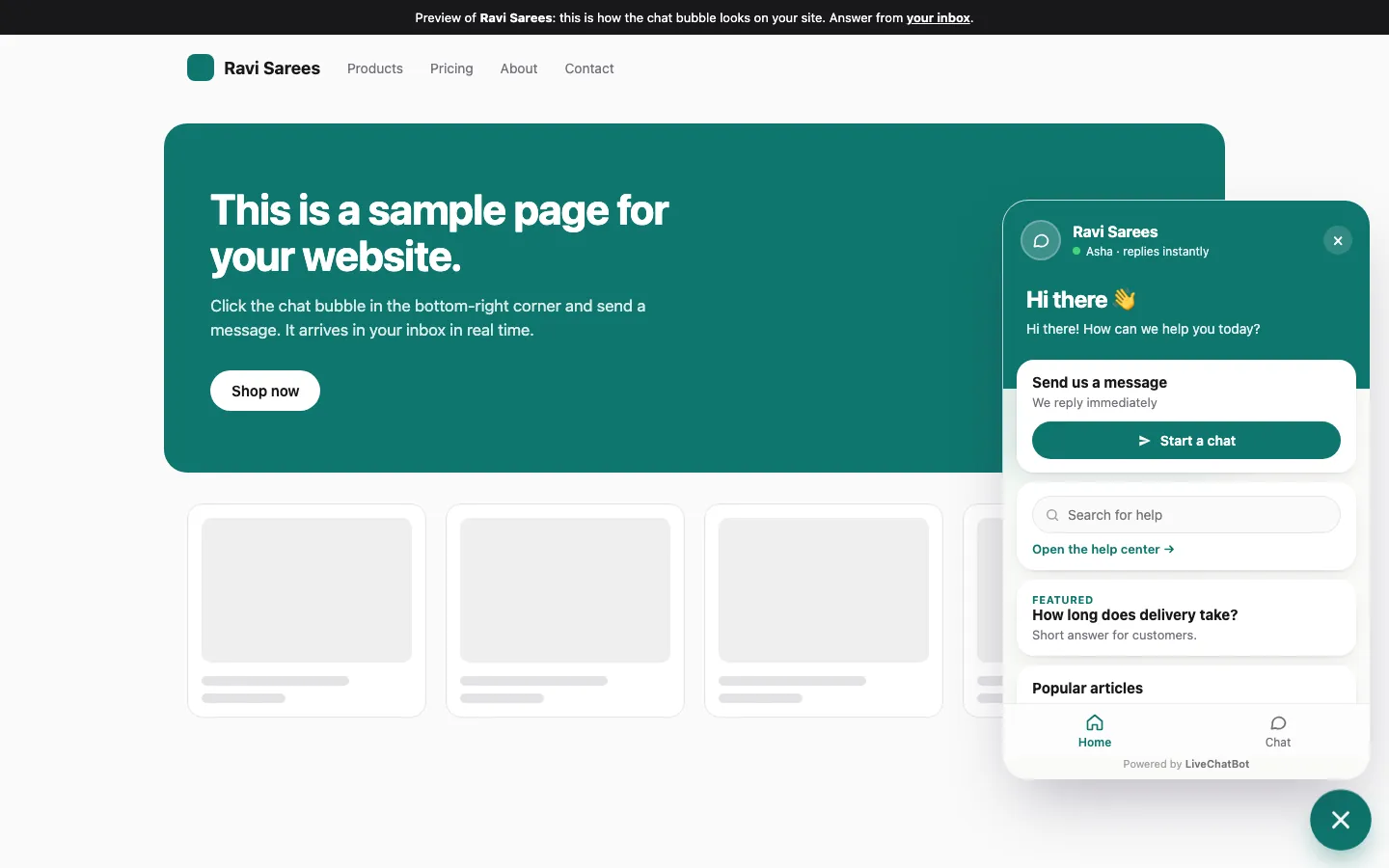
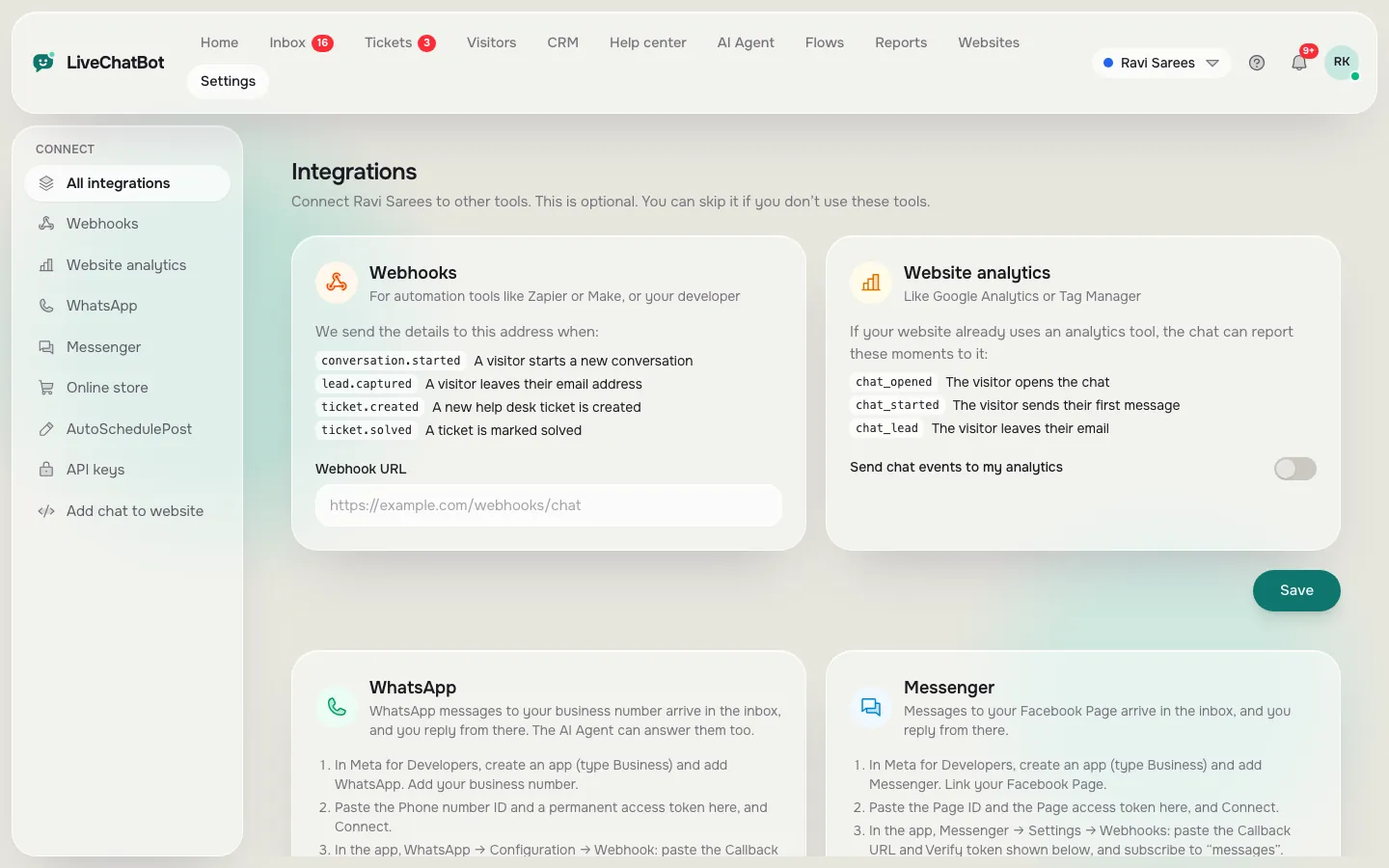
Real screens: one chat install, one widget, one list of connections
Real screens from the LiveChatBot panel, shown with sample data. Click any picture to see it full size.

Plugin kinds
The five kinds of chatbot plugins for WordPress, and what each one owns
Most chatbot plugins for WordPress fall into five kinds. Knowing the kind tells you whether it competes with your chat plugin or sits beside it.
1. Visitor chat plugin
This shows the bubble, collects messages and sends them to an inbox. It owns the bottom corner. You want exactly one.
2. Content or writing assistant
An AI helper inside the WordPress editor that drafts posts. It never talks to visitors, so it does not compete with chat. Our guide on the WordPress AI assistant plugin explains the difference.
3. Form and popup plugins
Contact forms and exit popups. They compete only if they also pop up in the same corner. A form plugin feeding leads into your chat tool is a good pairing.
4. Commerce helpers
Shop plugins that add order lookups or product finders. They sit beside chat, not instead of it.
5. Performance and security plugins
Caching and firewall plugins do not chat at all, but they can block or delay the chat script. Treat them as neighbours to test, not competitors.
Original data
Worked example: what three overlapping plugins cost against one
One plugin per job is cheaper in time before it is cheaper in money. Here is a worked example using LiveChatBot’s own published limits, so the arithmetic is checkable.
Original data (LiveChatBot plan facts, Nov 2026): the free plan gives 2 websites with 100 visitors per website a month, so 200 visitors across two sites. Starter is ₹299 a month for 750 visitors shared across 2 websites. Growth is ₹699 a month for 5 websites and 2,500 visitors shared.
Now the maths. Starter costs ₹299 ÷ 7.5 hundreds of visitors, which is about ₹40 per 100 visitors. Growth costs ₹699 ÷ 25 hundreds, which is about ₹28 per 100 visitors. Those numbers are for one chat tool with one inbox.
Now suppose you also run two extra chat plugins “just in case”, each with its own limit. A visitor who opens all three bubbles creates three conversations. You pay for three tools’ allowances while your team reads three inboxes. Even if each tool were free, the cost is time: 30 chats a day split three ways, with 2 minutes lost per chat to switching inboxes, is 30 × 2 = 60 minutes a day.
That hour is the real price of stacking. One tool with shared team inbox removes it.
What most guides miss
Our rule: count jobs, not plugins, and test the corner
Most plugin roundups rank plugins by features. They rarely ask the question that actually decides a stack: which job does each plugin do, and does any job have two owners?
Here is a five-minute test nobody seems to publish. We call it the corner test:
- Open your site in a private window on a phone.
- Wait ten seconds, then scroll to the bottom of the page.
- Count every floating element in the corners: chat bubbles, cookie bars, cart buttons, WhatsApp buttons, back-to-top arrows.
- Anything that overlaps or touches another element is a stacking problem.
If you count more than one chat-type button, you have two owners for one job. Remove one. If a cookie bar covers the bubble, move the bubble using offsets in the widget design settings instead of adding another plugin.
If the test turns up something strange, our free chatbot plugin for WordPress not showing troubleshooting tree helps find the cause.
Free list
Stacking mistakes and what to do instead
Seven common ways a plugin stack goes wrong, each with a better habit.
Choosing
Choosing the one chat plugin among the chatbot plugins for WordPress you will meet
Pick the single visitor chat plugin on four practical points, not on a long feature list.
Does it include a team inbox?
You want replies in one place, with Assign to me and Unassigned and Mine folders so two people do not answer the same chat. LiveChatBot has these, plus teams and a shared inbox.
Does it answer from your facts?
A bot should answer from the Knowledge you give it: typed answers, a copied web page or an uploaded file (PDF, Word, Excel, CSV or TXT). When AI replies are unavailable, the free keyword bot answers from saved replies.
Does it hand over?
Ask for a person during the trial. A good tool alerts your phone. LiveChatBot has an Android app for agents, though no iOS team app, so iPhone users answer from a browser.
Is the price predictable?
Prepaid, no auto-renew and no per-seat charges means no surprise bills. Compare options on our best WordPress chat plugin and best chatbot plugin for WordPress pages, and see chat plugin free if budget is the first concern.
Honest limits
What a single plugin does not do
Running one plugin does not mean it covers everything. Be clear about gaps before you stop looking.
- Branding. “Powered by LiveChatBot” stays on every plan. You cannot remove it.
- Native integrations. There is no built-in Slack, HubSpot, Salesforce or Calendly link. Zapier and webhooks can bridge some of them.
- Voice, captcha and sentiment scoring. Not available.
- Shopify App Store app. None. Shopify stores connect with a pasted code.
If you need one of these, say so in your one-job list and give that job its own tool. That is the rule working as designed.
Pruning
A one-hour plan to prune an overgrown stack
You can clean up a crowded plugin list in an hour.
- Minutes 0 to 10. Export your list of active plugins. Mark each one with its job.
- Minutes 10 to 20. Circle every job with two owners. Chat is the usual culprit.
- Minutes 20 to 30. Back up the site, then deactivate the extra chat plugin on a staging copy.
- Minutes 30 to 45. Run the corner test on a phone and on a desktop.
- Minutes 45 to 60. Send yourself a test message, check it reaches the one inbox and delete the plugin you removed.
Once only one chat plugin is left, the WordPress live chat plugin setup guide is the place to finish configuring it. Then keep the habit: before adding any new plugin, write its job on a sticky note. If the job already has an owner, do not install it. If you are weighing a free route first, our free chatbot for WordPress guide covers what the free plan includes.
Frequently asked questions
How many chatbot plugins for WordPress should I install?
Install one for talking to visitors. Add others only when they do a different job, like forms, caching or content writing. Two chat plugins on one page compete for the same corner and split your inbox.
Can I run two chat plugins at the same time?
You can, but you should not. Visitors see two bubbles, your replies split across two inboxes and both scripts load on every page. Test a new one on a staging copy and remove the old one at go-live.
Will a chat plugin slow my WordPress site?
Any script adds some load. One chat plugin is a small cost. Several stacked plugins multiply it. Run the corner test and check the page on a slow phone connection.
What does LiveChatBot cost for a WordPress site?
The free plan covers 2 websites with 100 visitors per website a month. Starter is ₹299 a month and Growth is ₹699 a month, both prepaid with no auto-renew and no per-seat charges.
Does the plugin also catch my contact form leads?
Yes. The widget and the WordPress plugin catch Contact Form 7, WPForms, Elementor Pro, Gravity, Fluent and Ninja form submissions as leads, with an instant New lead alert.
Keep reading
Related guides
Chatbot Plugin for WordPress: What the Plugin Does, and What Happens in the Dashboard Instead (Free Page-View Timeline)
Chatbot Plugin for Website: A Plugin Installs the Chat Box, Not the Brain, So Plan the Answers Too
Chatbot Platform Comparison Tables Mislead: Seven Tricks to Spot and the Fairer Question to Ask Instead
One plugin, one inbox
Start free with 2 websites and 100 visitors per website a month. No per-seat charges. Sign up on livechatbot.in.