Chatbot Plugin for Website: A Plugin Installs the Chat Box, Not the Brain, So Plan the Answers Too
Chatbot plugin for website searches usually end at the install button, but a plugin only puts a chat box on your pages. What the box says, which facts it knows and who takes over when it is stuck are separate jobs, and this guide walks through them in order.

A chatbot plugin for website use adds the chat box to your pages, nothing more. The answers come from the facts you load into the AI Agent. On WordPress you install a plugin, and on Shopify, Wix or Squarespace you paste one code snippet. Install first, then add about twenty real facts and test the handover to a person.
⚡ In short
- A chatbot plugin for website pages, or pasted code, only delivers the widget. The answers come from the knowledge you give the AI Agent.
- On WordPress and Joomla use the plugin or extension. On Shopify, Wix and Squarespace you paste one code snippet.
- Test with three questions you never taught the bot, then check the handover to a person.
- LiveChatBot is free for two websites, with 100 visitors a month on each.
The gap
What a plugin does, and what it leaves undone
A plugin loads the chat widget on your pages and does nothing else, so the bot is only as good as the facts behind it. Most people picture the plugin as the whole product. You click install, a bubble appears, and the job feels finished. A day later a visitor asks about your return policy and the bubble has nothing sensible to say.
The plugin did its job. It loaded the widget on your pages. The missing part is the brain: the facts and rules that decide what the bot says. That is why this guide splits the work into two halves.
Half one: the delivery
Getting the widget onto the page. A plugin does this on WordPress, an extension does it on Joomla, and a pasted code snippet does it everywhere else. Our WordPress live chat plugin guide covers the install steps for that platform.
Half two: the answers
Teaching the AI Agent what your business sells, charges, promises and refuses. This half decides whether visitors get help or a shrug, and it takes about as long as the install itself.
Delivery
How the chat reaches your pages on each platform
Each platform gets the chat one of two ways: a plugin or extension, or one pasted code snippet. You do not always need a plugin, and some platforms have none. Here is what LiveChatBot offers today.
- WordPress and WooCommerce: a plugin you install from the dashboard. It also catches form submissions from common form plugins as leads.
- Joomla: an extension.
- React and Vue: plugins for those frameworks.
- Shopify, Wix, Squarespace: you paste one code snippet. There is no Shopify App Store app.
- Any other site: paste the snippet before the closing body tag.
A plugin is not safer than a snippet
Both load the same widget. If you can reach your header or footer settings, the snippet is just as good, and our website chat widget page shows what the finished box looks like.
Check the install before moving on
Open your site in a private window and look for the bubble. Then open it on your phone. If it does not appear, clear any cache plugin first.
Real screens
From install code to a trained AI Agent
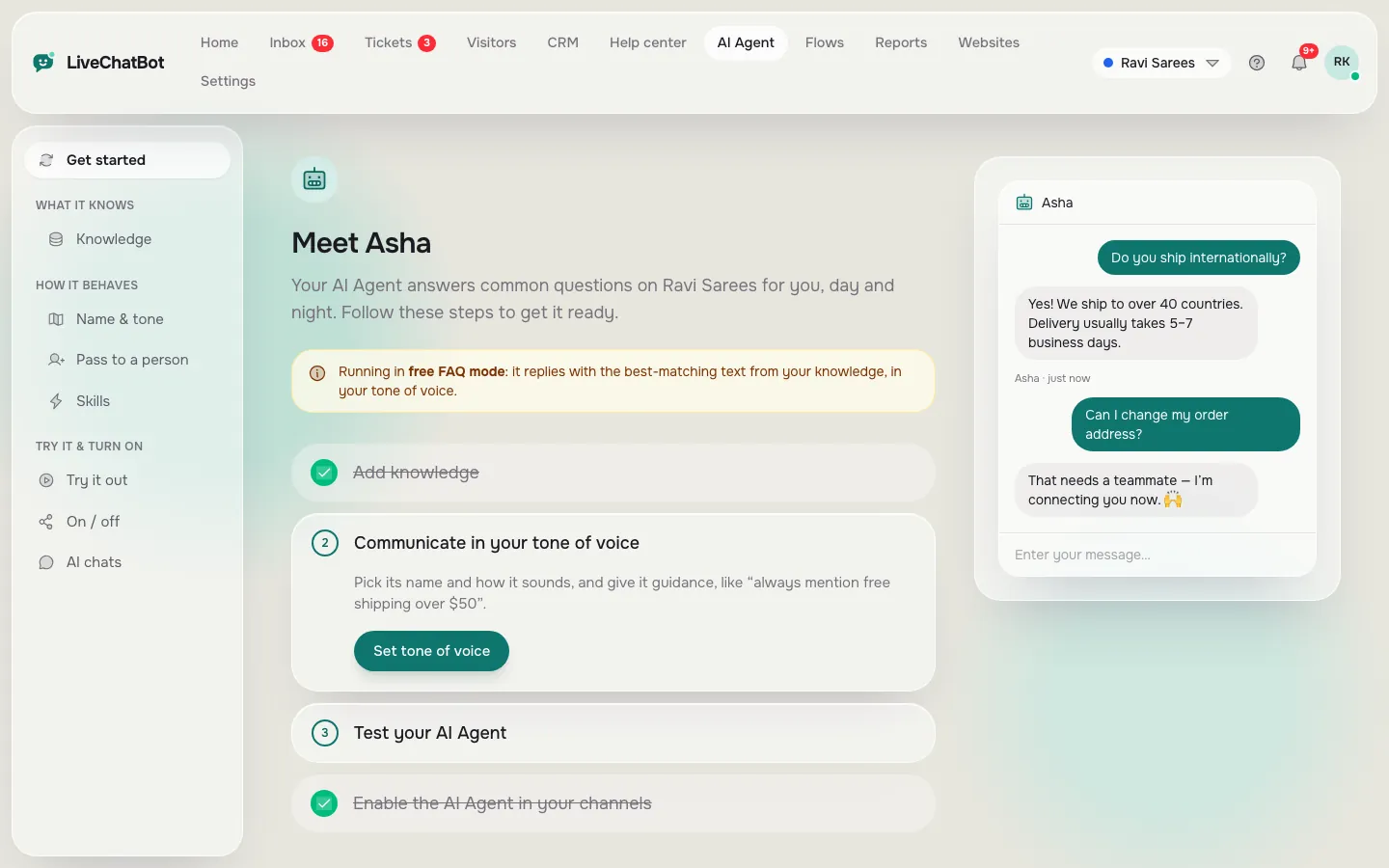
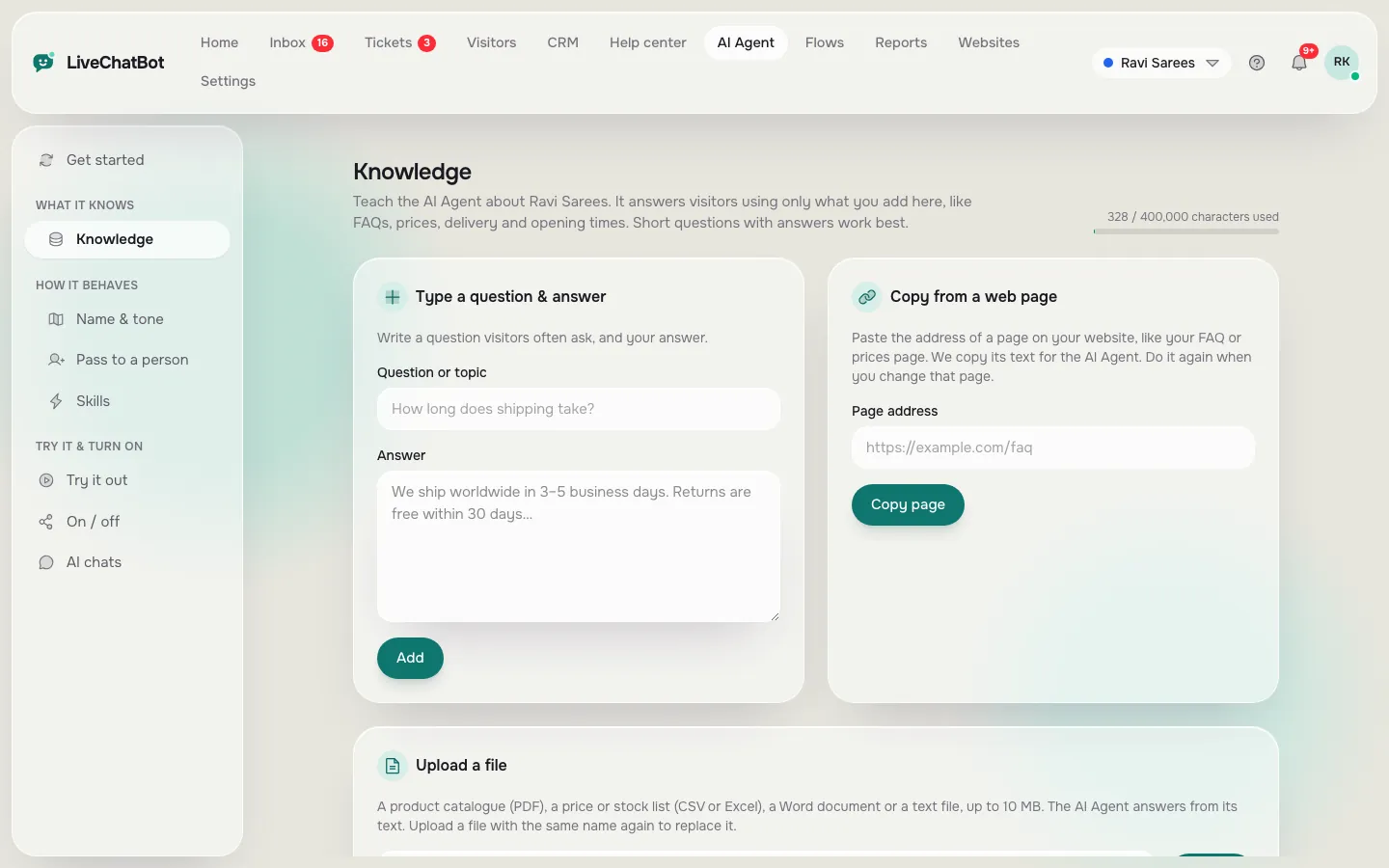
Real screens from the LiveChatBot panel, shown with sample data. Click any picture to see it full size.
The brain
Teach the bot your facts before you tell anyone it is live
Facts go into AI Agent, Knowledge, and behaviour goes into the Rules box. Open AI Agent → Knowledge. You can type answers, copy in a web page, or upload a file (PDF, Word, Excel, CSV or plain text). Start with the pages visitors ask about most.
Write down what people actually ask
Open your inbox, your email and your WhatsApp. List the twenty questions you answered most often this year. Prices, delivery, timings, returns, booking and location cover most small businesses. Our guide on how to train your AI chatbot goes deeper on wording.
Keep facts and behaviour apart
Facts such as prices and hours belong in Knowledge. Behaviour belongs in the Rules to follow box on the Name and tone page, for example “Never promise delivery dates”. Rules apply only while AI replies are on for the website, so keep your facts accurate too.
Name it and set the tone
Give the AI Agent a name and a tone of voice on the same page.
Handover
Decide who takes over when the bot is stuck
When the bot is stuck, the chat should land in your shared inbox with a named owner. Every bot meets a question it cannot answer. What happens next decides whether the visitor stays.
With LiveChatBot, chats the bot cannot settle land in the shared inbox. Agents use Assign to me, and the Unassigned and Mine folders show who owns what. There is no automatic round-robin, so agree on the rule in your team: who checks Unassigned, and how often.
Cover the hours when nobody is there
Set opening hours and turn on the away form. It collects an email or phone number so a night-time visitor still becomes a lead. The chat rescuer also asks for email and phone if nobody replies within seconds.
Put the Android app on one phone
The Android team app sends alerts. There is no iOS team app today.
Our numbers
The real numbers behind a chatbot plugin for website traffic
Original data from LiveChatBot’s own plan limits, with the maths shown, so you can size a plan before you install anything.
- Free: 2 websites × 100 visitors = up to 200 new visitors a month across both sites, at ₹0.
- Starter: ₹299 for 750 visitors shared across 2 websites, so ₹299 ÷ 750 = about ₹0.40 per visitor if you use them all.
- Growth: ₹699 for 2,500 visitors shared across 5 websites, so ₹699 ÷ 2,500 = about ₹0.28 per visitor if you use them all.
- Rate limit: visitor chat messages are capped at 20 a minute per IP, a fixed built-in limit.
Worked example (illustrative)
A shop gets 900 visitors a month on one site and 400 on a blog. Free covers 100 + 100, so the rest need a paid plan. Starter’s 750 shared visitors would not cover 1,300, but Growth’s 2,500 would, at ₹699. Check your own analytics first, because the visitor count decides the plan, not the plugin.
What most guides miss
Our rule: write the questions before you pick the plugin
Write your twenty visitor questions before you choose any tool. That is the insight most plugin guides skip: they compare install steps, but install is the easy half.
The five-minute test
Take a sheet of paper. Write the ten questions your customers ask most. Next to each, write the one-line true answer. If you cannot answer four of them in one line, no plugin will fix that, because the bot has nothing to say. Fix the facts first, then install.
Try it
After-install checklist
Tick each step once it is done on your own site. Do them in order, because the later ones depend on the earlier ones.
Testing
Three questions that show whether the answers are honest
Test with questions you never taught the bot, because only those show whether it guesses. Do not test with questions you wrote the answers to. Anyone can pass that exam. Ask these instead.
- A fact you never added. For example, “Do you ship to Nepal?” if you never wrote about Nepal. A good bot says it is not sure and offers a person.
- A question phrased badly. Use spelling mistakes, short text or a mix of languages. Real visitors write that way.
- A request for a human. Type “I want to talk to someone”. The chat should reach your inbox or take their contact details.
Fix gaps by adding facts, not by adding rules
When the bot misses, the cause is nearly always a missing fact. Add it to Knowledge, ask again, and keep a short note of what you changed. After a week of real chats, read the transcripts and fill the gaps they reveal. The Reports area shows how many chats the AI Agent resolved without a person.
Choosing
Questions to ask any chatbot plugin for website use before installing
Ask six questions of every vendor, and compare the answers in writing. Whatever you pick, ask the same short list.
- Does the bot answer from my facts, or from general knowledge?
- Can it hand over to a person, and where does that chat land?
- What counts toward the limit: visitors, chats or AI replies?
- What happens at the limit? Does it stop, or bill you automatically?
- Can I remove the vendor badge? (On LiveChatBot the “Powered by LiveChatBot” badge stays on every plan.)
- Does it work on my platform without a developer?
Be honest about what you need
If you want a native integration with a CRM, Slack or Calendly, LiveChatBot does not have one today. Zapier, webhooks and the REST API can bridge some jobs. See the integrations page before you decide.
Price it against your traffic
Free gives two websites and 100 visitors a month on each. Starter is ₹299 a month and Growth is ₹699 a month, with visitors shared across your sites. Payment is prepaid, with no auto-renew and no per-seat charges. See pricing.
Next steps
A sensible first week after you install
Spend the first week on facts and tests, and add proactive messages last. Day one: install and check the widget. Day two: add the twenty facts and run the three tests. Day three: set hours, the away form and the app. After that, leave it alone for a few days and let real visitors use it.
Read the first real chats
On day seven read every chat. Mark each one as answered well, answered badly or not answered. Add facts for the second and third groups. This habit does more for quality than any setting.
Then add proactive messages
Once the answers are solid, use chat flows to greet visitors on chosen pages, such as a pricing page. Flows come last, because greetings on top of weak answers only create more disappointing chats. See the AI Agent guide for training, then sign up at livechatbot.in.
Frequently asked questions
Do I need a chatbot plugin for website pages at all?
Not always. WordPress and Joomla have a plugin or extension, while Shopify, Wix, Squarespace and plain HTML sites use one pasted code snippet. Both load the same widget.
Will the plugin train the chatbot for me?
No. The plugin only places the chat box. You add facts in AI Agent, Knowledge by typing, copying a page or uploading a PDF, Word, Excel, CSV or text file.
Can I choose the AI model or use my own API key?
No. The provider is set by LiveChatBot on the server. You control the knowledge, the name, the tone and the rules the AI Agent follows.
Is there an iOS app for my team?
Not today. There is an Android app for agents, and the dashboard also works in a phone browser.
Can I remove the Powered by LiveChatBot badge?
No. The badge stays on every plan, so factor that in if a badge-free widget is essential for you.
Keep reading
Related guides
Chatbot Plugin for WordPress: What the Plugin Does, and What Happens in the Dashboard Instead (Free Page-View Timeline)
Chatbot Platform Comparison Tables Mislead: Seven Tricks to Spot and the Fairer Question to Ask Instead
Install the box, then teach it
Free for two websites, with 100 visitors a month on each and no per-seat charges. Start free on livechatbot.in.