Chat Solutions for Business Are a Team Workflow: Who Picks Up, Who Follows Up and Who Closes the Ticket (Free Coverage Grid)
Chat solutions for business fail less often because of the software than because nobody knows whose turn it is. A chat arrives, three people see the alert, each assumes another will reply, and the visitor leaves. This guide shows how to turn the inbox, assignment, teams, tickets and an hours grid into a simple workflow that a small team can follow without meetings.
⚡ In short
- Name one person for each moment: first reply, follow-up and closing.
- Use Assign to me, the Unassigned and Mine folders, teams and tickets to make ownership visible.
- Draw a weekly coverage grid so everyone knows who is on, and what the visitor sees when nobody is.
- There is no automatic round-robin assignment, so agree the rule by hand.
The problem
Why chat solutions for business drift into chaos
On day one there is one person and one inbox, and everything works. Add a second person and the first small gap appears: both reply to the same visitor, or neither does. Add a third and chats start sitting for an hour.
None of this is a tool failure. It is a missing rule. A workflow is just three questions answered in advance:
- Who takes a new chat?
- Who handles anything that needs more than five minutes?
- Who decides it is finished?
Write the answers on one page and pin it where the team works. A written rule beats a smart feature, because the feature only helps if everyone agrees how to use it. If you are still choosing a tool, our guide to chat software for business covers the cost side, and the broader live chat overview covers what chat is for.
Three roles
Pick up, follow up and close: the three jobs in every chat
Pick up
The person on duty takes the first reply within a minute or two, as covered in our guide to a chat solution for your website. They do not need the final answer, only to say hello, ask what the visitor needs and reassure them. Fast contact is what keeps the visitor on the page.
Follow up
Some chats need research, a quote or a check with a colleague. Pick up and follow up are different jobs. The follow-up owner promises a time and keeps it, by chat, email or phone.
Close
Someone marks the issue finished, with a short note. Closing is what stops the same question being answered twice and gives you honest numbers in Reports.
In a team of two, one person may do all three on a given day. That is fine, as long as the day’s owner is named.
Write it as three sentences
“Dev picks up chats from 9 to 1. Meera follows up tickets before 5. Whoever solved the issue closes it.” That is a workflow. It fits on a sticky note, and a new hire can follow it on their first morning without asking anyone. Names here are illustrative; use your own.
Using the tools
Which LiveChatBot features support chat solutions for business roles
You do not need extra software. These features already exist.
- Shared inbox. All chats from all your websites land in one place. See the shared inbox page for how the folders work.
- Assign to me. Any agent can claim a chat so others see it is taken.
- Unassigned and Mine folders. Unassigned shows open human-handled chats with no owner. Mine shows your own.
- Teams. Route chats to a team and use the My teams folder when sales and support are separate.
- Tickets. A chat that needs work becomes a ticket with an owner and a customer page, no login needed. See live chat for teams for the team view.
- Saved replies. Everyone answers common questions the same way.
- Android app. Alerts reach whoever is on duty.
There is no automatic, round-robin or skill-based assignment. Your rule is manual: whoever is on duty checks Unassigned and takes the oldest chat first.
Real screens
Real screens: your team list and a shared conversation
Real screens from the LiveChatBot panel, shown with sample data. Click any picture to see it full size.
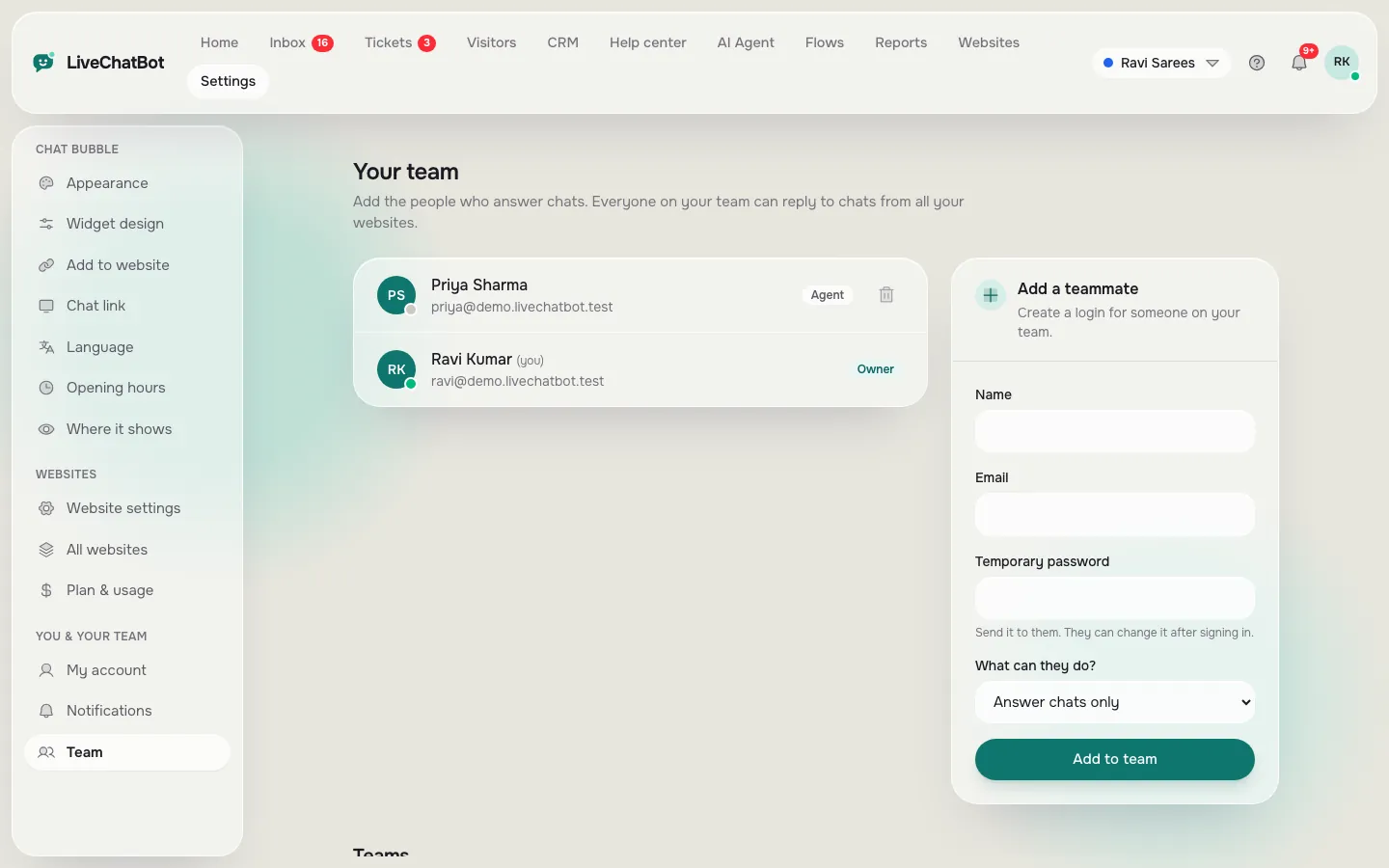
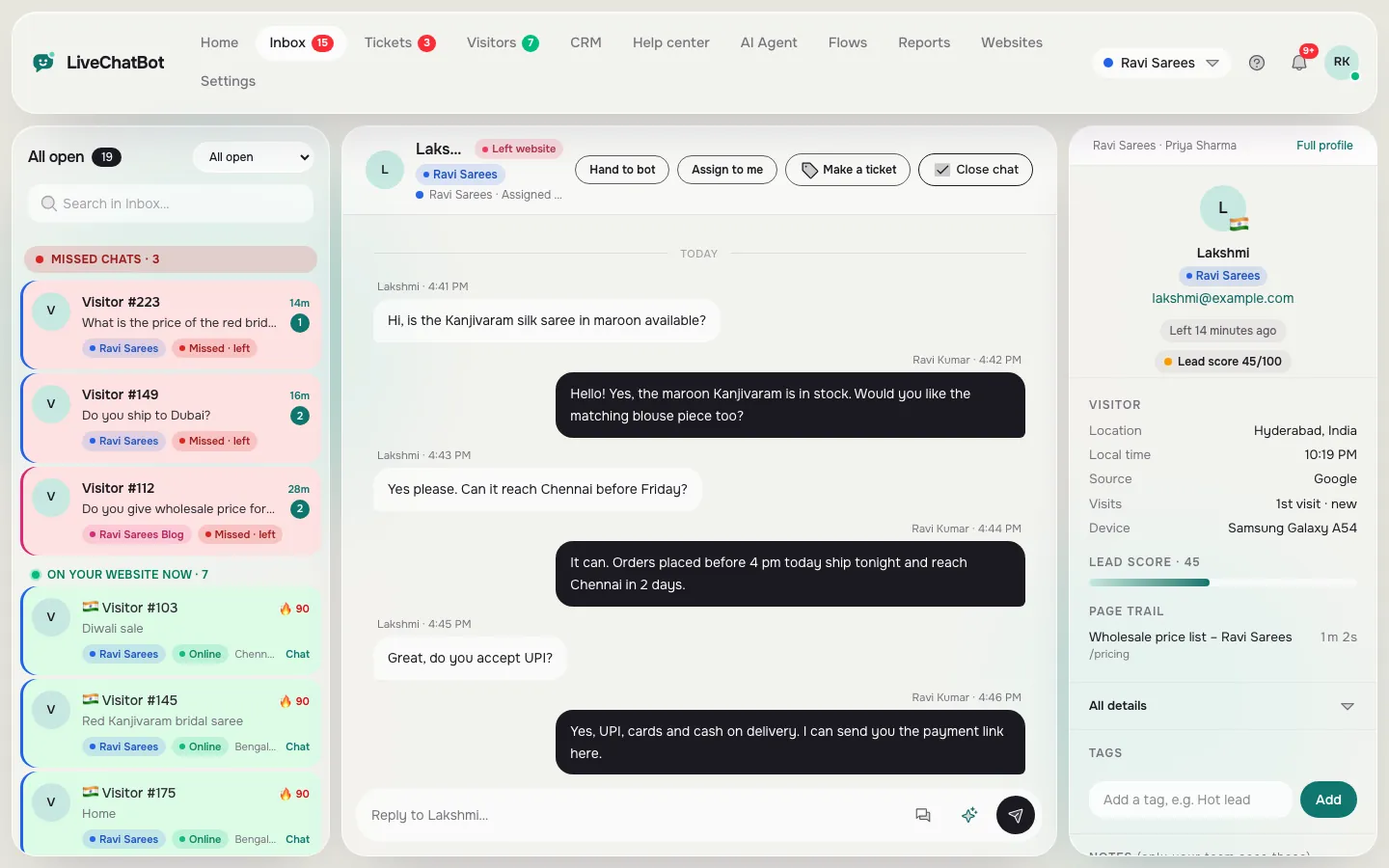
Free grid
Draw your weekly coverage in four rows
This is an illustrative week for a small shop with one person on duty in the day, an evening check and a bot-only Sunday. Copy the shape, then change the cells to match your team.
| Mon | Tue | Wed | Thu | Fri | Sat | Sun | |
|---|---|---|---|---|---|---|---|
| 9 am to 1 pm | Person | Person | Person | Person | Person | Person | Bot only |
| 1 pm to 6 pm | Person | Person | Person | Person | Person | Bot + email | Bot only |
| 6 pm to 10 pm | Bot + email | Bot + email | Bot + email | Bot + email | Bot + email | Bot + email | Bot only |
| 10 pm to 9 am | Bot + email | Bot + email | Bot + email | Bot + email | Bot + email | Bot + email | Bot + email |
Turn it on
Turning the grid into settings and habits
Each cell maps to something you can set today, so your chat solutions for business plan becomes real settings.
- Opening hours match the Person cells. Outside them the away form collects email or phone.
- Saved replies and Knowledge give the bot something useful to say in the Bot cells.
- Welcome text changes with the hours: “We reply in minutes” in person hours, “Leave your number and we call tomorrow” otherwise.
- Name a duty owner for each Person block, even if it is always the same person.
- Name a follow-up owner each morning for tickets left open.
A daily five-minute handover
At the end of each shift, the person on duty reads the Unassigned folder, assigns anything left and leaves a note for the next person. Five minutes saves the awkward “I thought you had it” conversation.
What it won’t do
Limits to plan around in business chat workflows
Be honest about the edges so your workflow does not rely on features that do not exist.
- No automatic assignment rules. Ownership is by hand.
- No role builder, single sign-on or audit logs, so everyone with a login sees what the plan shows them.
- No native Slack, Teams or Telegram alerts. The Android app and Zapier or webhooks are the routes.
- “Powered by LiveChatBot” stays on all plans.
Plans have no per-seat charges, so adding a team member costs nothing extra. The Free plan covers two websites, Starter ₹299 a month covers 750 shared visitors and Growth ₹699 a month covers 2,500. See pricing.
First week
A seven-day rollout of chat solutions for business that needs no meeting
- Day 1. Write the three roles on one page.
- Day 2. Draw the coverage grid and share it.
- Day 3. Set opening hours and the away form to match.
- Day 4. Write five saved replies everyone will use.
- Day 5. Try the five-minute handover.
- Day 6. Read Reports for first response time, response rate and the busy-hour view, then compare them with your grid.
- Day 7. Change one rule that did not work.
Our look at live chat for agencies shows the same ideas with several sites. After a week the chat stops feeling like a pile of alerts and starts feeling like a routine.
Frequently asked questions
How do I stop two people answering the same chat?
Use Assign to me. Once an agent claims a chat, it leaves the Unassigned folder and others can see it is taken.
Does LiveChatBot assign chats automatically?
No. There is no round-robin or skill-based routing. You assign by hand or route by team.
What should happen outside working hours?
Show the away form so visitors leave email or phone, and let the bot answer from your saved replies and knowledge.
Do I pay more for extra agents?
No. There are no per-seat charges.
How do small teams hand over between shifts?
A five-minute handover: read Unassigned, assign what is left and leave a short note.
Keep reading
Related guides
Chat Solution for Website Buyers: Ten Red Flags in a Sales Pitch and the Test That Checks Each One (Free Claim-vs-Test List)
Chat System for Websites, Explained Under the Hood: How a Message Travels From a Visitor’s Phone to Your Inbox (Free Plain-English Glossary)
Chat Software for Website Owners: A One-Day Setup Plan, Hour by Hour, From Sign-Up to Your First Real Chat (Free Timeline)
Make ownership visible
Start free on livechatbot.in, add your team and draw your first coverage grid.