Chat Bots for Websites, Page by Page: What the Bot Should Do on Home, Pricing, Product, Contact and Checkout Pages
Chat bots for websites work best when they behave differently on each page. A visitor on your pricing page has a different worry from one on your contact page, and a bot that says the same hello everywhere wastes the moment. This guide goes page by page: what the bot should say, when it should speak first, where it should stay quiet, and how to set that up with page rules and Flows.
⚡ In short
- One generic bot on every page is a missed chance. Match the first line to the page’s job.
- Speak first on pages where people hesitate (pricing, checkout). Stay quiet where they are already acting (forms).
- Use page rules to show or hide the widget, and Flows to send a targeted message.
- Start with three pages, read the chats for a week, then add more.
Why pages differ
Why chat bots for websites should change with the page
Think of the bot as a shop assistant. In the doorway, a quiet greeting is enough. Near the price tags, a helpful word about options is welcome. At the till, the assistant only steps in if you look stuck.
Websites work the same way. The home page gets browsers. The pricing page gets people comparing. A product page gets people checking size, stock and delivery. A contact page gets people who already want to talk. The checkout gets people one step from paying who may need a reassurance, not a sales pitch.
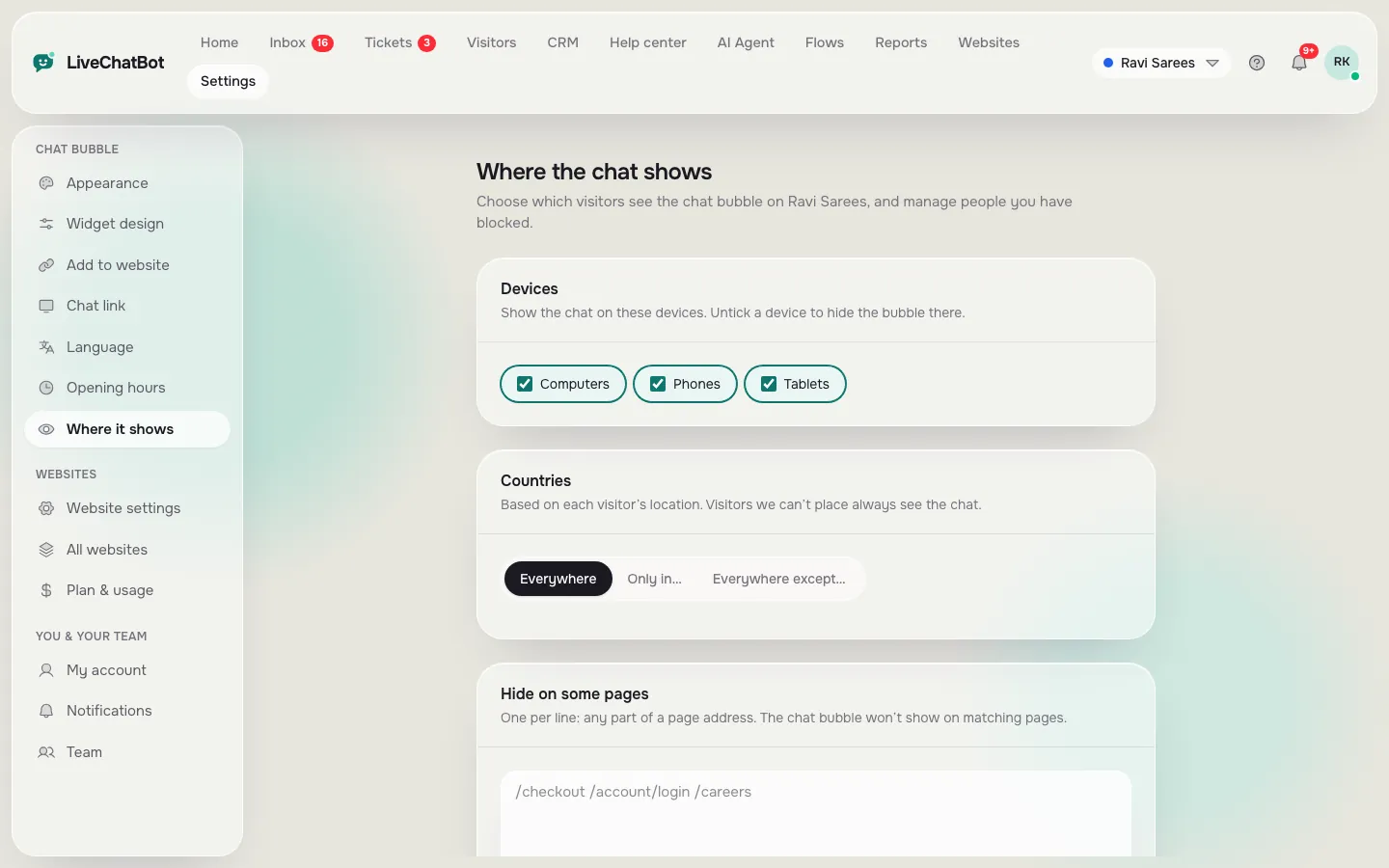
LiveChatBot gives you two controls for this. Where it shows lets you pick devices, countries and pages to hide the widget on. Flows send a proactive message with up to six conditions, including page, source, country, device, browser language, number of visits, lead score and whether you have contact details. Our AI Agent page explains how the bot answers once someone does start typing.
Page guide
Pick a page to see what the bot should do
Answer three quick questions about your busiest page and the quiz suggests a starting plan.
Page by page
The six pages that matter most
Home page
Keep it calm. A small greeting and a welcome line that names two or three things you can help with, such as “Ask about delivery, prices or booking”. Do not interrupt.
Pricing page
This is where hesitation lives. Send a Flow with a specific question: “Not sure which plan fits? Tell us how many visitors you get.” Load plan details in the knowledge so the bot can answer.
Product or service page
Answer the practical questions: size, stock, delivery time, what is included. If you use WooCommerce or Shopify, connecting the store lets agents see the cart.
Contact page
Visitors here already want a person. Show a clear line about opening hours and use the away form after hours.
Blog posts
Offer a related next step instead of a sales line, for example a link to your booking page.
Checkout
Be gentle. Use a rule to hide the widget on the payment step if it distracts, and keep it on the cart page for delivery or coupon questions.
Real screens
Real screens for page rules and install
Real screens from the LiveChatBot panel, shown with sample data. Click any picture to see it full size.

Setup
Setting up page rules in ten minutes
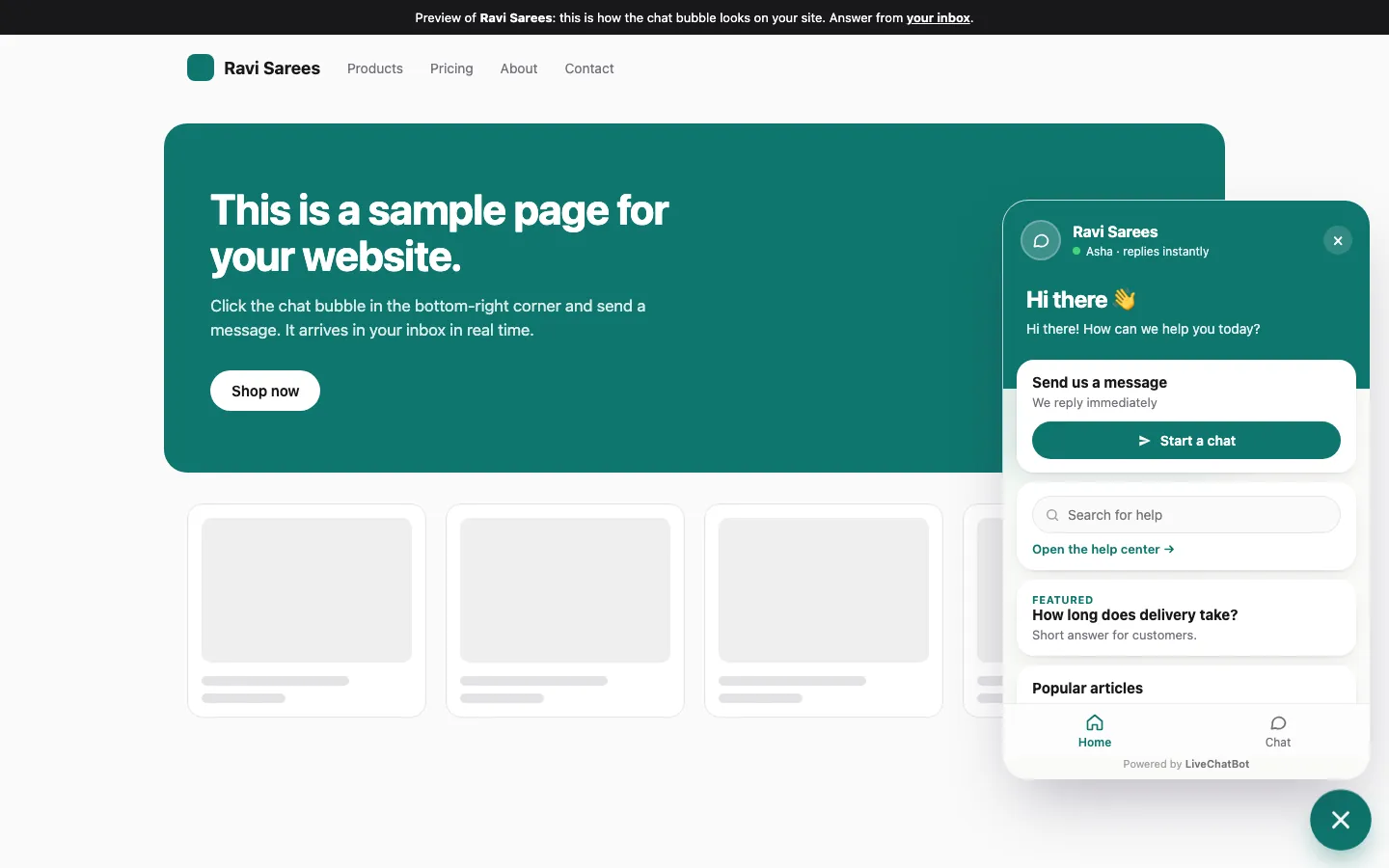
Install the chat code once on every page, using the pasted snippet or the WordPress plugin. Shopify, Wix and Squarespace need the code pasted in; there is no Shopify App Store app. Then use the dashboard, not code, to decide who sees what.
- Open the widget’s visibility settings and hide it on pages where it does not belong, such as a payment step.
- Create a Flow for your pricing page, with the page as the condition and a short question as the message.
- Add a follow-up message if the first one is ignored.
- Test on your phone, because many visitors are on mobile.
Our guide on showing live chat on specific pages goes through the settings, and how to create a chat flow covers Flows step by step. The wider overview is in our AI Agent pillar page.
Mobile and speed
Chat bots for websites on phones: smaller screen, shorter lines
Most visitors in India browse on a phone, and a chat window covers a large part of a small screen. Keep proactive messages to one short line. Avoid showing a message the moment a page loads; it lands on top of what the visitor came to read. A delay of 15 to 30 seconds, or a message after a second page view, feels more natural.
Check the widget’s position too. A button in the bottom corner can cover a cookie notice or a call button. Move it to the other side, or change its size, in the design settings, then look at every page type on a real phone.
Try one change at a time
If you change the message, the delay and the page rule together, you will not know which helped. Change one, wait a week, and read the chats. Look at how many visitors replied to the proactive message and how many of those became leads. That small habit beats any amount of guessing.
Honest limits
What chat bots for websites can’t do on their own
A bot is not a replacement for good pages. If your pricing page hides the price, a bot cannot fix that, and it will only repeat what you tell it. Give it clear facts in the knowledge base: type them in, copy a page, or upload a PDF, Word, Excel, CSV or TXT file.
Know the gaps too. The bot cannot pick its AI model, there is no voice or sentiment analysis, and “Powered by LiveChatBot” stays on every plan. Page targeting works on page, source and visitor details, but there is no pre-chat form.
After a week, open Reports. The traffic and page reports show which pages bring visitors and which they leave without acting, so you know where a better bot message is worth the effort. Add one page at a time.
Frequently asked questions
What are chat bots for websites?
They are chat widgets that answer visitors’ questions from your own information and pass harder ones to a person.
Should the bot appear on every page?
Usually yes, but quietly. Speak first only on pages where visitors hesitate, and hide it where it gets in the way.
Can I show different messages on different pages?
Yes. Flows let you target by page and up to five other conditions, such as country, device and number of visits.
Does it work on Shopify, Wix and Squarespace?
Yes, by pasting the chat code. There is a WordPress plugin as well, and extensions for Joomla, React and Vue.
Is there a free version?
Yes. The free plan covers 2 websites with 100 visitors per website each month. Paid plans start at ₹299 a month.
Keep reading
Related guides
Chat Bots for Customer Service: The 60 Seconds After the Bot Gives Up, With Handoff Lines You Can Copy
Chat Box WordPress Plugin on Every Kind of Page: Decide Where the Box Shows, Hides or Changes (Free Page Rules Quiz)
Chat Client for Website Teams: The App Your Staff Reply From, and the Eighteen Inbox Words You Will Meet on Day One (Free Searchable Glossary)
More to read
More guides on this topic
Best Chat for Shopify Starts With the Right Words on the Right Page: Welcome Lines for Home, Collection, Product, Cart and Policy Pages (Free Copy-Ready Lines)
Start with three pages
Start free on livechatbot.in, choose home, pricing and contact, and read the chats after a week.