Chat Box WordPress Plugin on Every Kind of Page: Decide Where the Box Shows, Hides or Changes (Free Page Rules Quiz)
Chat box wordpress plugin guides usually stop at install, but a WordPress site is many different pages, and the box does not belong on all of them in the same way. A shop page, a blog post, a login screen and a thank-you page each ask for something different. This guide sorts your page types into show, hide or change, and the quiz gives you a rule for your own site.
⚡ In short
- Installing the plugin is the easy part. The real work is deciding which pages get the box.
- Pages where people ask questions, such as pricing, services and product pages, should show it.
- Pages where people are mid-task, such as checkout and login, usually need it quiet or hidden.
- LiveChatBot lets you choose devices, countries and pages from one settings screen, with no code.
Why pages matter
A chat box wordpress plugin sees your whole site, not one page
A WordPress site is not one page. It is a home page, a handful of service pages, maybe a blog with hundreds of posts, perhaps a shop, and a few plain pages such as privacy and terms. A chat box wordpress plugin loads on all of them unless you say otherwise.
That is usually fine. But the same box in the same corner does different work on each page. On a pricing page it catches the visitor who is one question away from buying. On a long blog post it may simply sit there. On a checkout page it can cover the pay button on a small phone.
The goal of page rules
Page rules are not about hiding chat. They are about putting help where people need it and staying out of the way where they do not. A few minutes spent on this makes the box feel like a good shop assistant rather than a pushy one.
The plugin itself is covered in our WordPress live chat plugin guide. This article is only about the decision that comes after it is installed.
Show it
Pages where the box earns its place
Start with the pages where visitors already have questions in their heads.
Pricing, services and product pages
These are the strongest places for a box. A visitor reading prices often has one small doubt: does this include delivery, can I pay in parts, how long does it take. A box in the corner lets them ask instead of leaving. If you also add a short welcome line, they know a person or bot is there.
Contact and about pages
People on a contact page have already decided to reach out. Giving them a faster option than a form is a small win. LiveChatBot’s away form still takes an email or phone when nobody is online.
Your home page
Show it, but keep it calm. A closed bubble is enough. Save any pop-up card for pages with a clear purpose.
Hide it
Pages where the box should stay out of the way
Some pages are better without a floating box.
- Checkout and payment pages. A bubble can sit over the pay button on a phone. If you do keep chat here, test it on a small screen first.
- Login and account pages. People are doing a task. A pop-up is a distraction.
- Thank-you pages. The visitor has just finished. A quiet box is fine, but a pop-up card is not.
- Landing pages built for one action. If the page asks for one click, extra boxes can pull attention away.
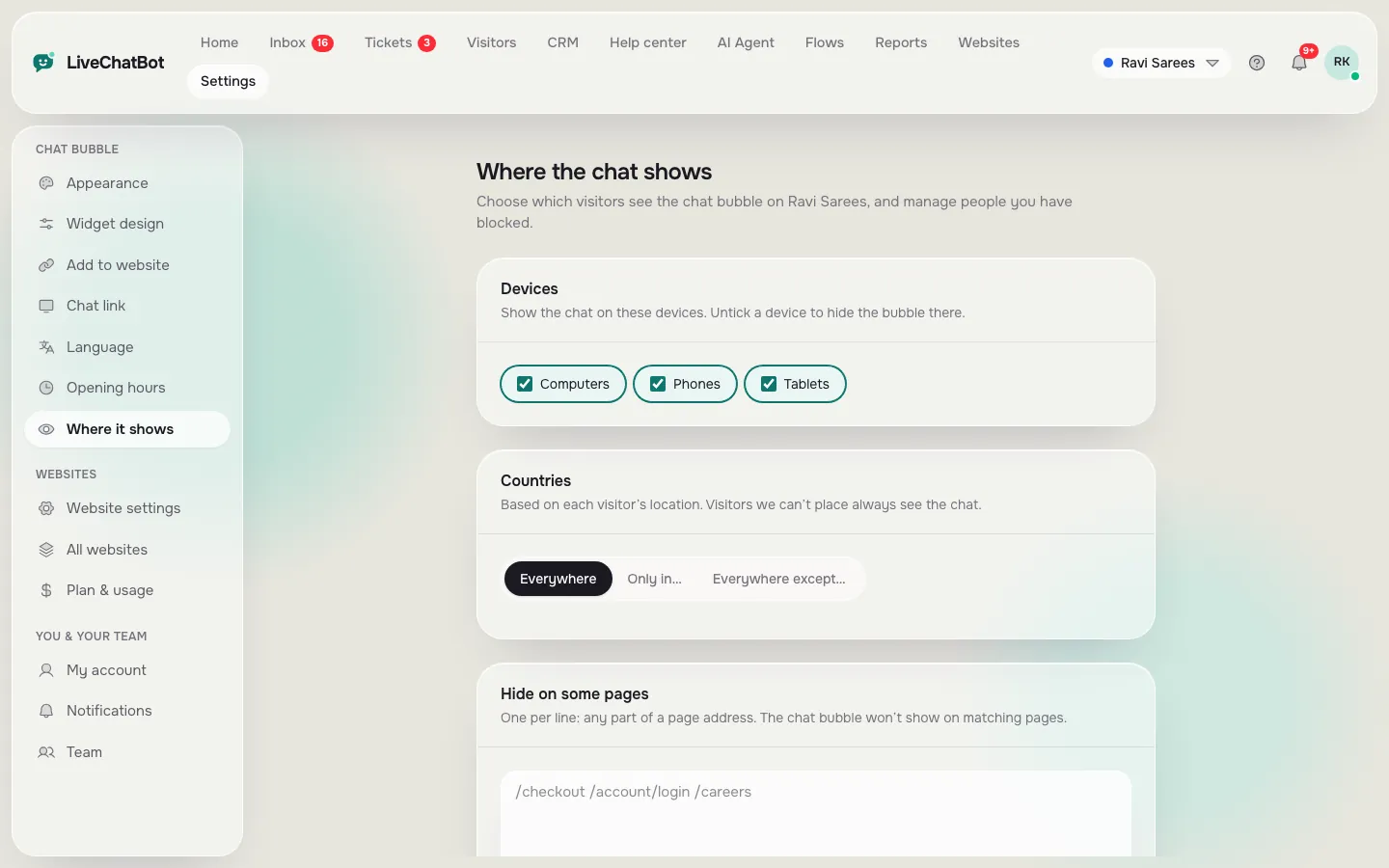
LiveChatBot has a “where it shows” setting for exactly this: hide the box on chosen pages, show it only on some devices or countries, and leave the rest alone. Our short guide to showing chat on specific pages walks through it.
Hide is not delete
Hiding the box on a page does not turn chat off. Visitors on other pages can still reach you, and you can change the rule any time.
Change it
Pages where the box should look or sound different
The middle path is to keep the box but change what it says.
Match the welcome line to the page
On a product page the line can be “Questions about this item? Ask here.” On a services page it can be “Not sure which option fits? Tell us what you need.” The same box, a more useful hello. Flows can show different messages by page, source, country or device, with up to six conditions.
Keep a calm box on blog posts
Blog readers came for information. A quiet bubble works. If a post is about pricing or a product, a gentle proactive message can follow after they have read for a while.
Mind the phone
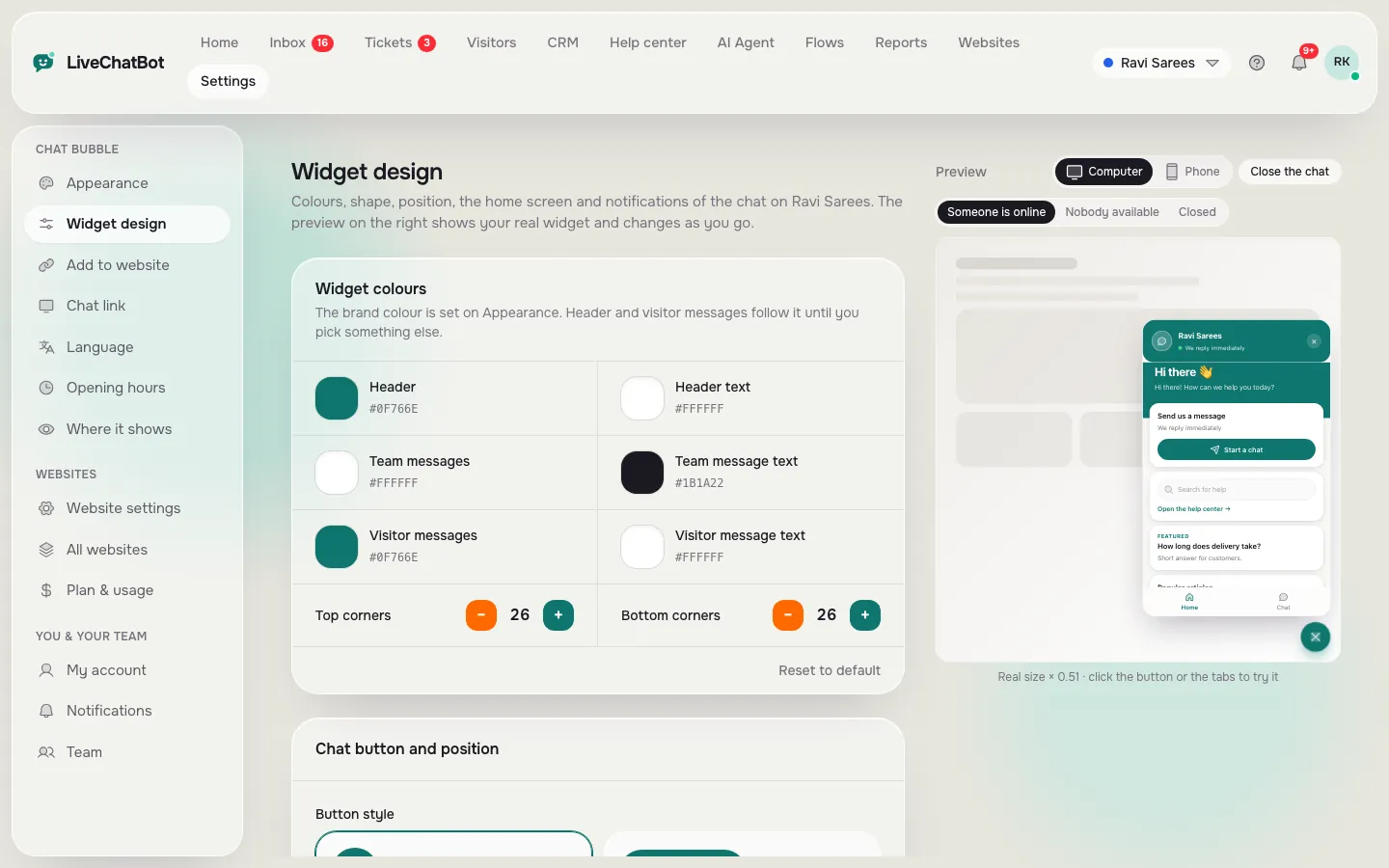
More than half of many small-business visits are on phones. A box that is fine on a laptop can be too big on a small screen. Check the size and position under the widget design settings and look at it on a real phone before you decide.
Try it
Find the rule for your own page
Answer four short questions about one page on your site. The quiz returns a simple rule: show, hide, or change.
Real screens
Where the box shows, how it looks and how it is installed
Real screens from the LiveChatBot panel, shown with sample data. Click any picture to see it full size.

Real settings
What a chat box wordpress plugin’s settings look like in practice
You do not need to touch theme files. After you connect the plugin, the controls sit in your LiveChatBot dashboard.
- Open the website’s settings and choose where the box should show: which devices, which countries and which pages to hide.
- Open the widget design settings and set the colour, position, team name and welcome text.
- Open Flows and add a proactive message only for pages that deserve one.
- Visit three pages on your own site on a phone: one to show, one to hide and one to change. Check each does what you expect.
If you want to judge the plugin itself before installing, our guide on how to judge a WordPress chat box plugin covers that side. When you are ready, sign up at livechatbot.in.
Common mistakes
Four page-rule mistakes that cost enquiries
1. One welcome line for every page
A generic “Hi, how can we help?” is better than nothing, but a page-aware line gets more replies.
2. Pop-ups on every page
Cards that appear on a visitor’s first second feel pushy. Reserve them for pages with a clear reason.
3. Forgetting the phone
Check pages on a phone, not only on your laptop. The corner that looks fine on a wide screen can cover a button on a small one.
4. Never reviewing
Your site changes. A new landing page or a new checkout flow may need a new rule. Review the list when you add pages.
A box that fits the page feels like help. A box that ignores the page feels like an advert. For the bigger picture of setting up chat, see our WordPress live chat plugin overview.
Frequently asked questions
Can I hide the chat box on some pages only?
Yes. LiveChatBot has a where-it-shows setting that lets you hide the box on chosen pages and limit it by device or country, with no code.
Does a chat box wordpress plugin slow every page?
Any script adds some weight. Keep the welcome text short, avoid heavy pop-ups and test your key pages after installing.
Do I need a developer to set page rules?
No. The rules are plain settings in the dashboard, so a site owner can change them in a few minutes.
Can the welcome line change by page?
Yes. Flows can show different messages by page, source, country, device and more, with up to six conditions.
Is the plugin free?
There is a free plan for two websites with 100 visitors per website each month. Paid plans start at ₹299 a month, and there are no per-seat charges.
Put the box where it helps
Free plan for two websites, with page rules in plain settings. Start free on livechatbot.in.