Best Live Chat Plugin by Platform: Which Sites Get a Plugin, Which Paste a Code, and Which Need the API (Free Route Tree)
Best live chat plugin is a search that assumes every website can install a plugin. Many cannot. Shopify, Wix and Squarespace use pasted code, custom sites use a script tag, and only some systems have a true plugin. This guide shows the right route for each platform, what a plugin really adds, and what to check before you install one.
⚡ In short
- A plugin is just a shortcut for adding the chat script. The chat itself works the same.
- LiveChatBot has a WordPress plugin (also for WooCommerce), a Joomla extension and React and Vue plugins. Shopify, Wix and Squarespace use pasted code.
- There is no Shopify App Store app, and no Elementor or Divi plugin.
- Follow the route tree below, then run the four plugin checks.
What a plugin does
What the best live chat plugin does, and what it does not
A plugin is a small add-on that puts the chat script on your pages without you touching code. That is all. The chat window, the inbox, the replies and the reports live on the vendor’s side, not in your plugin.
So when you hunt for the best live chat plugin, you are really asking two questions. First, is there a plugin for my platform? Second, what does the plugin add beyond pasting the code?
A good plugin adds three things: a clean install, a switch to show or hide the chat on some pages, and extra hooks into your site. LiveChatBot’s WordPress plugin, for example, also catches form submissions from Contact Form 7, WPForms, Elementor Pro, Gravity, Fluent and Ninja forms as leads, and works with WooCommerce.
If your platform has no plugin, you lose nothing important. Pasted code gives you the same chat. Our main live chat guide covers the basics, and website chat widget explains how the code works.
Free route tree
Which route fits your website?
Start at the top and follow the branch that matches your site.
Per platform
How the best live chat plugin route looks on each platform
WordPress and WooCommerce
This is the smoothest route. Install, connect, done. For shops, connect the store so agents can see what is in a visitor’s cart and track purchases. Read the WordPress live chat plugin guide for the full steps.
Joomla
There is a Joomla extension that works like the WordPress plugin. See Joomla live chat.
React and Vue
If you build apps with these frameworks, the plugins give you a component, plus the JavaScript API (open, close, show, hide, setVisitor, sendMessage, pageView and on) for control from your own code.
Shopify, Wix and Squarespace
Paste the script in the theme or custom code area. Our Shopify live chat page shows where. For Shopify you can also connect your store to see carts, but there is no app in the Shopify App Store.
Anything else
If you can edit the page source, you can add the chat. A single script tag is enough, and the install page shows your exact code.
Real screens
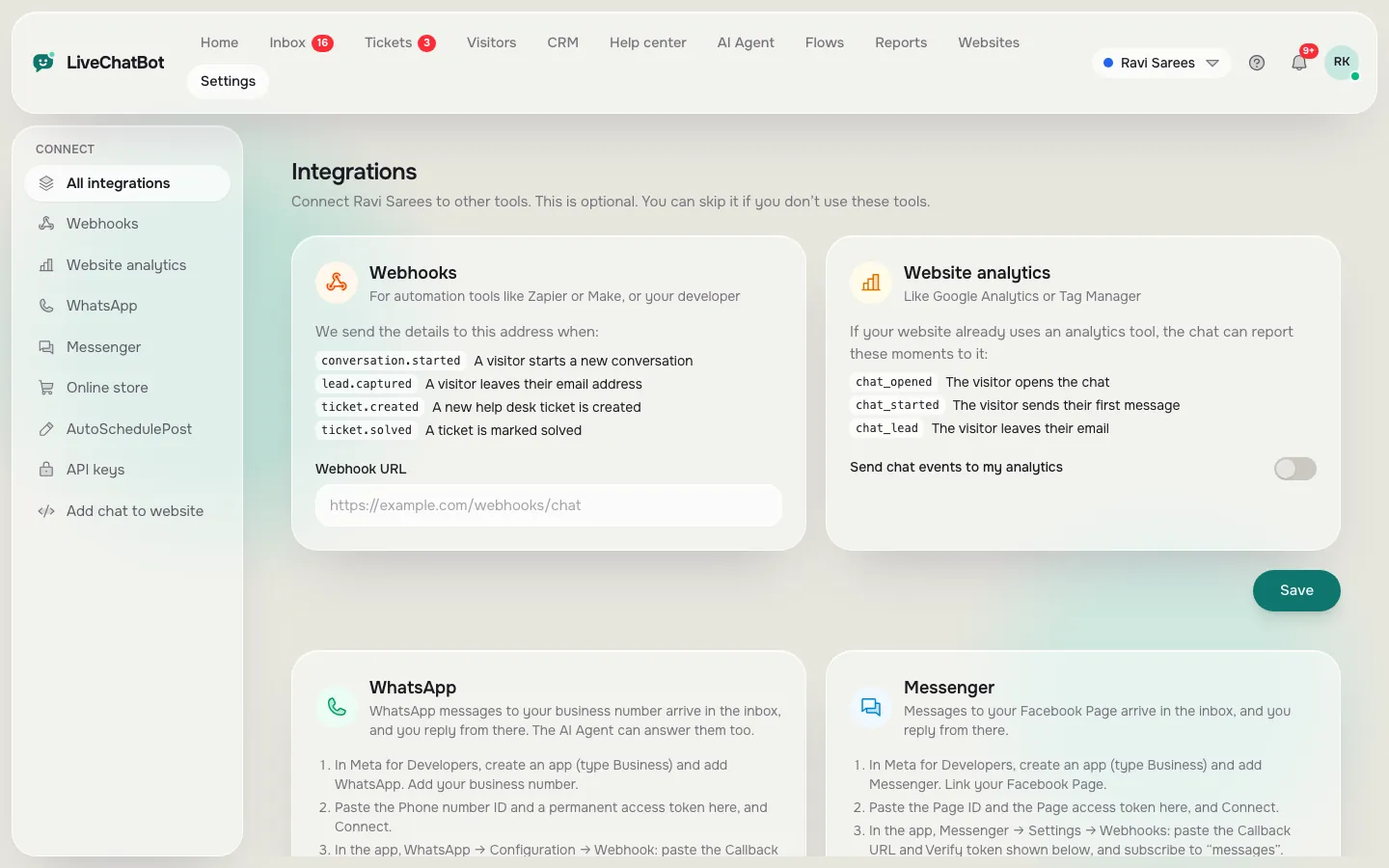
The install screen and the integrations page
Real screens from the LiveChatBot panel, shown with sample data. Click any picture to see it full size.

Checks
Four checks before you trust the best live chat plugin on your list
Whatever plugin you choose, run these four checks.
- Does it need theme edits? It should not. Theme edits break at the next update.
- Can you hide it on some pages? Checkout, login and thank-you pages often need no chat.
- Is it still maintained? Look at the last update date and the support notes. An abandoned plugin becomes a security risk.
- What does it send out? A plugin should add the chat script and, if you choose, form data. Ask the vendor exactly what leaves your site.
Also test speed. Run a page through a speed test with and without the chat. A heavy plugin can slow your pages more than the chat itself. Our guide on how to set up live chat on a website walks through a clean install, step by step.
Plugin or code
When pasted code beats a plugin
Plugins are convenient, but they are not always the better choice. Pasted code wins in four cases.
- Speed-obsessed sites. Every plugin adds its own files. A single script tag adds the chat and nothing else.
- Locked-down hosting. Some hosts and managed platforms do not let you install plugins at all.
- Several sites, one team. If you run a mix of WordPress, Shopify and plain HTML sites, one method for all of them is easier to teach and to fix.
- Developers who want control. With the script you can decide exactly when the chat loads and which visitor details you pass in with setVisitor.
Plugins win when the person installing is not technical, when you want form leads caught without extra work, or when you want to hide the chat on certain pages from a settings screen.
A fair rule: if you can install the plugin in ten minutes and it passes the four checks, use it. If anything feels fragile, paste the code and move on. Either way, you can switch later without losing your chats, because the history lives in your LiveChatBot inbox and not in the plugin.
Honest gaps
Plugins LiveChatBot does not have
Be careful with lists that promise a plugin for everything. LiveChatBot has no Shopify App Store app, no Elementor or Divi plugin, no iOS team app and no white label option. The “Powered by LiveChatBot” badge stays on every plan.
What you can do instead is simple. In page builders such as Elementor or Divi, add the chat through the WordPress plugin, which works with those themes, or paste the script into a custom code block. For other systems, use Zapier, webhooks (ticket.created and ticket.solved) or the REST API to connect tools. The integrations page lists what exists today.
On cost, the plugin itself is free. The free plan covers 2 websites with 100 visitors per website each month. Starter is ₹299 a month, and Growth is ₹699 a month for 5 websites.
Decide
Pick one and move on
The difference between plugins is smaller than reviews suggest. What decides success is the welcome message, how fast you reply and whether leads are followed up. Pick the route that matches your platform, install it on a quiet page first, then roll it out.
If you are unsure, start on the free plan. You can test the whole thing for ₹0, and you can sign up at livechatbot.in.
Frequently asked questions
What is the best live chat plugin for a small business?
The one with a plugin for your platform, a clean install, page rules and a free start. For WordPress, LiveChatBot’s plugin also catches form leads.
Is there a live chat plugin for Shopify?
There is no Shopify App Store app. You connect your store and paste the code in your theme.
Do I need a plugin at all?
No. Pasting the script gives you the same chat. A plugin just makes install and page rules easier.
Is there an Elementor or Divi plugin?
No. Use the WordPress plugin, which works on those sites, or paste the code in a custom block.
Can a chat plugin slow my site?
It can. Test one page with and without it, three runs each, before you roll it out.
Keep reading
Related guides
Best Live Chat Platforms Are Judged by Where Conversations Land: Website, WhatsApp and Messenger in One Inbox (Free Platform Quiz)
Best Live Chat for WordPress Is Proven on a Staging Copy: A Six-Step Test Before It Goes Live
Best Live Chat Software for Your Business Is a Weighted Score: Set Your Weights, Rule Out Deal-Breakers and Check the Winner Holds (Free Weighted Picker)
Install chat the easy way
WordPress, WooCommerce, Joomla, React, Vue or paste code. Start free on livechatbot.in.