Best WordPress Chatbot Plugin Free in 90 Minutes: From Nothing to a Working Bot, With a Timeline You Can Follow Tonight
Best WordPress chatbot plugin free lists help you choose. This page helps you finish. It is a minute-by-minute timeline for the first ninety minutes after you pick a free plugin: install, connect, teach the bot your top answers, set opening hours, test on your phone and go live, in an order that keeps your site safe.
⚡ In short
- Choosing is half the job. A plan for the first ninety minutes is the other half.
- Backup first, install second, teach the bot third, test on your phone before anyone else sees it.
- Start with your twenty most-asked questions. Add more after a week of real chats.
- Keep it in step with your opening hours, so visitors never face a silent bot.
Before you start
Why a timeline beats another comparison for the best WordPress chatbot plugin free
If you have read two or three comparison pages, you already know the types of plugin and what free usually means. Our fine-print guide to free WordPress chatbot plugins covers how to judge what you are really getting, and our guide to reading plugin listings covers the listing itself.
This page is different. It assumes you have picked and now want to get live without breaking anything. The usual mistakes are not about choice. They are about order: installing on a live site with no backup, switching the bot on before it knows anything, or forgetting to test on a phone.
Ninety minutes is realistic if you have your answers ready. Gather these first: your opening hours, delivery or booking rules, prices, your address and the ten to twenty questions customers ask most.
Your timeline
The first ninety minutes, step by step
Follow the steps in order. Times are a guide; a quiet site with a good backup can go faster.
Use your host’s backup tool or a backup plugin, and note the date. If anything misbehaves, you can go back in one step.
Add the LiveChatBot plugin from the WordPress dashboard, activate it and connect your website to your free account.
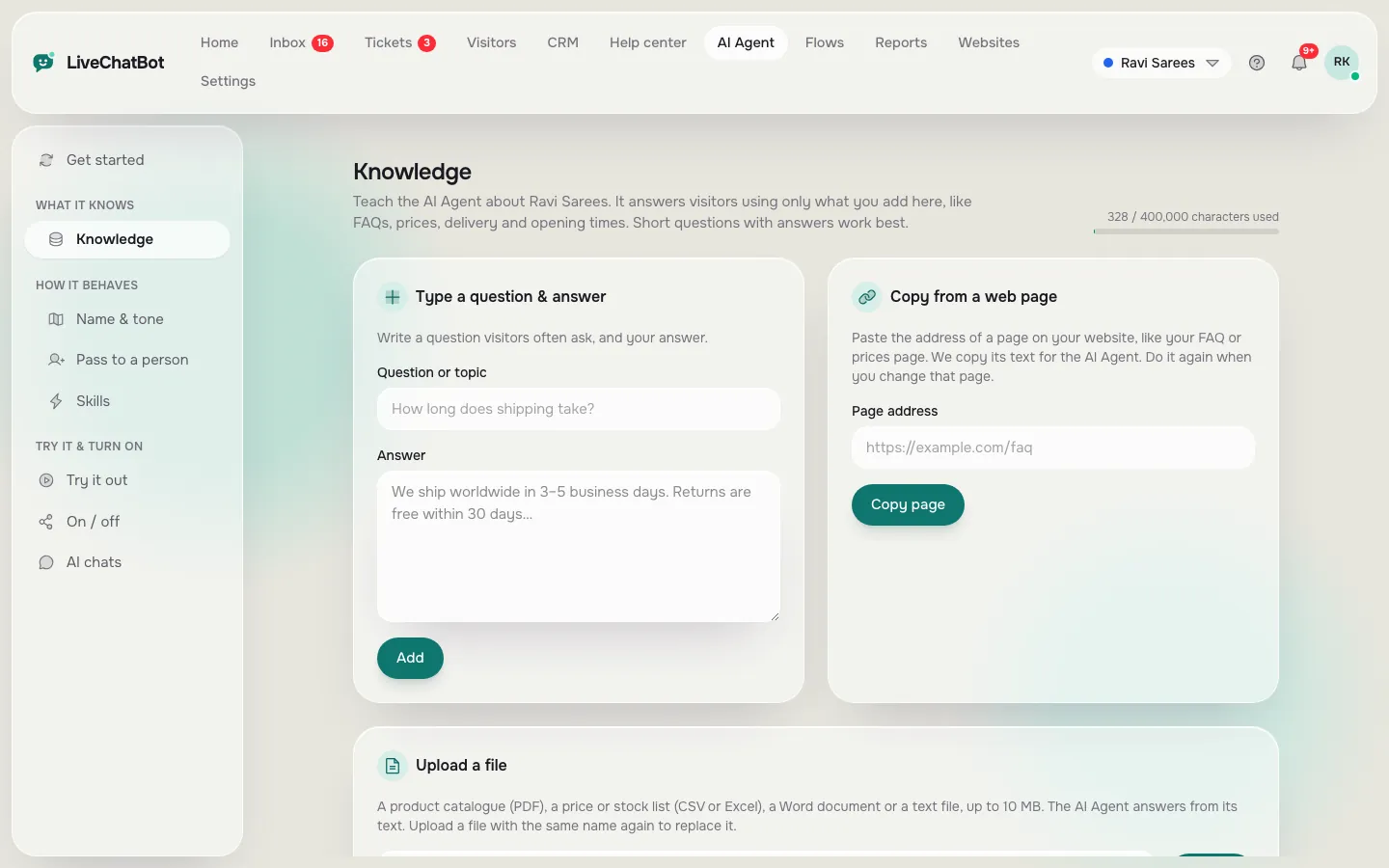
In the AI Agent, type your top answers, copy a web page or upload a PDF, Word, Excel, CSV or text file. Start with twenty.
Add opening hours and turn on the away form so after-hours visitors can leave an email or phone number.
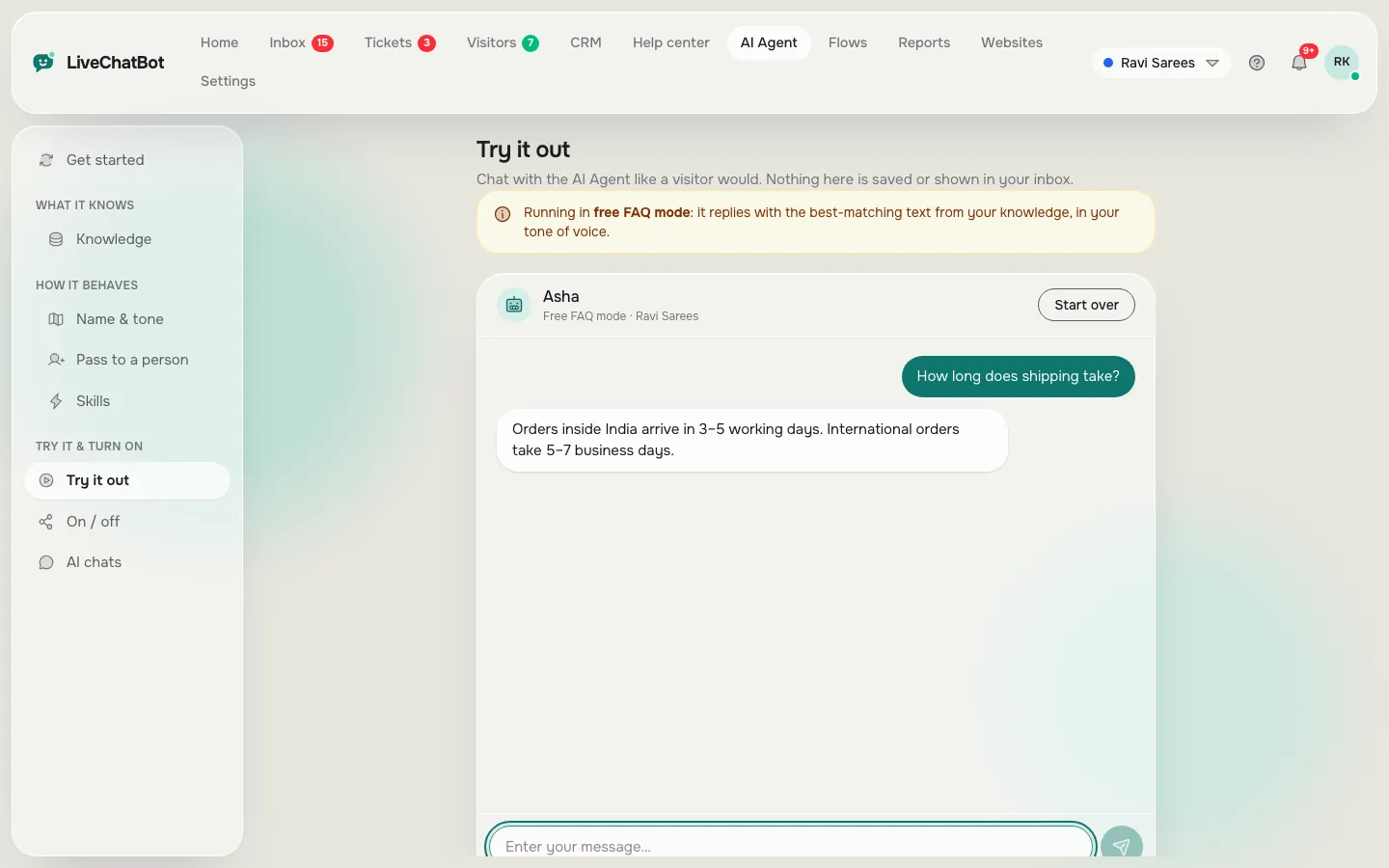
Open your site on mobile data. Ask three taught questions, one you never taught and one asking for a person.
Hide the chat on checkout and login, show it on the pages that matter, and turn on alerts on your phone.
Steps one and two
Back up, install and connect the best WordPress chatbot plugin free
Back up first
A chat plugin adds code to every page. It is rarely a problem, but a backup turns “rare” into “no worry”. Download the files and the database, or use your host’s one-click backup.
Install the plugin
In WordPress, go to Plugins, add the plugin, upload it or search for it, and activate. The WordPress live chat plugin page explains how our plugin works, including its WooCommerce support and form lead catching.
Connect the website
Create your free account at livechatbot.in, add your website and connect it to the plugin. The free plan covers two websites, with 100 visitors a month on each, which is plenty for a first month.
Do this in a quiet hour, and check the front page afterwards in a private window to see that nothing moved. If your theme uses a cache plugin, clear the cache once the plugin is connected, so the chat appears for every visitor and not only for you.
Step three
Teach the bot before anyone meets it
A bot with no knowledge is worse than no bot. Fill the AI Agent first.
The first twenty answers
Pick questions from real emails, calls and WhatsApp messages. Write each answer in two or three short sentences with the exact facts: price, timing, place.
Add pages and files
If your site already explains something well, copy that page into the knowledge. If you keep prices in a PDF or a spreadsheet, you can upload it.
Write the rules
In the Rules box, add short instructions such as “Never promise delivery dates” or “Always offer to take a phone number”.
Know the fallback
When the AI allowance for the month is used up, the free keyword bot answers from your saved replies. So write saved replies for your top five questions too.
Real screens
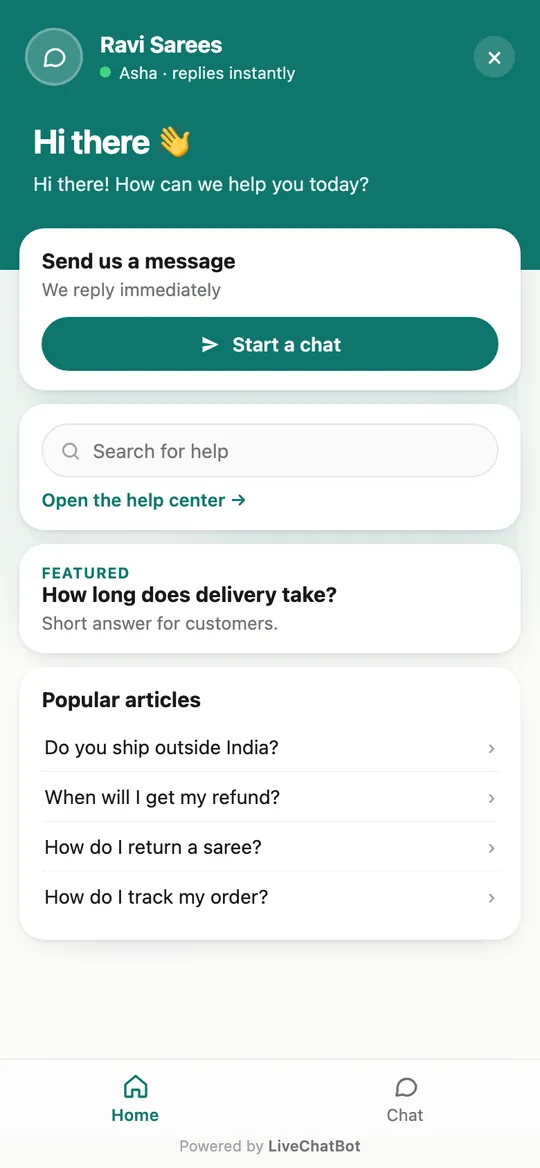
The three screens you will use in the first hour
Real screens from the LiveChatBot panel, shown with sample data. Click any picture to see it full size.
Steps four to six
Hours, phone test and going live
Hours and away form
Set opening hours in the dashboard. Outside them, the away form collects email or phone, so a late-night visitor becomes a morning call. Read our guide to Flows if you also want a proactive message on key pages.
The phone test
Use mobile data, not Wi-Fi. Ask a taught question, an untaught one and “can I talk to a person?”. The untaught one should get an honest “I am not sure” and a route to your team.
Going live
Hide the chat on checkout and login pages. Install the Android app on the phone of whoever answers. Look at the chat page again after an hour and check that nothing in the theme moved or overlapped.
Then write one line in your notes: the date, the plugin version and the questions loaded. That small record helps on day thirty.
After launch
What to do in the first week
Read every chat each morning for seven days. Note the questions the bot did not know and add them. Move vague answers to exact ones. Check the visitor count against your free limit; on the free plan, chat pauses for new over-limit visitors until the month resets or you add more, with no automatic charges.
Keep a short log. Write down the date, the question and what the bot answered whenever it gets something wrong. After a week you will have a list of ten fixes, which is worth more than any feature comparison. Share it with whoever answers chats, so the fixes go in once rather than being rediscovered.
Be honest about limits. “Powered by LiveChatBot” stays on every plan, there is no iOS team app, and the AI model is chosen by us, not you. If those are fine, a free setup like this can run for months. Compare plans on the pricing page when you outgrow it, and revisit the WordPress live chat plugin guide for form leads and store features.
Frequently asked questions
What is the best WordPress chatbot plugin free for a new site?
The best WordPress chatbot plugin free is one that is free to start, answers from your own facts and hands over to a person. Use the timeline here to set it up in about ninety minutes.
Do I need a developer to install it?
No. A plugin install, a connect step and a few settings are enough for most sites.
Will the free plan stop working?
On LiveChatBot, tracking and alerts continue past the free visitor limit. Chat pauses for new over-limit visitors until you add more or the month resets.
Can the bot read my PDF price list?
Yes. The AI Agent knowledge accepts PDF, Word, Excel, CSV and text files, as well as typed answers and copied pages.
Do I pay per agent?
No. LiveChatBot has no per-seat charges.
Keep reading
Related guides
Best WordPress Chatbot Plugin Listings: How to Read Ratings, Update Dates and Support Threads Before You Install (Free Listing Checklist)
Best WordPress Live Chat Plugin Free: Read the Plugin Page Like a Buyer, with Fourteen Terms Decoded Before You Click Install (Free Searchable Glossary)
Best WordPress Chat Plugin: Ask the Vendor These 16 Questions by Email Before You Install Anything (Free Copy-Paste Question Pack)
Be live tonight
Free plan for two websites, a WordPress plugin and no per-seat charges. Start at livechatbot.in.