Best WordPress Chatbot Plugin Listings: How to Read Ratings, Update Dates and Support Threads Before You Install (Free Listing Checklist)
Best WordPress chatbot plugin lists usually rank by features. But the plugin page itself holds quieter clues that matter more: when it was last updated, how the author answers support questions, what the reviews complain about and what the plugin asks your site to allow. This guide shows you where to look, what each clue means and gives you a tickable checklist to run on any listing.
⚡ In short
- A plugin page tells you how well the product is looked after, not only what it does.
- Read update dates, support replies and one-star reviews before the feature list.
- A chat plugin is only the front door; check what lives on the vendor’s side too.
- Run the checklist on two or three candidates and compare the totals.
Why the page matters
The best WordPress chatbot plugin is also one that is looked after
Chat plugins touch every public page of your site and talk to real customers. A neglected one can break after a WordPress update, clash with your theme or leave a security hole open.
Features are easy to copy. Care is harder to fake. A plugin whose author updates it, answers support threads and explains limits plainly is usually a safer bet than one with a longer feature list and silence in the forum.
The signals are all visible before you click Install. They take about five minutes per listing, and they sort the careful vendors from the abandoned ones fast. If you are still deciding which kind of plugin you want, read our WordPress live chat plugin guide first, then come back.
Signals one to four
Dates, versions and compatibility
Last updated
A plugin untouched for a year or more may not have been tested with current WordPress. Check the “last updated” and “tested up to” lines. Recent activity is a good sign; a gap is a question to ask.
Requirements
Look at the PHP and WordPress versions required. If your host runs older software, you may not be able to install it at all.
Changelog
A changelog full of fixes and small improvements shows a team that listens. A changelog that is empty, or one that only repeats “minor fixes”, tells you little.
Install count
A high count means many sites tried it, not that it is good. Treat it as a weak signal and weigh it below the others.
Signals five to eight
Reviews, support threads and what they really tell you
Read the one-star reviews first
Five-star reviews say “great plugin”. One-star reviews say what went wrong. Look for repeated themes such as “slowed my site”, “chat stopped working” or “could not cancel”. Then check whether the author replied.
Support forum replies
Open the support tab. Are threads answered, and how quickly? A vendor who replies within days and fixes problems is showing you how they will treat you after you install.
Ask a real question
If you can, post a question before you commit. Their reply speed and tone are your preview of support.
Check the claims
Words like “AI-powered” or “unlimited” deserve a test. Our free chatbot plugin for WordPress page shows how to read what free really covers.
Real screens
What you will see in LiveChatBot
Real screens from the LiveChatBot panel, shown with sample data. Click any picture to see it full size.
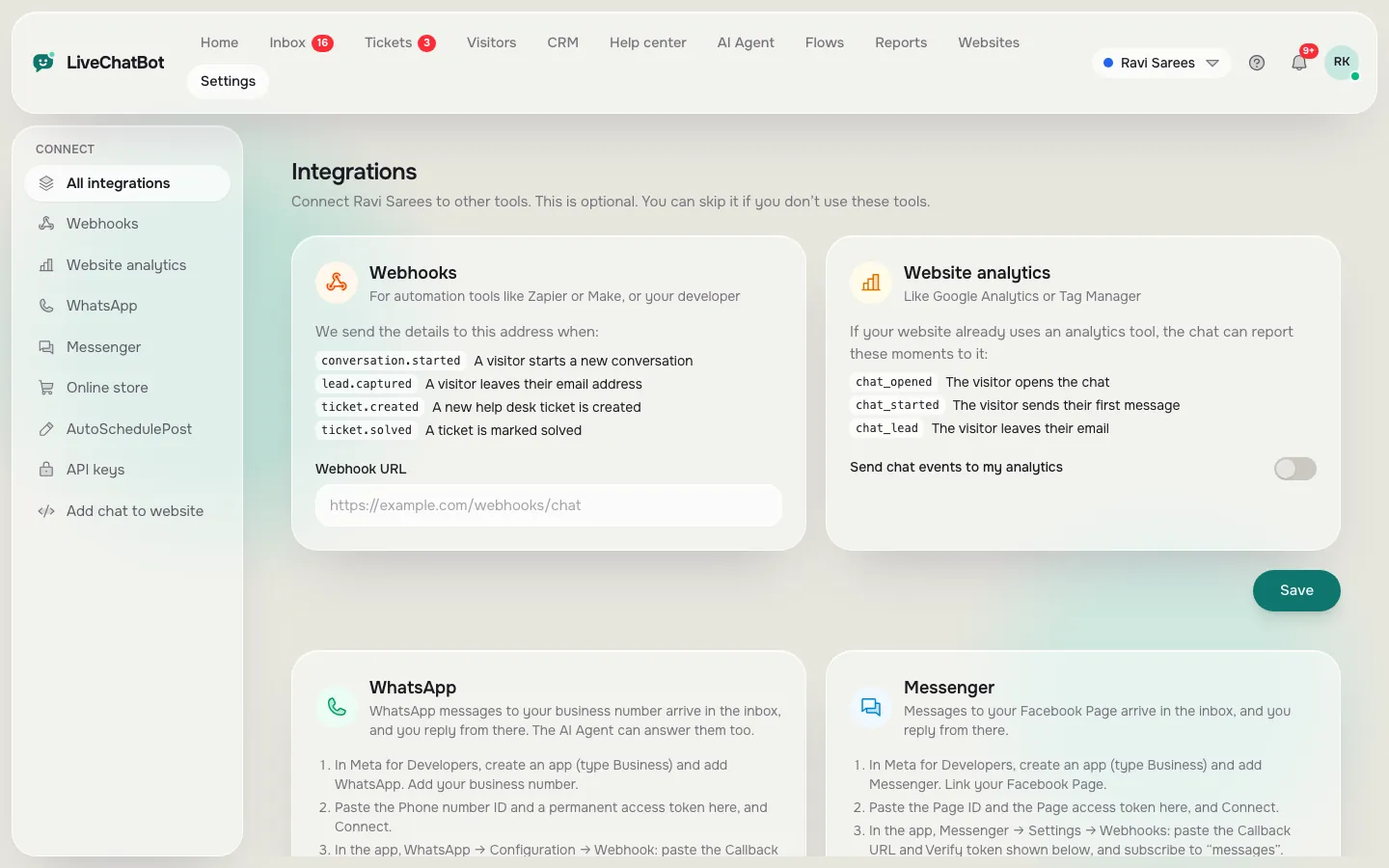
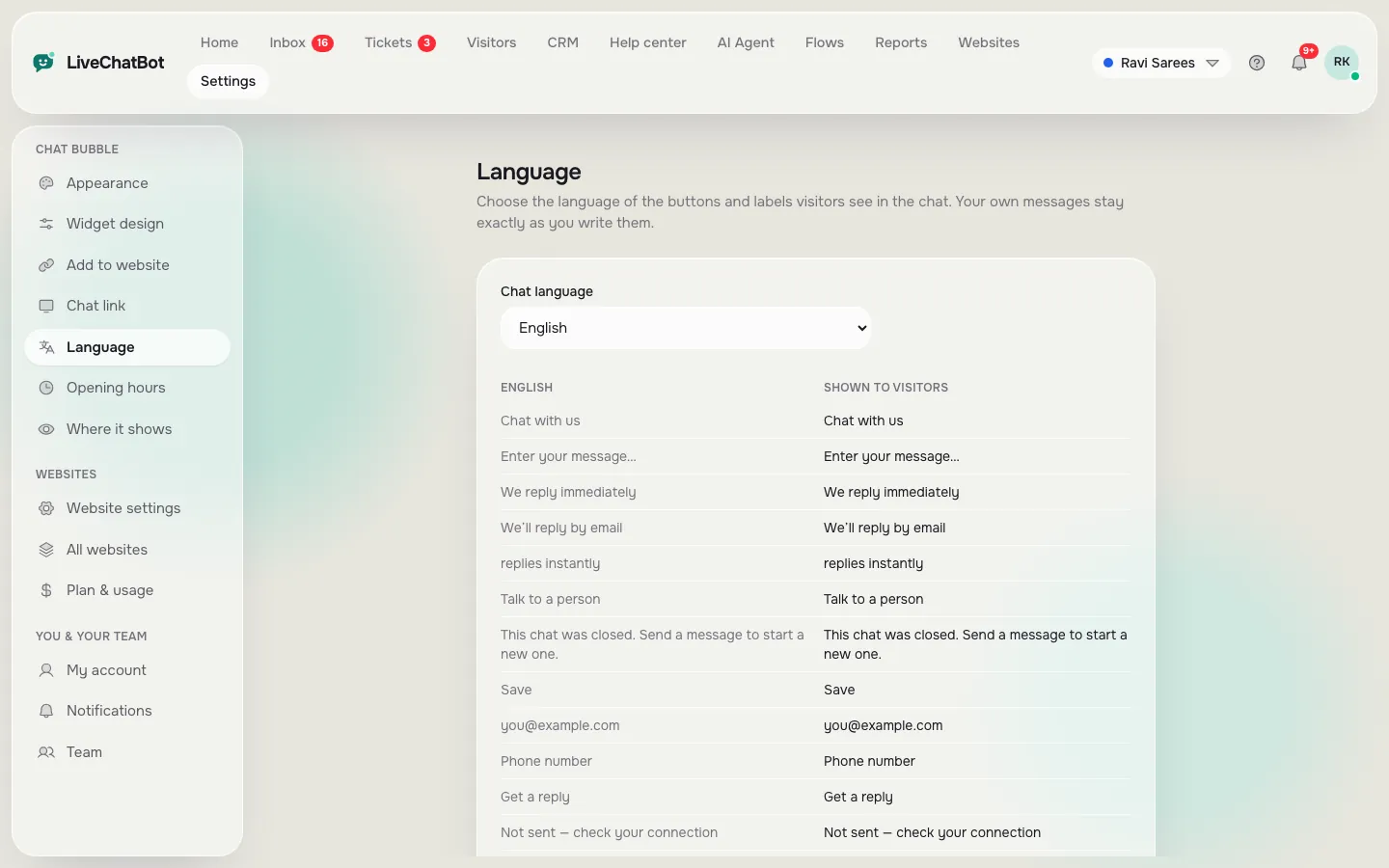
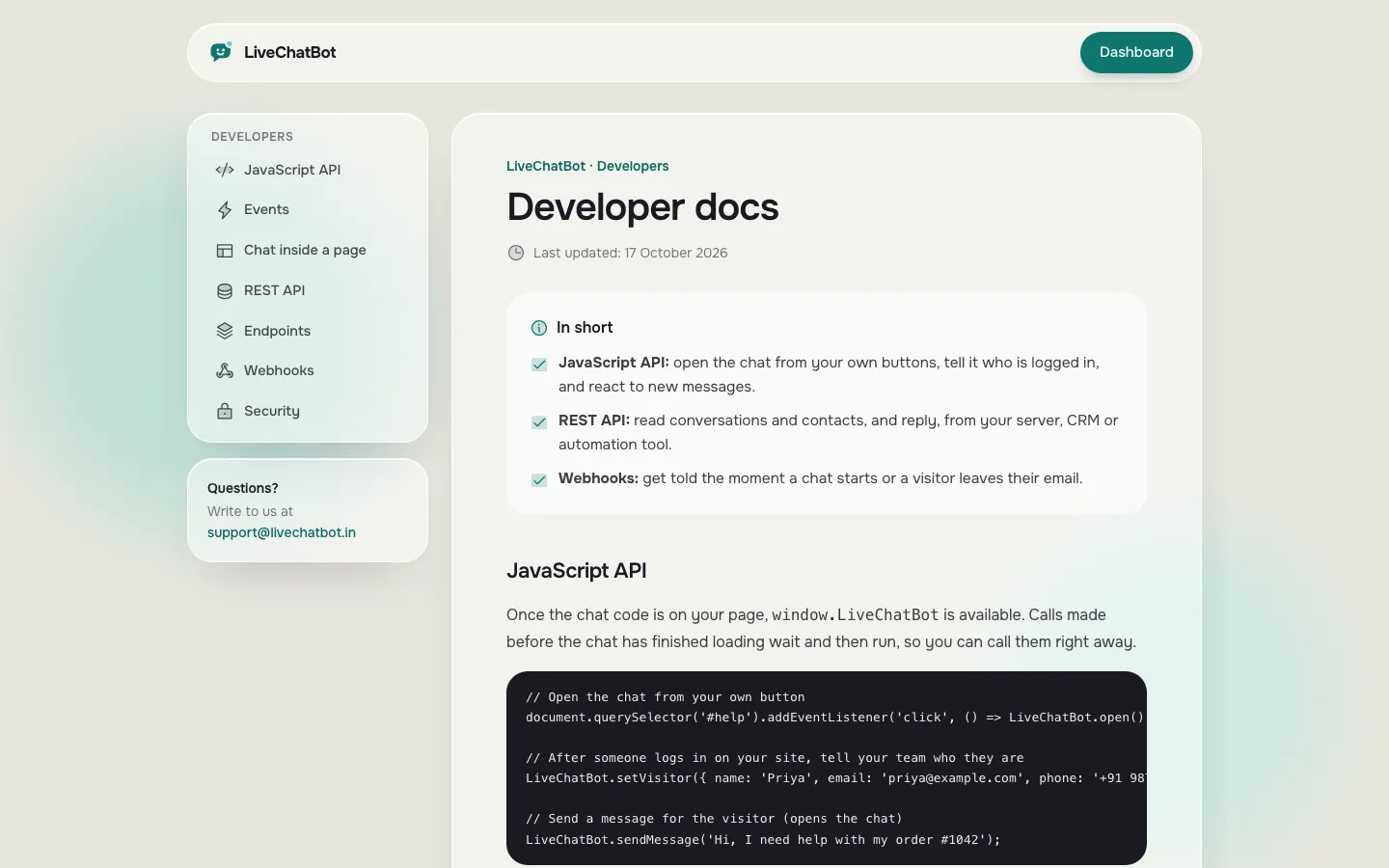
Signals nine to twelve
What lives outside the plugin
A chat plugin is often just a thin connector. The inbox, the AI and your stored chats sit on the vendor’s servers, so read about that side as well.
- Pricing page. What does the plugin count, visitors, chats or AI replies? What happens at the limit?
- Privacy and terms. Where is chat data kept and can you delete it?
- Leaving. Can you export tickets or contacts, and can you keep your own text?
- Honest gaps. A vendor that lists what it does not do is easier to trust than one that lists only strengths.
LiveChatBot’s answers: pricing counts visitors, plans are prepaid with no auto-renew and no per-seat charges, and tickets can be sent out by webhook or the REST API. The gaps are stated plainly further down.
Try it
A 12-point listing checklist for any plugin
Tick what you can confirm on the listing. A higher total means a better-looked-after plugin.
Applying it
Scoring the best WordPress chatbot plugin candidates side by side
Run the checklist on two or three candidates and write the totals down. Then compare them on one extra column: the job you need done. A plugin that scores well on care but cannot do your main job still loses.
The best live chat plugin for WordPress fit finder helps with that second column. Together the two give a fair result, health plus fit, instead of a gut feeling.
If you would rather choose by what your site does, our guide to matching a chatbot plugin to your site type takes the opposite route: it starts from a blog, shop or local business and works back to features. Use that guide for fit and this one for trust.
A worked example
Say two plugins both pass the feature test. One was updated last month, has answered most support threads and says plainly what it cannot do. The other was last updated eighteen months ago and its forum shows unanswered questions. The best WordPress chatbot plugin of the two is the first, even if the second lists more features. Features can be added; neglect is hard to reverse.
Treat a tie as a prompt to test both. A free plan makes that cheap: install, teach it ten answers and watch a week of real chats.
Honest gaps
What LiveChatBot does not do, stated up front
Following our own checklist, here are the gaps. “Powered by LiveChatBot” stays on all plans, so there is no white label. There is an Android app for agents but no iOS team app. There is no voice, captcha, sentiment analysis or single sign-on. You cannot choose the AI model or bring your own key. Native Slack, HubSpot or Calendly links are not built in, though Zapier and webhooks can bridge some.
What you do get: the WordPress plugin, a shared inbox, WhatsApp and Messenger messages connected through Meta, Flows, tickets and form-lead capture. Free is 2 websites and 100 visitors per website a month, and paid plans start at ₹299 a month. Details are on pricing, and the WordPress live chat plugin guide has the rest.
Frequently asked questions
How do I choose the best WordPress chatbot plugin quickly?
Check the update date, read the one-star reviews and open the support tab. Then test the shortlist on a free plan for a week.
Is a high install count a good sign?
A little. It means many sites tried it, but it says nothing about how well it is supported or whether it suits your site.
Why does the vendor side matter for a plugin?
The inbox, AI and stored chats usually run on the vendor’s servers, so limits, privacy and export rules live outside the plugin page.
Does LiveChatBot charge per agent?
No. There are no per-seat charges, and plans are prepaid with no automatic renewal.
Can I remove the LiveChatBot badge?
No. The Powered by LiveChatBot line stays on every plan.
Test it on your own site
Free plan for two websites, no per-seat charges, prepaid plans with no auto-renew. Start free on livechatbot.in.