Where to Put a WhatsApp Button on Your Website: Seven Placements Ranked by Visitor Intent, With What to Say on Each
Where to put a whatsapp button depends less on design and more on what the visitor is trying to do at that moment. Someone reading a price list needs a different button from someone on a thank-you page. This guide ranks seven placements by how ready the visitor is, gives wording for each, and ends with a short decision tree you can follow for any page.
⚡ In short
- Put the button where a visitor has a question and is ready to ask: price pages, product or service pages, the contact page.
- One floating button on every page is a good default; add inline buttons where the question happens.
- Change the pre-filled message to match the page, so you know what each person wants.
- On phones, keep the button clear of other buttons and the cookie banner.
The principle
Where to put a whatsapp button: next to the question
A button works when it shows up at the moment a visitor thinks “I wonder if…”. Before you decide where to put a whatsapp button on a page, think about the questions people have on each page and place the button next to them.
On a pricing page, the question is “Is this the final price?”. On a product page it is “Is this in stock, and does it fit?”. On a contact page it is “Will someone answer me quickly?”. A button that sits beside those thoughts is tapped; a button that sits in a header on every page and says only “WhatsApp” is easy to ignore.
Why WhatsApp suits small businesses
Many customers already use WhatsApp all day, so tapping a button feels lighter than typing in a form. It is also a conversation, not a submission, so visitors can ask a half-formed question. The trade-off is that WhatsApp conversations happen on your phone, outside the website, so you need a way to know which page they came from. We cover that below.
Seven placements
Where to put a whatsapp button: seven places ranked by visitor intent
1. Next to the price or the quote request
Highest intent. A visitor looking at a price is deciding. Put a button right under it with wording like “Ask about this price” or “Get a quote on WhatsApp”. Pre-fill: “Hi, I’d like a quote for [service].”
2. On product or service pages, near the main button
Visitors who have read the details but are not ready to commit often have one last question. Place the button beside “Book now” or “Add to cart” as a quieter second option: “Ask before you book”.
3. On the contact page, above the form
Many people reach the contact page wanting the fastest route. Put WhatsApp first, then the phone number, then the form. State your hours: “We reply 9 am to 7 pm”.
4. As a floating button on every page
A bottom-corner button is the safe default. It covers every page without effort. Keep the label short (“Chat on WhatsApp”) and leave room on the phone screen so it does not cover the main call to action.
5. At the end of an article or FAQ
A reader who finished a guide may need advice on their own case. End with “Not sure which option fits you? Ask us on WhatsApp.” This placement works well for blog posts that bring in search visitors.
6. On the thank-you page after a form
After someone fills a form, offer a faster route: “Want a quicker answer? Message us on WhatsApp.” It reassures people and lets you reach out while their interest is high.
7. On a landing page for ads
Visitors from ads are impatient. Show the button in the first screen, with a pre-filled message that mentions the ad, such as “I saw your ad for [offer]”.
Try it
Pick the placement for your page
Answer from the point of view of the visitor, not your preferences. Follow the branch that matches where they are.
The message
Write a different pre-filled message for each page
The pre-filled text is the most underused part of a WhatsApp button. When it says only “Hi”, you have to ask what they want. When it says “Hi, I’m interested in the 2 BHK on Baner Road”, you can answer immediately.
- Pricing page: “Hi, I’d like to know the final price for [plan].”
- Product page: “Hi, is [product name] available in size M?”
- Contact page: “Hi, I have a question about your services.”
- Blog post: “Hi, I read your guide on [topic] and have a question.”
Keep it short and keep it polite. Leave a gap for the visitor to type their own detail. Do not pre-fill a long script; people feel it is not their message and send it unchanged without thinking.
Keep the same tone as your chat
If your website chat is friendly and brief, your pre-filled text should be too. For ideas, see live chat scripts and the guide on how to write a live chat welcome message.
Mistakes
Where to put a whatsapp button wrongly, and what to avoid
Placement mistakes are easy to spot once you look on a phone.
- Covering other buttons. A floating button on top of “Add to cart” or the cookie banner loses sales.
- Too many buttons. A phone icon, a WhatsApp icon, a chat bubble and an email icon in the same corner create choice paralysis. Pick the one or two you can answer fastest.
- The same text everywhere. A generic label on every page wastes the chance to start with context.
- Hiding it in the footer. By the time a visitor reaches the footer, they have usually decided.
- Promising speed you cannot give. If nobody answers WhatsApp after 6 pm, say so, or the first bad experience will be the last.
How LiveChatBot helps
Using the LiveChatBot WhatsApp card and ref codes
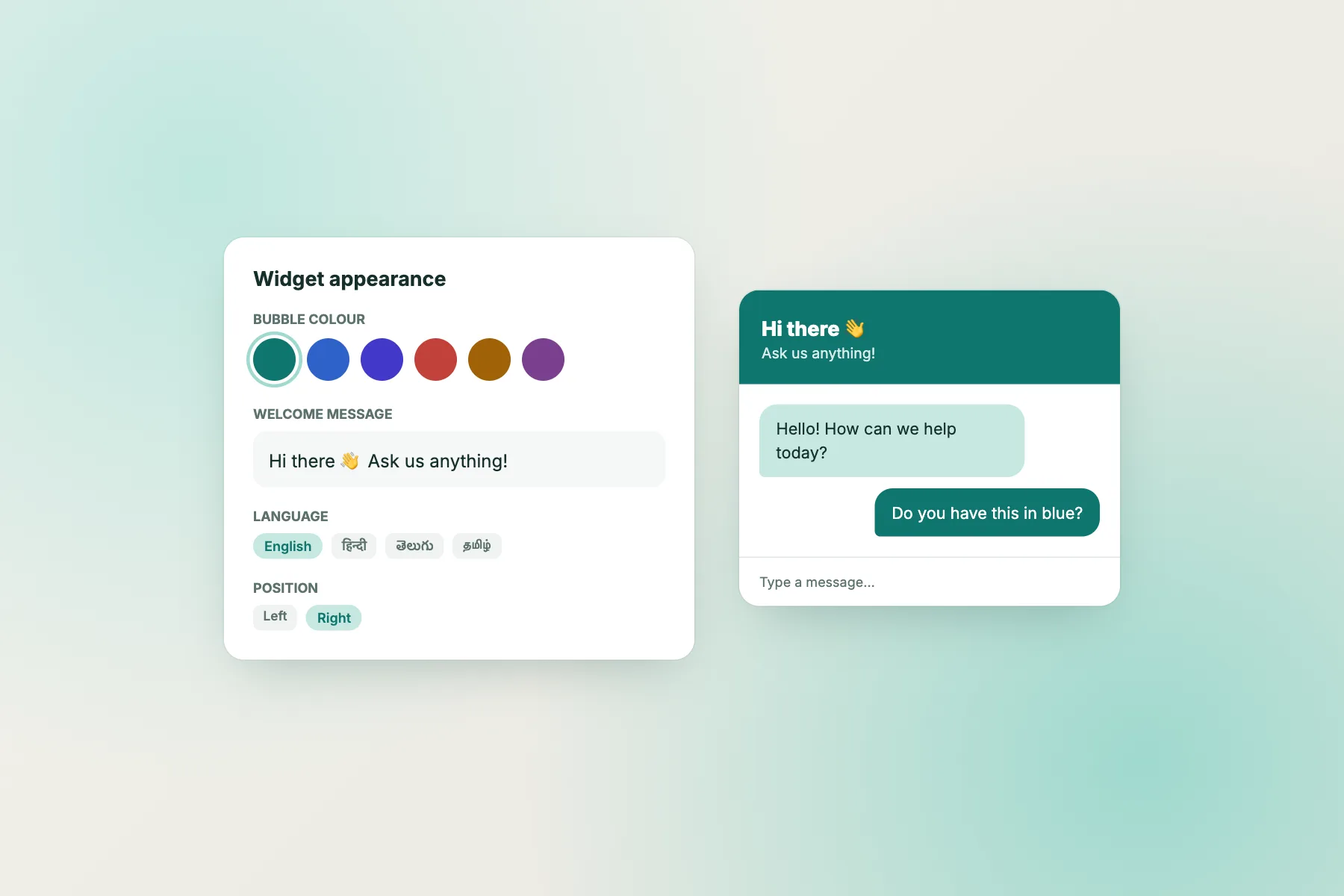
LiveChatBot’s chat widget can include a WhatsApp button card, which opens WhatsApp with your number and a message you set. You can show it on every page or hide it on pages where it does not belong, using the “where it shows” settings (devices, countries and pages). The card sits inside the same widget as chat, so visitors can choose chat or WhatsApp. See WhatsApp chat button for details, and how to show live chat on specific pages for page rules.
When a visitor taps a WhatsApp button, the widget adds a short code such as “Ref: K7Q2” to the end of the pre-filled message. In Reports, SEO cycle, you can type that code to match the WhatsApp conversation to the page that brought the visitor, so you learn which placements produce leads. Matching is manual and LiveChatBot does not read your WhatsApp messages. The setting is on by default and can be switched off in the widget settings.
To be plain: LiveChatBot has a WhatsApp button, not a WhatsApp inbox. Conversations happen in WhatsApp itself. Start at livechatbot.in.
Frequently asked questions
Where to put a whatsapp button for the most taps?
Next to the moment of doubt: under a price, beside the main buy or book button, and on the contact page. A floating button covers the rest.
Should the button float or sit inside the page?
Use both. A floating button is a safe default; inline buttons catch visitors with a specific question.
How do I know which page a WhatsApp enquiry came from?
Use a different pre-filled message per page, and use the ref code LiveChatBot adds to match chats to pages in Reports.
Will a WhatsApp button slow my site?
A simple link-style button is light. Test your pages on mobile data after you add anything.
Can visitors on a desktop use it?
Yes, WhatsApp opens in WhatsApp Web or the desktop app if the visitor has it. Many small-business visitors are on phones, so test there first.
Keep reading
Related guides
Landing Page Optimization That Starts With What Your Visitors Actually Asked
Why Visitors Leave Without Contacting You: Seven Reasons, How to Tell Which One Is Yours, and the Fix for Each
Put the question and the answer in the same place
A WhatsApp card, chat widget and page rules, free for two websites. Start free on livechatbot.in.