Webflow Live Chat Widget: Seven Designer Mistakes to Avoid When You Add Chat to a Client Site (Free Mistake-vs-Better List)
Webflow live chat widget projects usually go wrong in small, avoidable ways: code pasted in the wrong place, a bubble covering a button, chat showing on a checkout, or a client who never gets the alerts. This guide is written for designers and freelancers delivering Webflow sites to clients. It lists seven common mistakes with a better habit for each.
⚡ In short
- Install is a pasted snippet in Webflow custom code. Nothing in your design, CMS or interactions is touched.
- Most problems are handover problems: wrong account, no alerts, no opening hours, no answers written.
- You can change colour, position, team name and welcome text, but not the widget size.
- Use the list below as a delivery checklist for client sites.
The setting
Why a Webflow live chat widget is a handover job as much as a design job
On a Webflow build, the widget is one script. It does not alter your layout, your classes or your interactions, which is good news for a designer. The risk is somewhere else: a chat that nobody answers reflects badly on the site you built.
So think of the widget as a small product you hand over. It needs a home on the client’s own account, a person who gets the alerts, hours that match reality, and a few written answers. A designer who ships all four looks professional. One who ships only the bubble creates a support problem for the client and a call for themselves.
The seven mistakes below follow that path, from placing the code to handing over the keys. LiveChatBot is not in the Webflow marketplace, so the whole job is a snippet plus these habits.
Try it
Seven mistakes, and the better habit for each
Read down the list before you publish a client site.
Placement
Mistakes one and four: where the Webflow live chat widget code goes and the bubble sits
In Webflow, open the project settings, find the custom code area and paste the snippet into the footer field. Save and publish. The designer canvas will not show the widget, so always test on the published site. Menu names change over time, so check Webflow’s own help if something looks different.
Custom code in site settings has generally needed a paid Webflow site plan. Confirm the client’s plan before you promise chat, because a free staging plan may not accept it.
Then check position. Widget design lets you change the position, so if the bubble collides with a sticky button, a cookie notice or a mobile menu, move it to the other corner. Test at your breakpoints, including a small phone, and scroll to the footer.
For one page only, use an Embed element instead. The same snippet works there.
Pages
Mistake three in detail: choosing where chat appears
A bubble on every page is easy, and rarely best. Think about what each page is for.
Show it
Pricing, services, contact, product and FAQ pages. These are where visitors hesitate and a quick answer wins them.
Hide it
Checkout and payment steps, long application forms, and landing pages built around one button. Chat there competes with the action you want.
Greet selectively
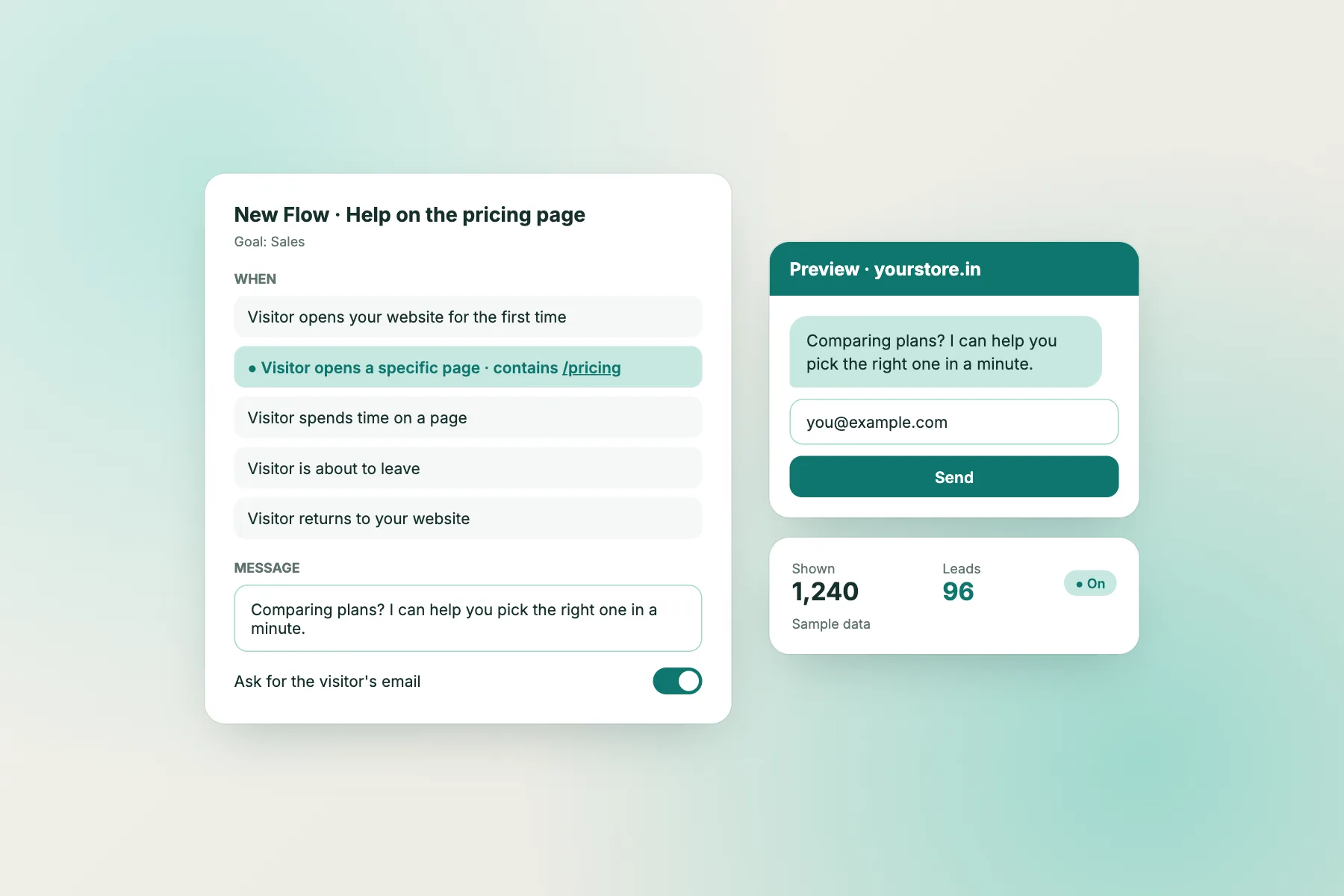
Flows can send a proactive message on selected pages, for example a short offer to help on the pricing page. Keep it to one or two pages. Our guide to showing live chat on specific pages covers the settings, and Flows explains the proactive messages.
Handover
Mistakes two, five, six and seven: the part clients remember
Do these in the last hour before launch.
- Account. Create or transfer the chat account to the client, then add the site. The free plan covers two websites, enough for a live site plus a staging copy.
- Hours. Set opening hours that match when someone really replies, with an away form.
- Answers. Write ten saved replies together with the client, and teach the AI Agent their prices, timing and policies. See training your AI chatbot.
- Alerts. Put the Android app on the right phone and send a test chat. There is no iPhone team app; iPhone users answer from a browser.
- Test. Ask the bot something it was never taught and confirm it admits it does not know and offers a person.
Give the client a one-page note listing who answers, when, and where to log in.
Gaps
What to tell clients the chat cannot do
Say it before they ask.
- No size control. Colour, position, team name and welcome text can be changed, but not the widget size.
- No marketplace app. Install is by custom code.
- No CMS or Ecommerce reading. The bot cannot see Webflow CMS items, orders or carts.
- No badge removal. “Powered by LiveChatBot” stays on every plan.
- No WhatsApp inbox. A WhatsApp button card links to the client’s number.
If the client needs chat tickets in another tool, Zapier, webhooks and the REST API can carry them. For the chat widget itself, see the wider website chat widget guide.
Cost
What to quote the client for a Webflow live chat widget
The tool can cost nothing for a small site: two websites, 100 free visitors per website each month, no per-seat charges. Visitor packs are one-time and never expire: 100 for ₹99, 500 for ₹299, 1,000 for ₹499. An extra website is ₹199 for six months.
Charge for your time: install, hours, writing answers and the handover note, not for the tool. See pricing and sign up at livechatbot.in.
Frequently asked questions
How do I add a Webflow live chat widget?
Paste the LiveChatBot snippet into the footer custom code in Webflow project settings, save, publish and test the live site.
Does the widget break my Webflow design or interactions?
It loads as a separate script and does not alter your layout, classes or interactions, but always test on the published site.
Can I hide the widget on a checkout page?
Yes. The where-it-shows settings let you hide it on chosen pages and limit it by device and country.
Can I resize the widget?
No. You can change colour, position, team name, avatar and welcome text, but not its size.
Who should own the chat account?
The client, ideally. Create it with their email or transfer it before launch so they receive alerts.
Keep reading
Related guides
Webflow Chatbot Integration: The Five Ways Chat Can Connect to a Webflow Site, and Which Ones Exist Today (Free Integration Glossary)
Free Chatbot for Webflow: What Stays Free, What Costs Money and What Webflow Itself Charges For
Free Chatbot for Squarespace: What Stays Free, What Squarespace Itself Charges For, and When You Would Pay (Free Cost Quiz)
Ship chat the client can run
Free plan for two websites, no per-seat charges. Start free on livechatbot.in.