Free Chatbot for Webflow: What Stays Free, What Costs Money and What Webflow Itself Charges For
Free chatbot for Webflow projects usually means two bills hiding in one question: the chatbot’s price and the Webflow plan that lets you add outside code. This guide separates them, shows what LiveChatBot’s free plan covers, where limits start, and which gaps you should know about before you publish.
⚡ In short
- The chatbot can be free. Adding any outside widget to Webflow needs custom code, and Webflow decides which of its plans allow that.
- LiveChatBot’s free plan covers two websites and 100 new visitors per website each month, with no per-seat charge.
- There is no Webflow app. You paste one script into your project’s custom code.
- When you pass the free visitors, you buy a one-time pack. Nothing renews by itself.
Two bills
Two separate costs behind a free chatbot for Webflow sites
Most confusion starts because people mix up two prices.
The chatbot price
This is what the chatbot company charges. For LiveChatBot the free plan costs ₹0, covers two websites per account and includes the chat widget, team inbox, tickets, Flows, saved replies and the Android app.
The Webflow price
Webflow controls whether you can paste a third-party script at all. Custom code in site settings is tied to Webflow’s paid site plans at the time of writing, and plans change, so open your project’s settings and check what yours allows before you plan anything. If your site is still on a free staging address, you can often test there, then move the code when you upgrade.
None of this is a LiveChatBot charge, and none of it can be waived by any chatbot vendor. Treat it as part of the real cost of any widget on Webflow.
What you get
What the free plan includes for a Webflow site
The visible parts
A chat bubble in your colours, a welcome message, your team name and avatar, and an attention grabber card. You can also add a WhatsApp button card that sends visitors to your own WhatsApp number.
The team parts
An inbox that your whole team shares, an Android app for replying on the move, tickets for questions that need follow-up, and saved replies so repeat answers take seconds.
The automatic parts
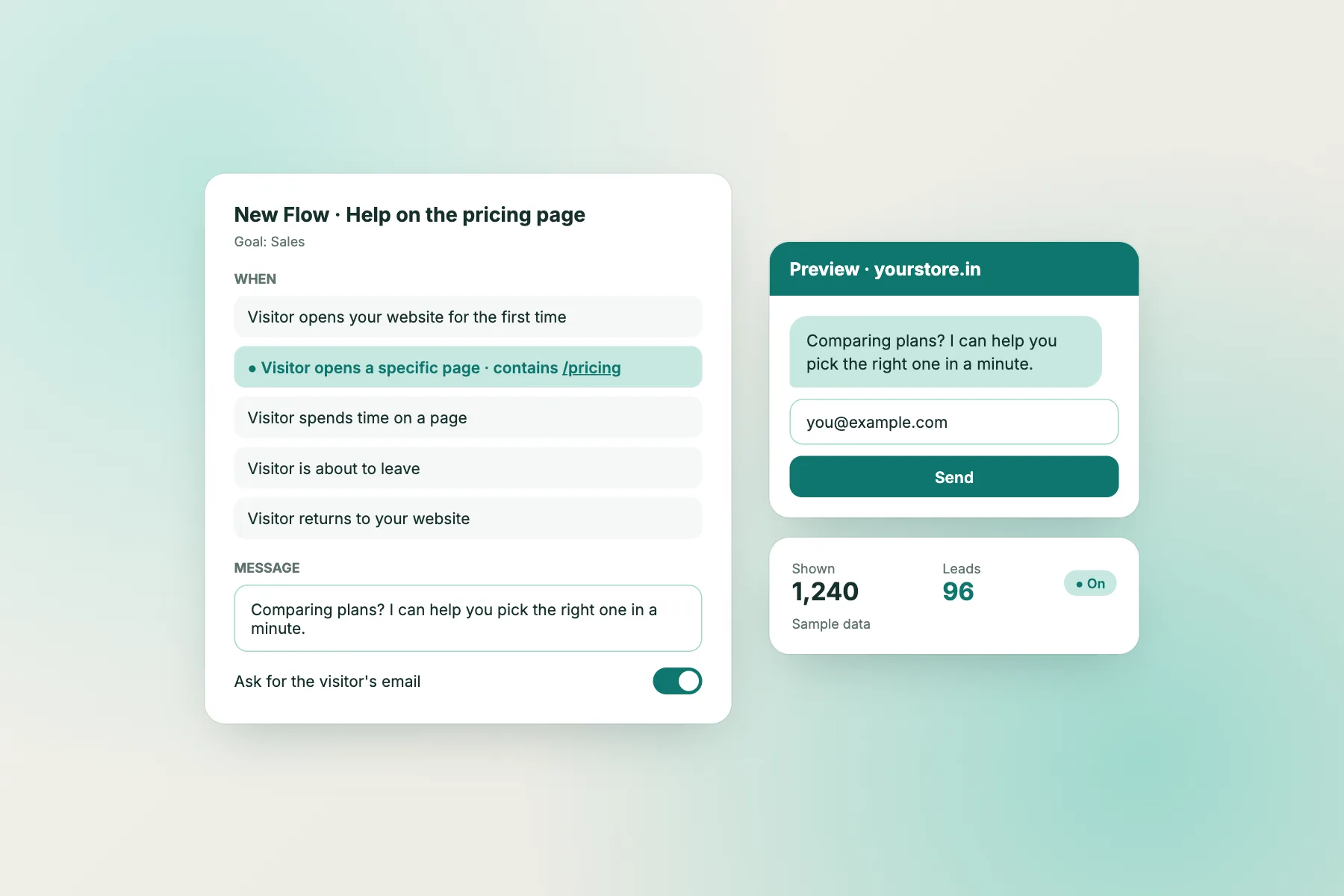
Opening hours with an away form that collects an email or phone number, and Flows that show a proactive message on chosen pages. The free keyword bot answers from your saved replies, and the AI Agent answers from knowledge you write, with a small free monthly allowance per website.
None of these need extra Webflow apps. They all sit behind the one script.
Try it
Is free enough for your Webflow site?
Answer four questions about your traffic and needs. The quiz points to the setup that fits, using only what LiveChatBot actually offers.
Limits
Where the limits start, in plain numbers
The free plan counts each visitor once per month, when they trigger a new-visitor alert. After 100 new visitors on a website, tracking and alerts continue, but chat pauses for new over-limit visitors until you add a pack or the month resets.
What packs cost
Visitor packs are per website: 100 for ₹99, 500 for ₹299 and 1000 for ₹499. They never expire. An extra website is ₹199 for six months. Nothing is charged automatically, so there is no surprise renewal.
A Webflow-specific tip
Landing pages from ad campaigns can use up free visitors fast. If you run ads to a Webflow page, add a pack before the campaign, not after. The pricing page has the current packs, and the guide to chatbot costs for small sites shows how to work out your busiest month.
Install
Adding the code without breaking your design
The widget is a floating layer. It does not touch your Webflow layout, CMS collections or interactions. In the Webflow project settings, open Custom Code and paste your script into the footer area, then publish.
Check before publishing
Look at the chat bubble on a phone-sized preview so it does not cover your own buttons, and use the where it shows settings to hide it on pages where it gets in the way. Our full Webflow chatbot timeline walks through each step with testing, and the HTML install guide explains the snippet itself.
First week
A first-week plan for a free chatbot for Webflow beginners
Day one: install and look
Paste the script, publish, and open your live site on your own phone. Send yourself a test message and confirm it reaches the inbox and the Android app.
Day two: write ten answers
Open your contact form submissions or emails and list the ten questions people ask most. Write each as a short saved reply: price range, turnaround time, areas served, how to book. These feed the free keyword bot, and they are the best starting knowledge for the AI Agent later.
Day three: hours and a safety net
Set your opening hours and turn on the away form so late visitors can leave an email or phone number. Our opening hours guide shows the steps.
Days four to seven: watch and trim
Read each chat. Where the bot guessed badly, add or fix a saved reply. Where visitors asked for a person, check how fast your team answered. After a week you will know whether the free visitors are enough.
Honest gaps
What a free chatbot for Webflow projects will not do
- No Webflow app. There is no listing in the Webflow marketplace. Installation is by code.
- No access to Webflow Ecommerce or CMS data. The bot cannot look up an order. It answers from the knowledge and saved replies you give it.
- No badge removal. “Powered by LiveChatBot” stays on every plan.
- No pre-chat form. Visitors can start chatting straight away. The away form works after hours.
- No WhatsApp inbox, no iOS team app. WhatsApp is a button card. iPhone users reply from a browser.
If you need form submissions or orders passed to other tools, the ticket webhooks and Zapier can carry data out. See integrations for what exists.
Who it suits
A portfolio, a small agency site, a local business or a launch page on Webflow is a good match: a handful of enquiries a day, a few repeat questions and a team of one to three people. A high-traffic store that needs live order lookups, single sign-on or a badge-free widget will outgrow it, and it is better to know that now than after you have built around it.
Frequently asked questions
Is there really a free chatbot for Webflow?
LiveChatBot’s free plan costs ₹0 for two websites, with 100 free new visitors per website each month. Webflow’s own plan requirements for custom code are separate.
Do I need a paid Webflow plan?
Custom code usually depends on your Webflow site plan, and plans change. Check your project’s custom code settings before you start.
Does the free plan include AI replies?
There is a small free monthly allowance for the AI Agent per website. When it runs out, the free keyword bot answers from saved replies.
Will it slow my Webflow site?
The script loads asynchronously, so it should not block your page. Test your published page speed before and after, as you would with any added script.
Can I remove the LiveChatBot badge?
No. The badge stays on all plans.
Keep reading
Related guides
Free Chatbot for Squarespace: What Stays Free, What Squarespace Itself Charges For, and When You Would Pay (Free Cost Quiz)
Squarespace Live Chat Widget: Colour, Position, Pages and Welcome Lines That Fit Your Template (Free Copy-Ready Lines)
Squarespace AI Chatbot: What to Teach It First, Page by Page, for a Portfolio, Booking or Store Site (Free Knowledge Checklist)
Try it on your Webflow site
Free plan for two websites, one script and no per-seat charges. Start on livechatbot.in.