Web Chat Applications on the Team Side: Answer Chats From a Browser Tab Without Missing Alerts (Free Alert Checker)
Web chat applications run in a browser on both ends: your visitor types into a chat window on your website, and your team answers from a dashboard in a browser tab. Nobody installs anything, which is the whole appeal. The catch is on the team side. A browser decides when sounds can play, which notifications appear, and which tabs get put to sleep, so a perfectly working chat can still go unanswered. This guide shows how alerts reach you in a browser, the ten settings that silence them, and a free checker that lists the fixes for your exact browser and system.
⚡ In short
- A browser-based chat dashboard alerts you with a sound, a count in the tab title, an on-screen toast and a system notification.
- Most missed chats come from a few settings: notifications never allowed, no click on the page so sound stays blocked, Focus mode, sleeping tabs and a sleeping computer.
- Keep one pinned dashboard tab, allow notifications, click once after opening, and keep the computer awake in chat hours.
- Use the Android app as a backup for lunch breaks, travel and evenings.
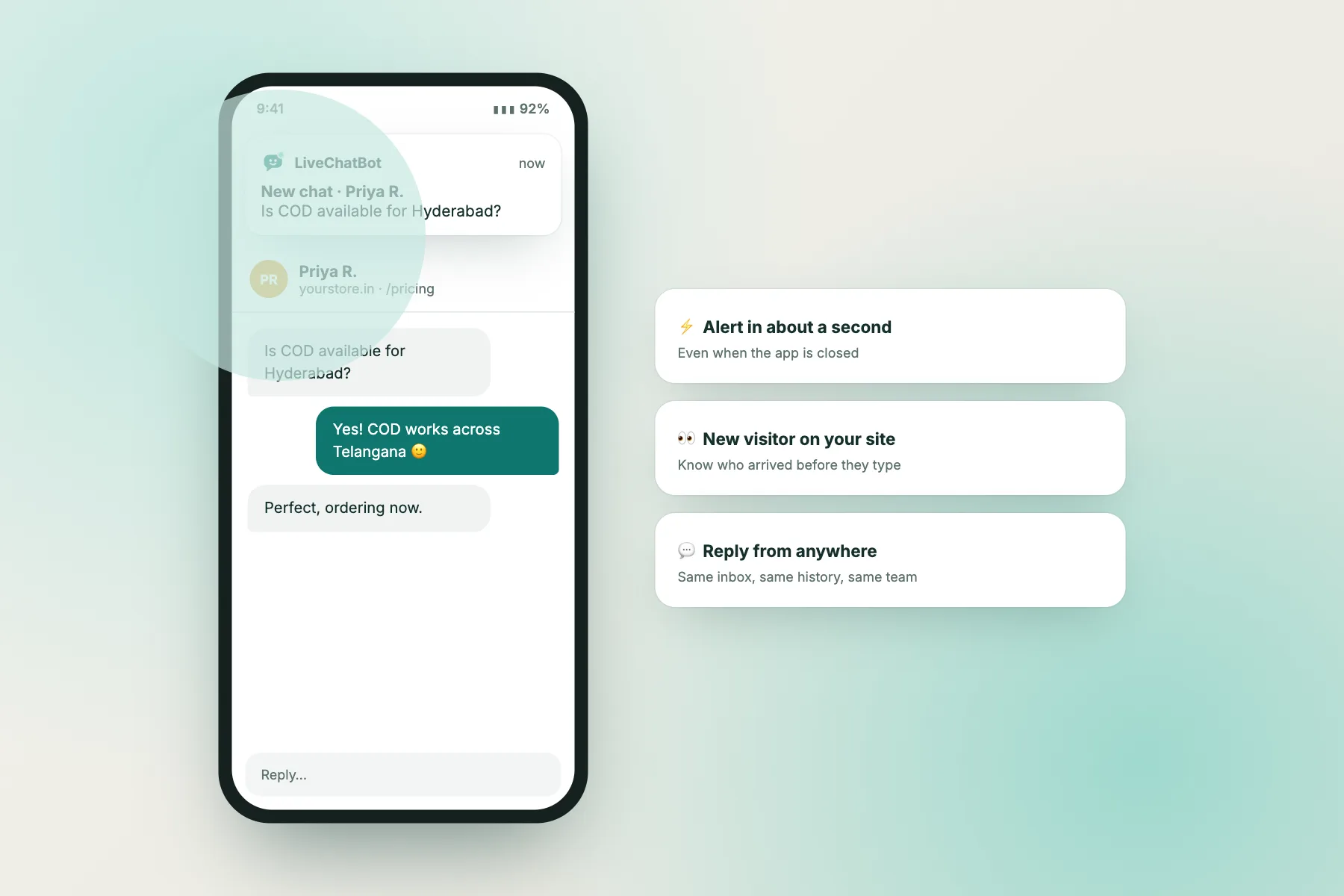
What ‘web’ means here
Both sides of the chat live in a browser
When people talk about chat software for a website, they usually picture the visitor’s side: a bubble in the corner that opens a chat window. That part is always web-based. The visitor never downloads anything; the chat loads with your page.
The team side is the part that varies. Some tools want every agent to install a desktop program. Others, like LiveChatBot, give you a dashboard that opens in any modern browser, plus an Android app for phones. With a browser dashboard you can answer from the shop computer, a laptop at home or a borrowed machine, and there is nothing to update.
That convenience comes with one trade-off people rarely think about until a customer complains. A desktop program can make noise whenever it likes. A web page can’t. Browsers protect people from noisy, pushy websites, so they put rules on every page, including the one you use for work:
- A page can’t play sound until you have clicked or typed on it at least once.
- A page can’t show system notifications until you say yes to them.
- A tab you are not looking at gets slowed down, and after a while it may be frozen or unloaded to save memory.
- Your operating system can hide any notification during Focus or Do Not Disturb.
None of this is a fault in the chat tool. It’s the browser doing its job. But it means the person running the chat needs ten minutes of setup, once, to make sure the browser lets the alerts through. Our phone app comparison covers the mobile side; this guide is about the computer on the counter or the desk.
Four signals
How web chat applications tell your team about a new chat
LiveChatBot’s dashboard uses all four. Each one fails in a different way, which is why you want more than one working.
Alert sound
Plays when a visitor writes or a new visitor arrives. You can pick the tone, and each website can have its own. Fails when: you haven’t clicked the page yet, or the tab or computer is muted.
Count in the tab title
The tab shows (2) before the page name when chats are waiting. Fails when: the tab is hidden among dozens of others or in a minimised window.
On-screen toast
A small card slides in on whichever dashboard page you are on. Fails when: you are working in a different program.
System notification
Your computer shows a notification even when you are in another program. Fails when: you never allowed it, Focus mode is on, or the browser is closed.
Why chats get missed
Ten quiet ways a browser tab stops alerting you
When a team says “the chat didn’t ring”, the cause is almost always one of these. They’re listed roughly from most to least common.
1. Notifications were never switched on
The first time you open the dashboard, it offers to turn on notifications. Many people dismiss the banner to get on with work, and never see it again. Without notifications, you only find out about chats while you’re looking at the tab.
2. Nobody clicked the page
Browsers block sound on a page you haven’t interacted with. If someone opens the dashboard first thing in the morning and walks off, the first chat arrives in silence. One click anywhere on the page fixes it until the next reload.
3. Focus or Do Not Disturb
Windows and macOS both hide notifications while Focus is on, and many people have it scheduled for working hours, which is exactly when chats come in.
4. Sleeping tabs
Chrome’s Memory Saver, Edge’s sleeping tabs and Brave’s memory saving can freeze tabs you haven’t looked at for a while. A frozen dashboard can’t check for new chats.
5. Background slowdown
Even when a tab isn’t frozen, browsers slow down pages in background tabs, so the dashboard may notice a new chat later than it would on screen. System notifications cover this gap, which is one more reason to allow them.
6. The computer goes to sleep
A laptop that sleeps after five idle minutes misses every chat that arrives while you’re on a call.
7. The browser is closed
Most browsers only deliver notifications while they’re running. Close the browser and alerts stop.
8. Muted sound
A muted tab, a quiet system volume or headphones lying in a drawer.
9. Two dashboard tabs
Alerts can double up, and someone ends up replying in a tab that stopped updating hours ago.
10. A lost tab
The tab title shows the unread count, but not if it’s the 34th tab in the row.
The checker below asks about each of these and tells you which ones apply to your setup, with the setting to change for your browser and system.
Free tool
Check your browser setup for missed-chat risks
Choose your browser and system, tick what’s true for the computer you answer chats on, and get a ranked list of fixes with the menu paths for your setup.
Describe the computer you answer chats on. Pick your browser and system, then tick everything that is true today.
Runs only in your browser; nothing is sent or saved. Menu names change between browser versions, so treat the paths as a guide.
Browser by browser
Settings to change in Chrome, Edge, Firefox, Safari and Brave
Menu names move around between browser versions, so treat these as directions rather than exact clicks. The idea is the same everywhere: allow notifications for the dashboard, stop the tab from being put to sleep, and make sure the browser is allowed to make noise.
Chrome
Click the icon to the left of the address bar, open Site settings and set Notifications to Allow and Sound to Allow. Then go to Settings > Performance and add the dashboard address under Memory Saver’s “Always keep these sites active”. On Windows, check “Continue running background apps when Google Chrome is closed” in Settings > System if you want notifications after closing the last window.
Edge
Click the lock icon, choose Permissions for this site, and allow Notifications and Sound. Under Settings > System and performance, add the dashboard to “Never put these sites to sleep”. Edge on Windows has the same background-apps option as Chrome.
Firefox
Firefox asks for notification permission when the dashboard offers it. If you blocked it earlier, click the icon left of the address bar and clear the blocked permission, then reload. Firefox’s autoplay setting can also block sound; allow audio for the dashboard if alerts stay silent after a click.
Safari
Open Safari > Settings > Websites. Set Notifications to Allow for the dashboard, and check Auto-Play isn’t set to “Never Auto-Play” for it. Safari doesn’t offer a keep-awake list, so give the dashboard its own window.
Brave
Brave blocks push notifications until you switch on “Use Google services for push messaging” in its privacy settings. Turn that on, restart Brave, then allow notifications for the dashboard as you would in Chrome.
Whichever browser you choose, use the same one every day. Permissions are stored per browser, so switching between two browsers means setting everything up twice.
System settings
Your operating system has the final say
A browser can be allowed to notify you and still be silenced by the system underneath it.
| System | Allow the browser | Watch out for |
|---|---|---|
| Windows 10 / 11 | Settings > System > Notifications: switch your browser on and allow banners and sounds. | Focus / Do Not Disturb schedules; battery saver on laptops. |
| macOS | System Settings > Notifications > your browser: allow, style Banners or Alerts. | Focus modes; Banners vanish after a few seconds, Alerts stay until clicked. |
| ChromeOS | Settings > Apps > Notifications: allow Chrome. | Do Not Disturb in the quick settings panel. |
| Linux | Your desktop’s notification settings: allow the browser. | Do Not Disturb toggles in the top bar. |
A proper chat desk
Set up the browser like a till, not a tab
Once alerts work, a few habits make the browser dashboard feel like a dedicated chat desk rather than one more tab.
Pin one tab. Right-click the dashboard tab and choose Pin. A pinned tab stays at the far left, takes little space and is hard to close by accident. Keep exactly one.
Or give it its own window. On a wide screen or a second monitor, a small separate window with the dashboard is even better. You see new chats without switching anything.
Use a separate browser profile. Chrome, Edge and Brave let you create a second profile. A “Chat desk” profile with only the dashboard keeps personal tabs, extensions and logins out of the way, and its settings won’t be undone when you tidy up your main profile.
Keep the computer awake in chat hours. Let the screen switch off after ten minutes but stop the computer itself from sleeping while it’s plugged in.
Choose a tone you’ll notice. A soft chime is pleasant in a quiet office and useless in a busy shop. Pick a louder tone for noisy spaces, and a different tone per website if you run more than one.
Click once after opening. Make it part of the opening routine, like switching on the lights.
Test weekly. Ask a colleague to open your website on their phone and send a chat while the dashboard sits in the background. If you don’t hear it within a few seconds, run the checker again.
If several people share the chat, give each their own login. Our shift planning guide shows how to split hours so someone is always on, and our response time guide covers how quickly customers expect a first reply.
Checklist
Start-of-shift check for web chat applications
When the browser isn’t enough
Cover the hours the computer can’t
Even a perfectly set up browser only helps while someone is near the computer. Plan for the rest.
The Android app. LiveChatBot’s Android app gets its own notifications, with alert tones you can pick per website, and lets you reply from anywhere. Keep it on at least one phone as the backup to the browser. There is no iOS team app yet, so iPhone users can open the dashboard in the phone’s browser instead. Our Android app guide walks through setup.
Opening hours and the away form. Outside the hours you set, the widget shows that you’re away and offers a form for an email or phone number, so nobody waits for a reply that won’t come tonight. See how to set opening hours.
Chat rescuer. A Flow can send a follow-up message if a visitor has been waiting without a reply, so a missed alert doesn’t become a silent chat.
Tickets. Offline messages can become tickets with an owner and a status, so they’re picked up the next morning instead of scrolling out of sight.
The AI Agent or keyword bot. Answers common questions from the knowledge you give it while your team is busy, and hands the rest to a person.
All of this is on the free plan: two websites, 100 visitors per website each month, no per-seat charges. See pricing for visitor packs if you need more.
Choosing a tool
What to check about alerts before you pick one
If you’re still comparing web chat applications, alerts deserve a place on your list next to price and features. A cheap tool that rings unreliably costs more in lost enquiries than a paid one that always gets through. Ask, or test during a trial:
- Does the dashboard show system notifications, or only sounds while the tab is open?
- Can you choose the alert tone, and set different tones for different websites?
- Does the tab title show unread chats?
- Is there a phone app for the team, and on which platforms?
- What happens to a visitor when nobody answers: an away form, a follow-up message, a ticket?
- Can several people log in separately without paying per seat?
Then run one real test: open the dashboard, switch to another program, and send yourself a chat from a phone on mobile data. Time how long it takes to notice. That single test tells you more than a feature table. Our website chat app spec builder helps you write the rest of the list.
Frequently asked questions
Do web chat applications need anything installed to answer chats?
No. LiveChatBot’s dashboard runs in any modern browser, and visitors chat in your website’s widget without downloading anything. The Android app is optional, for answering from a phone.
Why does the alert sound only work sometimes?
Browsers block sound on a page until you click or type on it. After each reload, click once anywhere in the dashboard. Also check the tab isn’t muted and the system volume is up.
Will I get notifications if the dashboard tab is closed?
If you allowed notifications, they can still appear while the browser itself is running. Close the browser completely and most systems stop showing them, so use the Android app as a backup.
Which browser is best for answering chats?
Any current version of Chrome, Edge, Firefox, Safari or Brave works. What matters more is setting one up properly: notifications allowed, the tab kept awake, and the same browser used every day.
Does the alert checker send my answers anywhere?
No. It runs entirely in your browser and nothing is sent or saved.
Keep reading
Related guides
Web Chatroom Safety for Members and Moderators: Room Rules, Scam Patterns and a Free Oversharing Screener
Website Bot Visitors: How to Spot Crawlers, AI Scrapers and Spam Bots in Your Traffic and Chat
Top AI Chatbots for Your Shortlist: Run a Blind Bake-Off and Check Whether the Winner Is Stable
Answer chats from any browser
A free dashboard for your team, an Android app as backup and alerts you can tune per website. Start free on livechatbot.in.