Best Live Chat Apps for Replying From Your Phone: A 10-Test Field Trial You Can Run in an Evening
Best live chat apps lists rarely tell you the thing a small business owner needs to know: will this app wake me up when a customer is waiting, and can I answer properly with one thumb on a bus? Feature tables are written at a desk. This guide gives you ten practical tests to run on your own phone, a way to weight them, a scoring tool, and a short plan for the first week after you choose.
⚡ In short
- Test apps on your own phone, with your own network, on a normal day. Demo videos hide the problems.
- The lock-screen alert test matters more than anything else. A missed alert is a missed customer.
- Score ten tests, weighted by what costs you sales. Use the free tool to compare two or three apps.
- Check the platform first: some tools have an Android app but no iPhone app for the team, or the reverse.
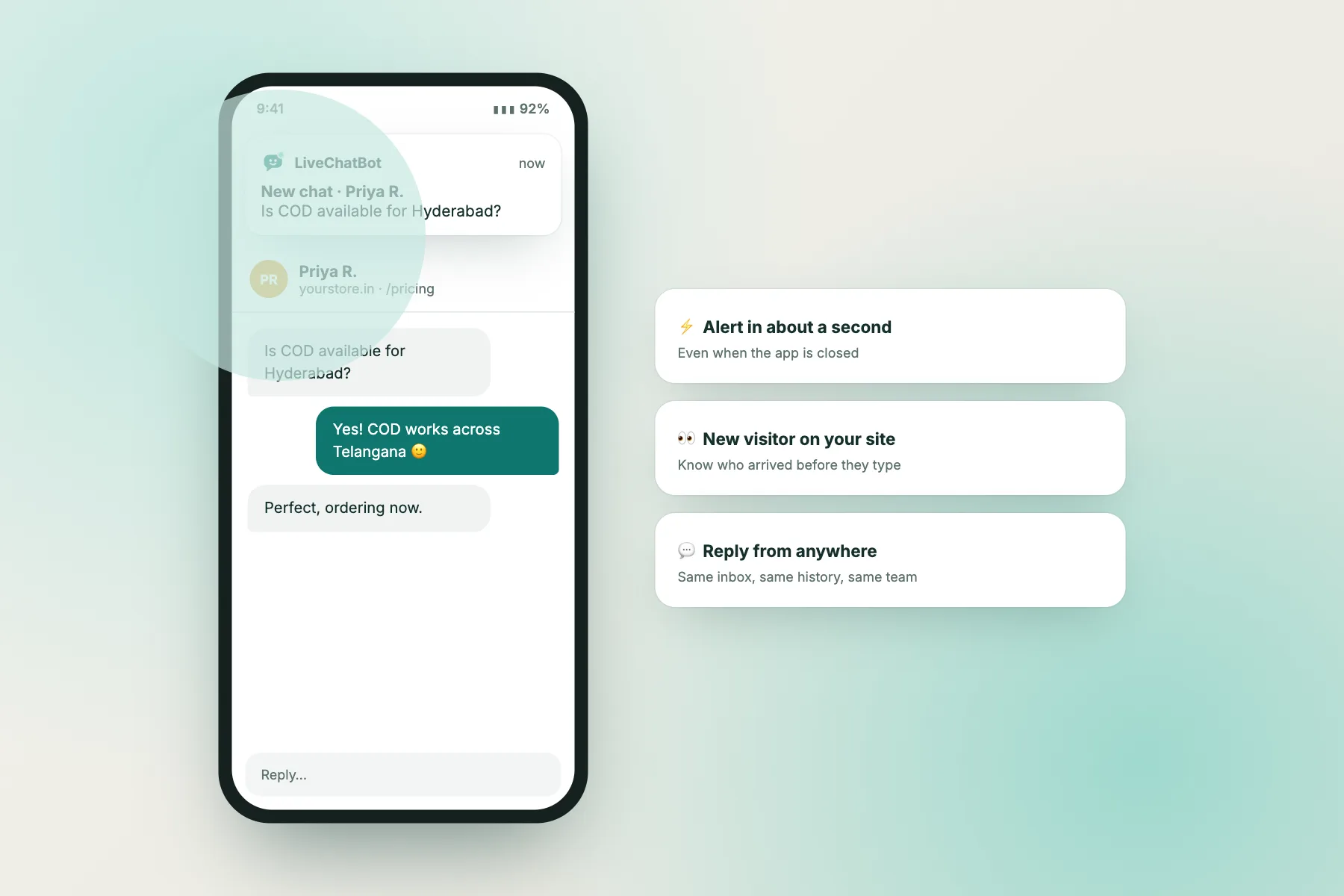
Why phone tests
Feature lists are written at a desk; you’ll reply on the move
Most owners of small shops, clinics and service businesses don’t sit at a computer waiting for chats. They reply between customers, in a delivery van, at a counter, or late in the evening at home. That means the real question isn’t which product has the longest feature list. It’s which app gets a chat in front of you fast, and lets you answer well with a small screen and one free hand.
A product can look excellent in a browser demo and still fail on a phone. Alerts may be delayed by the phone’s battery saver. Tapping a notification may open a dashboard instead of the chat. Saved replies may be hidden three menus deep. A reply typed on weak 4G may vanish when the connection drops. None of this appears on a pricing page.
So treat choosing between the best live chat apps like hiring someone: give each candidate a short practical trial. Install two or three, connect them to a test page, and spend one evening running the same ten tests on each. You’ll know more after that evening than after a week of reading reviews.
One more reason to test yourself: phones differ. Brands such as Xiaomi, Oppo, Vivo, Realme and Samsung each handle background apps a little differently, and Android versions vary. An app that alerts instantly on one phone can be silenced by aggressive battery settings on another. Your phone is the one that matters.
The ten tests
What to check, and why each one costs you customers if it fails
| Test | How to run it | Why it matters |
|---|---|---|
| Lock-screen alert | Lock the phone, send a chat from another device, time it | A late alert means the visitor has already left |
| Alert sound | Phone on normal ring mode, screen off | Silent alerts get missed during busy work |
| Quiet hours | Look for a do-not-disturb or away setting | You need sleep without logging out |
| Opens the right chat | Tap the alert | Hunting for the chat wastes the first minute |
| Visitor context | Check page, location or referrer before replying | You answer the real question faster |
| Saved replies | Insert your delivery reply | Typing the same answer on glass is slow |
| One-handed reply | Reply while standing, phone in one hand | That’s how you’ll really use it |
| Weak network | Turn on airplane mode mid-reply, then off | Lost replies make you look careless |
| Battery | Use normally for a day | An app you uninstall is no app at all |
| Close the loop | Mark solved or make a ticket | Unfinished chats pile up |
Free tool
Score each app after you test it
Type the app’s name, tick the tests it passed, and get a weighted score with its biggest misses. Repeat for each app.
App name you tested
Tick every test the app passed on your own phone
Runs only in your browser. Nothing is sent or saved; write the score down before testing the next app.
Setting up the trial
One test page, one helper, one evening
You need three things: a test page, a second device, and a friend or family member who can play the customer.
The test page. Don’t install trial widgets on your live website. Make a simple hidden page, or use a free website builder page, and paste each app’s widget code there. If you use WordPress, a draft page with a Custom HTML block works, though some tools need the page published to load the widget.
The second device. A laptop or a second phone acts as the visitor. Open the test page there in a private window so each test starts as a fresh visitor.
The helper. Ask them to send the same five messages to each app, at random times during the evening, without telling you when. That’s the only fair way to test alerts: you can’t judge a notification you’re staring at, waiting for.
Suggested messages, so every app gets the same workload:
- “Hi, are you open on Sunday?”
- “Do you deliver to [your nearest town]?”
- “What’s the price of [your popular product]?”
- “I ordered yesterday, order number 1234, when will it come?”
- “Can someone call me?”
Write down the time each message was sent and the time you saw it. The gap is your real alert delay. Anything above a minute is a problem; anything above five minutes means the app, or your phone’s settings, will lose you customers.
Alerts first
If the lock-screen test fails, check the phone before blaming the app
Delayed or missing alerts are the most common complaint about any business chat app on Android, and they are often caused by the phone, not the app. Before you mark an app as failed, check these settings on your phone:
- Notifications allowed for the app, with the “chat” or “messages” channel turned on and set to make sound.
- Battery optimisation set to “no restrictions” or “don’t optimise” for the app. On many brands this setting lives under Battery, App battery usage or Background activity.
- Autostart allowed, on brands that have that setting.
- Data saver not blocking the app in the background.
Run the lock-screen test again after changing these. If it now passes, the app is fine; you just needed to set the phone up. If it still fails, that’s a real result and should count heavily against it.
This is also why you should write down every setting you changed. When a staff member installs the same app later, they’ll need the same changes on their phone, and they won’t know to make them unless you tell them. Our Android app guide lists the settings we recommend for LiveChatBot’s app specifically.
Replying well
Speed is not the only thing; answers typed on glass need help
Once the alert reaches you, the next test is how well you can reply. Typing long answers on a phone is slow and error-prone, so the best live chat apps make three things easy.
Saved replies
You’ll answer the same ten questions again and again: hours, delivery areas, prices, return rules. A good app lets you insert a prepared answer in a tap or two, and ideally fills in the visitor’s name. Check how the saved replies are found: by a shortcut, a search box or a list. Try inserting one while standing up. If it’s fiddly, you’ll stop using them. Our guide to saved replies shows how to write a starter set.
Context before you reply
Seeing which page the visitor is on changes your answer. “How much is it?” means nothing until you know they’re on the 5 kg washing machine page. Check whether the app shows the current page, the visitor’s city or the source that brought them, before you type. Visitor tracking is where this information comes from.
Finishing the chat
At the end, can you mark it solved, add a note or turn it into a ticket for follow-up? If the app only lets you chat, unfinished conversations will pile up and you’ll forget the customer who asked you to check stock.
Platform check
Android, iPhone, or both? Check before you fall in love with an app
Every team uses a mix of phones, and not every live chat product has a team app for each platform. Some offer an iPhone app but not Android, some the reverse, and some only a mobile-friendly web dashboard. Check this before you start the trial, because a perfect app that half your team can’t install isn’t perfect.
Be honest about where LiveChatBot stands: it has an Android app for the team, and no iPhone team app at the moment. iPhone users on a LiveChatBot team can use the web dashboard in Safari, which works for replying, but they won’t get the same app-style alerts. If your team is all on Android, as many small teams in India are, this won’t matter. If your best salesperson uses an iPhone, weigh it.
Also check which phones the app supports. Very old Android versions are sometimes not supported. Ask staff to tell you their Android version (Settings, About phone) before you roll out.
Finally, think about shared phones. Some small businesses keep one “shop phone” for WhatsApp and calls. Putting the chat app on that phone too can work well, as long as everyone who uses it knows how to reply and how to mark a chat as handled.
Illustrative example
Two apps, one evening, a clear winner
*This example is made up to show the method. It isn’t a review of real products.*
A two-person home bakery in Pune tested two apps, called App A and App B here, on the owner’s Android phone. Her sister sent the five test messages at random times between 7 pm and 10 pm.
- App A scored 15 out of 17. Every alert reached the lock screen within ten seconds after she set battery use to unrestricted. Saved replies took one tap. It lost one point for having no quiet-hours setting and one for battery use.
- App B scored 9. Two of five alerts arrived more than four minutes late even after the battery change, and tapping an alert opened a dashboard rather than the chat.
The decision took five minutes. The feature lists of both apps looked almost identical; the evening trial didn’t.
After you choose
The first week: settings, saved replies and a habit
Picking the app is half the job. The first week decides whether the habit sticks.
Day 1. Install the widget on your real website, but only on the pages where people ask the most questions: product pages, pricing, contact. Our guide to showing chat on specific pages explains how. Add opening hours so visitors know when to expect a reply, and switch on the away form so evening visitors can leave their number. See opening hours.
Day 2. Write your ten saved replies, based on the questions you really get on WhatsApp and the phone.
Day 3 to 5. Reply to every chat from the phone, and keep a note of anything awkward: a missing saved reply, an alert you missed, a question you couldn’t answer.
Day 6. Fix those. Add the missing replies, change the setting, update your website page if the same question keeps coming.
Day 7. Decide whether to add the AI Agent for the routine questions you answered most. You’ll know exactly what to teach it, because you’ve just answered those questions yourself all week. Our AI Agent overview explains how it works with your saved replies.
What it costs
Free plans are fine for testing; check the limit that applies to you
Many of the best live chat apps have a free plan, but the limits differ: some cap agents, some cap conversations, some cap visitors, and some remove features. For a trial evening, any free plan will do. For daily use, check which limit you’ll hit first with your traffic.
LiveChatBot’s free plan covers two websites, with 100 free visitors per website each month. There are no per-seat charges, so adding staff to the Android app doesn’t change the price. If a website goes over its visitor allowance, visitor tracking and alerts keep working and chat pauses for new over-limit visitors until the month resets or you add a visitor pack (100 visitors for ₹99, 500 for ₹299, 1,000 for ₹499, and packs never expire). Nothing is charged automatically. The full details are on the pricing page.
Whichever app you choose, check the price of the thing you’ll grow into, not just the free plan. A tool that’s free for one agent and expensive for three will feel very different once you hire.
Frequently asked questions
What are the best live chat apps for a small business?
The ones that pass the practical tests on your own phone: fast lock-screen alerts, opening the right chat, quick saved replies and reliable sending on weak networks. Test two or three in one evening and score them.
Why are my chat app notifications late on Android?
Usually battery optimisation, data saver or autostart settings. Set the app’s battery use to unrestricted and allow notifications with sound, then test again.
Does LiveChatBot have a mobile app?
Yes, an Android app for your team. There is no iPhone team app yet; iPhone users can reply through the web dashboard.
Do my customers need to download an app to chat?
No. Visitors chat in the browser through the widget on your website. Only your team uses the app.
How many apps should I test?
Two or three is enough. More than that and the evening trial becomes confusing.
Keep reading
Related guides
Best Free Chatting Website for Business Enquiries: What to Look For
Best Free AI Chatbot for a Website Pilot: Understand the Allowances First
Best Chatbot for Website Launches: The Acceptance Test Before You Go Live
Run the trial with LiveChatBot as one of your apps
Install the Android app, put the widget on a test page and send yourself five chats tonight. Start free on livechatbot.in.