Free Chat Widget for Website Owners: What the Free Plan Includes, What It Leaves Out, and a 5-Minute Fit Test (Free Myths vs Facts)
Free chat widget for website owners usually means one of two things: a real tool with a visitor cap, or a trial that ends. LiveChatBot is the first kind. Here is exactly what the free plan gives you, what it does not, and a quick test to see whether it fits your site.
A free chat widget for your website is a chat bubble you paste once, then answer from a team inbox. LiveChatBot is free for 2 websites with 100 visitors per website each month, no per-seat charges and no card. You pay only if you need more visitors.
⚡ In short
- The free plan is real software, not a countdown: chat widget, team inbox, Android app, Flows, tickets and visitor tracking.
- The limits are 2 websites and 100 visitors per website each month; there is no limit on how many people on your team answer.
- “Powered by LiveChatBot” stays on the widget on every plan, free or paid.
- Run the 5-minute fit test below before you paste the code.
The answer
A free chat widget for your site is worth it when someone will answer it
A free widget pays for itself when a real person replies within minutes, because the software costs nothing and the reply is the whole value.
The widget is the small bubble in the corner of your pages. A visitor types, you get the message in a shared inbox or on your phone, and you answer. That is all. Everything else, such as AI replies, proactive messages and tickets, is a way to answer faster or catch people who write at night.
If you are new to the idea, free live chat explains how the whole product fits together. This guide is narrower: it is about what “free” actually covers when you add one widget to one website, and how to avoid the usual disappointments.
Included
A free chat widget for website visitors comes with the inbox and the phone app
The free plan includes the full chat widget and everything you need to answer it, not a cut-down demo.
On your website
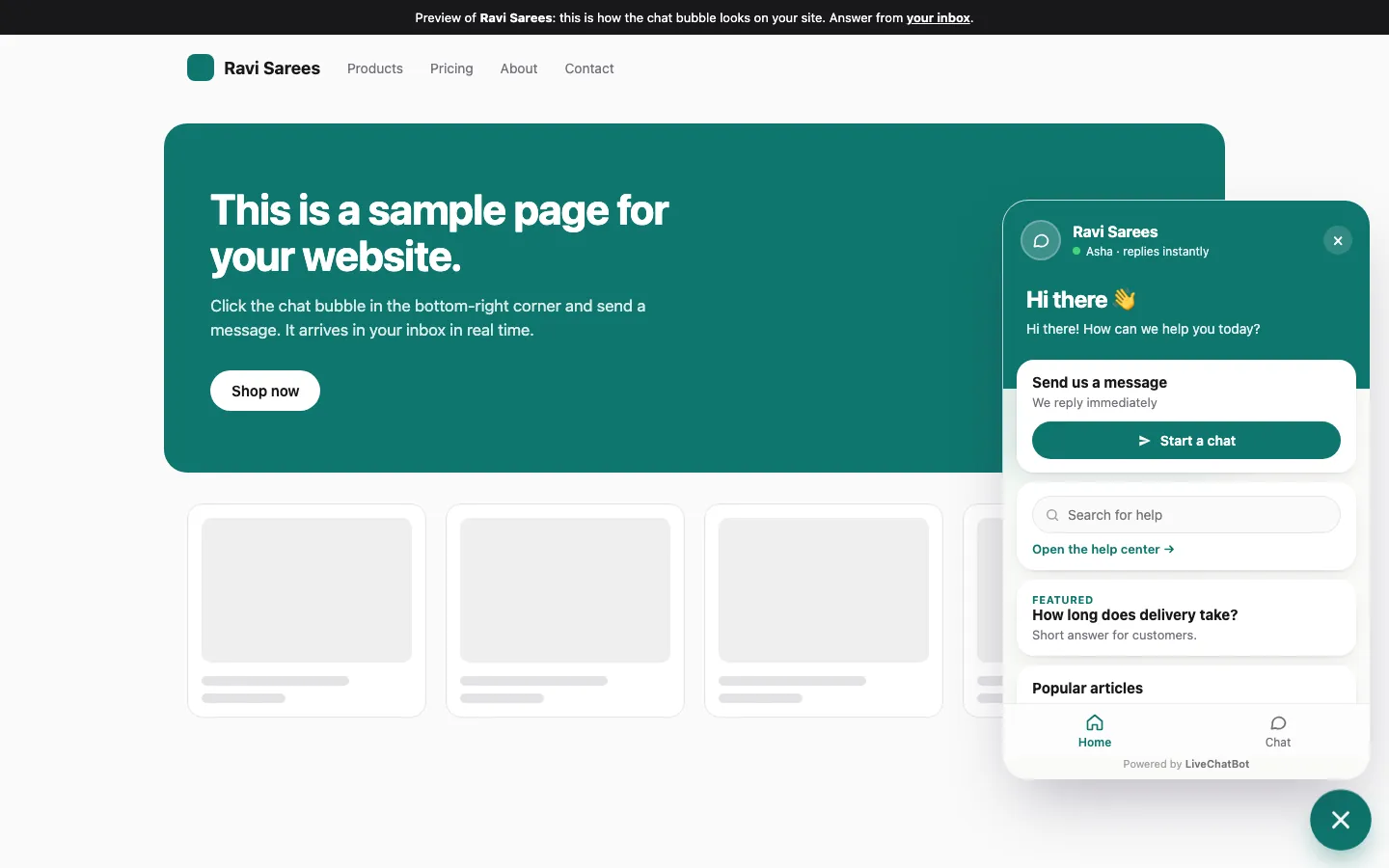
- The chat widget with your colours, position, team name, avatar and welcome text.
- Attention-grabber card and widget cards, including a WhatsApp button card.
- A choice of where it shows: devices, countries and pages to hide it on.
- Auto language and welcome translations.
For your team
- A shared inbox, Assign to me, and Unassigned and Mine folders.
- An Android app, so alerts reach your phone. There is no iOS team app.
- Saved replies, tickets, opening hours and an away form that collects email or phone.
- No per-seat charges: add as many agents as you have people.
For catching leads
- Flows with up to six conditions, a follow-up message and the chat rescuer, which asks for email and phone if nobody replies in seconds.
- Visitor tracking and a lead score on visitor profiles.
Colours are set on one page. For the settings, see our guide to how to customize your chat widget.
Limits
A free chat widget for website owners has three limits, stated plainly
The free plan has three real limits and a short list of things LiveChatBot does not do on any plan.
The three limits
- Two websites per account.
- 100 visitors per website per month. A visitor is counted once a month, when they trigger a new-visitor alert.
- A monthly AI allowance for AI replies, shown in your dashboard. When it is used up, the free keyword bot answers from your saved replies.
Not available on any plan
- Removing “Powered by LiveChatBot”.
- A pre-chat form.
- An iOS team app.
- Native Slack, HubSpot, Salesforce or Calendly connections. Zapier, webhooks and the REST API can bridge some of these.
Saying this up front matters. Many owners find out about a missing option after they have pasted the code, and then blame the tool rather than the guess. The pricing page lists what changes on the paid plans.
Original data
Our original data: the free widget by the numbers
These numbers come from LiveChatBot’s own settings and built-in limits, so you can check each one in the app.
| What | Real value | |—|—| | Websites on the free plan | 2 | | Free visitors per website a month | 100 | | Colours you set in Widget design | 6 (header, your bubbles and text, visitor bubbles and text, button) | | Conditions per Flow | up to 6 | | Visitor chat messages allowed | 20 per minute per IP address | | Widget requests allowed | 240 per minute per IP address | | Lines of code to install | 1 script, pasted once per site |
The last two are fixed, built-in limits, not settings. They mean a bored visitor cannot flood your inbox from one connection, and you do not have to switch anything on to be protected. They are not a spam filter: there is no captcha and no content scoring.
What the install really is
Sign up with your email and phone, add your website, copy the snippet from the install page, paste it before the closing body tag. On WordPress you use the plugin instead of pasting. On Shopify, Wix and Squarespace you paste the code, because there is no Shopify App Store app.
Real screens
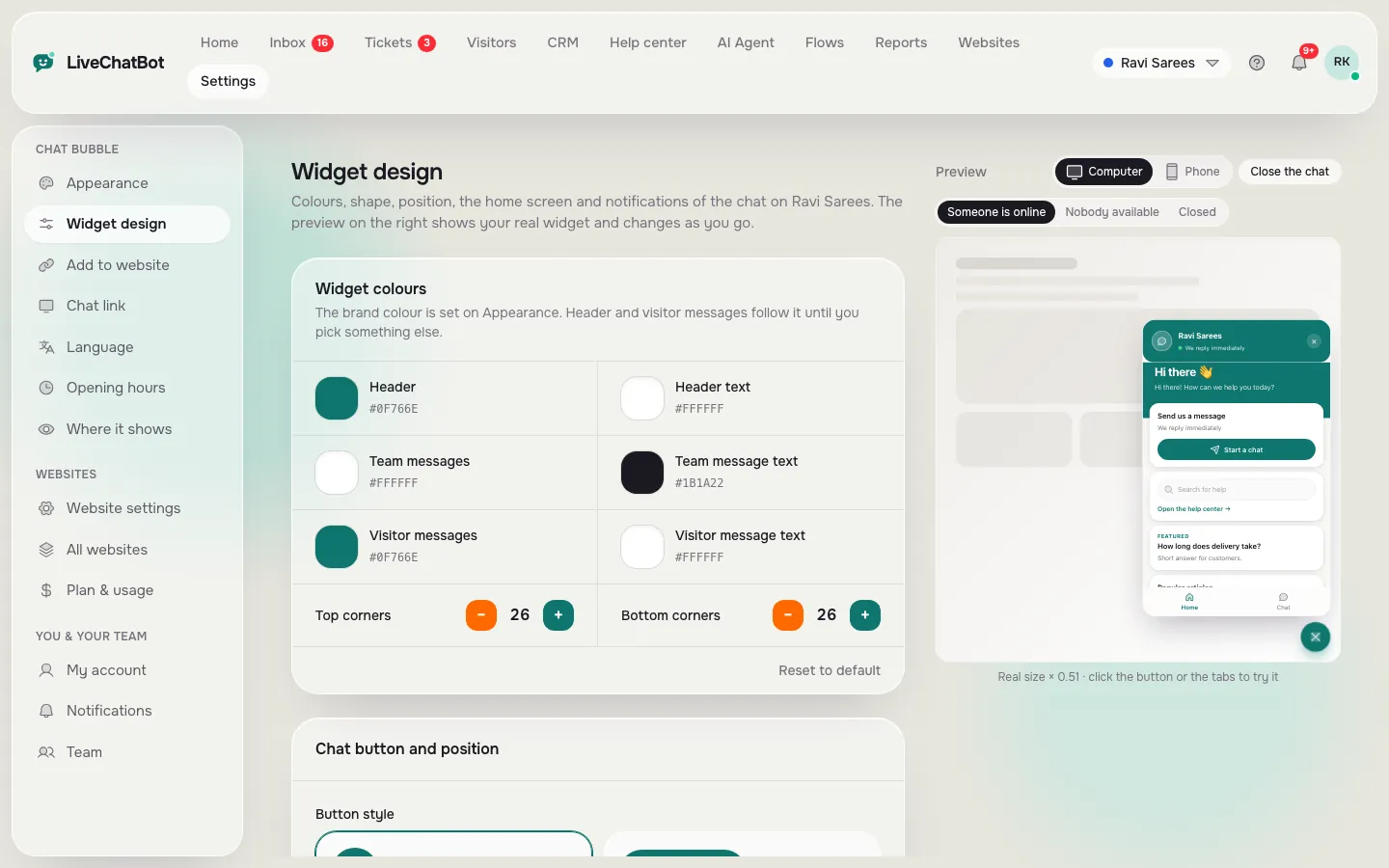
Real screens: the install code, the design page and the live widget
Real screens from the LiveChatBot panel, shown with sample data. Click any picture to see it full size.

The fit test
Our rule: write the question each page leaves unanswered
Here is something most guides do not say: a free chat widget works best when its first line is the one question that page leaves open.
Every page raises a question it does not answer. A pricing page raises “Is there a cheaper plan?” A product page raises “Will this fit me?” A contact page raises “How soon will you reply?” A blog post raises almost none, which is why chat on blog pages gets the fewest real chats.
The rule: before you choose any setting, open your five most visited pages and write, in one line each, the question a visitor still has when they reach the bottom. Those five lines become your welcome text and your page rules. Show the chat where a question exists; hide it where none does.
This is a rule of thumb from how widgets work, not a measured result. It costs five minutes, and it stops the common mistake of the same “How can we help?” on every page.
With it you can set up your pages from how to show live chat on specific pages, and match the welcome words using how to write a live chat welcome message.
Try it
Free widget myths versus facts
Read each pair. If a fact surprises you, check it before you paste the code.
Setup
To add a free chat widget for website pages, follow six short steps
Adding the widget takes six steps, and the last one is the one people skip.
- Sign up at livechatbot.in with your email and phone.
- Add your website and copy the install code.
- Paste it into your site’s footer or use the plugin. Our WordPress live chat plugin page covers the plugin route.
- Set the look: six colours, the corner, and the welcome line from your page questions.
- Install the Android app on the phone of whoever answers, and switch notifications on.
- Send a test chat from your phone in a private window, then answer it from the inbox. Check that the alert arrived.
The same job for one-click platforms
If you want the wider picture of free options, read free live chat again after your test. If your site is on a builder, the pasted-code method is the same. Our guide to the website chat widget shows the platforms side by side.
Placement
Check that the free widget does not collide with your page
A widget that sits on top of a cookie bar or another button costs you chats, so check the corners before you go live.
Open your site on a phone and a computer. If the bubble covers a back-to-top arrow, a sticky bar or a WhatsApp button, nudge it with the offsets or move it to the other side. Our guide on free website chat widget placement goes deeper into overlaps and gives a checker. Here, the point is smaller: look at the real page once before visitors do.
A last look at the numbers
Over a month, every new visitor counts once toward your 100. If the count is close to the cap, either hide chat on pages that do not need it or move up a plan. You can change this at any time, and nothing is charged automatically.
Frequently asked questions
Is there a really free chat widget for website owners?
Yes. LiveChatBot’s free plan covers 2 websites with 100 visitors per website each month, no card and no per-seat charges. It is a working plan, not a short trial.
Does the free plan include the Android app?
Yes. The Android app is included, so alerts reach your phone. There is no iOS team app at the moment.
Can I remove the Powered by LiveChatBot label?
No. The label stays on every plan, free or paid, so decide whether you can live with it before you install.
What happens after 100 visitors in a month?
Tracking and alerts continue, but chat pauses for new over-limit visitors until the month resets or you add more visitors. Nothing is charged automatically.
Do I need a developer to add it?
No. You paste one script, or use the WordPress plugin. A developer helps only if your theme blocks footer code.
Keep reading
Related guides
Free Chat Software for Website Owners: Work Out the Day Your Free Visitors Run Out, Before the Month Starts
Free Chatbot Builder Flow Check: Find Dead Ends, Broken Buttons and Missing Exits Before You Publish (Free Flow Map Checker)
Free Chat Software for Business: The Company Set-Up Most Owners Skip (Shared Login, Hours, Hand-Offs and a Readiness Checklist)
Add your free widget today
Two websites free, no per-seat charges and an Android app for alerts. Start free on livechatbot.in.