Customer Service Chat Box Wording: The Short Texts Visitors Read Before They Type (Copy-Ready Lines)
Customer service chat box wording is the small print of your support: a greeting, a team name, a hint inside the typing field, an after-hours note. Visitors read these few words in two seconds and decide whether to type. This guide shows which texts matter, what to write in each, and gives you copy-ready lines for four kinds of business.
⚡ In short
- Five short texts do most of the work: the invitation, the welcome line, the team name, the typing hint and the after-hours note.
- Say what the visitor can ask and how fast you answer. Skip ‘How may I help you?’.
- Write for a nervous first-time visitor, in plain words, in under 15 words each.
- Copy the lines below, change the details, and review them every month.
Why words matter
A customer service chat box is judged by its first line
A good colour does not make a visitor type. Words do. People look at a chat box and silently ask three questions: Is a real person here? Will it take long? Is it about my problem?
Your wording has to answer all three before the visitor has finished reading. A greeting like “Hello! How may I help you?” answers none of them. It is polite, but vague, and it tells the visitor that typing means starting from scratch.
A better line gives a promise and a prompt: “Questions about delivery or sizing? Ask us. We usually reply in 2 minutes.” Now the visitor knows what is on offer, and that a person will answer.
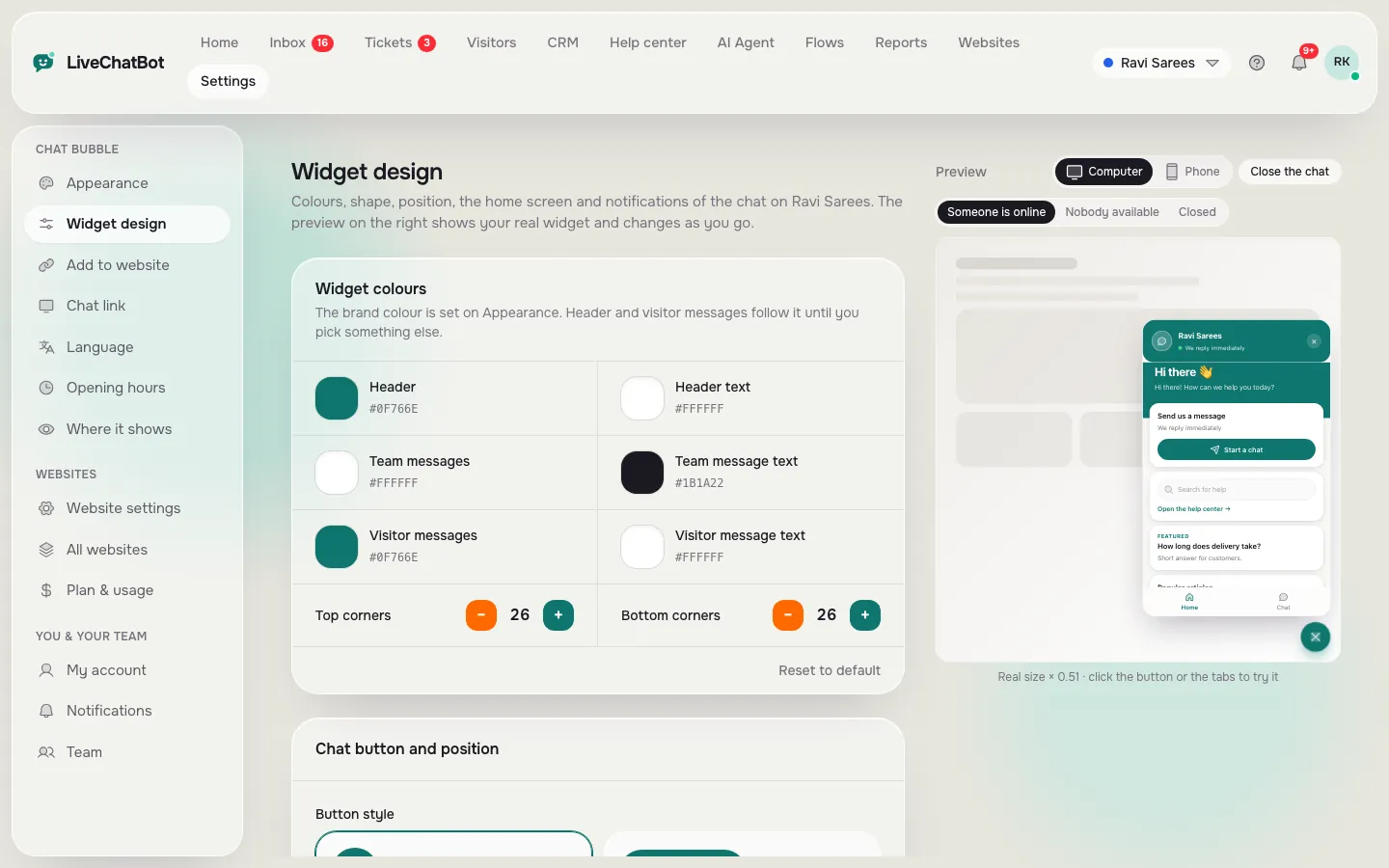
You can change these texts in the dashboard without code. Our guide to customizing your chat widget shows where each setting lives, and the broader live chat for customer service page covers the setup around it.
The five texts
Five texts to write first
1. The invitation
This is what shows next to the closed bubble or in the attention card. Name a topic: “Need help choosing a plan?” Topic beats generic every time.
2. The welcome line
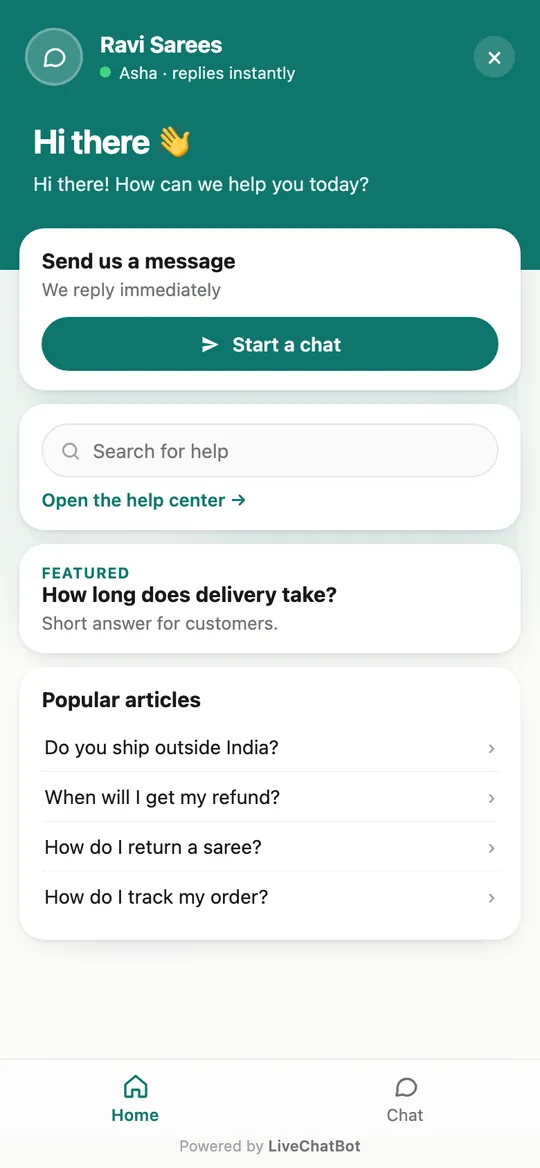
The first message inside the box. Say who answers, what they can help with, and how long it takes. Keep it to two short sentences. Read how to write a live chat welcome message for more patterns.
3. The team name and photo
“Priya from Support” feels more human than “Support Team”. Use a real first name and a face if your team agrees.
4. The typing hint
The grey text inside the empty message field. “Type your question, e.g. where is my order?” removes the blank-page problem.
5. The after-hours note
What the chat says when nobody is online. Say when you are back and ask for an email or phone so you can reply.
Copy-ready
Customer service chat box lines for four kinds of business
Pick a tab, copy the lines you like and replace the details. These are examples, not promises. Change numbers to match what your team can really do.
Real screens
Where to edit the words, and how they look on a phone
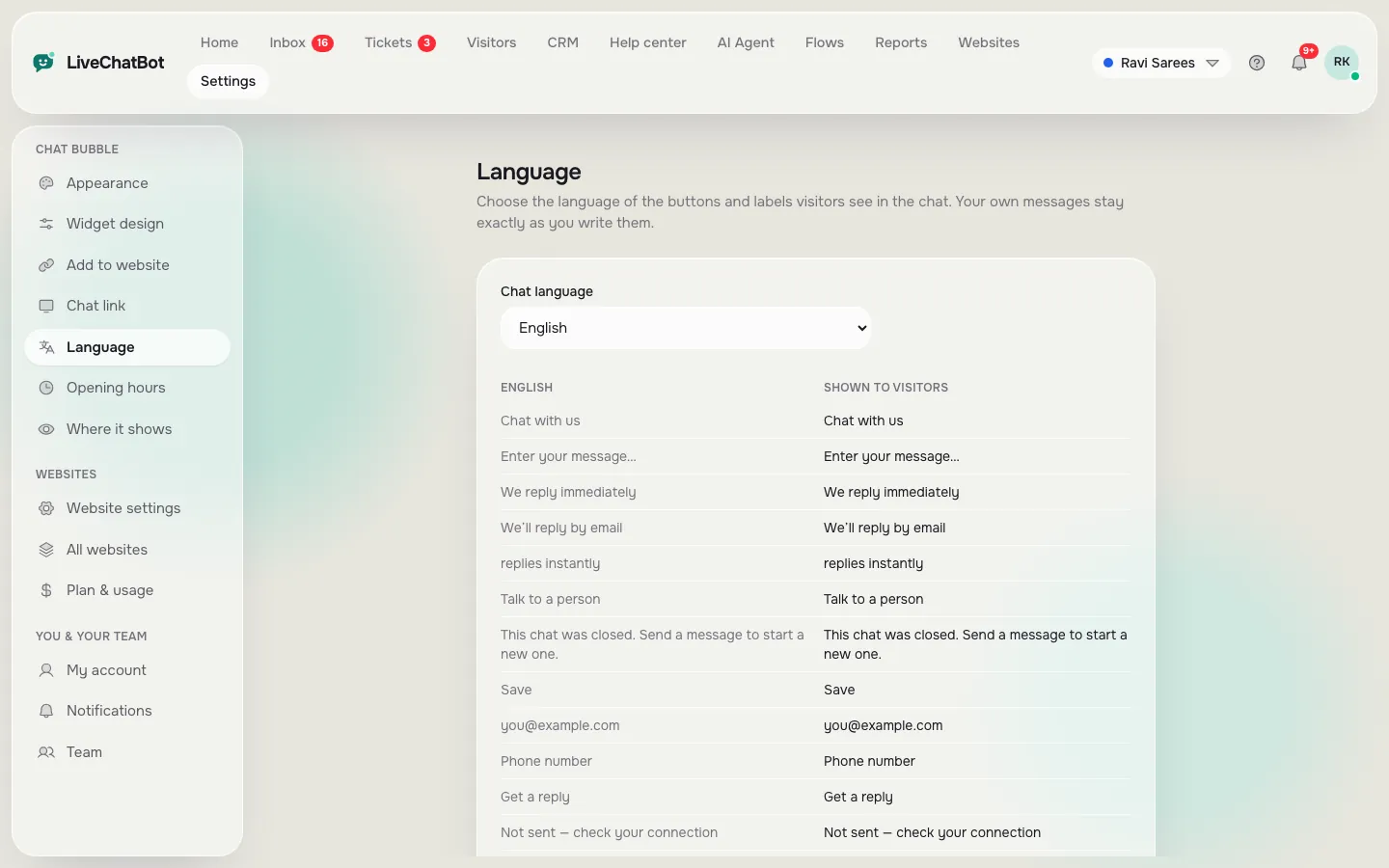
Real screens from the LiveChatBot panel, shown with sample data. Click any picture to see it full size.
Language
Wording for visitors who don’t read English first
Many Indian businesses serve visitors in more than one language. The widget can pick a language automatically and supports translated welcome texts, so a visitor browsing in Hindi can see a Hindi greeting. Set your main language first, then add translations for the one or two languages you can actually answer in.
Don’t translate the welcome line if nobody on the team can reply in that language. A Hindi greeting followed by an English-only answer feels worse than an honest English one. See multilingual live chat for how to plan it.
Mistakes
Four wording mistakes that cost chats
- Over-promising speed. “Reply in 30 seconds” is a promise your team must keep. Check your numbers in Reports before you write it.
- Hiding the bot. If the AI Agent answers first, say so gently. “Our assistant answers first and a person joins if needed” keeps trust high.
- Asking too much too soon. Don’t ask for name, email and phone before the first answer. Ask when it helps, and let the chat rescuer or away form catch contact details if nobody replies.
- Never revisiting. Seasonal offers, new hours and holiday closures turn old text into wrong text. Review once a month.
These pair well with an escalation habit for hard chats, which our customer care live chat guide covers.
Test it
A five-minute wording test
Show your chat box to someone who has never seen it for ten seconds, then hide it. Ask: What can you ask here? How fast would they answer? Would you type? If any answer is “not sure”, rewrite the line that should have told them. Repeat with two people and you will catch most unclear lines.
When your customer service chat box reads clearly, add proactive messages on key pages and watch the Reports area for how many visitors start a chat. See the full live chat for customer service guide, then start free at livechatbot.in and edit your texts today.
Frequently asked questions
What should a customer service chat box say first?
Say who answers, what they can help with and how fast, in two short sentences. Skip a vague ‘How may I help you?’.
Can I change the chat box texts without code?
Yes. The wording, team name, colours and language are set in the dashboard, with a live preview.
How long should the welcome line be?
Under about 25 words in total. Shorter lines get read on a phone screen.
Should I mention that a bot answers?
Yes, briefly. Saying that an assistant replies first and a person can join builds trust.
Can the chat box show different words in different languages?
Yes. The widget can pick a language automatically and supports welcome translations.
Keep reading
Related guides
Customer Care Live Chat Escalation: Keep the Chat, Hand It On or Turn It Into a Ticket
Custom Chatbot or Off-the-Shelf Sounding? Find the Stock Phrases That Make Your Bot Feel Generic and Rewrite Them (Free Custom Score)
Custom AI Chatbot on Your Own Business Knowledge: How It Finds the Right Paragraph, and How to Write Knowledge It Can Find (Free Chunk Finder)
Fix your first two seconds
Edit your chat box wording on livechatbot.in in minutes. The free plan covers two websites and no per-seat charges.