Customer Care Live Chat Escalation: Keep the Chat, Hand It On or Turn It Into a Ticket
Customer care live chat works best when everyone on the team knows what to do with a hard chat. Most small teams answer the easy questions well and then freeze on the awkward ones: a refund dispute, a problem that needs another person, an angry message at closing time. This guide gives you three clear moves for any chat, and a decision tree to follow.
⚡ In short
- Every chat gets one of three moves: keep it, hand it to a colleague, or turn it into a ticket.
- Decide in the first reply, not after ten messages of going round in circles.
- Tell the customer what happens next and when, in one sentence.
- Use Assign to me, teams and tickets so nothing sits without an owner.
The problem
Why hard chats go wrong in customer care live chat
Easy chats are not the problem. A customer asks your opening hours, you answer, done. The trouble starts with chats that cannot be solved in one message.
Three things usually go wrong. Two people answer the same customer and contradict each other. A promise is made (“we will call you”) and nobody writes it down. Or the chat just stops, because the person who knew the answer went home.
Customer care live chat is a shared job, so the team needs a shared habit. The habit is small: choose one of three moves in your first or second reply, and say it out loud to the customer. For the wider picture, read our guide to live chat for customer service.
Move one
Keep the chat: when you can finish it now
Keep the chat open when you can fully solve it in the next few minutes by yourself. This is most of your volume.
Signs you should keep it
- The answer is in your policy, price list or order record.
- You do not need anyone else’s approval.
- The customer is still typing and active.
How to keep it well
Use a saved reply for the standard part and add one personal line. Saved replies can insert the customer’s name, so a greeting never sounds copied. Our guide to canned responses shows how to build a short set.
Then check back. A fast first reply earns patience, so read live chat response time to set your own target. Close the loop with a plain “Did that solve it?” before the customer leaves.
Move two
Hand it on: when someone else should own it
Hand the chat to a colleague when the question belongs to a different skill: billing, a technical fault, a manager’s decision.
How handing on works in LiveChatBot
Agents can press Assign to me to claim a chat. The inbox has Unassigned and Mine folders, so a chat without an owner is easy to spot. You can also route chats to a team and open the My teams folder. There is no automatic round-robin, so someone has to claim or assign by hand. Say so in your team rules, so unclaimed chats do not pile up.
What to write when you hand on
Tell the customer three things: who is taking over, why, and how soon. For example: “I’m passing you to Ravi, who handles refunds. He will reply here within 15 minutes.” Then leave a short note in the conversation for Ravi so the customer never repeats the story.
Move three
Turn it into a ticket: when the answer takes time
Some problems cannot be solved while the customer waits: a replacement part, a check with a supplier, a payment that must be traced. Forcing these into a live chat just keeps the customer waiting.
Turn them into a ticket. Tickets have open, pending and solved states and an owner. The customer gets a ticket page they can open without logging in, so they can see progress. Offline messages from the away form can also become tickets. Read how to turn a chat into a support ticket for the click path, or see how a ticketing system fits around chat.
Tell the customer plainly (the exact words matter, see customer service chat box wording): “This needs a check with our warehouse. I’ve opened a ticket, and we will update you here by 5 pm tomorrow.” Then make sure someone owns that deadline.
Try it
Which move fits this chat?
Follow the branch that matches your situation. Each ends with the move and the sentence to say.
Real screens
Where the three moves happen in the app
Real screens from the LiveChatBot panel, shown with sample data. Click any picture to see it full size.
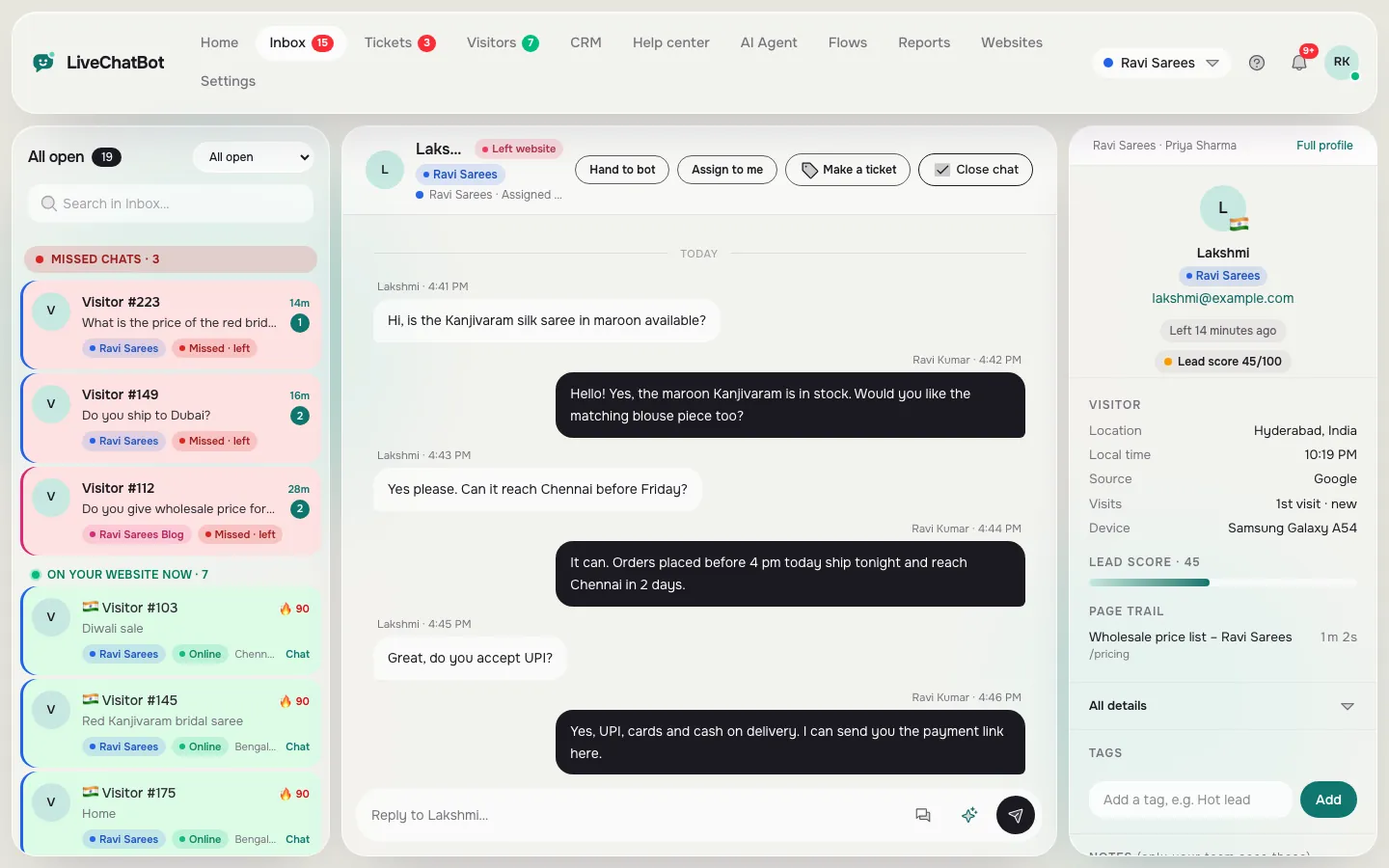
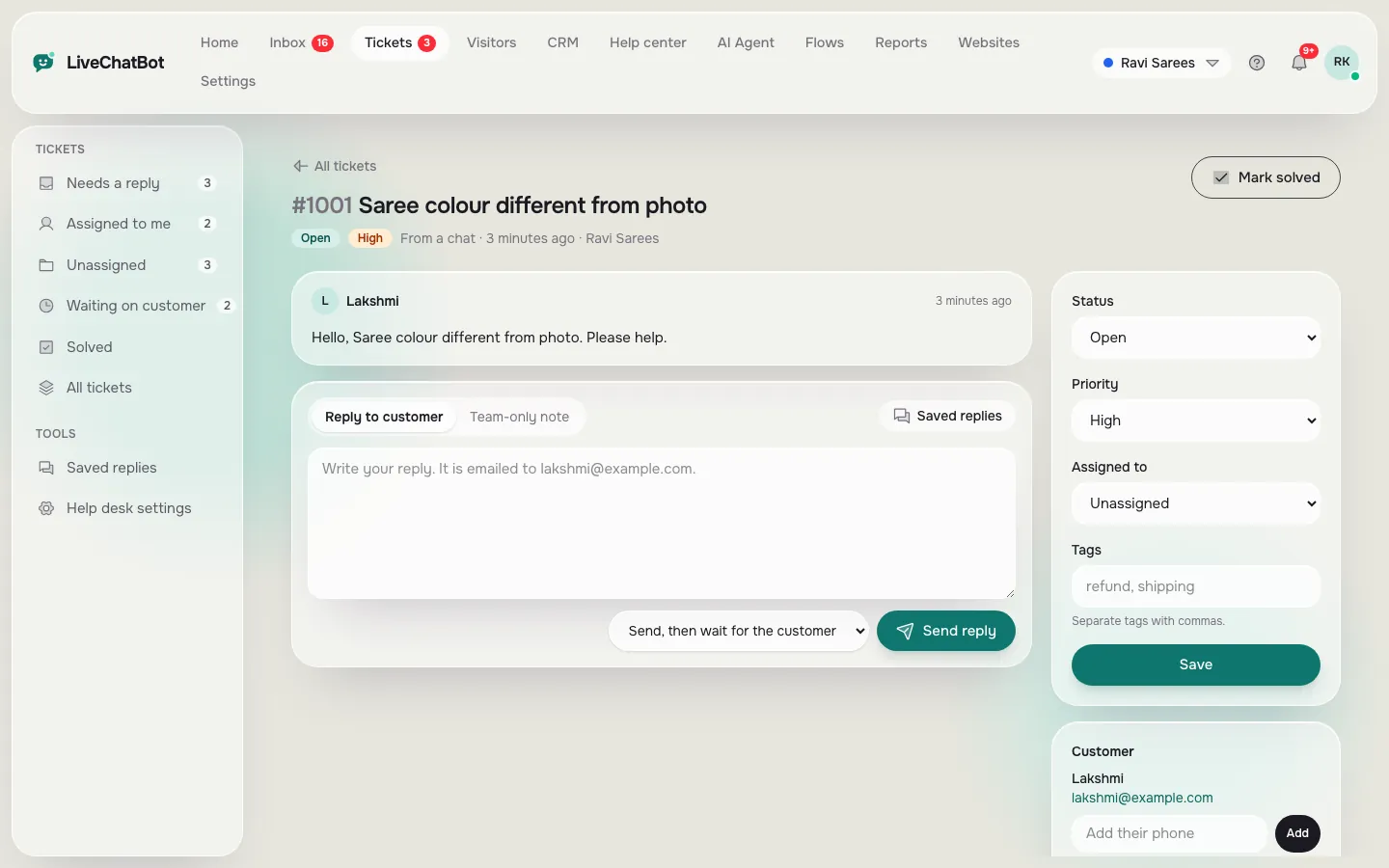
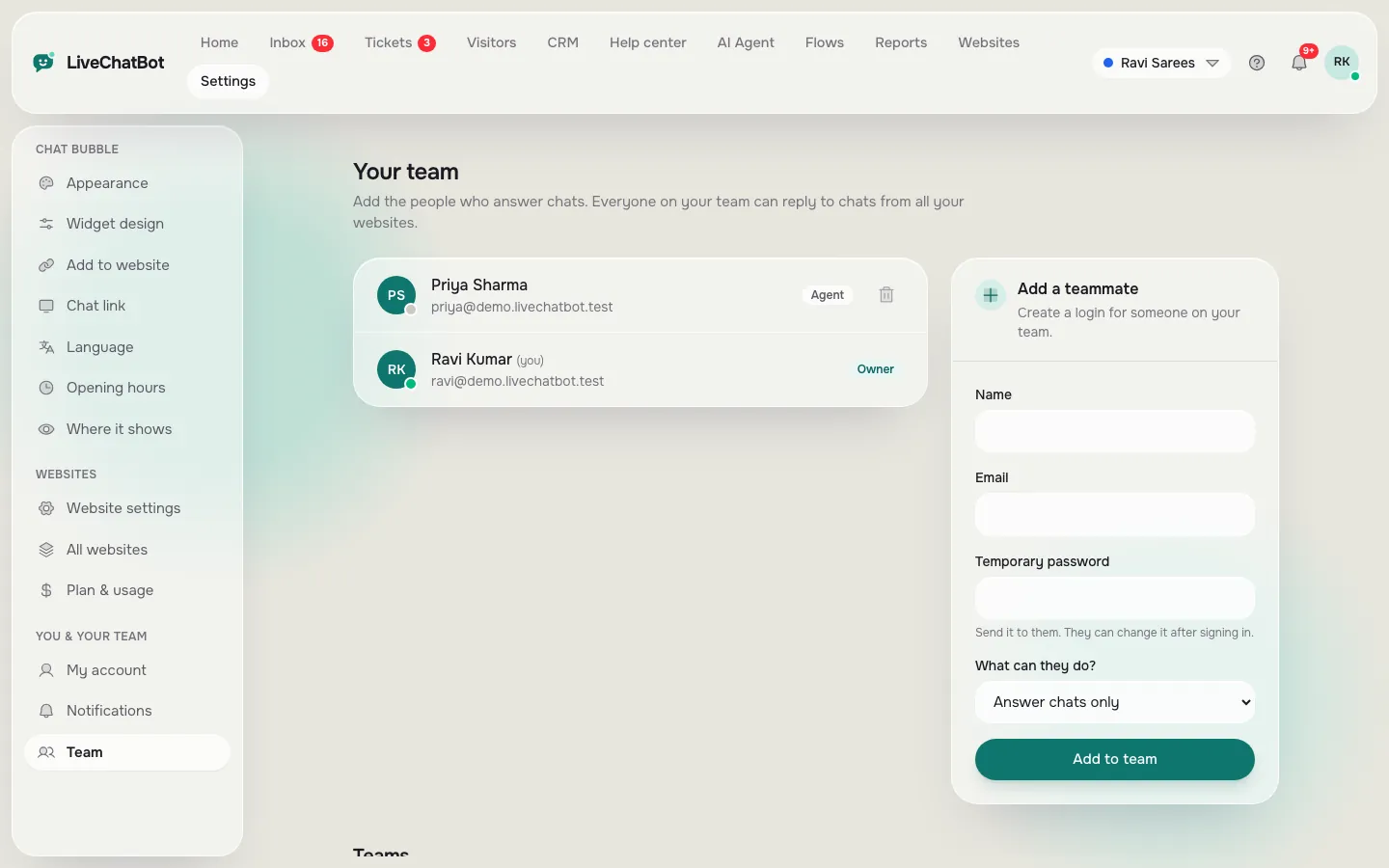
Team habits
Five small rules that keep the team consistent
Write these on one page and pin it where the team works.
- Claim before you type. Press Assign to me first, so a colleague does not answer the same visitor.
- Name the next step. Every reply ends with what happens next, or a question.
- One owner per ticket. A ticket without a name is a ticket nobody opens.
- Use ratings. Turn on the thumbs up or down rating in the widget settings, then read the comments weekly.
- Review misses. Once a week, read the chats that took longest and ask which move would have been faster.
The Reports area shows first response time, response rate and a by-agent table, which is enough to spot who is stretched. It is not a custom report builder, so pick two numbers and watch those.
Out of hours
What happens when nobody is online
Customer care live chat does not end when your shop closes. Set opening hours, switch on the away form and make sure it asks for an email or phone number. Those messages can become tickets, so the first person in the next morning has a clear list.
The AI Agent and the free keyword bot can answer common questions during quiet hours, but give them a Rule to hand over anything about refunds, complaints or money. A bot should not decide those. See the AI Agent page for how rules work, and pricing if you outgrow the free plan. For the full setup, return to live chat for customer service.
Frequently asked questions
What is customer care live chat?
It is a chat on your website where customers reach your team in real time for help with orders, bookings, billing or problems, usually backed by a shared inbox and a ticket system.
How do two agents avoid answering the same chat?
Use Assign to me and the Unassigned and Mine folders. There is no automatic assignment, so agree a team rule for who claims new chats.
When should a chat become a ticket?
When the answer needs more than a few minutes or someone who is offline. Give the customer a deadline and a named owner.
Does LiveChatBot charge per agent?
No. There are no per-seat charges, so adding a team member does not change the price.
Can customers see their ticket?
Yes. Each ticket has a customer ticket page that opens without a login.
Keep reading
Related guides
Custom Chatbot or Off-the-Shelf Sounding? Find the Stock Phrases That Make Your Bot Feel Generic and Rewrite Them (Free Custom Score)
Custom AI Chatbot on Your Own Business Knowledge: How It Finds the Right Paragraph, and How to Write Knowledge It Can Find (Free Chunk Finder)
Customer Service Chat Box Wording: The Short Texts Visitors Read Before They Type (Copy-Ready Lines)
Give your team three clear moves
Set up a shared inbox, tickets and saved replies on livechatbot.in. The free plan covers two websites.