Create a Chatbot Online: The Seven Screens You Pass Through, What to Type on Each, and the Rule That Stops You Over-Building
Create a chatbot online and you will pass through seven screens, from sign-up to your first live chat. Each screen asks for one kind of thing, and a few of them can be skipped on day one. This guide walks through all seven in order, shows exactly what to type, puts a time budget on the slow part and gives you a rule for knowing when to stop.
Short answer
To create a chatbot online, sign up, add your website, paste one line of code, give the AI Agent your facts, set its name and tone, add opening hours and test it from your phone. On LiveChatBot the free plan covers two websites, and your first 20 answers take about 15 minutes to write.
⚡ In short
- Seven screens: sign-up, website, install code, knowledge, name and tone, opening hours, test.
- Only three of them need real thinking: knowledge, rules and the handover. The rest is typing and pasting.
- Worked maths: 20 answers at about 45 seconds each is 15 minutes of typing.
- Our rule: stop at 20 answers and let real chats write the next 20.
The map
Create a chatbot online in seven screens, not seven hours
Building a chatbot on a ready-made tool is a short walk through seven screens, and only the middle ones take real thought.
Here is the whole route at a glance, built around the AI Agent:
- Sign-up. Your email and phone number. Both are required, so your first alert has somewhere to go.
- Add your website. The address of the site the chat will live on.
- Install code. One line of code pasted into your site, or the WordPress plugin.
- Knowledge. The facts the AI Agent answers from.
- Name & tone. The bot’s name, its tone of voice and a Rules box.
- Opening hours. When people answer, and what visitors see otherwise.
- Test. Chat with your own bot from a phone.
For the fuller 90-minute version, read our AI chatbot in one evening plan.
The seven screens
What each screen wants from you
Read down the list once, then do them in order. Screens 1 to 3 are mechanical.
Email and phone. Use a phone that you will actually carry; alerts for new chats and leads go there.
Type the address of one site. The free plan allows two websites, each with its own design and its own chat.
Copy one line and paste it before the closing body tag, or install the WordPress plugin. No developer needed for most sites.
Type answers, copy in a web page, or upload a PDF, DOCX, XLSX, CSV or TXT file.
Pick a name, a tone of voice, and write up to 5,000 characters of rules.
Set the hours your team answers. Outside them, visitors see an away form instead of silence.
Open your site on your phone and ask the bot six questions, one of them unknown.
Screens 1 to 3
The first three screens are copy and paste
The first three screens get the chat window onto your site, and none of them involves writing a single answer.
Sign-up takes a minute. LiveChatBot asks for both email and phone because the leads and chats you receive should never be lost to a wrong address. If you have a sign-up code, WELCOME100 adds 100 visitors once.
Adding the website is one field. Use the address your customers see. If you run a second site, you can add it later; the free plan covers two.
The install code is the step people fear and the one that goes most smoothly. You paste one line into your site’s footer, or use the WordPress plugin if your site runs on WordPress. Reload your site and a chat button appears, already working.
Real screens
The install, knowledge and AI Agent screens
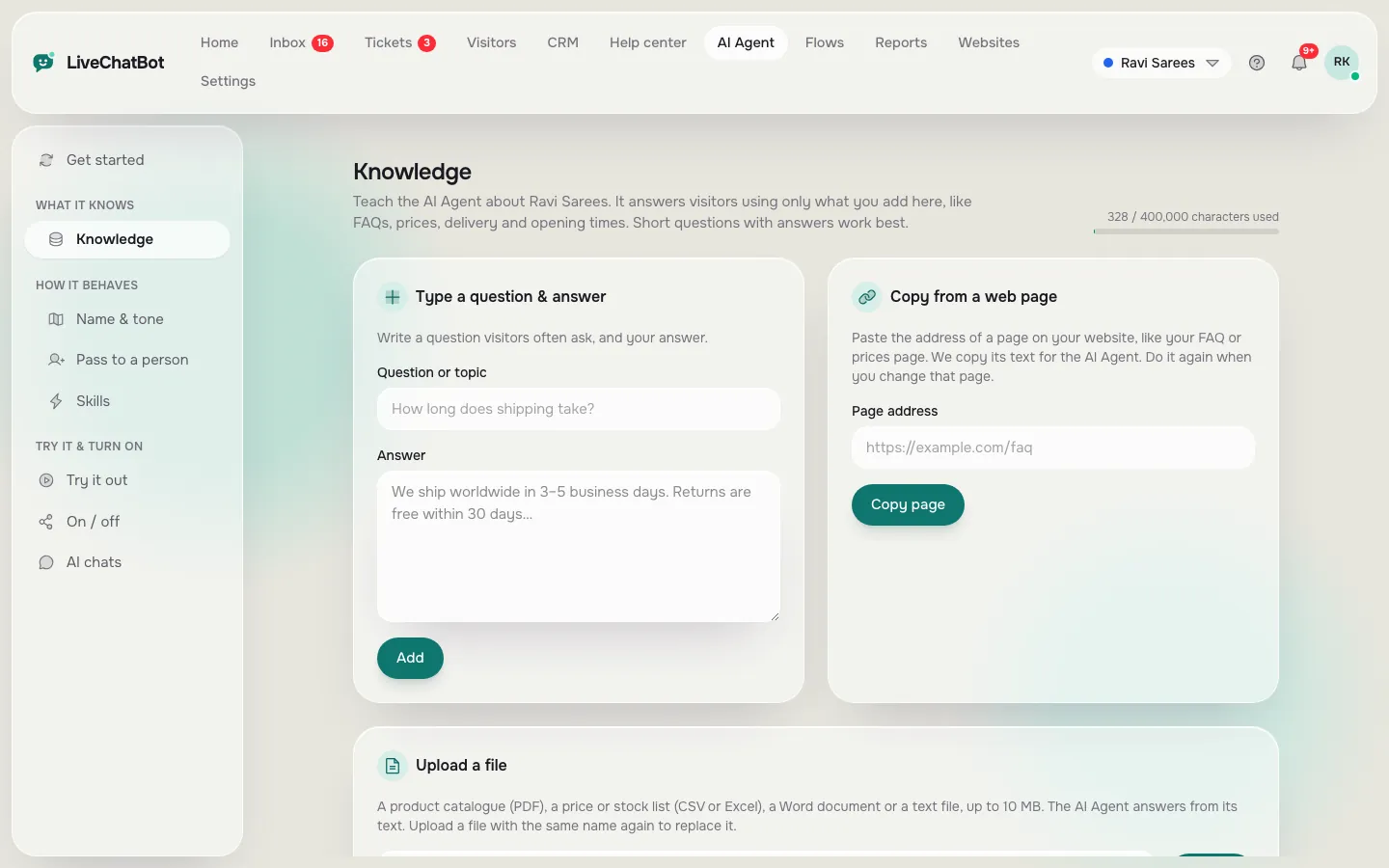
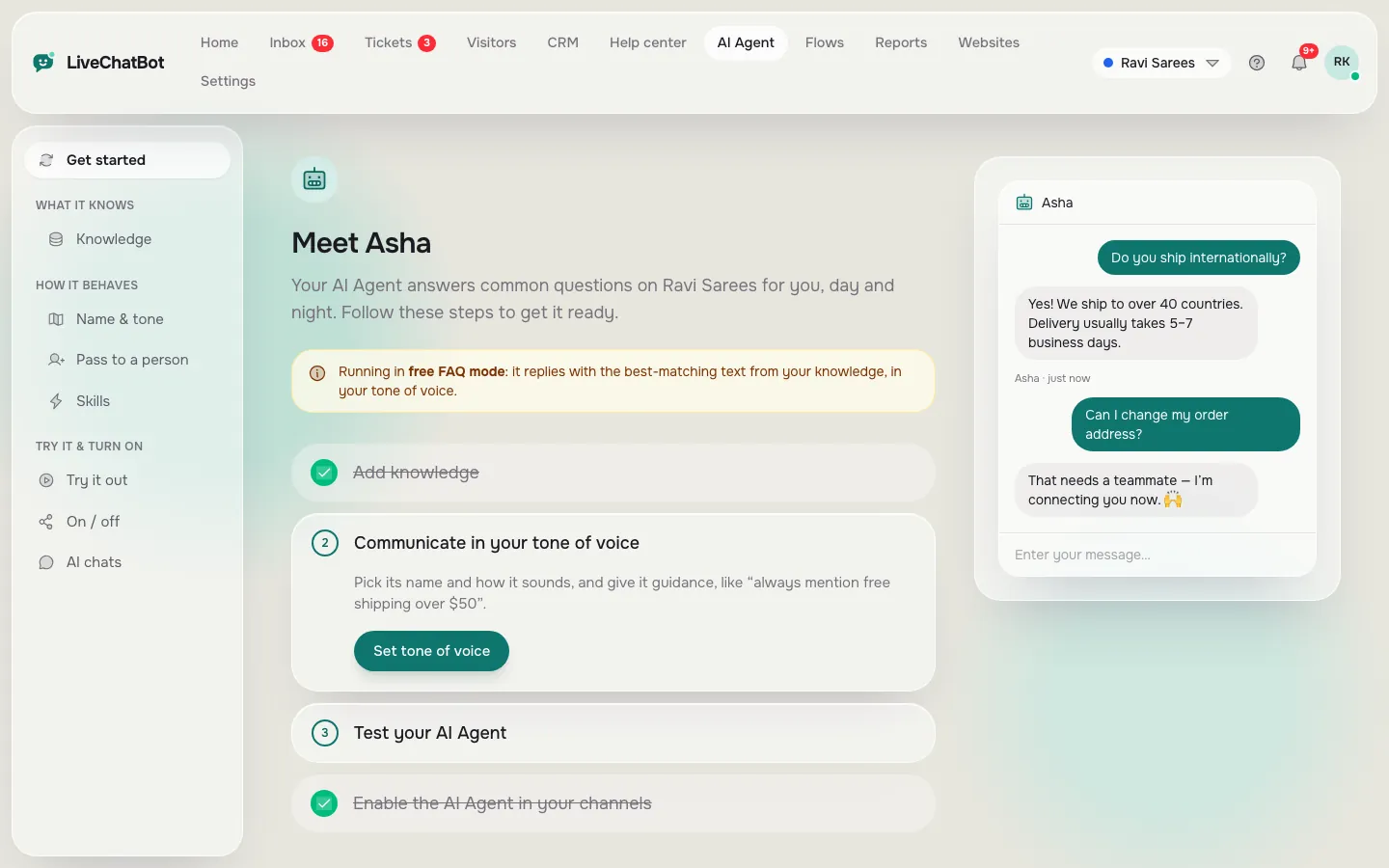
Real screens from the LiveChatBot panel, shown with sample data. Click any picture to see it full size.

Screen 4
Knowledge: type the facts, do not describe your business
Knowledge is the facts the AI Agent answers from, and it works best as short, plain statements of fact.
You have three ways in. You can type an answer directly. You can copy in a page from your website, such as your delivery or returns page. Or you can upload a file: PDF, Word DOCX, Excel XLSX, CSV or plain text. Pick whichever is fastest for what you already have.
Write each fact as a standalone sentence. “Delivery in Pune takes 2 days and costs ₹60” works; “we deliver fast” does not.
For the full routine, including how to check what the bot learned, see how to train your AI chatbot.
Original data
A worked time budget for your first 20 answers
Your first 20 answers take about 15 minutes to type, and the maths is simple enough to check against your own typing speed. Original data, worked example: the 45-second figure is our own planning assumption for one short answer, not a survey. Time yourself on three answers and replace it.
- Writing one short answer: about 45 seconds
- 20 answers × 45 seconds = 900 seconds = 15 minutes
- Gathering the 20 questions from old WhatsApp messages and emails: about 10 minutes
- Sign-up and install code: about 5 minutes
- Name & tone and opening hours: about 5 minutes
- Phone test with six questions: about 5 minutes
Total: 15 + 10 + 5 + 5 + 5 = 40 minutes from a standing start. Copying a web page instead of typing can cut the 15 minutes sharply.
Building from scratch is weeks of work; see our make or buy guide.
Screen 5
Name, tone and Rules: three fields that shape every reply
The Name & tone page has three fields, and they decide how the bot sounds and what it must never do.
- AI Agent name. A first name or a role, such as “Asha from Patel Opticals”. Visitors accept a named assistant more readily than a nameless one.
- Tone of voice. Friendly, formal or plain. Pick the one your staff already use on WhatsApp.
- Rules to follow. A box that takes up to 5,000 characters of written instructions the AI Agent follows in every chat. For example: “Never promise a delivery date. If asked about a refund, offer to hand the chat to the team.”
Facts such as prices, hours and policies go in Knowledge. Behaviour goes in Rules. Rules work while the website has AI replies. The free keyword bot, which answers from saved replies, does not follow written rules.
There is no raw system-prompt editor, and you cannot choose the AI model.
What most guides miss
Our rule: stop at 20 answers and let real chats write the next 20
An insight we have not seen in other setup guides: the second 20 answers should be written by your visitors, not by you.
Most people list every question they can imagine, end up with 80 answers after two evenings, and find that visitors still ask something else.
So do this instead. Write 20 answers, go live, and stop. Then each Friday, spend ten minutes reading the chats where the bot said it did not know, or where a person had to step in. Turn the three most repeated of those into new answers.
Worked example: if 10 chats a week need a person and 6 of them are the same three questions, three new answers remove 60 percent of the handovers the following week. That is a better use of ten minutes than a fourth evening of guessing. Treat the bot as a list that grows from real traffic, not a document you finish.
Screens 6 and 7
Opening hours and a test that takes five minutes
The last two screens make the bot safe to leave running and prove that it works.
Opening hours
Set the hours your team genuinely watches the inbox. Outside them, visitors see an away form that asks for email or phone, so a 10 pm question becomes a morning call. Our guide to setting live chat opening hours shows the exact steps.
The five-minute phone test
Open your site on your phone, not your computer. Then:
- Ask a question you wrote an answer for. It should reply from your facts.
- Ask one you did not write. It should say it is not sure and offer a person.
- Type “can I talk to someone?” Your own phone should alert you.
- Send one message after your closing time. You should see the away form.
- Check that the chat button does not cover your own call-to-action.
If all five pass, you are live. If one fails, fix that screen only.
Try it
Tick each screen as you finish it
A short checklist for your first sitting.
Be honest about limits
What you cannot do when you create a chatbot online here
A fast setup comes with a few firm limits, and it is better to know them before you start.
- The badge stays. “Powered by LiveChatBot” shows on every plan, so a fully white-label widget is not available.
- No model choice. You cannot pick the AI model or bring your own API key.
- No iOS team app. Your team answers from the Android app or a browser.
- No native Slack, Telegram or HubSpot link. Zapier and webhooks can bridge some of these.
You do get a shared inbox, WhatsApp and Messenger messages, tickets, saved replies, Flows and a chat rescuer that asks for email and phone if nobody replies within seconds. For the broader picture of ready-made options, see our guide to a chatbot online and the AI chatbot online comparison.
Cost
What it costs to keep the bot running
The free plan costs ₹0 for 2 websites and 100 visitors per website a month. Starter is ₹299 a month for 2 websites and 750 visitors a month shared between them. Growth is ₹699 a month for 5 websites and 2,500 visitors shared. Paying yearly gives 12 months for the price of 10, plans are prepaid with no auto-renewal, and there are no per-seat charges.
AI replies come with every plan, with a monthly allowance shown in your dashboard. See pricing for current details, and read about free live chat if you want to start without paying anything.
Frequently asked questions
How long does it take to create a chatbot online?
About 40 minutes from a standing start in our worked example: 15 for 20 answers, 10 to gather the questions and 15 for sign-up, install, tone, hours and testing.
Do I need to code to build a bot this way?
No. You paste one line of code into your site, or install the WordPress plugin. Everything else is typing and clicking in the dashboard.
How many answers does a new bot need?
Twenty is enough to go live. Add the next ones from chats where the bot did not know.
Can I edit the bot’s behaviour?
Yes, in the Rules box on the Name & tone page, up to 5,000 characters. There is no raw system-prompt editor.
Is there a free way to start?
Yes. The free plan costs ₹0 for 2 websites and 100 visitors per website a month. The Powered by LiveChatBot badge stays on all plans.
Keep reading
Related guides
Create a Chatbot Free: Spend Your 100 Free Visitors Wisely, With the Maths for Every Plan
Cost to Build a Chatbot: The Five Bills Behind It, With the Year-One Maths Worked Out in Rupees
Build your first bot tonight
Seven screens, a free plan for two websites and no per-seat charges. Start free on livechatbot.in.