Chat Plugin for Website Builders: What Counts as a Plugin, What Is Just a Code Snippet, and 20 Words You Will Meet (Free Searchable Glossary)
Chat plugin for website searches mix up three different things: a real plugin you install in your dashboard, an extension for a content system, and a small code snippet you paste. They look alike on a vendor page, but they behave very differently when you update, move or redesign your site. This guide sorts them, says which platforms get which, and gives you a searchable glossary of the terms you will meet.
⚡ In short
- A plugin lives inside your site’s admin and is updated there. A snippet is one pasted line.
- WordPress, Joomla, React and Vue have plugins or extensions. Shopify, Wix and Squarespace use a pasted line.
- Either route shows the same chat. The difference is in setup and upkeep, not in what visitors see.
- The glossary below explains twenty terms in one or two lines each.
Plain words
Plugin, extension or snippet: three names, one goal
All three put a chat on your pages. They differ in where the work happens.
A plugin is a package you add through your site’s admin area. You click Install, then Activate, and the chat appears. It can also add settings screens and catch form submissions.
An extension is the same idea under a different name. Joomla calls its add-ons extensions.
A snippet is a short piece of code, usually one line, that you paste into your site’s header or footer area. Website builders without a plugin store use this.
None of these is better in general. A plugin is easier to keep updated on WordPress. A snippet is lighter and works anywhere you can edit the page. For deeper WordPress advice, see our WordPress live chat plugin guide.
Platform by platform
Which route each platform gets
WordPress and WooCommerce
A real plugin. It adds the chat site-wide and also catches Contact Form 7, WPForms, Elementor Pro, Gravity, Fluent and Ninja form submissions as leads.
Joomla
An extension you install from the dashboard.
React and Vue apps
Plugins for each, so the chat stays alive as visitors move between routes.
Shopify, Wix and Squarespace
A pasted code line. On Shopify you can also connect your store so agents see carts, but there is no Shopify App Store app. See our guides to Shopify live chat and Wix live chat.
Plain HTML and other builders
A pasted code line before the closing body tag works almost everywhere.
Real screens
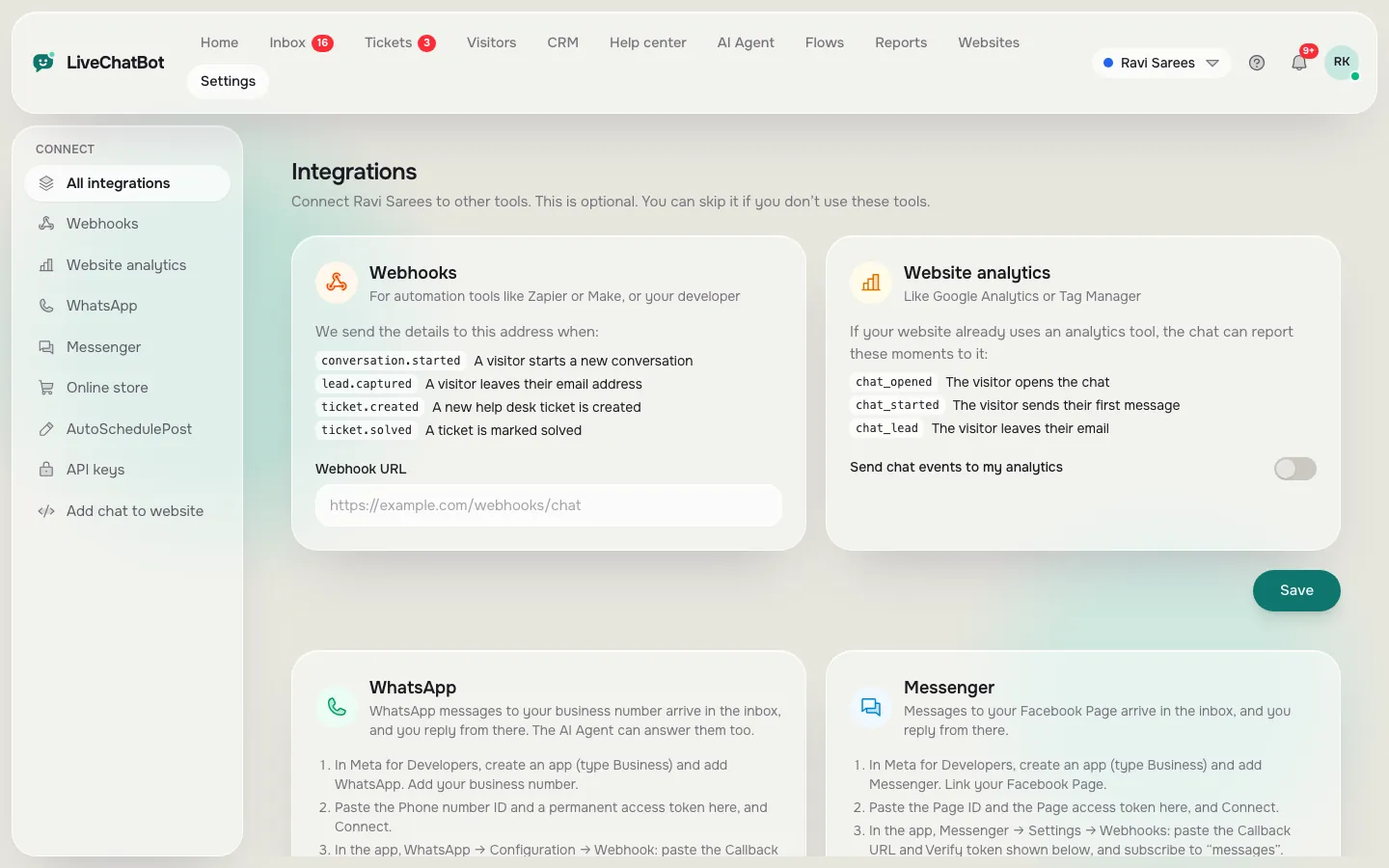
The code line and the integrations page in the dashboard
Real screens from the LiveChatBot panel, shown with sample data. Click any picture to see it full size.

Upkeep
What happens to each route when you update, move or redesign
Plugins and snippets fail in different ways.
With a plugin, a big WordPress update, a theme change or a clash with a caching plugin can hide the chat. Update when you have time to test, and check the chat on three page types afterwards.
With a snippet, the risk is that the line is lost when you change theme or rebuild a page. Keep the line saved in a note so you can paste it again in a minute.
Either way, the chat settings live in your LiveChatBot dashboard, not in the plugin. So colours, texts, opening hours and Flows stay safe even if you remove and re-add the install. If you want a plugin comparison, read what to check before choosing a WordPress chat plugin.
Searchable glossary
Twenty words you will meet when choosing a chat plugin for website projects
Type a word in the box to filter the list.
Choosing
How to choose between the two routes in five minutes
Picking a chat plugin for website use comes down to three questions.
- Can I install plugins? If your site is WordPress or Joomla, yes, and a plugin is the easier route.
- Do I need form leads? On WordPress the plugin catches supported form plugins. Elsewhere you can still use the widget and pasted code.
- Who maintains the site? If a developer does, a snippet may suit them better, because it is one line in version control.
Whichever route you pick, write down where it is installed and who owns it. That one line will save you when a redesign happens. Our live chat guide covers what to set up next, such as opening hours and saved replies.
Safety
Check the permissions before you install a chat plugin for website pages
A plugin runs inside your site, so treat it like a guest in your house. Read what it asks for, check the vendor’s name and see when it was last updated.
Keep a backup before you install anything new. Most hosts offer one-click backups. If something breaks, you can go back in minutes.
Never paste a snippet from an email or a chat message you did not ask for. Copy the line from your own dashboard only, from your dashboard, then check that it points to the vendor’s address.
Test on a staging copy when your host offers one. A staging site is a private copy of your pages, so a conflict shows up there and not in front of customers. After the test, switch the chat on for the live site and check the three page types again, on a phone as well as a computer.
Finally, remove old chat tools completely. Two plugins running together slow your pages and confuse visitors with two bubbles.
Get started
Try it on a free plan first
Create a free account at livechatbot.in, copy your code or install the plugin, and check three pages. Then read the wider live chat guide to choose what to set up next. The free plan covers two websites, so you can test on a spare site before touching the main one.
Frequently asked questions
Is a chat plugin for website pages different from a chatbot?
A plugin is only the way the chat is installed. The bot, inbox and settings live in your dashboard and work the same either way.
Does LiveChatBot have a Shopify app?
No Shopify App Store app exists. You connect the store and paste one code line.
Will a plugin slow my site?
Any added script has a cost. Test your page speed before and after, and remove other chat tools.
Is there a plugin for Wix or Squarespace?
No. Both use a pasted code line from the dashboard.
Do I lose my settings if I remove the plugin?
No. Colours, texts, hours and Flows live in the dashboard, so a reinstall brings the same chat back.
Keep reading
Related guides
Chat Platform for Website Owners: Start From Your Biggest Daily Problem, Not a Feature List (Free Problem-to-Platform Tree)
Chat Option in Website Layouts: Bubble, Pill, Grabber Card, Inline Box or Full Page? Pick the Right One for Each Page (Free Layout Quiz)
Plugin or snippet, both work
Free plan for two websites, no per-seat charges. Start free on livechatbot.in and install either way.