Best Online Chat Software Without a Developer: 12 Setup Steps You Can Finish in One Afternoon (Free Progress Checklist)
Best online chat software for a small business is the kind you can set up yourself, with no developer, no agency and no code beyond one paste. This guide gives you twelve steps in a sensible order, a tick-off checklist that tracks your progress, and a clear idea of which steps need five minutes and which need an hour.
⚡ In short
- You do not need a developer: one pasted snippet or the WordPress plugin installs the chat.
- Do the steps in order: install, look, words, hours, phone, answers, rules, then check.
- Total time is one afternoon for most small sites. The AI knowledge step is the longest.
- Use the checklist below to tick each step off as you go.
The promise
Why the best online chat software should not need a developer
The best online chat software is sold to small owners, who run on live chat and little spare time, so setup has to be something an owner can do. If a vendor says you need an agency to place a chat bubble on your website, that is a warning sign about how the rest of the product will feel.
The only technical step is adding the chat to your site, and even that is a copy and paste. On WordPress you install a plugin. On Shopify, Wix, Squarespace or a plain site, you paste a short snippet into the place where your platform lets you add code. Everything after that happens in a dashboard with forms and toggles.
What follows is the order we suggest. It starts with the steps that make chat work at all and ends with the ones that make it better. If you only have an hour, stop after step eight and you will still have a working chat that catches enquiries. The setup guide has more detail on each platform.
Steps 1 to 4
Install, look right, speak plainly, set hours
1. Create your account
Sign up at livechatbot.in and add your website. The free plan covers two websites and 100 visitors per website a month.
2. Install the chat
On WordPress, install the plugin and paste your site key. Elsewhere, paste the snippet before the closing body tag or into your platform’s custom code box. Reload your site and look for the bubble.
3. Make it look like you
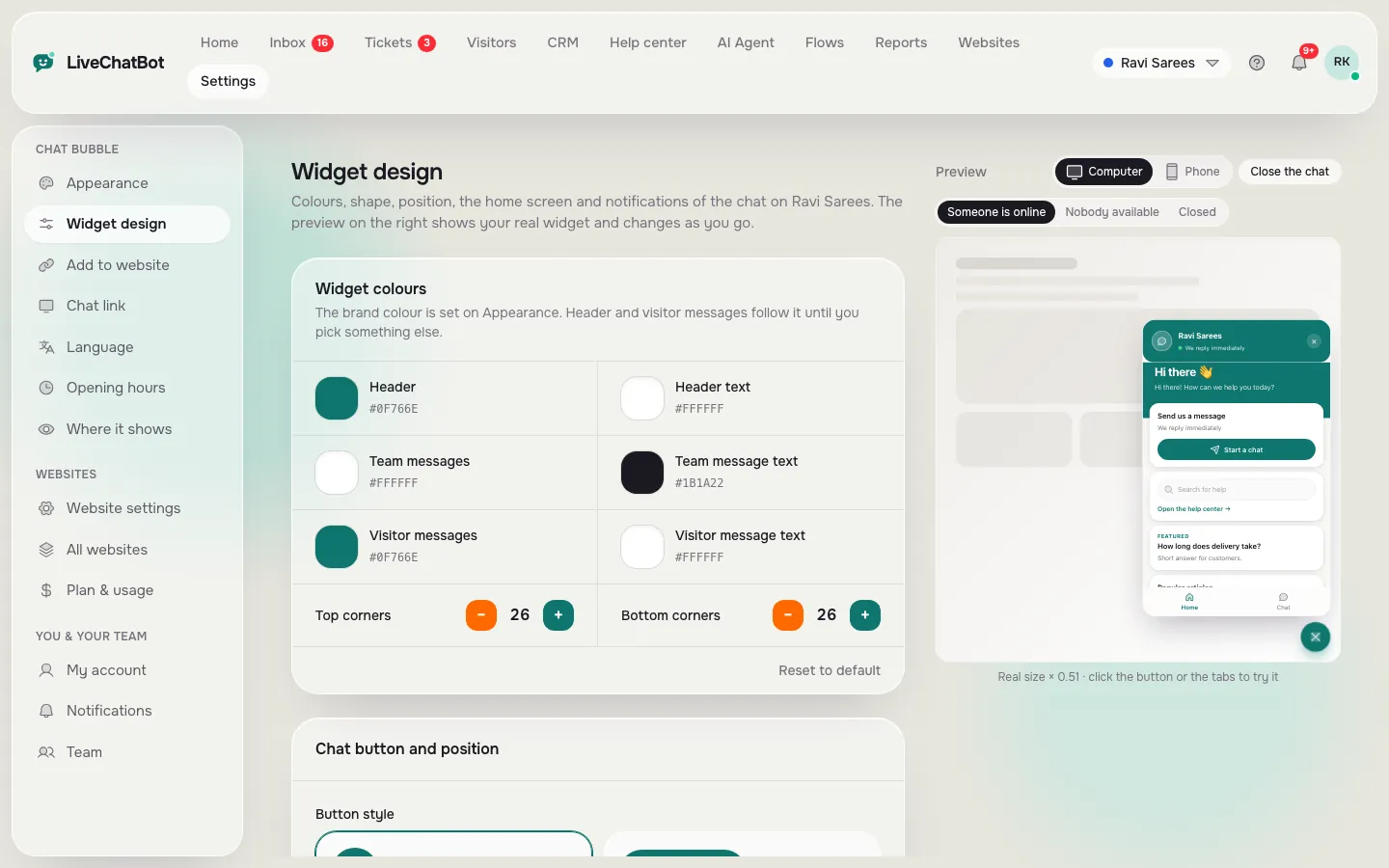
Open Widget design, pick your colours, the button style and the corner. The live preview shows the result. Spend five minutes here, not an hour.
4. Write a welcome message and set opening hours
A specific welcome line, such as “Ask about prices, delivery or sizes”, gets more first messages than “How can we help?”. Then set opening hours so that outside them visitors see an away form that asks for email or phone.
Steps 5 to 8
Reach your phone, add answers, add rules, protect the inbox
5. Put alerts on your phone
Install the Android app on the phone of whoever replies. Send a test chat from another device and check that the alert arrives within seconds. There is no iOS team app, so on iPhone you reply from a browser.
6. Add answers
Type your ten most common answers into the AI Agent’s knowledge, or copy a page of your site, or upload a PDF, Word, Excel, CSV or text file. Use the playground to ask it questions the way a customer would.
7. Add saved replies
Saved replies feed the free keyword bot and speed up your own typing. Write six: hours, prices, delivery, returns, location and contact. Use {name} to personalise them.
8. Set rules and block spam
In the AI Agent’s Rules box, write how it should behave, for example “Never promise delivery dates”. Know that you can block a visitor or an IP if someone abuses the chat.
Try it
Tick off your 12 steps
Tick each step as you finish it. The bar fills as you go.
Steps 9 to 12
Flows, visibility, and a real test
Flows on one page only
Pick your most visited page and add one proactive message there. A Flow can show a friendly line after a few seconds, and conditions such as page, source, country, device or visit count decide who sees it. Start with one. See chat flows.
Where the chat shows
Hide it on checkout or login pages, limit it to countries you serve, or switch it off on tablets. Small decisions, but they stop the chat from annoying people.
The visitor test
Open your site on your phone, on mobile data, not your office wifi. Ask a question you taught the bot and one you did not. The second should get an honest “I’m not sure” and a way to reach a person. If it guesses, add the missing fact or tighten the rules. Passing this test is what separates the best online chat software from a pretty bubble.
Real screens
The install page and the design page
Real screens from the LiveChatBot panel, shown with sample data. Click any picture to see it full size.

What next
After the afternoon: the first week with the best online chat software
Check the inbox each morning for a week. Read every chat, even the odd ones. Each unanswered question is a fact missing from your knowledge. Add it, and the next visitor gets a better answer.
After a week, open Reports. The Chats report shows reply times and a busy-hour heatmap. If most chats come at 8 pm and you only reply by day, an away form or a Flow with a clear promise can bridge the gap.
Honest limits: the free plan keeps “Powered by LiveChatBot” on the widget, as every plan does. There is no WhatsApp-only setup; WhatsApp and Messenger messages come into the shared inbox once connected through Meta. Our live chat guide explains how the pieces fit together.
Frequently asked questions
Can I really set up chat software without a developer?
Yes. On WordPress you install a plugin, and on other platforms you paste one snippet. Everything else is done in the dashboard.
How long does setup take?
About an afternoon for the full twelve steps, or under an hour for the first eight.
What if I break my website?
The snippet only adds the chat. If anything looks wrong, remove the snippet or deactivate the plugin and your site returns to normal.
What makes the best online chat software for a beginner?
Plain settings, a free plan to try, alerts on your phone and answers built from your own facts. Check that the tool admits when it does not know.
Do I need a technical person for Shopify or Wix?
No. Paste the snippet into the platform’s custom code area. Shopify has no App Store app for LiveChatBot, so it is connect-and-paste.
Keep reading
Related guides
Best Online Chat Platform for Where Your Business Will Be in a Year: A Month 1, Month 3, Month 12 Growth Timeline
Best Shopify Chat App Listings Decoded: Theme Files, App Embeds, Checkout Limits and Other Words You Need Before You Install (Free Shopify Glossary)
Finish setup this afternoon
Free plan for two websites, one paste to install. Start free on livechatbot.in.