Best Live Chat for Shopify Is One That Knows the Shopper’s Cart: What a Connected Store Shows Your Agent, and What to Do With It (Free Decision Tree)
Best live chat for Shopify stores does more than open a box on your theme. It connects to the store, so the person answering sees what the shopper has in the cart and whether they have already bought. This guide explains what the connection shows, what it does not show, and gives a decision tree that tells you what to say in each of the three situations you meet most: a full cart, an empty cart and a customer who has just bought.
⚡ In short
- A chat that sees the cart lets your agent answer the real question, not a generic one.
- Shopify connection is the store link plus a pasted code. There is no Shopify App Store app.
- Purchases are detected and counted in Reports → Sales.
- The chat shows the cart and purchase status; it does not replace your order system for live order lookups.
Connected store
What the best live chat for Shopify means by knowing your store
Most Shopify chat widgets are a box and a text field. The shopper types, you read, and you have to ask, “Which product do you mean?” A store-aware chat saves that step.
With LiveChatBot you connect your Shopify store and paste the chat code into your theme. After that, the agent answering a chat can see what is in that shopper’s cart, and the system detects purchases. Those purchases then appear in Reports → Sales, so you can see which chats came before an order.
What it does not do
- It is not a Shopify App Store app, so there is no one-click install.
- It does not look up live order or shipment status for the bot to read out.
- It does not change your products, prices or checkout.
Keep that in mind and the feature is easy to use well. For the steps to paste the code safely, see our Shopify live chat guide.
Free tool
Which situation is this shopper in?
Follow the branch that matches the chat in front of you. Each ends with what to say and do.
Full cart
A full cart means a question is blocking the sale
When the cart has items and the shopper opens chat, treat it as a buying signal. Something small is standing between them and checkout.
The usual blockers are delivery time, cash on delivery, returns and size. Have saved replies ready for each. Use {name} so the answer feels personal, and mention the product in the cart: “Hi Asha, the blue kurta ships in 3 to 4 days.”
Keep the offer honest
Don’t invent discounts to close the sale. Money discounts can erode margin and they train shoppers to wait. Answer the question, remove the doubt and let the shopper checkout. If you need a fast reply, the chat rescuer asks for email and phone when nobody answers within seconds, so you can follow up later.
Real screens
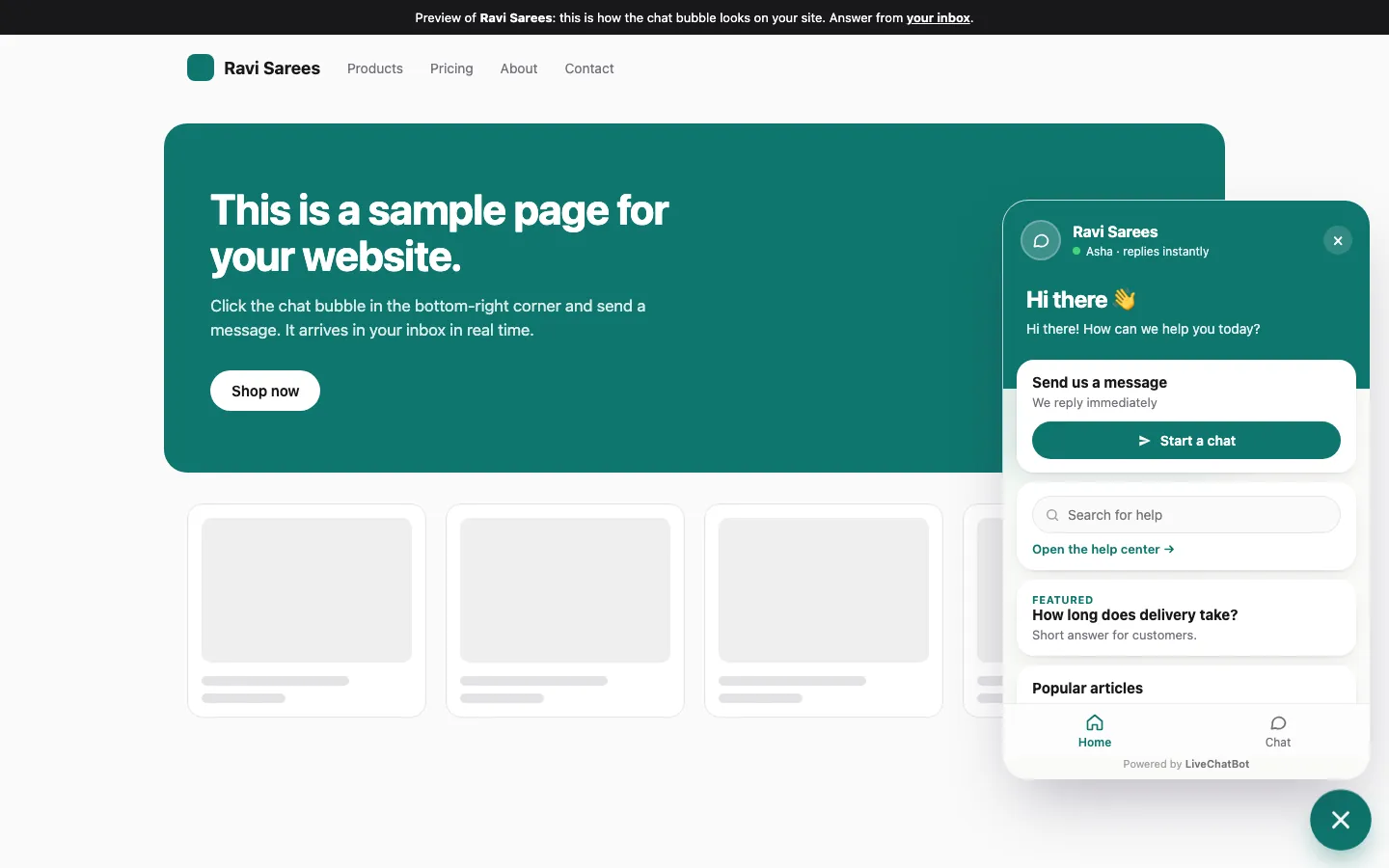
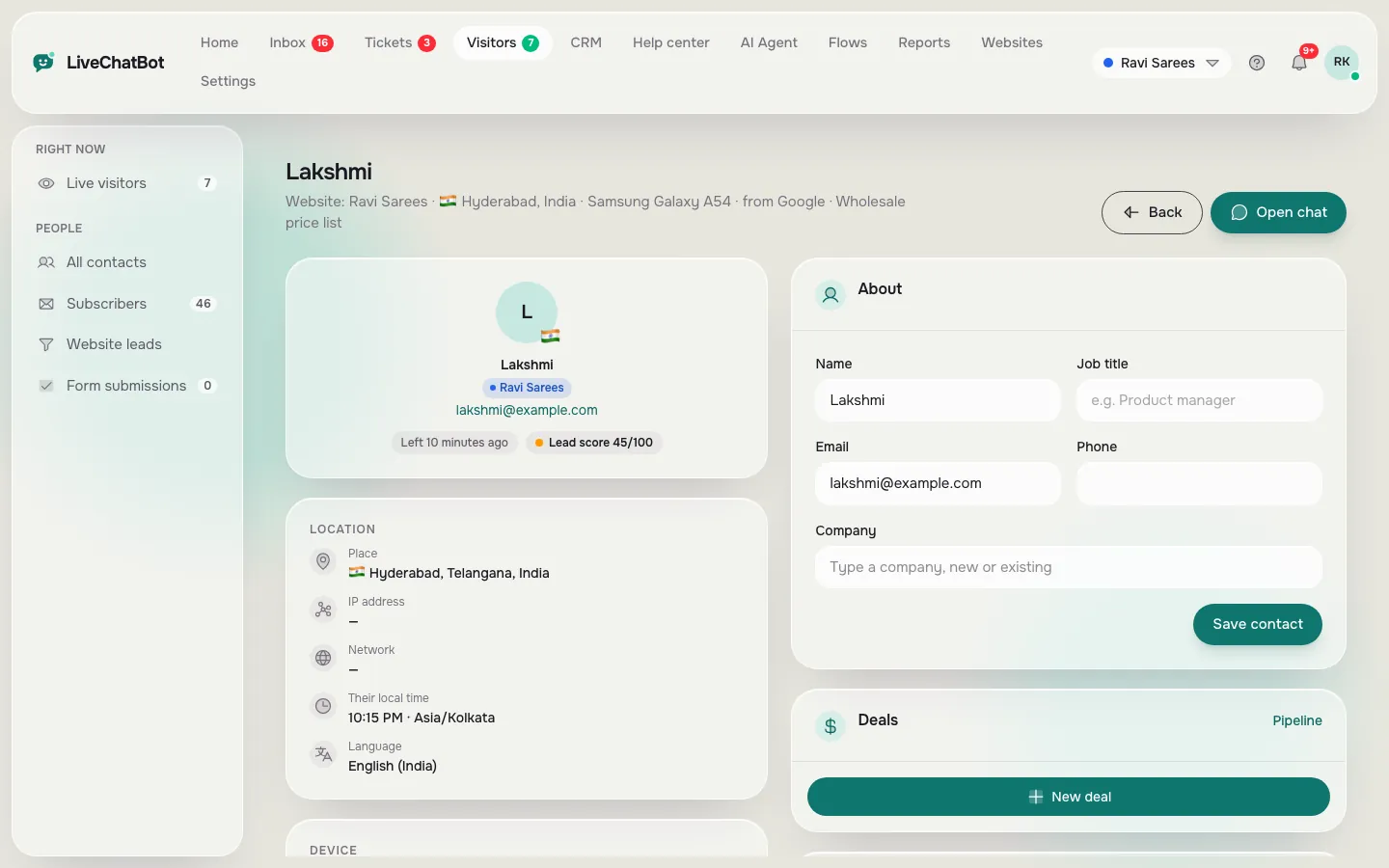
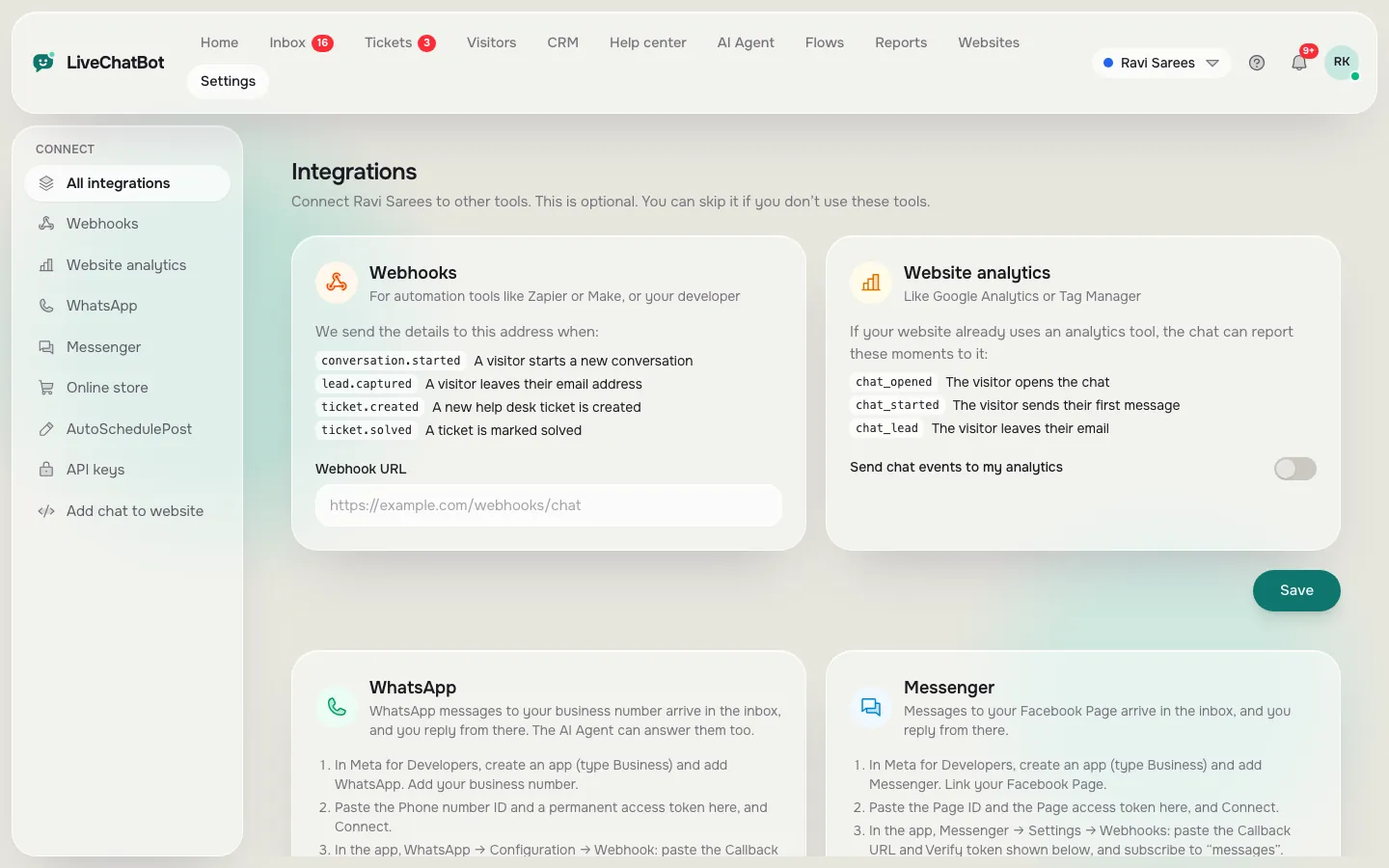
The widget on a store, the visitor profile and the integrations page
Real screens from the LiveChatBot panel, shown with sample data. Click any picture to see it full size.
Empty cart
An empty cart means the shopper is still choosing
Many chats start before anything is in the cart. These shoppers want guidance, not a sales push.
Ask one question: what are they shopping for, and for whom? Then link a collection rather than a single product, because it keeps their options open. Use a welcome line on collection pages such as “Not sure which one? Ask us,” and set it with a Flow so it shows after the shopper has scrolled a while.
Visitor profiles carry a lead score and the pages viewed, so you can see whether this person has browsed three products or thirty. It’s a quick way to choose between a short answer and a longer one.
After purchase
After the purchase, switch from selling to helping
A shopper who has just ordered usually wants one of three things: to change an address, to cancel, or to know when it arrives.
Be careful here. The bot can’t look up live order status, so don’t let it guess. Give your own order status or tracking page link and keep a person ready for exceptions. If you can’t answer at once, turn the chat into a ticket so it has an owner and a status: open, pending or solved.
Then open Reports → Sales weekly and compare chats and orders. This is how you find out whether the best live chat for Shopify, for your store, is actually paying for itself. Our Shopify live chat free guide covers what the free plan includes.
Week one
Your first week after connecting the store
Connection is quick; the habits take a week. Use this order.
Days 1 to 2: test the basics
Open your store on a phone, add an item to the cart and send a chat. Confirm the cart appears for the agent and that the alert reaches your Android phone.
Days 3 to 5: write the answers
Add saved replies for delivery, COD, returns and sizes. Put the same facts in the AI Agent’s knowledge, either typed, copied from a web page or uploaded as a file such as a PDF or spreadsheet. Add a Rules line like “Never promise a delivery date.”
Days 6 to 7: read the results
Check Reports → Chats for reply times and Reports → Sales for orders. Note the three questions that came up most and fix those answers first.
Pick well
A short checklist to find the best live chat for Shopify
Before you commit, ask each tool four things.
- Does it show the cart to the agent?
- Does it count purchases against chats?
- Does the free plan cover your visitors, and what happens at the limit?
- How does the team get alerts on a phone?
LiveChatBot answers yes to the first two, offers 100 free visitors per website each month on two websites, and has an Android app (no iOS team app). The badge “Powered by LiveChatBot” stays on all plans. If your store needs a native Shopify App Store app, that is a gap to weigh. Compare it with our AI chatbot for Shopify notes if you want AI replies as well.
Frequently asked questions
What is the best live chat for Shopify stores?
One that connects to your store so agents see the cart, counts purchases and fits your visitor numbers. Test it with real phones before you commit.
Is there a LiveChatBot app in the Shopify App Store?
No. You connect the store and paste the code. It takes a few minutes and works with your theme.
Can the chat see my customer’s order status?
It shows the cart and detects purchases. It does not look up live order or shipment status, so link your own tracking page.
Does it cost extra for each staff member?
No. There are no per-seat charges, and the free plan covers two websites.
Where do I see which chats led to sales?
In Reports → Sales, where purchases detected from the connected store are counted.
Keep reading
Related guides
Best Live Chat for Ecommerce Is Tested in Sale Week: A Festive-Season Prep Timeline for Online Stores, From Four Weeks Out to the Morning After (Free Timeline)
Best Live Chat App for Website Owners Is Settled by Questions, Not Reviews: Copy-Ready Messages to Send Every Vendor Before You Install (Free Question Pack)
Best Live Chat for WordPress Is Proven on a Staging Copy: A Six-Step Test Before It Goes Live
Connect your store and see the cart
Free plan for two websites. Start free on livechatbot.in.