Best Free Live Chat Apps for Android: Two Different Apps Hide Behind the Search, and You Need to Pick the Right One (Free Decision Tree)
Best free live chat apps for android is a search with two different meanings. One group of people wants an app on their own phone so they can answer customers while away from a desk. Another group wants a chat that works well for visitors who browse their website on Android. Mixing the two up wastes an afternoon. This guide separates them, shows what to test for each, and ends with a decision tree.
⚡ In short
- Decide first: do you want to answer chats from an Android phone, or give Android visitors a good chat?
- For your team, test alerts, tones and the inbox on a real phone, not the app description.
- For visitors, the chat is a web widget that runs in the phone browser, so no download is needed.
- LiveChatBot has an Android team app and no iOS team app. Be clear about that if your staff use iPhones.
Two meanings
What people mean when they search for the best free live chat apps for Android
Open the search results and you will see pages that mix two very different products. Some are lists of apps you install on your phone to receive chats. Others are chat widgets you add to a website that visitors use on their own phones.
Both matter, but they are tested differently. The first is a tool for your staff. The second is part of your website design.
The team app
This is what a shop owner, a clinic receptionist or a freelancer wants. A customer writes at 8 pm, the phone buzzes, and you reply from the sofa. What decides quality here is how reliable the alert is, how easy the inbox is on a small screen, and whether it respects your quiet hours.
The visitor chat
This is the widget a customer sees when they open your site on Android. They never install anything. What decides quality here is whether the bubble covers your buttons, whether the keyboard pushes the chat out of view, and whether it loads quickly on a mobile connection.
If you run a business you need both. Start with the one losing you leads.
The team app
Seven things to check in an Android chat app before you trust it with customers
A free listing tells you very little. Install it, connect a test website and run these checks on the phone you actually carry.
- Alert reaches a locked phone. Lock the screen, send a test chat from another device and time it.
- A distinct sound. If every notification sounds the same, you will ignore the one that matters. LiveChatBot lets each agent pick a tone per website.
- Separate notification categories. On Android you can silence promotions but keep chat alerts. Check the settings screen for separate switches.
- New lead alerts. A visitor leaving an email or phone number is worth more than a chat that goes nowhere. LiveChatBot sends an instant “New lead” push on the first form submit.
- Dark mode. Night replies are common. The app follows the panel’s light and dark choice.
- Several websites in one inbox. If you run more than one site, you want labels and colours so you can tell them apart at a glance. Each website gets its own label colour.
- Reply speed on weak signal. Toggle airplane mode and see how fast the inbox catches up.
For the full walk-through, see how to use the LiveChatBot Android app.
Real screens
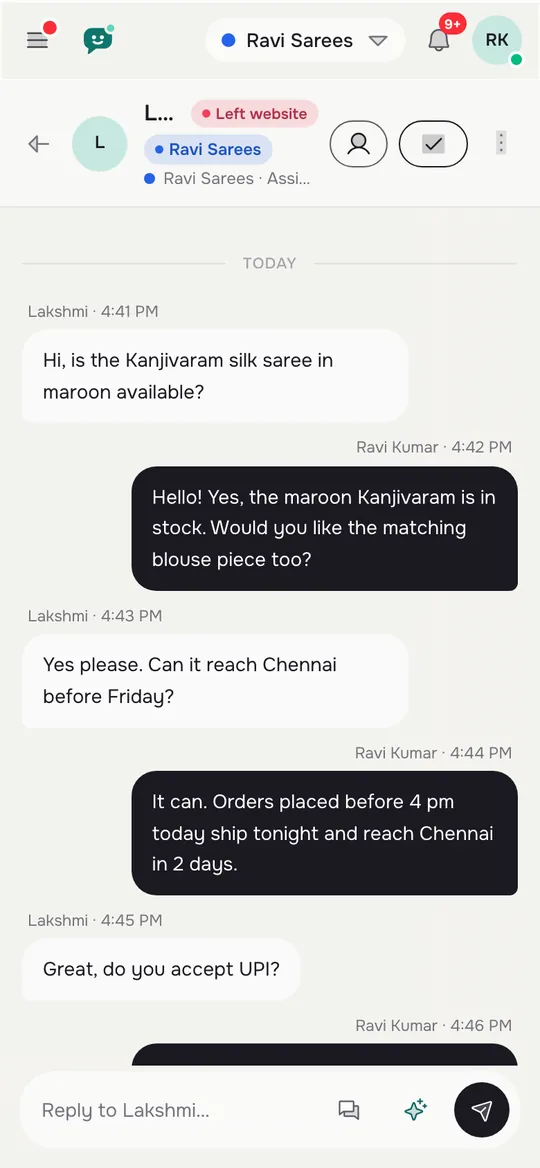
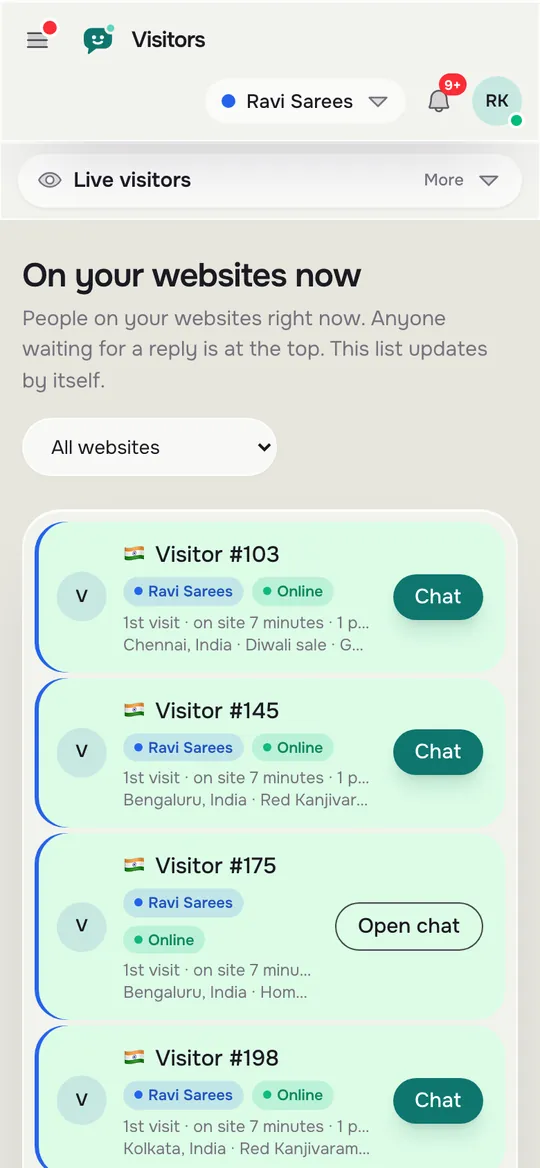
The inbox, the live visitor list and the alert settings on a phone
Real screens from the LiveChatBot panel, shown with sample data. Click any picture to see it full size.

The visitor chat
The visitor side: what an Android shopper actually sees
On a phone, a chat bubble competes with the cookie banner, the sticky add-to-cart bar and the keyboard. A widget that looks fine on your laptop can cover the very button you want people to press.
Test these on a real Android phone, in Chrome:
- Bubble position. Move it left or right if it sits on top of a call-to-action.
- Size. A pill with words is easier to hit than a tiny icon, but takes more room.
- Full-page chat. The chat should fill the screen when opened, so the text box is not squeezed.
- Where it shows. Hide it on checkout or form pages, where you do not want distractions.
LiveChatBot lets you set all of this per device, so the phone version can differ from the desktop one. For a page-by-page view of the visitor side, our free live chat widget by page type guide goes deeper. For a field trial from the agent side, try the 10-test phone trial.
Try it
Which kind of Android chat app do you need?
Follow the branch that matches your situation. Each ending tells you what to test first.
Free means limits
What a free Android chat setup really includes
The best free live chat apps for Android are free because of limits, not missing apps. The LiveChatBot free plan gives you:
- Two websites per account, with 100 visitors per website per month.
- The Android team app, the shared inbox, Flows, tickets and saved replies.
- No per-seat charge, so you can add a second person to answer from their phone.
- AI replies with a monthly allowance shown in your dashboard, plus a free keyword bot that answers from saved replies.
Paid plans start at ₹299 a month (Starter, about 3 to 4 US dollars; check today’s rate), with 750 visitors shared across two websites. Growth is ₹699 a month for five websites and 2,500 shared visitors. Payment is prepaid, with no auto-renew. See the full pricing before you decide.
Honest gaps
What you will not get, so you can plan around it
For LiveChatBot:
- No iOS team app. If your staff use iPhones, they answer from a browser instead.
- “Powered by LiveChatBot” stays on the widget on every plan.
- No native Slack or Telegram bridge. Zapier and webhooks can pass some events along.
If one of those is a deal-breaker, say so now rather than after setup. If not, the Android app plus the web widget cover what most small businesses need. For a view across the whole product, read our free live chat overview.
A one-week plan
A one-week Android rollout that does not overwhelm you
Day 1. Create a free account, add your website and paste the install code. Open your site on your phone to confirm the bubble appears.
Day 2. Install the Android app, sign in, and send yourself a test chat. Pick a tone for each website.
Day 3. Load your twenty most-asked questions into the AI Agent or saved replies, so the bot has something sensible to say when you cannot answer.
Day 4. Set opening hours and the away form, so a late-night visitor leaves a number.
Day 5. Move the bubble and test again on Android.
Days 6 and 7. Watch Reports to see when chats arrive. Our WordPress guide covers the install step for WordPress sites.
Frequently asked questions
What are the best free live chat apps for Android?
For the best free live chat apps for Android, first decide whether you want an app for your team or a chat for visitors. For the team, look for reliable alerts, tones and a clear inbox. For visitors, look for a widget that works in the phone browser.
Does LiveChatBot have an Android app?
Yes. The Android app is for your team, with chat alerts, a New lead push, per-website tones and dark mode. There is no iOS team app.
Do my visitors need to install anything?
No. The chat widget runs in their phone browser, so there is nothing to download.
Can two people answer from their own Android phones?
Yes. There are no per-seat charges, and chats can be assigned to a person or a team.
Is the Android app free?
The app is included with your LiveChatBot account, including the free plan, within the plan’s website and visitor limits.
Keep reading
Related guides
Best Free Chatbot Plugin for WordPress: Read the Fine Print on What Free Really Means (Free Scorecard)
Best Free Chatbot for Website Owners Is the One You Can Fill in One Afternoon: A Starter Pack of Copy-and-Paste Lines (Free Starter Pack)
Answer from your phone
Start free on livechatbot.in, install the Android app and send yourself a test chat in ten minutes.