Add Live Chat to WordPress Without Letting It Go Unanswered: Seven Ways Chats Get Missed, and the Fix for Each (Free Mistake-vs-Better List)
Add live chat to WordPress and a bubble appears. Whether it earns you customers depends on what happens when someone types into it. Most small sites lose chats not because the plugin fails, but because nobody sees the alert, the hours are wrong, or the first reply is slow. This guide walks through seven common misses and the setting that fixes each.
⚡ In short
- Installing live chat is quick. Getting every chat answered is the real work.
- The usual misses are alerts nobody sees, wrong hours, slow first replies and chats nobody owns.
- Each miss has a plain fix in the dashboard: phone alerts, opening hours, saved replies, Assign to me and the chat rescuer.
- Review the seven pairs below and tick the ones that apply to your site.
The install
How to add live chat to WordPress in ten minutes
The install is the short part, so here it is in brief.
- Sign up at livechatbot.in and add your website.
- In WordPress, go to Plugins, then Add New, and search for the LiveChatBot plugin. Install and activate it.
- Connect the plugin to your account.
- Open your site in a private window and check that the bubble appears.
For screenshots and the snippet alternative, read the WordPress live chat plugin guide. This article starts where that one ends: the bubble is on your site, and now we make sure every chat gets a reply.
Why chats go missing
Add live chat to WordPress, then follow one chat to the finish
Picture a visitor asking, “Do you deliver to my pin code?” at 7:40 pm. Three things must happen: someone must be told, someone must reply, and the visitor must feel looked after while they wait.
Any step can break. The alert might go to an email nobody reads. The hours might say 24 hours when the team leaves at six. Two people might each assume the other is replying.
The good news is that each break has a setting. You do not need extra tools or code. You need the six minutes it takes to set up alerts, hours, saved replies and ownership. The mistakes below are what we see most often, in the order they usually bite.
Try it
Seven misses and what to do instead
Read each pair and ask whether it describes your site today. Fix the ones that do, starting at the top.
Real screens
What you will see in LiveChatBot
Real screens from the LiveChatBot panel, shown with sample data. Click any picture to see it full size.

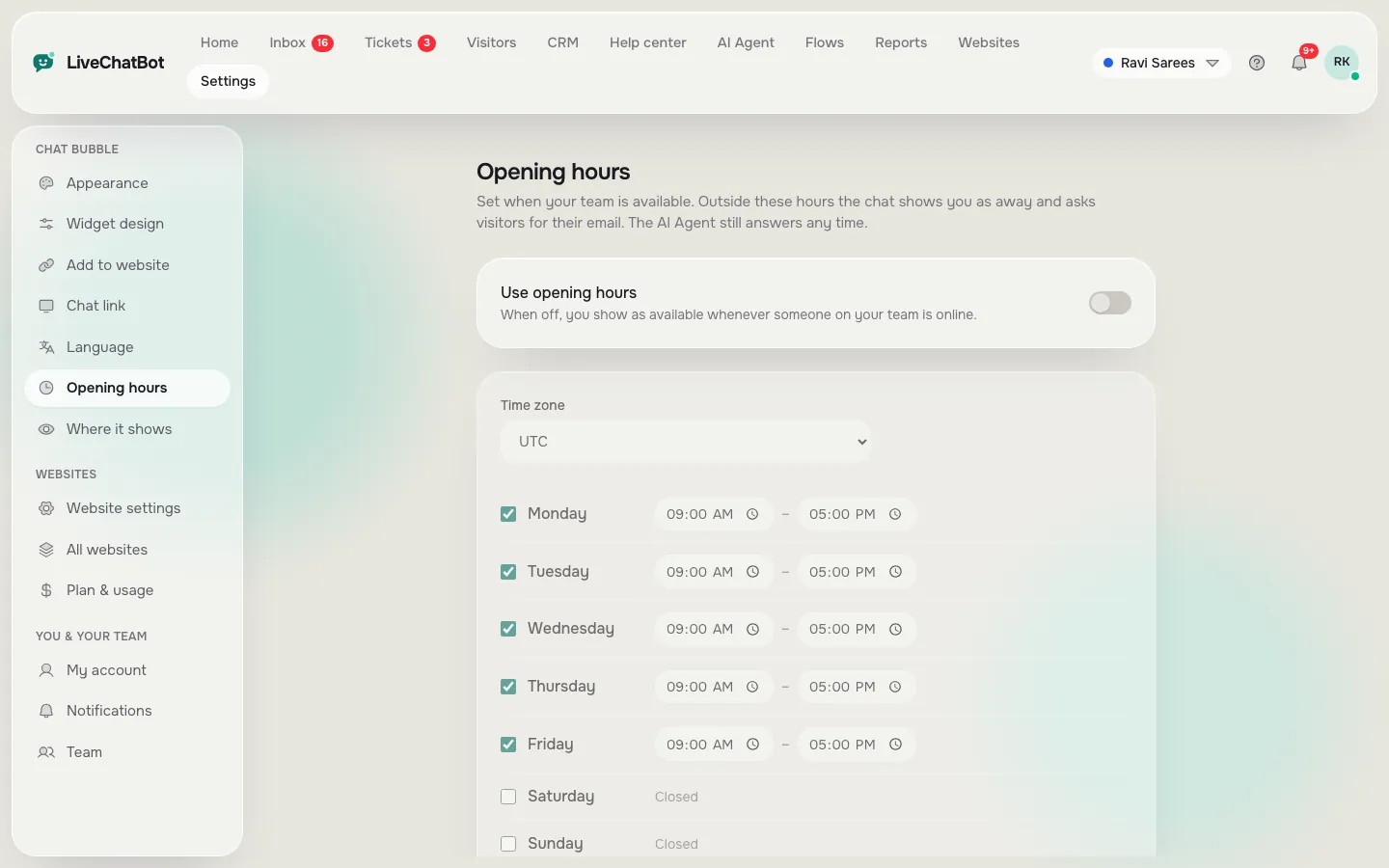
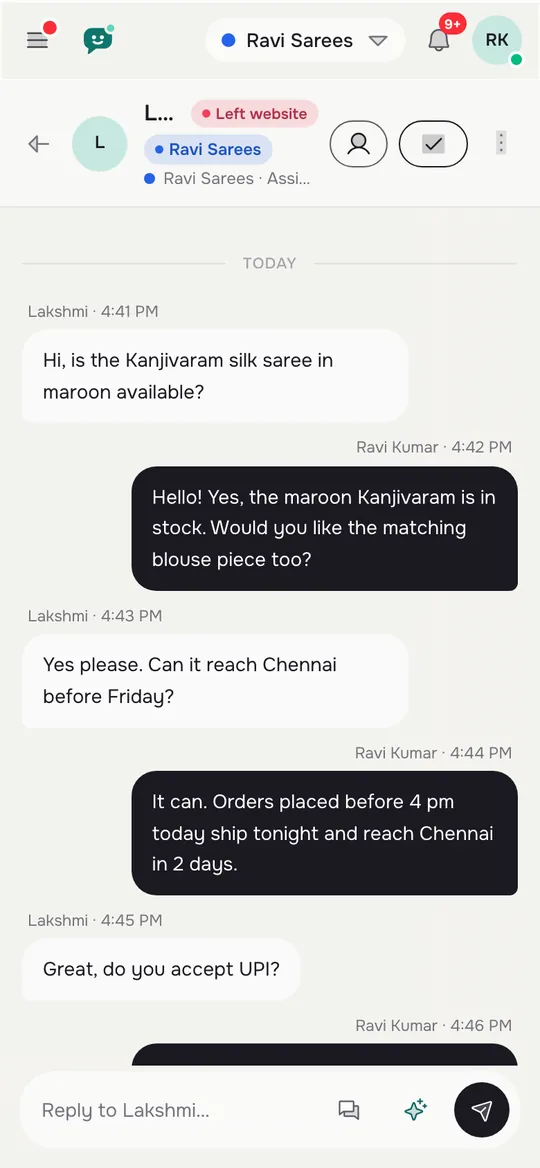
Alerts and owners
The two settings that matter most
If you only fix two things after you add live chat to WordPress, fix alerts and ownership.
Alerts that reach a person
The Android app delivers a push alert when a chat starts, with recorded tones that you can choose per website. Notification settings let you decide which events make a sound. Keep them on during opening hours and off outside them, so staff are not woken at night.
One owner per chat
On a team of two or three, ownership is simple. Open a new chat, tap Assign to me, and the others see it is taken. If you use teams, a chat can be routed to a team and shows in the My teams folder. There is no automatic round-robin, so someone must pick up each chat. That is manageable for a small shop and worth knowing before you promise a reply time.
Speed
Make the first reply fast without sounding like a robot
A slow first reply costs more than a slow second one. Visitors judge you in the first twenty seconds.
Use a welcome plus a saved reply
Your welcome text appears the moment a visitor opens the chat. Then a saved reply, sent in one tap, can acknowledge the question: “Thanks, checking that for you now.” It buys you a minute without lying.
Let the AI Agent take the first pass
The AI Agent answers from the knowledge you give it, such as hours, prices and delivery areas. When it cannot help, it passes the chat to a person. See the AI Agent page, and for the broader approach read the live chat guide.
Check your numbers weekly
The Reports page shows first response time, replies by your team and a busy-hour heatmap. If Tuesday evenings are busy and no one is online, you have found your next fix.
When it is working
Signs your live chat on WordPress is actually working
After a week, check for these signs.
- Every chat has an owner, and none sat unassigned for more than a few minutes.
- You added at least five saved replies from real conversations.
- Leads from the away form and the chat rescuer arrived with email or phone.
- The first response time on the Reports page is shorter than at the start.
If you want to go further with your site type, WordPress chatbot installation covers the pre-flight and verify steps, and free live chat for WordPress website types matches setups to blogs, shops and membership sites.
Honest limits: “Powered by LiveChatBot” stays on all plans, there is no iOS team app, and WhatsApp messages need the separate Meta connection rather than a plugin setting.
Frequently asked questions
How do I add live chat to WordPress?
Create an account, install the LiveChatBot plugin from the Plugins page, connect it to your account and check the bubble in a private window.
Who gets notified when a visitor starts a chat?
Your team, through the dashboard inbox and the Android app. Choose alert tones per website and turn them off outside opening hours.
What happens if nobody is online?
The away form collects email or phone, and the chat rescuer asks for both if nobody replies within seconds, so the lead isn’t lost.
Can two people reply to the same chat by accident?
It can happen if nobody uses Assign to me. Using that button and the Unassigned and Mine folders avoids it.
Is it free to add live chat to WordPress?
Yes, the free plan covers two websites with 100 free visitors per website a month. There are no per-seat charges.
Keep reading
Related guides
Add Live Chat to Website by Site Type: Setup Recipes for Shops, Service Firms, Booking Sites, Blogs and Members’ Areas (Free Recipe Builder)
Add Live Chat to Shopify Safely: Duplicate Your Theme, Paste in theme.liquid, and Keep the Chat Through Theme Updates (Free theme.liquid Checker)
Add Chatbot to Your Website When You Don’t Know What It’s Built On: Find Your Platform From the Page Source, Then Follow the Right Install Route (Free Platform Detector)
Make sure every chat gets answered
Phone alerts, saved replies, opening hours and a chat rescuer, free for two websites. Start free on livechatbot.in.