Add Live Chat to Website by Site Type: Setup Recipes for Shops, Service Firms, Booking Sites, Blogs and Members’ Areas (Free Recipe Builder)
Add live chat to website guides usually stop once the bubble appears. But a chat box on a clinic’s site and a chat box on a saree shop’s site should not be set up the same way: they show on different pages, greet different visitors, answer different questions and hand different things to people. This guide gives you a setup recipe for six common kinds of site, built only from settings LiveChatBot already has, and a free tool that writes your recipe from four answers.
⚡ In short
- Installing the code is the easy part. What makes chat useful is where it shows, what it says and who answers.
- Each kind of site has one main job for chat: shops save carts, service firms collect enquiries, booking sites fill slots.
- Every recipe has seven ingredients: placement, welcome line, two Flows, cards, bot answers, a hand-to-person list and an after-hours plan.
- Start with your recipe as written, then adjust after two weeks of real chats.
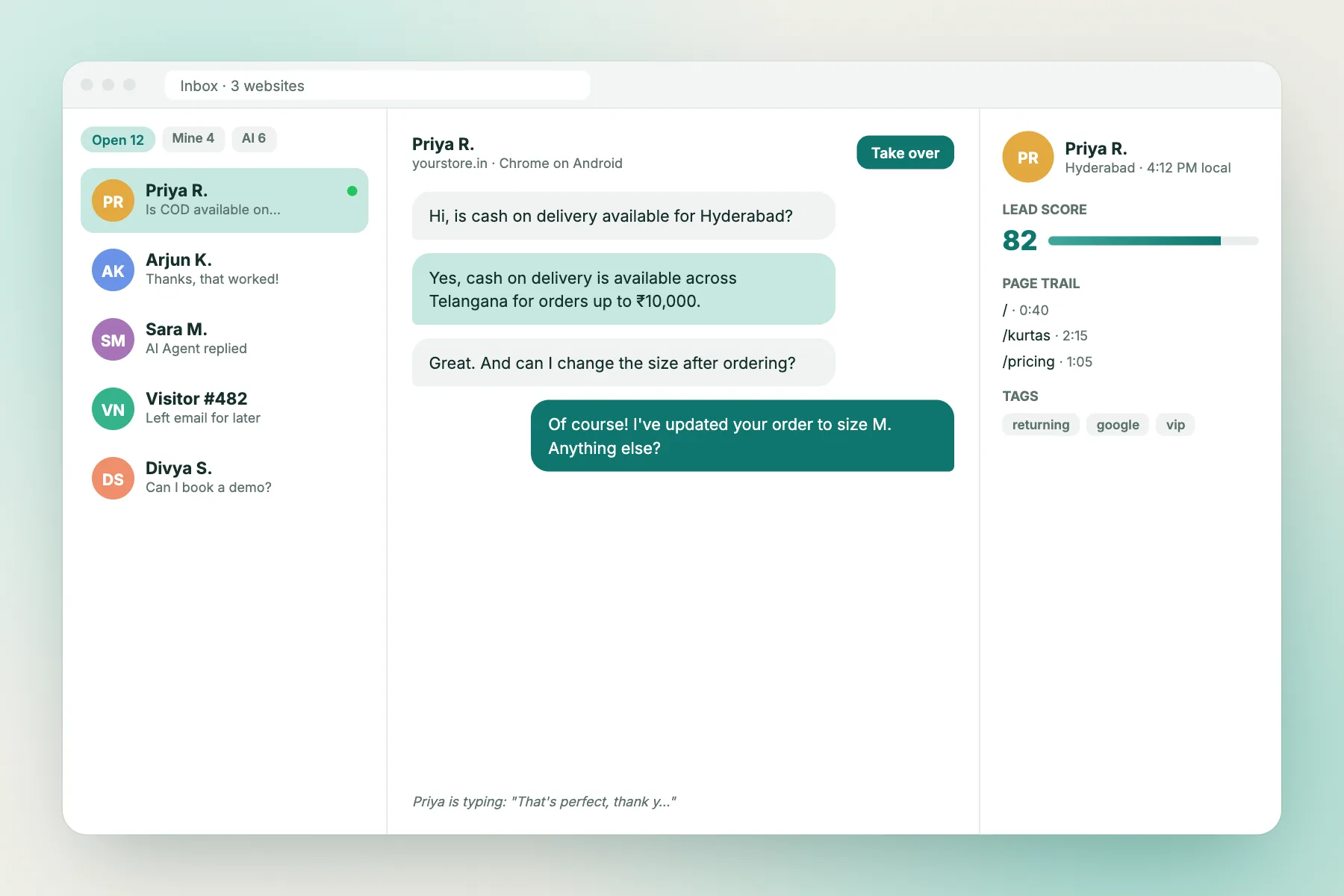
Why site type matters
Same chat box, six different jobs
Picture two owners installing chat on the same afternoon. One runs an online saree shop. The other runs a physiotherapy clinic. Both paste the same line of code, both see the same bubble appear, and both leave the default welcome message.
A week later the shop owner is answering “COD available?” twenty times a day and wishing the bot did it. The clinic owner has had three chats, all from people who wanted to book but gave up when nobody replied at 9 pm. The software is identical. The setup is what failed.
The fix is to decide, before you touch any settings, what chat is for on your kind of site. A shop needs chat on product and cart pages, a bot that knows delivery and returns, and a WhatsApp card for people who prefer it. A clinic needs chat on service pages, a bot that knows timings and preparation, a Call card for urgent bookings, and an away form that catches the 9 pm visitor.
Once you know the job, the rest follows. You know which pages need a greeting and which need silence. You know what to teach the bot and what to keep for people. You know whether “business hours only” is fine or whether you need the AI Agent answering at night.
That’s what a recipe is: the job, plus the seven settings that serve it. The first step, getting the code onto your site, is the same for everyone; if you haven’t done it yet, see our platform detector or the Shopify install guide.
Six site types
What chat is for on each one
Online shop
Answer delivery, COD, size and returns questions on product and cart pages, before the shopper leaves.
Service business
Turn comparison shoppers into enquiries with a name and number, especially from pricing pages and ads.
Bookings or appointments
Answer timing, price and preparation questions so people book instead of calling, day or night.
Blog or content site
Catch the few readers who want your product or service, without interrupting everyone else.
Software or members’ area
Unblock sign-ups and logged-in users quickly, and turn bug reports into tickets.
Local shop or restaurant
Answer “open today?”, “in stock?” and “where are you?” so people actually turn up.
The seven ingredients
What every recipe decides when you add live chat to website pages
Whatever your site, the recipe makes the same seven decisions. Each one maps to a setting you can change in your LiveChatBot dashboard in a few minutes.
- Where it shows. Which pages get the bubble, and which stay quiet. “Where it shows” lets you hide the chat on pages whose address contains certain text, and limit it by device or country.
- The welcome line. One sentence that names the two or three things people on your kind of site actually ask. Generic lines get ignored.
- Two Flows. Proactive messages that greet the right visitor at the right moment. Flows can check the page, the visitor’s source, country, device, browser language, number of visits, lead score and whether you already have their contact details.
- Cards. Buttons inside the chat window for people who’d rather WhatsApp, call, email or read a page.
- Bot answers. The topics the AI Agent and your saved replies should cover from day one.
- The person-only list. Topics the bot should never try to answer: anything needing an account lookup or judgement.
- After hours. Opening hours, the away form that collects an email or phone number, and what happens to messages overnight.
Two optional checks finish the recipe: who on your team answers what, and whether your monthly visitors fit inside the free plan.
The tool below fills in all seven for your site type. The sections after it explain the reasoning, so you can adjust anything that doesn’t fit.
Free tool
Build your setup recipe
Pick your site type, who answers, your hours and rough monthly visitors. You get a seven-part recipe you can set up in an hour.
Runs only in your browser; nothing is sent or saved.
Recipes explained, part 1
Shops, service firms and booking sites
Online shops
Shoppers ask the same handful of questions, and most come up on product and cart pages: delivery time to their pin code, COD, sizes, returns. So the shop recipe shows chat everywhere, greets on product pages after a short pause, and loads those topics into the bot first. Order status and failed payments go to a person, because they need a lookup. A WhatsApp button card keeps customers who prefer WhatsApp in the same window. Our ecommerce chat guide goes deeper.
Service businesses
Visitors to a plumber's, accountant's or agency's site are comparing options. They want a rough price and proof you serve their area. The recipe greets on pricing pages and matches the welcome line to your ads, so a visitor from a "free site visit" ad sees that offer again. The bot handles what you do, areas served and typical price ranges; custom quotes go to a person. Hide chat on careers pages, or job seekers will fill your sales inbox. See live chat for lead generation.
Bookings and appointments
Clinics, salons, coaching centres and consultants lose bookings in the evening, when people finally have time to look and nobody answers. The recipe teaches the bot timings, prices, what to bring and cancellation rules, puts a Call card and a booking-page link card in the window, and hides chat on the final confirmation step so nothing distracts from finishing. Personal or medical questions always go to a person. Our healthcare chat guide covers sensitive topics.
Recipes explained, part 2
Blogs, software and local businesses
Blogs and content sites
Most readers don't want to chat, and greeting them all is annoying. The recipe keeps the bubble visible but quiet, and only sends a proactive message to repeat readers (three or more visits), who are far more likely to want help applying what they've read. A link card points to your newsletter or main offer. If much of your traffic comes from outside your market, a country-based Flow can point those readers to free resources instead of sales.
Software and members' areas
Here chat earns its keep inside the product. The recipe shows it on pricing, sign-up and logged-in pages, teaches the bot plans, limits and common how-tos, and turns bugs and billing disputes into tickets with an owner. If your developers use the JavaScript API, setVisitor can pass a logged-in user's name and email so nobody has to type them. A Flow for visitors who already have contact details can greet existing customers differently. See live chat for SaaS.
Local shops, restaurants and showrooms
Local sites are small and visited mostly on phones, often minutes before someone sets off. The recipe greets mobile visitors with timings and directions, adds Call, WhatsApp and map link cards, and teaches the bot opening hours, address, parking, stock and prices. Large orders and events go to a person. Our local business guide has more examples.
Whichever recipe you use, treat it as a starting point. After two weeks, read your chats and move topics between the bot and person lists based on what actually came in.
At a glance
Where to show, greet and stay quiet
| Site type | Greet here | Stay quiet here | Must-have card |
|---|---|---|---|
| Online shop | Product pages, cart | Account and login (only if spam) | |
| Service business | Pricing, ad landing pages | Careers | Call |
| Bookings | Services pages | Final booking confirmation | Call or booking link |
| Blog | Repeat readers only | First-time readers | Newsletter or offer link |
| Software | Pricing, sign-up | Internal admin pages | Help or status link |
| Local business | Mobile visitors | Nowhere; sites are small | Call and map link |
Team and hours
Adjusting the recipe to who answers, and when
The site type sets the recipe; your team and hours fine-tune it.
Working alone
Let the bot answer first on every routine topic, and keep your person-only list short. Install the Android app so a chat that does need you reaches your pocket. Set honest opening hours: a visitor who sees "we'll reply by email" and gets a reply tomorrow is happier than one who waits twenty minutes in silence.
Two to five people
Agree who watches the inbox when. Saved replies with {name} keep everyone's answers consistent. Tickets with owners stop two people answering the same customer, or nobody answering at all.
Six or more
Give topics owners: one person for orders, one for quotes, one for technical questions. There are no per-seat charges, so add everyone who should answer.
Business hours only
Most small businesses fit here. The away form collects an email or phone number outside hours, and offline messages can become tickets, so morning starts with a clear list. See setting opening hours.
Long days or round the clock
No small team covers every hour. Let the AI Agent answer at night from the knowledge you've given it, keep the away form for anything it can't handle, and switch on the chat rescuer so visitors left waiting get a follow-up instead of silence.
When you add live chat to website pages with a recipe that fits your team, chat feels like help rather than another inbox to babysit.
Copy-paste mistakes
When one site's setup lands on another
First week
Set up your recipe in order
Getting started
Pick your recipe and add live chat to website pages this afternoon
Build your recipe in the tool, install the code, and work down the checklist. Most owners finish in about an hour. If you want to see how a Flow works before building one, our chat flow guide walks through it step by step.
LiveChatBot's free plan covers two websites, each with 100 visitors a month, plus the inbox, Android app, Flows, cards, opening hours, tickets and the AI Agent with a small free monthly allowance, with no per-seat charges. Visitor packs (100 for ₹99, 500 for ₹299, 1,000 for ₹499) never expire. See pricing and start at livechatbot.in.
Frequently asked questions
What should I set up after I add live chat to website pages?
Seven things: where it shows, a welcome line, two Flows, cards, bot answers, a list of topics for people only, and an after-hours plan. The recipe builder fills them in for your site type.
Should chat show on every page?
Usually yes, with a few exceptions: careers pages for service firms, the final booking step for appointment sites, and internal admin pages for software.
Which proactive messages work best?
Ones tied to a page and a reason: a size and delivery nudge on shop product pages, a quote offer on pricing pages, timings for mobile visitors to local sites.
Do I need someone online all day?
No. Set honest opening hours, use the away form to collect contact details, and let the AI Agent answer routine questions when you're away.
Will the free plan cover my site?
Each website gets 100 free visitors a month. Enter your monthly visitors in the tool to see whether you'd need a visitor pack; packs never expire and nothing is charged automatically.
Keep reading
Related guides
Add Live Chat to Shopify Safely: Duplicate Your Theme, Paste in theme.liquid, and Keep the Chat Through Theme Updates (Free theme.liquid Checker)
Add Chatbot to Your Website When You Don't Know What It's Built On: Find Your Platform From the Page Source, Then Follow the Right Install Route (Free Platform Detector)
Add Chatbot to Website HTML Buttons: Open the Chat, Ask a Question or Pass a Logged-In Name From Your Own Code
Chat that fits your kind of site
Install once, then set up the recipe for your site type in an hour. Start free on livechatbot.in.