The First Job a Chatbot for a WordPress Website Should Do: Then Add the Rest (Free First-Job Quiz)
Chatbot for WordPress website projects go wrong when the owner asks it to do everything on day one. Answer questions, sell, book, support, translate: a new bot rarely does all of that well. This guide takes the opposite route. You choose one job, set it up properly, watch it for a week and only then add a second. A short quiz at the middle of the page tells you which job to start with.
The best chatbot for a WordPress website is one given a single first job, such as answering common questions, catching leads or covering after-hours. Add the chat code or plugin, set up only that job, test it as a customer, read the real chats after a week, and then add a second job.
⚡ In short
- A chatbot works best when it starts with one clear job, not a long wish list.
- Five first jobs cover most WordPress sites: answer questions, catch leads, cover after-hours, route support, send to WhatsApp.
- Each job needs different setup, so choosing first saves hours of fiddling with settings.
- Take the quiz, do that job for a week, read the reports, then add the next job.
The problem
Why a chatbot for WordPress website visitors needs a first job
A chatbot needs a first job because a chat with no purpose invites every question and answers few of them well. Most owners install a plugin, see a chat bubble appear and consider the work done. A week later visitors ignore it, or ask something it cannot answer, and the owner decides chat does not work.
The usual cause is not the tool. It is that the chat has no purpose. A bubble that says “Hi, how can I help?” invites every kind of question, and a new bot is not ready for every kind.
A better start is a sentence you can finish: “This chat exists so that visitors can ___.” Maybe it is “find our opening hours without calling”, or “leave a phone number when we are closed”. One job done well beats ten done badly.
If you have not installed anything yet, our WordPress live chat plugin guide covers the install itself. This page is about what to do once the code is on your site.
The five jobs
Five first jobs a chatbot for a WordPress website can take on
The five first jobs below cover most WordPress sites: answering questions, catching leads, covering after-hours, routing support and sending people to WhatsApp.
1. Answer the common questions
Hours, prices, delivery, location, returns. This is the classic job, and it needs the AI Agent’s knowledge filled in first. See how to train your AI chatbot for what to type in.
2. Catch leads
The chat asks for an email or phone at the right moment, and your contact forms (Contact Form 7, WPForms and others) also show up as leads. Our WordPress chatbot for leads guide follows one visitor from first page to phone number.
3. Cover after-hours
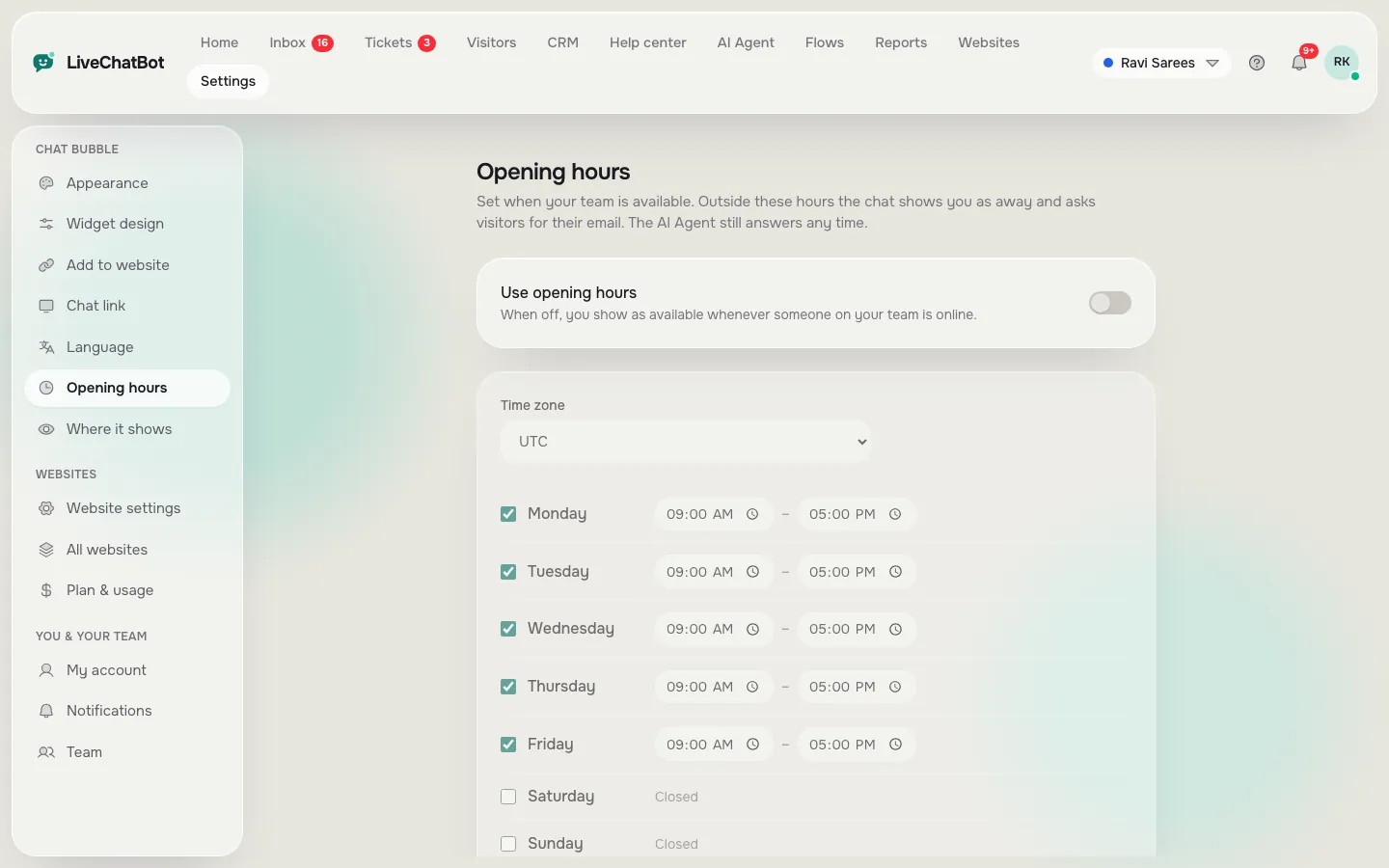
Outside your opening hours the chat shows an away form that takes a name and number.
4. Route support
Visitors with a problem get a ticket, an owner and a reply.
5. Send people to WhatsApp
A WhatsApp button card opens your number. Good if customers already prefer WhatsApp.
Pick one. The quiz below does the picking if you are unsure.
Try it
Which first job fits your site?
Answer five questions about your WordPress site. The most common answer decides your first job.
Real screens
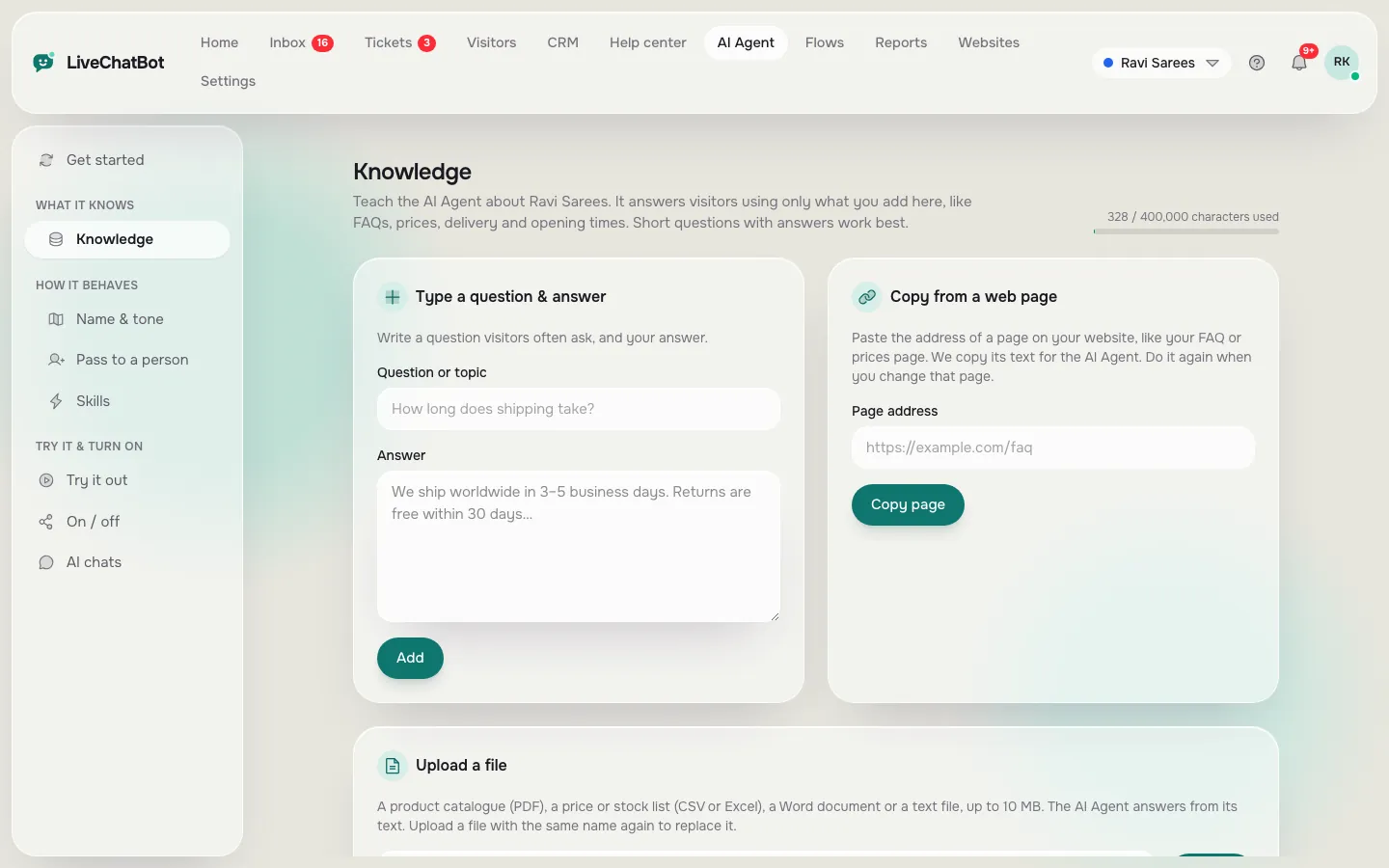
Three screens you will use to set the first job: the install code, opening hours and the knowledge your bot answers from
Real screens from the LiveChatBot panel, shown with sample data. Click any picture to see it full size.

Set up
Setting up your chatbot for WordPress website visitors
Setting up takes four steps whatever the job, and you can finish them in under an hour.
- Add the chat. Sign up free on livechatbot.in, copy the install code and place it on your site, or use the WordPress plugin if you prefer. Confirm the bubble appears on a real phone.
- Name the job in the welcome text. “Ask about opening hours or leave your number” tells visitors what to do. “Hi” does not.
- Fill only what the job needs. Skip the rest for now.
- Test it as a customer. Open your site in a private window and try the job yourself.
For the AI Agent you can type answers, copy a web page or upload a file (PDF, Word, Excel, CSV or text). The AI Agent writes replies from those facts, and while AI replies are available it follows your written Rules. When they run out, a free keyword bot answers from your saved replies. Our canned responses guide shows how to write them.
Week one
A one-week plan for a chatbot for WordPress website visitors
Four short check-ins on days 1, 3, 5 and 7 are enough to know whether the job works.
Day 1: launch and test
Test on desktop and phone. Our WordPress chatbot installation guide lists what can go wrong in the first hour.
Day 3: read the real chats
Open the inbox. Which questions did people actually ask? Add answers for any the bot missed.
Day 5: check visitors and reports
The live visitors list shows who is on your site now. The Reports area shows chats per day, reply times and which pages bring people who then act.
Day 7: decide
Did the job work? If yes, add the second job. If not, find the cause before adding more.
Original data
The visitor maths for a first-job trial
A first-job trial fits inside the free plan for most small sites, and you can check that with three lines of arithmetic. The figures below are LiveChatBot’s own plan limits, and the worked example uses an assumption that is labelled as one.
Plan limits (LiveChatBot, from 1 November 2026):
- Free: 2 websites × 100 visitors each = 200 visitors a month in total, ₹0.
- Starter ₹299 a month: 2 websites sharing 750 visitors.
- Growth ₹699 a month: 5 websites sharing 2,500 visitors, an average of 500 per site if you spread them evenly.
Worked example (assumption, not a statistic): suppose 1 visitor in 20 starts a chat. Then 100 free visitors give 100 ÷ 20 = 5 chats in a month. Five chats is too few to judge a bot. If you want about 20 chats to read, you need 20 × 20 = 400 visitors, which is more than one free site gives, so use the sign-up code WELCOME100 for +100 visitors or share the load across both free sites.
The lesson: with a small allowance, give the chat one job on your busiest page, not five jobs on every page. Fewer visitors see it, but each chat teaches you something.
What most guides miss
Our rule: if the job needs more than twelve words, it is two jobs
The one-sentence test is a quick way to catch a vague first job before you spend time on settings. Write “This chat exists so visitors can ___” and count the words in the gap. Twelve or fewer is one job. More than twelve means you have hidden two or three jobs inside one sentence.
“Find our hours” is one job. “Find our hours, get a quote, track an order and book a visit” is four jobs, and a new bot will do all four badly.
Here is the five-second stranger test to go with it. Ask a friend who has never seen your site to open one page for five seconds and say aloud what the chat is for. If they cannot, your welcome text is not naming the job. Most guides tell you to write a friendly greeting; few tell you to check that the greeting names one thing a visitor can do.
Run both tests before you go live and again after any change to the welcome text. They take five minutes and need no tools.
Honest limits
What this chat will not do for your WordPress site
LiveChatBot does not do everything, and knowing the gaps helps you pick the right job.
- The “Powered by LiveChatBot” credit stays on every plan, including the free one.
- There is no native Slack, Telegram or Instagram DM integration; Zapier and webhooks can bridge some.
- There is an Android team app, but no iOS one.
- There are no voice features, no captcha and no sentiment scoring.
- You cannot choose the AI model or bring your own API key.
None of this blocks the five first jobs, but better to know now than after you install.
Adding the second job
When and how to add the next job
Add the second job when the first is reliable, meaning two weeks where nearly every chat was handled and nobody was left waiting.
The natural pairs are:
- Questions then after-hours: the same facts cover both.
- Leads then questions: a visitor who got an answer is warmer.
- WhatsApp then leads: the button brings people in, the form keeps them.
Repeat the same cycle each time: set up one thing, test as a customer, wait a week, read the chats. When your traffic grows past the free allowance, see pricing; plans have no per-seat charges. For install options and plugin choices, our WordPress live chat plugin pillar guide covers the rest of a chatbot for WordPress website setups.
Frequently asked questions
Do I need a plugin for a chatbot for a WordPress website?
No. You can paste the install code into your theme or a header plugin, or use the WordPress plugin. Both show the same chat. Choose whichever you find simpler to maintain.
Can I start with more than one job?
You can, but each extra job adds settings to test. Starting with one gives you cleaner results and makes it clear what to fix.
Is the free plan enough for a small WordPress site?
The free plan covers two websites with 100 visitors per website each month, which suits a small site. Check your visitor numbers before you decide.
Will it catch my contact form submissions?
Yes. The widget and the WordPress plugin catch Contact Form 7, WPForms, Elementor Pro, Gravity, Fluent and Ninja form submissions as leads, with an instant alert.
Can I remove the Powered by LiveChatBot credit?
No. The credit stays on every plan, including the free one.
Keep reading
Related guides
Chatbot for WordPress Free, Month Two Onwards: A Ten-Minute Monthly Upkeep Routine That Keeps Chat Useful (Free Upkeep Checklist)
Chatbot for WhatsApp Free: 15 Ready-to-Paste Messages for Greetings, Prices, Hours and Handover
Chatbot for My Website: Five Worries Every Owner Has Before Adding One, Answered Honestly (Free Worry Check Quiz)
More to read
More guides on this topic
Free Chatbot for Website WordPress Owners: Which Kind of WordPress Do You Have, and Can It Take Chat At All? (Free Site-Type Quiz)
Pick one job and switch it on
Free plan for two websites, with opening hours, an away form, lead alerts and an AI Agent. Start free on livechatbot.in.