Chatbot for My Website: Five Worries Every Owner Has Before Adding One, Answered Honestly (Free Worry Check Quiz)
Chatbot for my website is a search made by someone who runs the site, not someone who builds software. You are probably wondering if it will sound robotic, cost too much, take too long, say something wrong or hide you from your own customers. Those are fair worries. This guide takes the five most common ones, answers each plainly, and ends with a short quiz that tells you where to start.
Short answer: Yes, a small website can run a chatbot safely. You paste one snippet, give the bot your own facts and a short list of Rules, set opening hours so a person takes over, and start on the free plan with two websites. It answers only from what you teach it and hands over when unsure.
⚡ In short
- You stay in control: the bot answers only from facts you give it, and you can step into any chat.
- A first version takes an afternoon: paste one snippet, type your key answers, set your hours.
- The free plan covers two websites, so you can try before you spend anything.
- Be upfront about limits: the bot hands over rather than guessing.
Worry one
Will it sound robotic or embarrass me?
Yes, it can sound robotic, but you control the voice before it speaks. This is the first worry, and it is a good one. Your website is your shop window. A cold or wrong reply feels like a rude shop assistant.
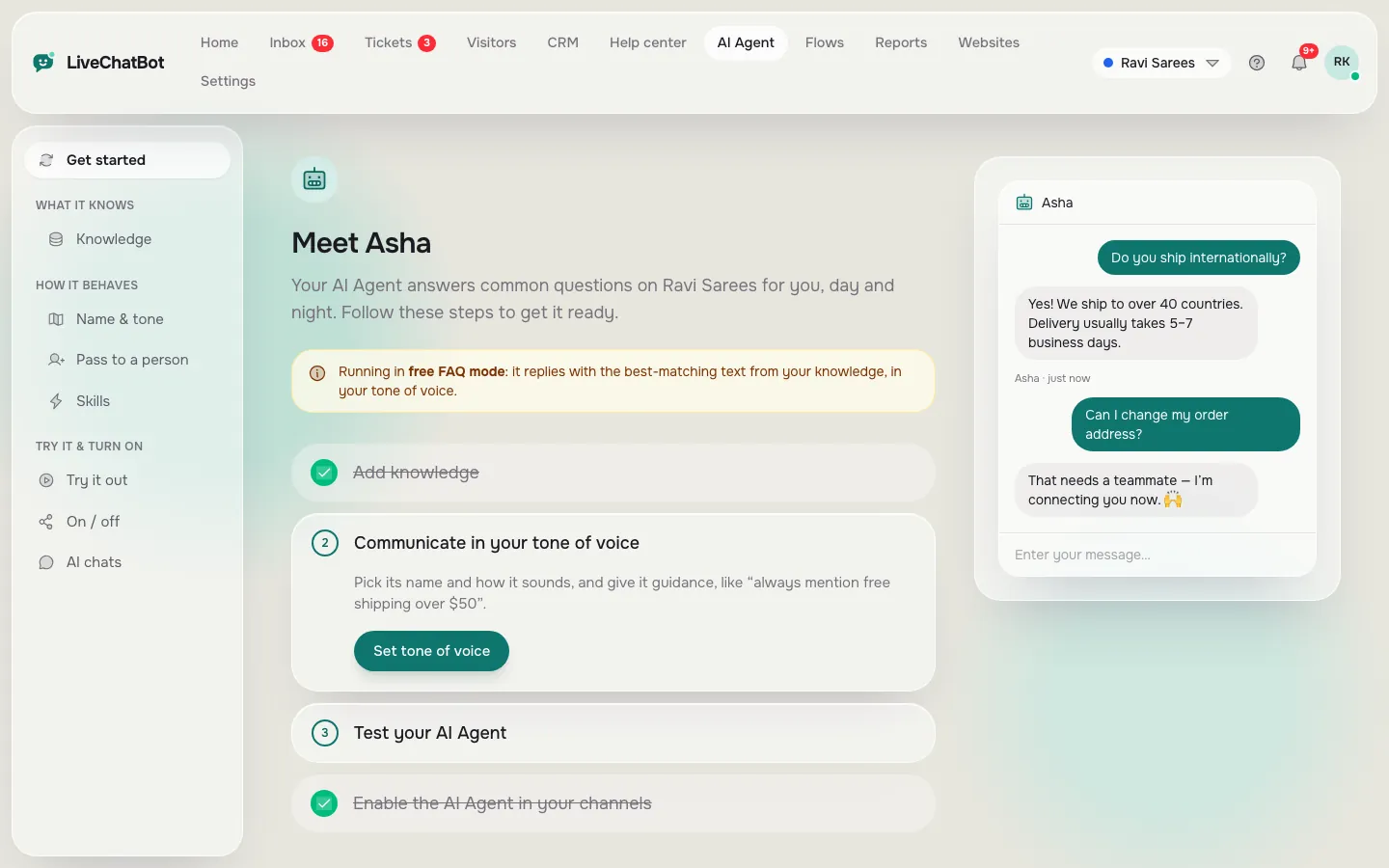
The fix is to decide how it speaks before it speaks. In LiveChatBot, the AI Agent has a name, a tone of voice and a Rules box where you can write instructions such as “Never promise delivery dates” or “Keep replies under three sentences”. Rules apply while your website has AI replies, which come with every plan.
Start with your own words
Copy five real replies you have already sent to customers. Use those as saved replies and as the first answers in the knowledge area. A bot that repeats your own phrases sounds like you. Our guide to the AI Agent shows where each setting lives.
Worry two
Will it say something wrong about my business?
It will only say something wrong if its facts are missing or out of date. A bot can only be wrong about facts it was never given, or facts you gave it that are out of date. So the safest habit is a short, current fact sheet.
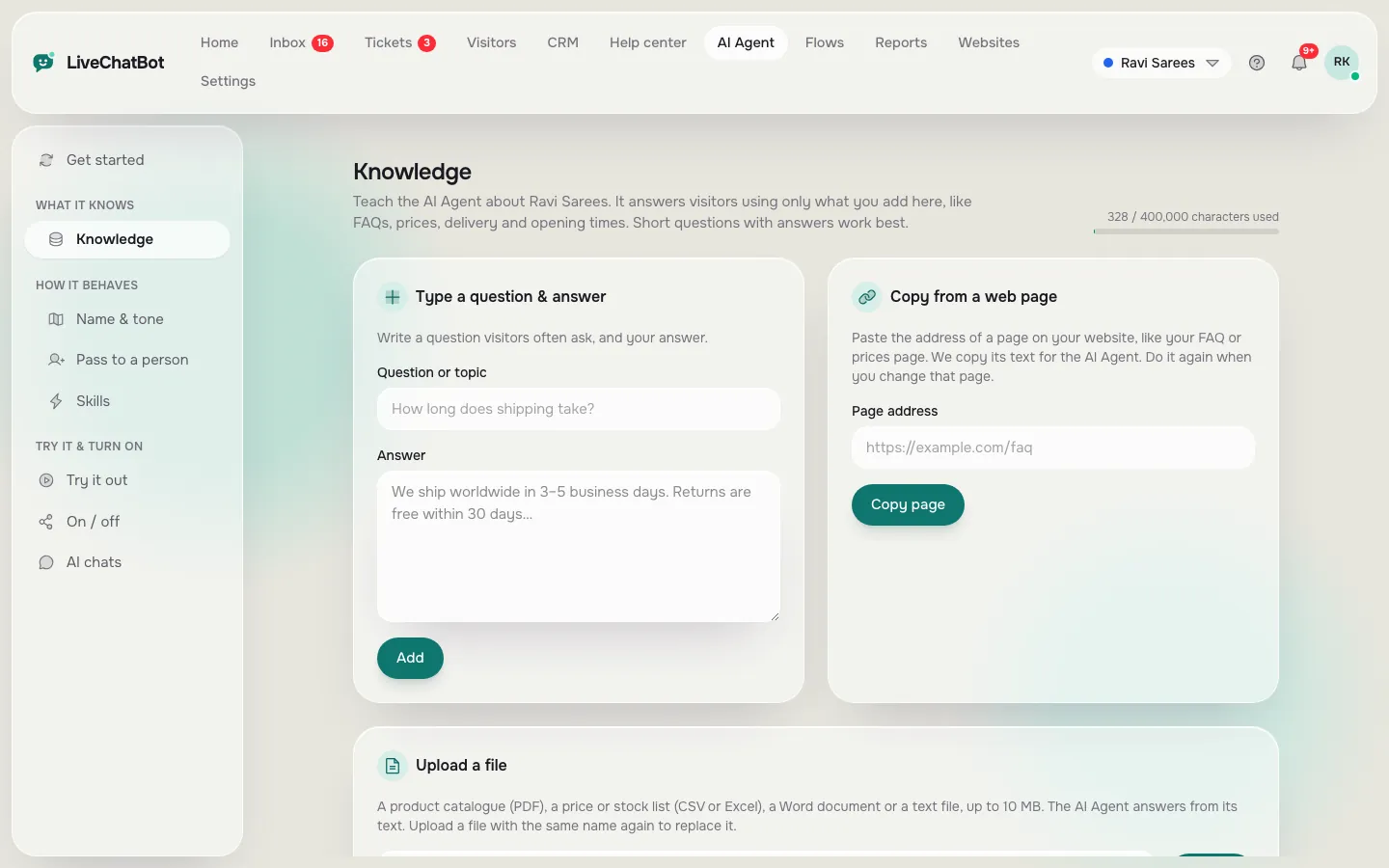
Put prices, hours, delivery areas and refund rules into the AI Agent knowledge. You can type answers, copy a web page, or upload a PDF, Word, Excel, CSV or text file. Facts go in Knowledge. Behaviour goes in Rules.
Give it permission to say “I don’t know”
Add a rule that anything about money, health, law or a specific order goes to a person. When the bot is unsure, it should offer a callback or collect an email and phone number, not invent an answer.
Check your rules the same way a customer would: open the AI Agent playground and ask ten awkward questions before the widget goes live.
Real screens
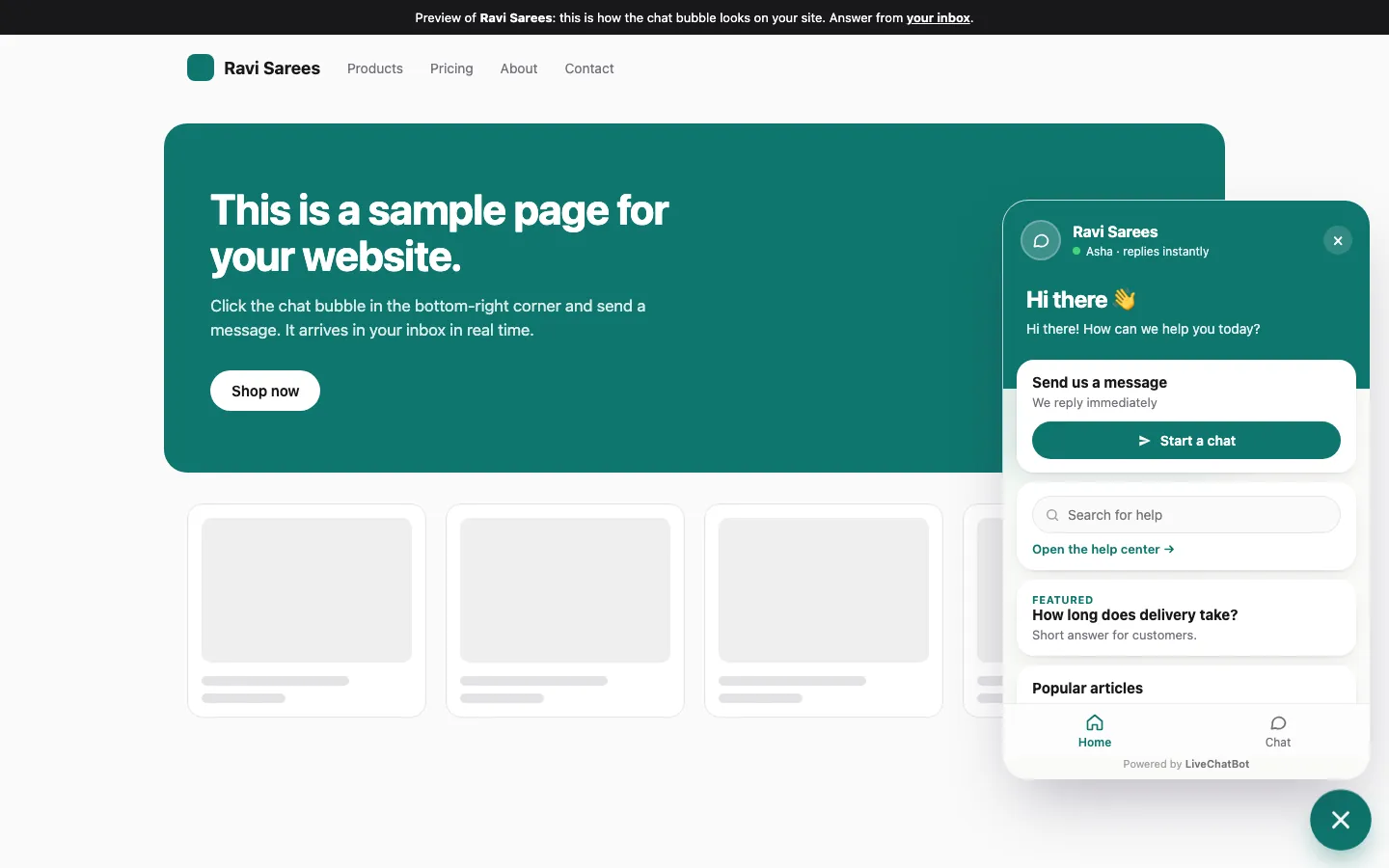
Where you set the tone, the facts and the look
Real screens from the LiveChatBot panel, shown with sample data. Click any picture to see it full size.
Our own numbers
Original data: what the setup looks like in LiveChatBot, with the maths shown
The numbers below come from LiveChatBot’s own plan limits and a worked example, not from a survey.
Plan limits per website
- Free: 2 websites, 100 visitors per website a month.
- Starter, ₹299 a month: 2 websites, 750 visitors shared, so about 375 each if you split them evenly.
- Growth, ₹699 a month: 5 websites, 2,500 visitors shared, so about 500 each if you split them evenly.
- Built-in spam brake: visitor chat messages are limited to 20 per minute per IP address, a fixed setting you do not have to configure.
A worked example (illustrative, replace with your own counts)
Say you answer 12 repeat questions a day and each takes 2 minutes. That is 12 x 2 = 24 minutes a day. Over 26 working days it is 24 x 26 = 624 minutes, or about 10 hours a month. If the bot handles even half of those from your saved facts, you win back around 5 hours, and you only pay with an afternoon of setup. Do the same sum with your own numbers before you decide.
Worry three
Will a chatbot for my website take weeks to set up?
No, a first version takes an afternoon, not weeks. The technical part is a single snippet that you paste before the closing body tag. WordPress owners can use the plugin instead. Wix, Squarespace, Webflow and plain HTML sites take the same snippet through their custom code area, where the plan allows it.
The slower part is thinking about what to say, because the software only repeats what you teach it. Most owners find they already have the material in old emails, a price list and a few pages of the site. Block out an afternoon and gather it in one place first.
- First hour: create the account, add your site and paste the snippet.
- Second hour: write ten answers and set opening hours.
- Third hour: test on your phone and desktop, then ask a friend to chat.
If you want a day-by-day schedule, read build a chatbot for your website in five days.
Worry four
Will it cost more than it earns?
Not if you start on the free plan and judge it on real leads. Start at zero. The Free plan covers two websites with 100 visitors each per month, and has no per-seat charges, so adding staff never changes the bill.
When traffic grows, Starter is ₹299 a month for two websites and 750 visitors shared across them. Growth is ₹699 a month for five websites and 2,500 visitors shared. Payment is prepaid, with no auto-renew and no automatic charges. Yearly plans pay for ten months and give twelve. The ₹299 plan is about three to four US dollars, so check today’s rate.
Judge the return honestly
Count only two things for a month: leads who left an email or phone number, and questions you no longer had to answer by hand. If neither moves, stay on the free plan. See the pricing page for the full list.
Worry five
Will I lose the personal touch?
You lose it only if the bot answers everything with no way for you to step in. A good setup is the bot first, you second. Only if you let the bot answer everything. A good setup is the bot first, you second.
Opening hours decide when a person is expected. During those hours, alerts reach your phone through the Android app, and you can jump into any chat. Outside them, the widget shows an away form for an email or phone number, and a chat rescuer asks for contact details if nobody replies in seconds.
Customers can also rate a chat with a thumbs up or down. Read those once a week and you will hear quickly if the tone is off.
Keep one human rule
Pick one thing that always goes to you: complaints, refunds, large orders or anything emotional. Write it as a Rule, and tell your team the same. A chatbot for my website should feel like a polite receptionist who knows when to fetch the manager, not a wall between you and the customer. Over a month, you will see which handovers were needed and which the bot could have handled alone, and you can adjust the Rules to match.
There are honest limits. “Powered by LiveChatBot” stays on every plan. There is no iOS team app, no voice, and no choice of AI model. WhatsApp and Facebook Messenger messages do arrive in the same inbox, and Zapier and webhooks can bridge other tools. Our free live chat page covers what is included.
What most guides miss
Our rule: write the Never list before you write a single answer
Most guides tell you to start by teaching the bot what to say. We suggest the reverse. Before adding any knowledge, spend ten minutes writing a Never list: the things the bot must never do on your site.
Typical lines are “Never quote a discount I have not approved”, “Never confirm a delivery date”, “Never give medical, legal or tax advice” and “Never argue with an angry customer, hand over instead”. Paste them into the Rules box, then add your facts.
Why this order works
Every owner worry in this guide is really a fear of one specific bad sentence. Once you name that sentence, you can forbid it, and the rest of the setup feels low risk. The test takes five minutes: open the playground, try to trick the bot into breaking each Never line, and fix the Rule wording until it holds. If a line still leaks, move that topic to a person with a handover rule.
Try it
A quick worry check: where should you start?
Four questions. The answer tells you the first thing to set up.
Pick one answer for each question.
Before launch
A short launch routine for the busy owner
Keep the first week small and read every chat. When you are ready, start narrow.
- Switch the chatbot on for one page, such as contact or pricing, before the whole site.
- Read every chat that evening for the first three days.
- Add the three questions it missed as answers.
- Review ratings and leads on day seven in Reports.
This makes a chatbot for my website feel less like a risky project and more like a trial. You can also compare it with other routes in our chatbot for website guide, and read about the website chat widget itself if you want to adjust how it looks. Everything the bot knows is set in the AI Agent, so that is the page to revisit as your business changes.
Frequently asked questions
Is a chatbot for my website hard to install?
No. You paste one snippet, or use the WordPress plugin. The longer job is writing your answers.
Can I stop the bot saying things I don’t want?
Yes. Use the Rules box in the AI Agent and keep facts in Knowledge. You can also step into any chat yourself.
Is there a free option?
Yes. The Free plan covers two websites with 100 visitors each per month.
Will customers know it is a bot?
You can set the name and tone. Saying plainly that it is an assistant builds more trust than hiding it.
What if I have more than one website?
The free plan covers two, and Growth covers five with visitors shared across them.
Keep reading
Related guides
Chatbot for WhatsApp Free: 15 Ready-to-Paste Messages for Greetings, Prices, Hours and Handover
Chatbot for WordPress Free, Month Two Onwards: A Ten-Minute Monthly Upkeep Routine That Keeps Chat Useful (Free Upkeep Checklist)
Chatbot for WordPress Website Owners: Pick the One Job It Should Do First, Then Add the Rest (Free First-Job Quiz)
Try a chatbot on your own site
Free plan for two websites and no per-seat charges. Start free on livechatbot.in.